1. Tenant
Under Tenant, there are two main sections of configuration:
General
Contractual (Subscriptions & Limits)
1.1 General
General
Under General, you get the first information about the account:
Name | Name of the tenant (read-only) It is defined when the tenant is created and cannot be changed. |
Support password | Password that the technical contact has to provide when contacting the Support Team to identify that they have access rights to the account. It is defined when the tenant is created, but can be changed at a later date. |
Email of the tenant's technical contact or team (read-only) It is defined when the account is created and cannot be changed. | |
Phone number | Mobile phone number of the tenant's technical contact or team This field can be left blank or filled at a later date. |
1.2 Pilot mode
Pilot mode
Under Pilot mode, you can read the disclaimer of what you are activating. When activating the pilot mode, you receive access to features that have not been rolled out yet.
In this section, you can:
activate pilot mode
deactivate pilot mode
1.3 Call handling
Call handling
Call handling allows you to enable various key features for the account:
Length of trunk identification number | Selects the maximum number of DID ranges (trunks) that can be configured on this customer account. It can be set to one, two, three or four digits, i.e. up to 10 trunks (0–9), 100 trunks (0–99), 1000 trunks (0–999) and 10000 trunks (0–9999). For instance, if you set the length to one digit, the customer will only be able to have up to 10 (trunks) on their account. This setting will also be used for outbound trunk configuration in Phone Extensions. Please note that this setting can be changed at a later stage, but this will have an impact on how users operate features that require the trunk number, e.g. dialling from a specific outbound trunk. In this case, you will need to communicate this change to all end users. |
Enable intercom | Allows the device to be used as an intercom. Activating this setting only allows this feature to be configured later under Extensions. |
Use speed dial | Activates/deactivates the use of speed dial. With speed dial, you can dial 2 followed by a number to select an entry from a pre-defined speed dial list. You can then set a speed dial length. This is the digit length of the speed dial codes for the customer. This can be 1, 2, 3 or 4 digits. For example, by selecting a speed dial length of "2", up to 100 speed dials (00–99) can be added to the phone system, which can then be used by dialling 2+speed dial. By default, speed dial length is set to 9, which means that the feature is disabled. Please note that there is no section in the Administration Portal to manage and maintain the list of speed dials. Speed dials must be uploaded as a .csv file. This option is available under Contacts and Extensions. When clicking on Import CSV, you can either import a file or download a template. |
Dial with prefix | By default, this feature is enabled, and you cannot change it in the K account. Configures the dial prefix. A dial prefix allows you to make an external call. You select a dial prefix relevant to the country or region. You can also configure the dial prefix under Sites. When configuring an extension later, you can choose where the target will inherit the dial prefix from. Please note that in most European countries, Health & Safety legislation requires employers to ensure that emergency services can be called from any business phones by dialling 999 or 112, without having to enter an external line prefix to make the call. |
Callback on busy/not available | Activates/deactivates callback on busy/not available. It only applies to internal calls and must be activated for a phone extension as well. By default, this feature is enabled. |
Use project number | Activates/deactivates the use of a project number and sets the project number length. This feature enables recording and charging of call expenses according to, for example, customers, using project numbers. You will need to enter the project number before making an external call, e.g. *9 + project number + phone number. |
Play announcement before entering a conference | Activates a default announcement before entering a conference room. |
Snom: transfer on hangup | Specific feature for snom devices. You can select between mixed, on and off. When set to on, it will transfer a call to another target upon hanging up. |
Enable click-to-dial | Allows you to place calls directly from the user app, e.g. PC or mobile client, to be picked up with a desktop phone. By default, this feature is enabled. |
1.4 Network handling, Device handling and Integration
Network handling
Under Network handling, you have the following options:
Disable T.38 for fax | Activates/deactivates to globally disable the T.38 fax protocol for all inbound and outbound calls, including the eFax service. Faxes will be transmitted using G.711 (audio) only. Only available for A accounts. |
Alternative SIP port | Activates/deactivates using a non-default port setting for SIP, which can help avoid firewall problems. Only available for A, C and S accounts. |
SIP transport protocol | Allows defining over which transport protocol devices/apps on this site communicate. By default, it is set to UDP (User Datagram Protocol), which means that the calls are not encrypted. TLS (Transport Layer Security) ensures that all calls made from certified devices that support SRTP (Secure Real-time Transport Protocol) will be encrypted. TCP is only available for A accounts or is visible when it has already been set by the A account. Please note that in most cases, TLS is a chargeable feature charged per device. Please note that if this setting is reset, all end-user certified devices will reboot. |
Provision site VLAN settings | Activates/deactivates the connection of desk phones to a business VLAN network. |
Device handling
Under Device handling, you have the following options:
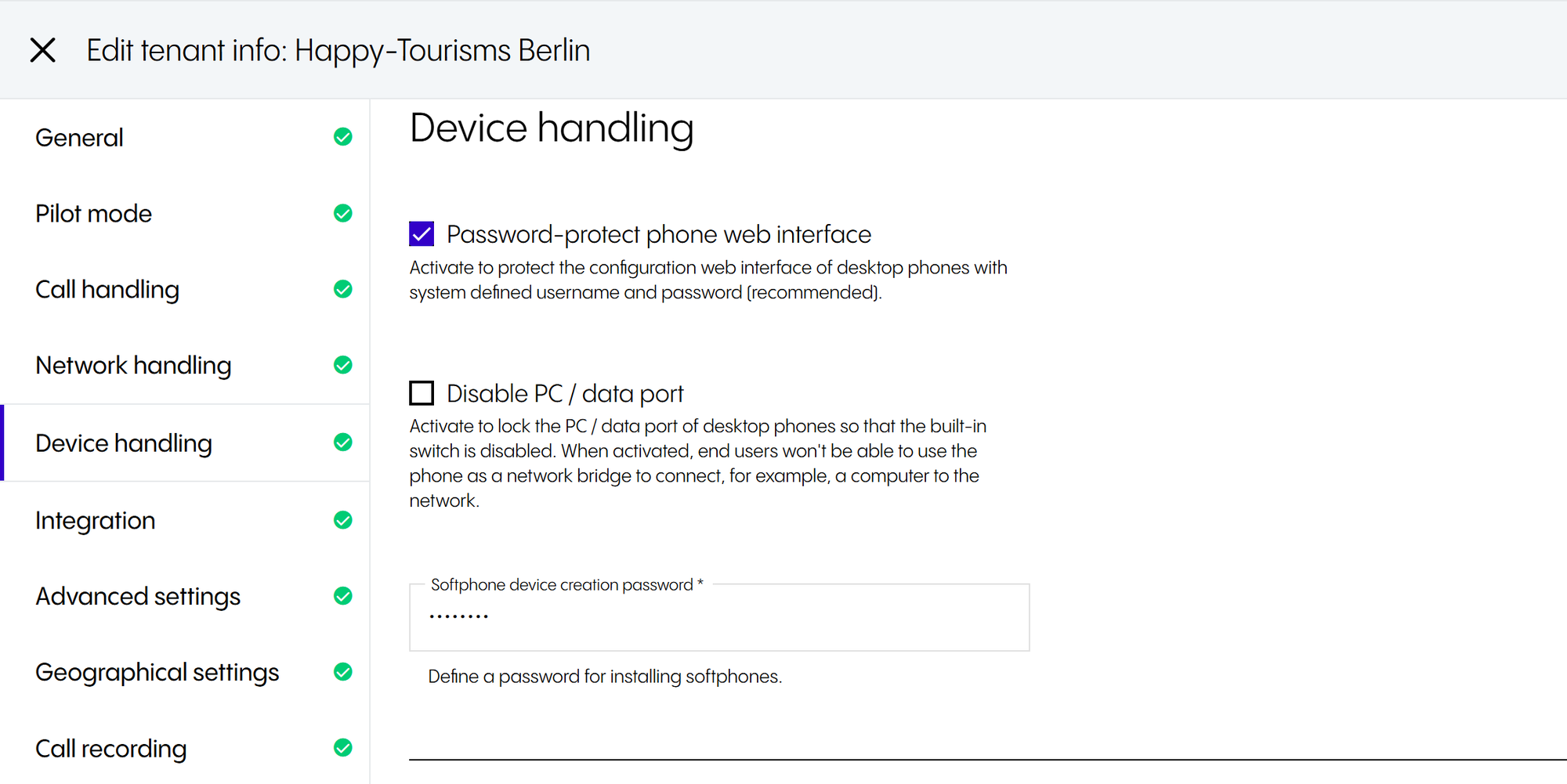
Password-protect phone web interface | Security feature for desktop phones which activates/deactivates protection of the configuration set up during provisioning. Password protection will prevent changes made by end users, which may disable the device or impact required settings. We recommend having this feature activated at all times. |
Disable PC / data port | Locks the PC / data port at the back of the phone, so that the built-in switch bridge is disabled. By default, this option is disabled. When enabled, end users won't be able to use the phone as a network bridge to connect their computer to the network. When disabled, end users will be able to use the phone as a network bridge to connect their computer to the network. |
Softphone device creation password | When you first install a softphone, you are required to enter this password during the setup process to authorise the installation. You have to change this password, as the default password is unknown. |
Integration
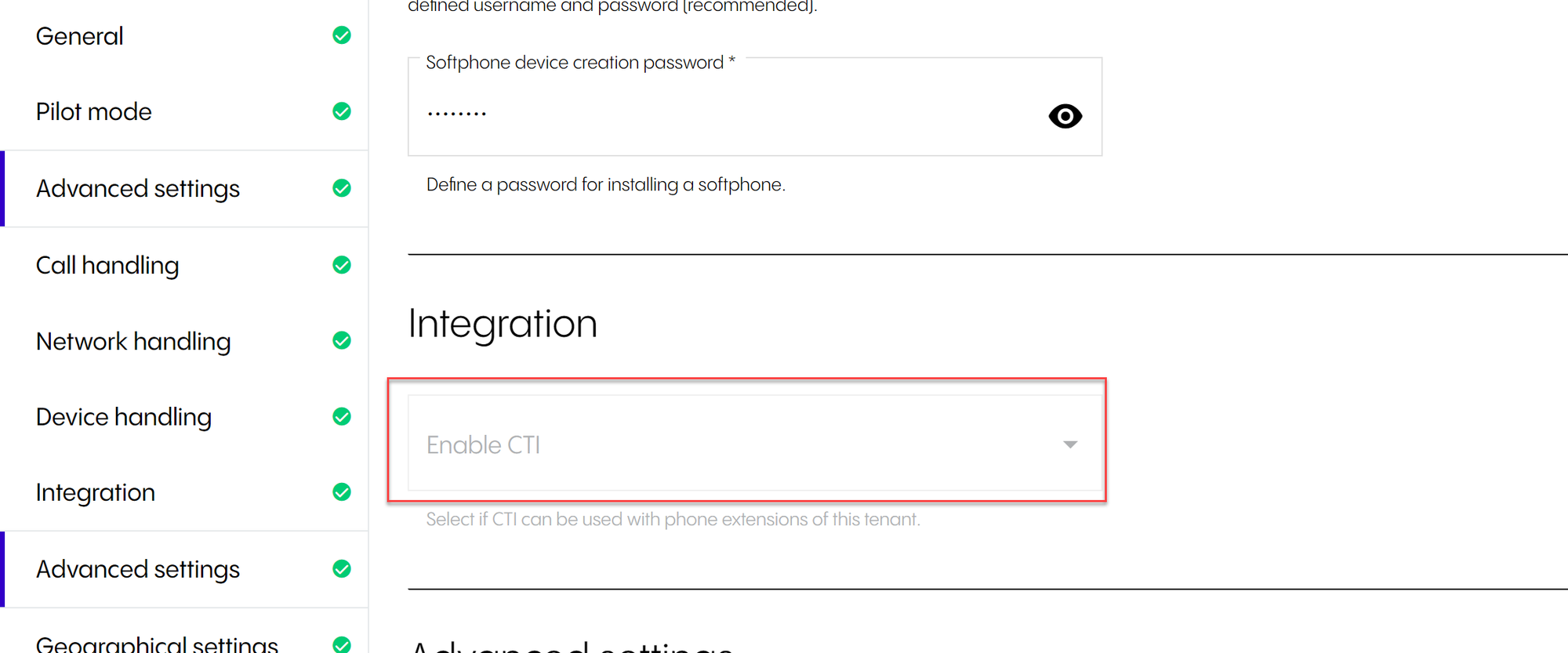
Under Integration, you can see whether CTI is activated or deactivated on the tenant (read-only). To enable it on a target, this setting must be configured later under Extensions.
1.5 Voicemails, Geographical settings and Call recording
Voicemails
Under Voicemails, you have the following options:
Minimum length of voicemail PIN (toggle) | Activates the possibility to set an individual minimum length of the voicemail PIN different from the operator's default value of 6 |
Minimum length of voicemail PIN (digits) | Selects any length between 4 and 32 digits from the drop-down menu |
Maximum length of voicemail PIN (toggle) | Activates the possibility to set an individual maximum length of the voicemail PIN different from the operator's default value of 8 |
Maximum length of voicemail PIN (digits) | Selects any length between 4 and 32 digits from the drop-down menu |
Allow voicemail sharing and notifications via email | Activates voicemail sharing and sending notifications via email globally. Please note that individual settings for sending voicemail notifications per email within a phone extension are only available if the global setting is activated. |
Geographical settings
Under Geographical settings, you have the following options:
Time zone | The time zone settings are inherited from the operator, e.g. NFON UK, distributor or white-label reseller. Please note that changing the time zone in the tenant configuration will influence the number of targets which inherit their default time zone from the customer profile:
|
Add direct call emergency numbers | Sets direct call emergency numbers. Making external calls usually requires the user to dial an external line prefix, e.g. 9 or 0. Please note that in most European countries, Health & Safety legislation requires employers to ensure that emergency services can be called from any business phones by dialling 999 or 112, without having to enter an external line prefix to make the call. When adding a number to the list, you will need to choose from a pre-configured list of emergency numbers. This list contains emergency numbers from countries where NFON officially operates. The system will prevent you from setting an extension that conflicts with a standard emergency dial number. Before adding an emergency number to this list, you must ensure that no extension with the same number is already configured in the tenant. |
Call recording
Under Call recording, you can activate NFON's ad-hoc call recording feature that records calls upon user request (on-demand recording). Dial *1 to start or end recording.
Please note that:
these recordings are not permanent and are emailed to the user afterwards in either .mp3 or .wav format (according to the audio format you have selected)
this setting is not related to permanent call recording (recording all calls for a phone extension).
With Inform at the start of a call recording, you can configure who should be notified that the call is about to be recorded using the drop-down box.
Please note that in some countries, there are legal requirements for all parties to be formally notified that a call is about to be recorded.
Should you activate Inform at the start of a call recording, you need to upload an announcement that will be played each time a user dials *1.
1.6 Transcriptions
Transcriptions
Under Transcriptions, you have the following options:
Transcribe voicemails | Activates automatic voicemail transcription Active by default for all extensions. Please note that if you want to deactivate this setting for a specific extension, you have to do it under Extensions > Phone extensions, see Voicemail . Please be aware that if this setting is deactivated, it is not possible to activate it individually for a specific extension. |
Call transcription: Request consent at the start of a transcription (toggle) | When enabled, requests consent before the start of the call transcription. Please note that if this option is deactivated, consent will not be requested and callers will only hear an information message that the transcription has started. Please note that this option is only available if you have at least one active AI Essentials license. |
1.7 Contractual: General & Subscriptions
Contractual: General
Depending on the contract, with some customer accounts you will see Contractual (Subscriptions & Limits) section consisting of two tabs, General and Subscriptions. Both sections are read-only and serve for visibility. These sections are pre-configured.
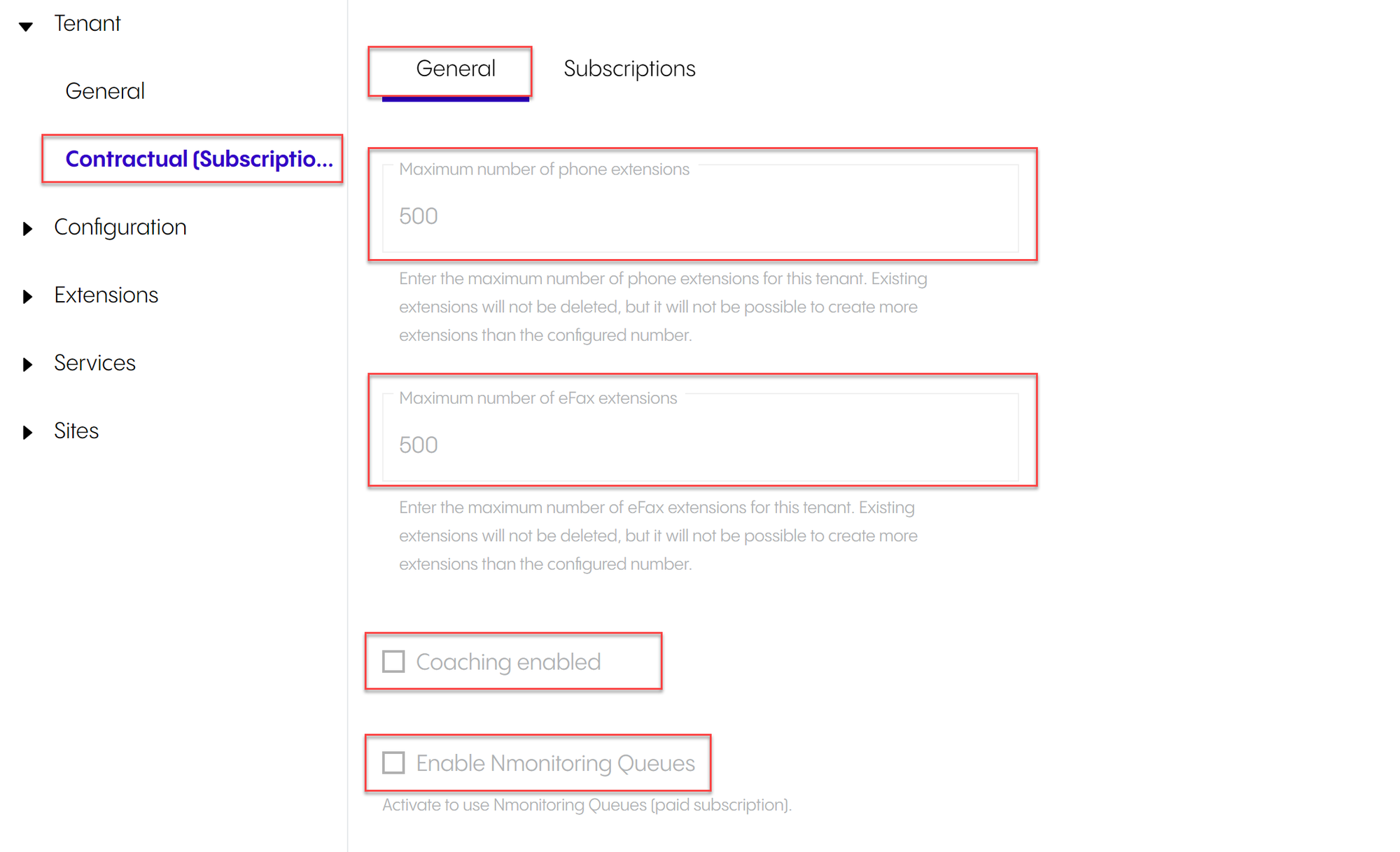
Under General, you can see
maximum number of phone extensions that can be created on the tenant
maximum number of eFax extensions that can be created on the tenant
whether Coaching is enabled/disabled
whether Nmonitoring Queues is enabled/disabled
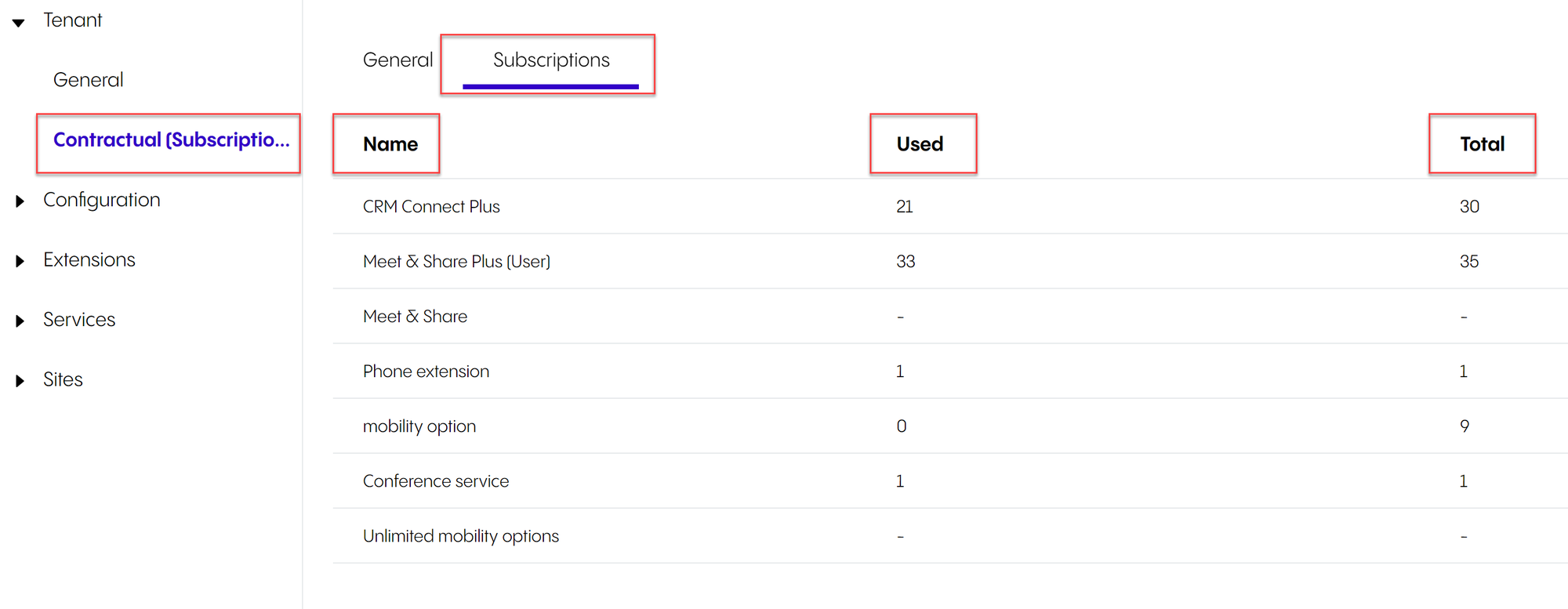
Contractual: Subscriptions
Under Subscriptions, you can see
which paid subscriptions are active on the tenant
how many subscriptions are in use
total number of subscriptions