6. DID
What is a direct dial number?
The direct dial number corresponds to your external telephone number. That is, this is the number you can be reached at from outside. A direct dial number can refer to either an extension or a service (group, telephone conference, voice dialogue, etc.).
How to configure a direct dial number?
Manual:
Firstly, define the direct dial number that is supposed to serve for external calls for a certain extension or service. Choose a respective trunk line and the corresponding direct dial number.
Secondly, choose the respective target for your direct dial number. This might be an extension or a service. In most cases, the direct dial number is your extension number. It is possible, however to have different numbers for external and internal calls. The latter case applies, for example, for group numbers or telephone conference numbers.
After you have signed in, the main navigation window appears.
After you have selected "DID" a new window appears.
Sections | Pictures | |
Trunks |
| |
DID |
|
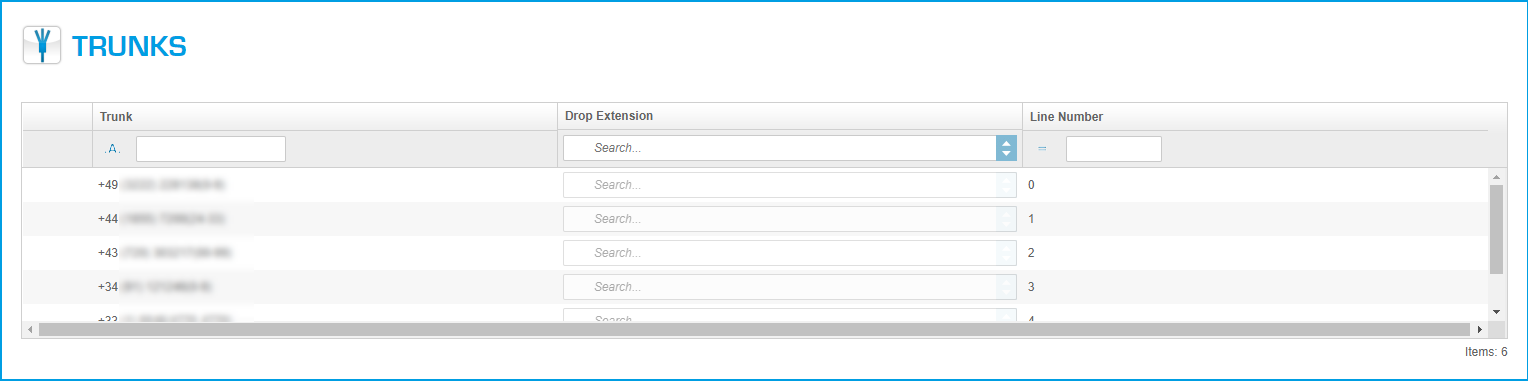
6.1. Trunks
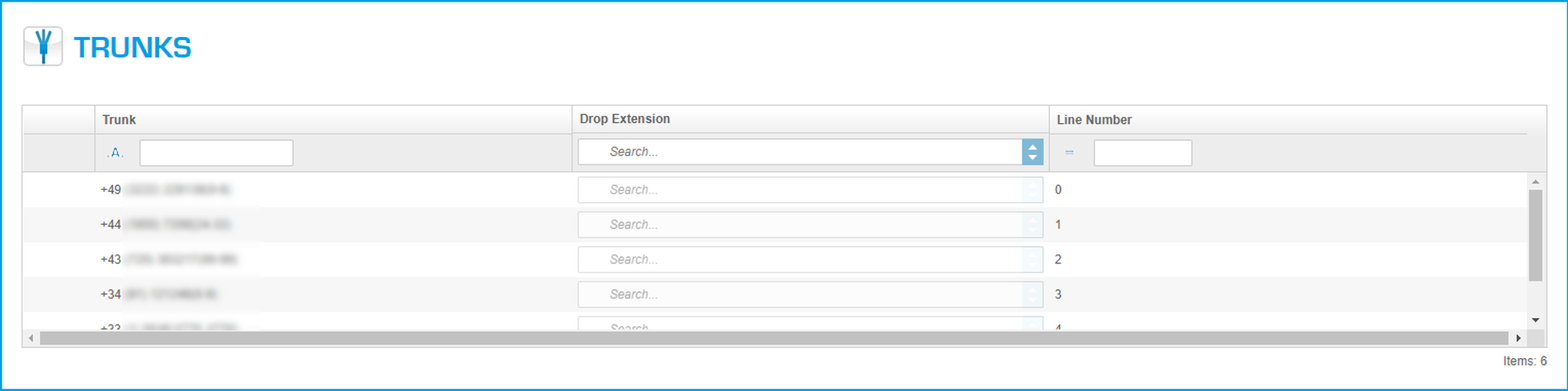
Trunks
On the administration portal click the navigation item "DID"
Fieldname | Description |
Trunk | Select an outside line for which you would like to add the direct dial number. |
Drop extension | Select the destination for the "drop extension". Definition of a "drop extension": If someone calls a number, where there is no extension assigned to, he will be directed to this extension. |
Trunk number | Define the trunk number for the selected trunk. The trunk number can have 1,2 or 3 -digits. You define this in "Administration/Profil/Configuration (see 5.1.2 Configuration). Every trunk can have only one unique trunk number. Example: If you have assigned a 2 digit number for the trunk number 8, then you have to enter 08, and so on. |
Icons | Function | |
| Edit entry. | |
| Save changes. | |
| Quit without save. |


6.2. DID (Direct inward dial)
DID
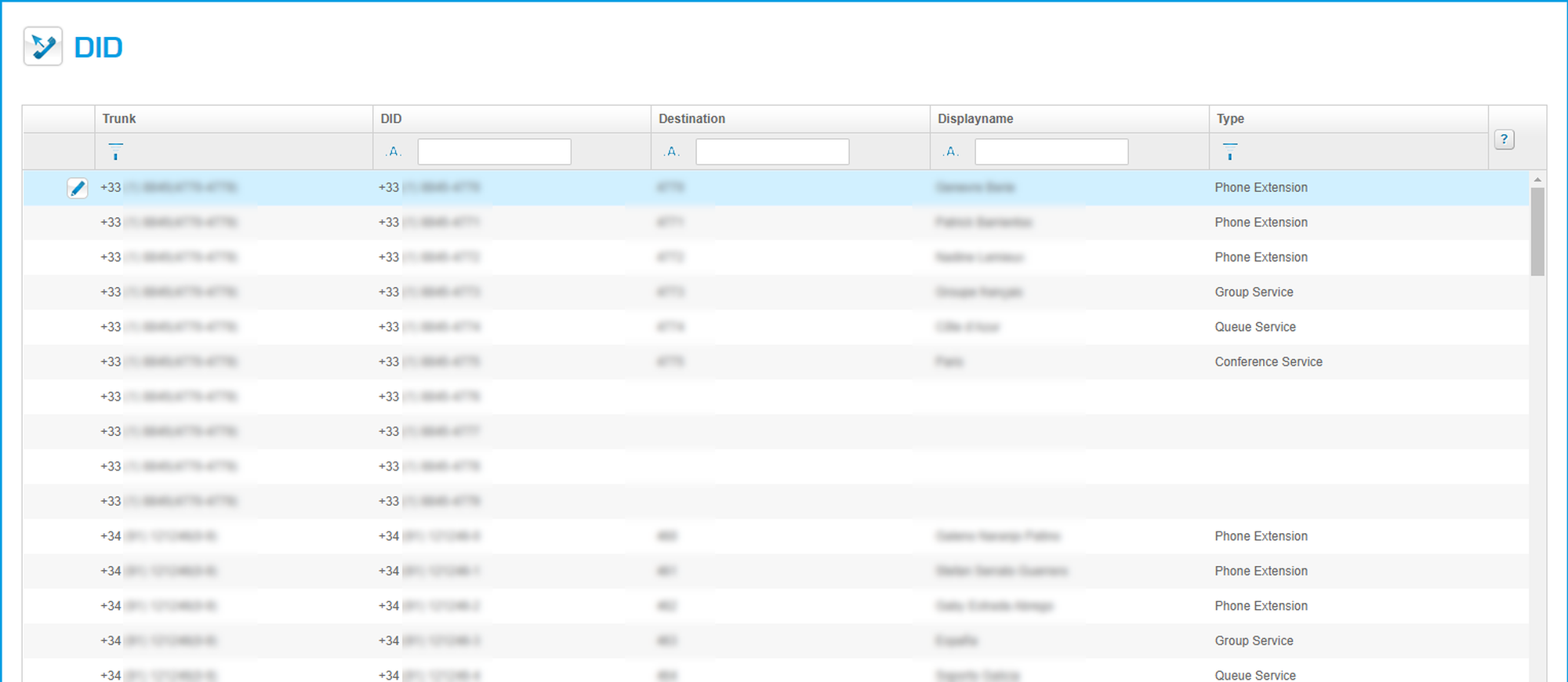
On the administration portal click the navigation item DID.
Fieldname | Description |
Trunk | Select a trunk to define a name. ( also possible for a function, e.g. mailbox). |
DID | DID which belongs to this trunk. |
Destination | The extension number is shown. |
Display name | Select the name or function which will be assigned to this trunk, DID. |
Type | Enter sort criteria, sort possibilities for the different functions. |
Icons | Function | |
| Edit. | |
| Save changes. | |
| Quit without save. |
