5. Reports Catalogue
The Reports Catalogue is a repository of report templates that provides a starting point and recommended reports.
The following section details an explanation of each report available.
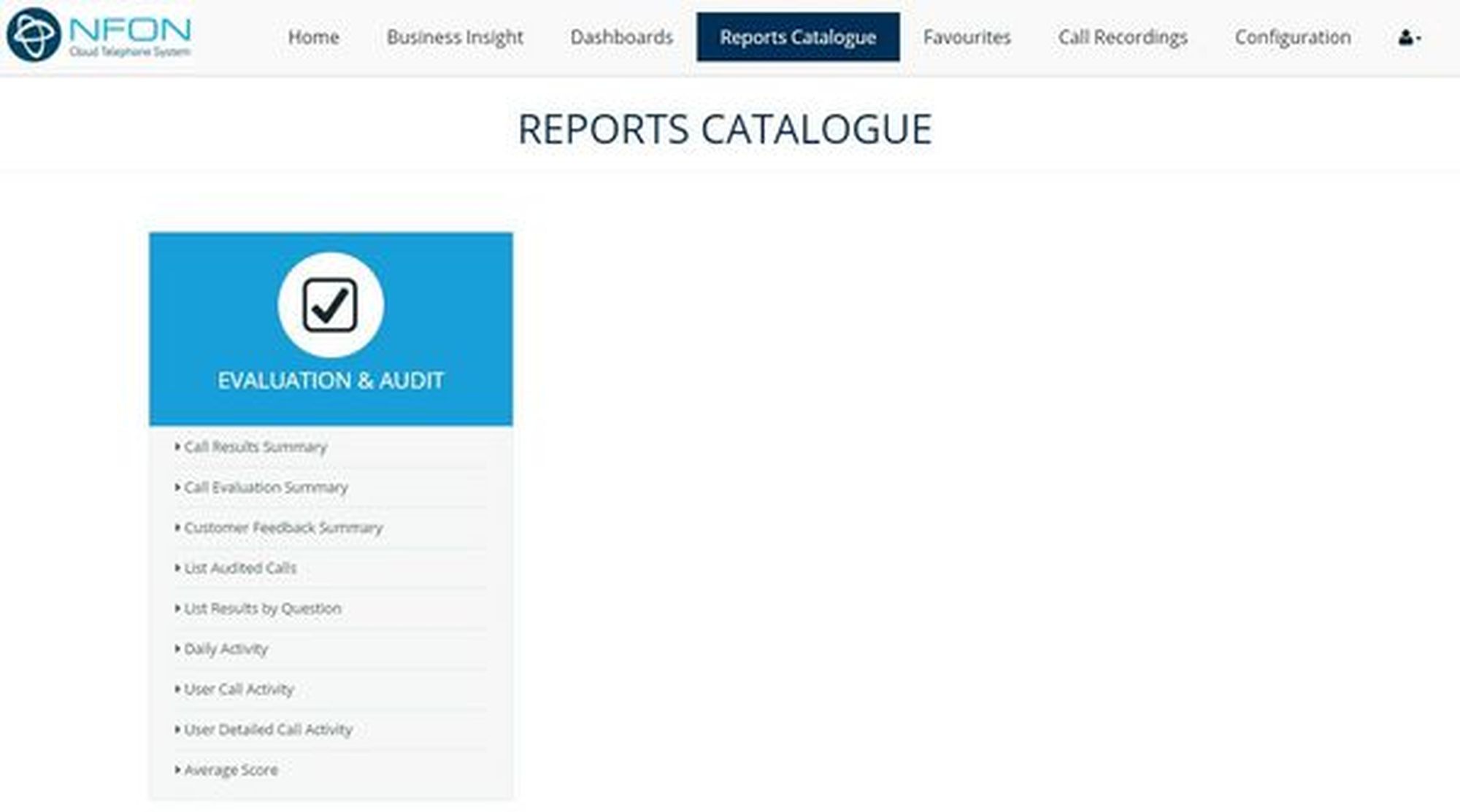
Evaluation & Audit
This folder contains reports on call evaluation, quality monitoring and audit.
Call Results Summary
Call results can be added to calls through the call recordings section. There are many options to choose from such as complaint, non-sales calls and sales calls. Once an option has been chosen for a call recording it will be reflected in this report showing the total calls that have been given the same call result.
Call Evaluation Summary
Once a call recording has been evaluated, this report shows all the questions that were answered and provides a total and average score of each evaluation question.
Customer Feedback Summary
Customer feedback can be added to calls through the call recordings section. There are several options to choose such as abusive caller, satisfactory call and unsatisfactory call. Once a feedback option has been chosen for the call recording, this report allows you to see the total calls that have been given the same customer feedback.
List Audited Calls
When users listen to call recordings, this report provides information on what users have listened to a specific call. The report provides brief information on the call that was played, date/time the call was listened to and extension that has listened to the call.
List Results by Question
Agents can use the call evaluation option to evaluate call recordings on call handling, call close and technical knowledge. This report shows the total score and average score given to each evaluation question by agent.
Daily Activity
This report displays brief call information such as number of outgoing and incoming calls, total talktime etc. over a period of one day. The Summary tab displays the total calls and total calls by direction (outgoing and incoming).
User Call Activity
This report displays a summary of calls for every user. The report provides information on total calls, average talk time and number of calls per direction for each user. The Summary tab displays the total calls and total calls by direction (outgoing and incoming).
User Detailed Call Activity
This report displays detailed list of calls for every user. The report provides detailed information on every call that a user has made or received such as the date/time, duration, number etc. The Summary tab displays the total calls and total duration across all users. This report can be used to view the exact call flow. For example, users can see if the call has been transferred to another user.
Average Score
This report provides information on the average score given to agents when call recordings have been evaluated through the call recordings section.
5.1. Applying filters to reports
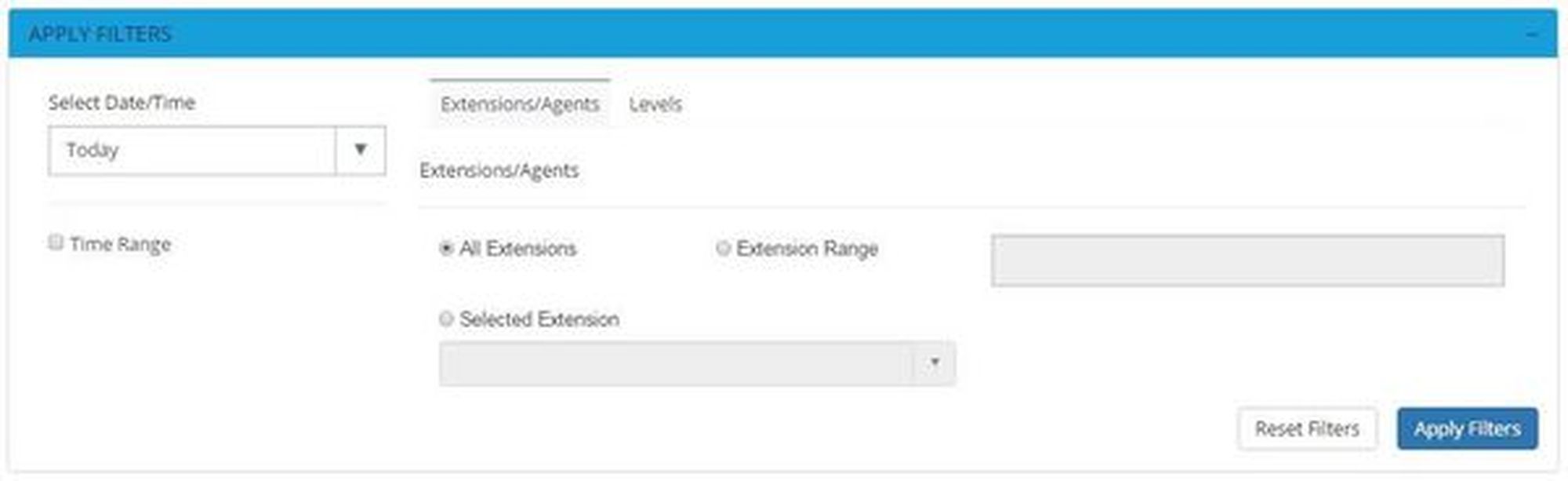
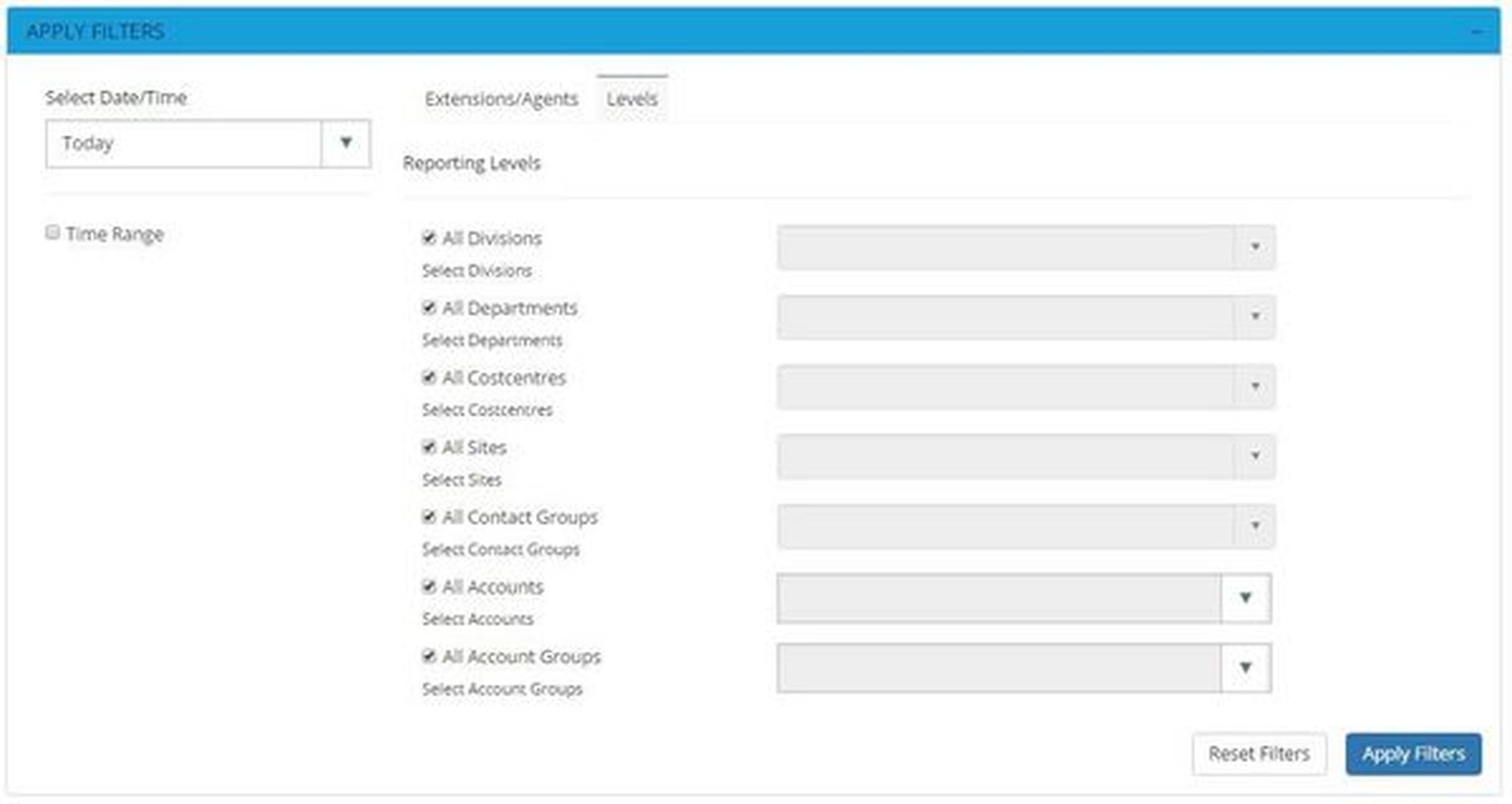
‘Filter’ is a very powerful tool that gives users the ability to narrow down call information to meet their reporting requirements. Filter options are available on any report and users can access this by simply clicking on ‘Apply Filters’ which presents the following screen:
Select Date/Time
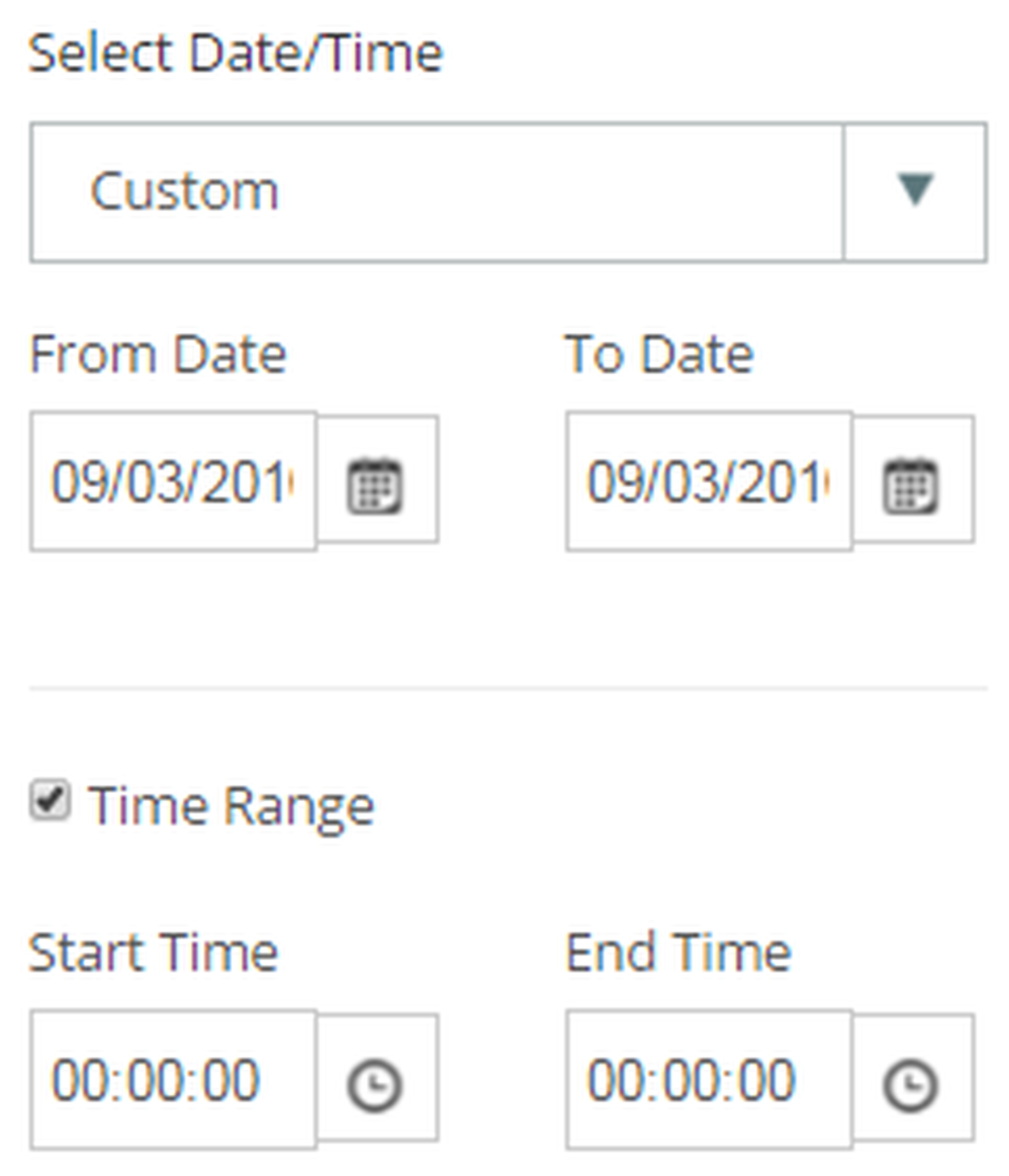
Users can apply date or time filters to analyse call information for a specific date or time period. Select the Date/Time drop down to select pre-defined dates / date ranges or input custom dates and times. This filter can be useful when searching for a call at a particular time/date.
Extensions/Agents
The group filter has six dropdowns for division, department, cost centre, site, account or account group. Users can limit reports to show all call data from a single group and/or select particular divisions/departments/cost centres/sites/accounts or account groups using the dropdown list. All these groups are picked up via synchronisation with the telephony platform. By default all groups will be selected, however, users can untick a box to select from the dropdown.
This filter allows users to report on individual or multiple extensions/agents, helping to narrow report results to focus only on the extensions/agents of interest.
Users have three options on this filter:
1. All Extensions: Users can apply this filter to report on all extensions that are active. By default this option is always applied.
2. Extension Range: Users can enter specific extensions (separated by a comma) or an extension range (using a hyphen).
3. Selected Extensions: Users can select from the list of extensions detected during configuration of the software. Extensions can be selected from the list of ‘Available Extensions’ and moved across to the ‘Selected Extensions’ box using the arrows. Using this filter provides the benefit of viewing extensions by name.
Levels
A reporting level group (division, department, cost centre, site contact group, accounts, account groups) contains multiple extensions to make it easier to create reports, rather than using filters to manually select multiple extensions.
The group filter has six dropdowns for division, department, cost centre, site, account or account group. Users can limit reports to show all call data from a single group and/or select particular divisions/departments/cost centres/sites/accounts or account groups using the dropdown list. All these groups are picked up via synchronisation with the telephony platform. By default all groups will be selected, however, users can untick a box to select from the dropdown.
5.2. Report "Action" Menu
At the top of every report there are icons which enable users to create a live tile, save as a favourite, save as PDF or CSV, email report or schedule the report. Details of each action follow.
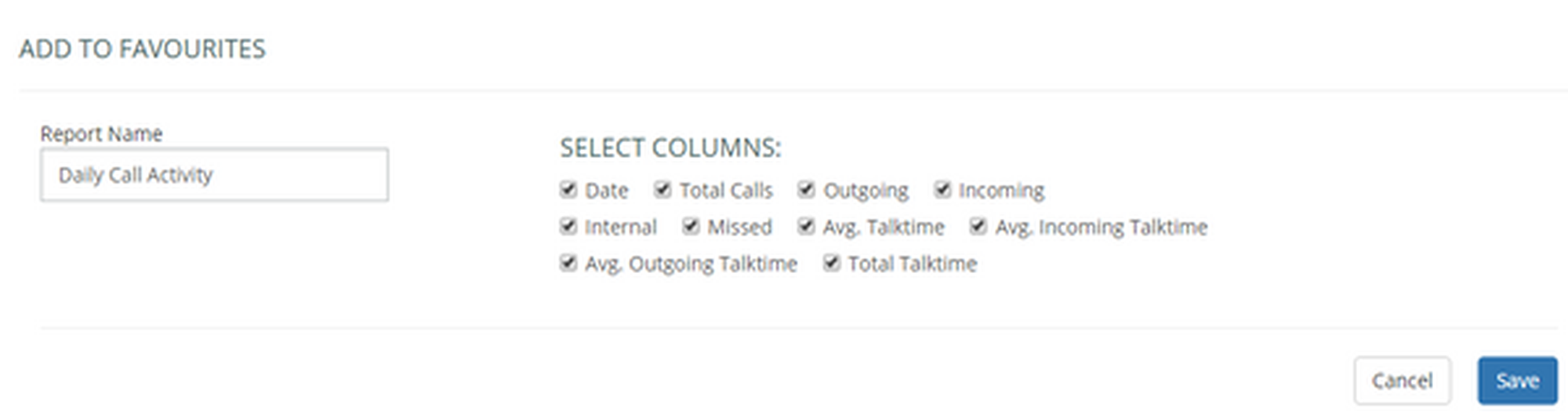
Users can add a unique name to their report so it is identified from the Favourites section.
Users can select/deselect columns they wish to add to their Favourite report.
Save as PDF/Save as CSV
This option allows users to save the reports they currently have open in either a PDF or a CSV format.
This option allows users to email the report instantly to any email address in either PDF or CSV format.
5.3. Create live tiles from reports
Live tiles are configurable report components that enable users to view real-time data or historical data in a concise fashion. Live tiles use a number of graphical components such as wallboards, speedometers, thermometers, grids, tables, charts and reports.
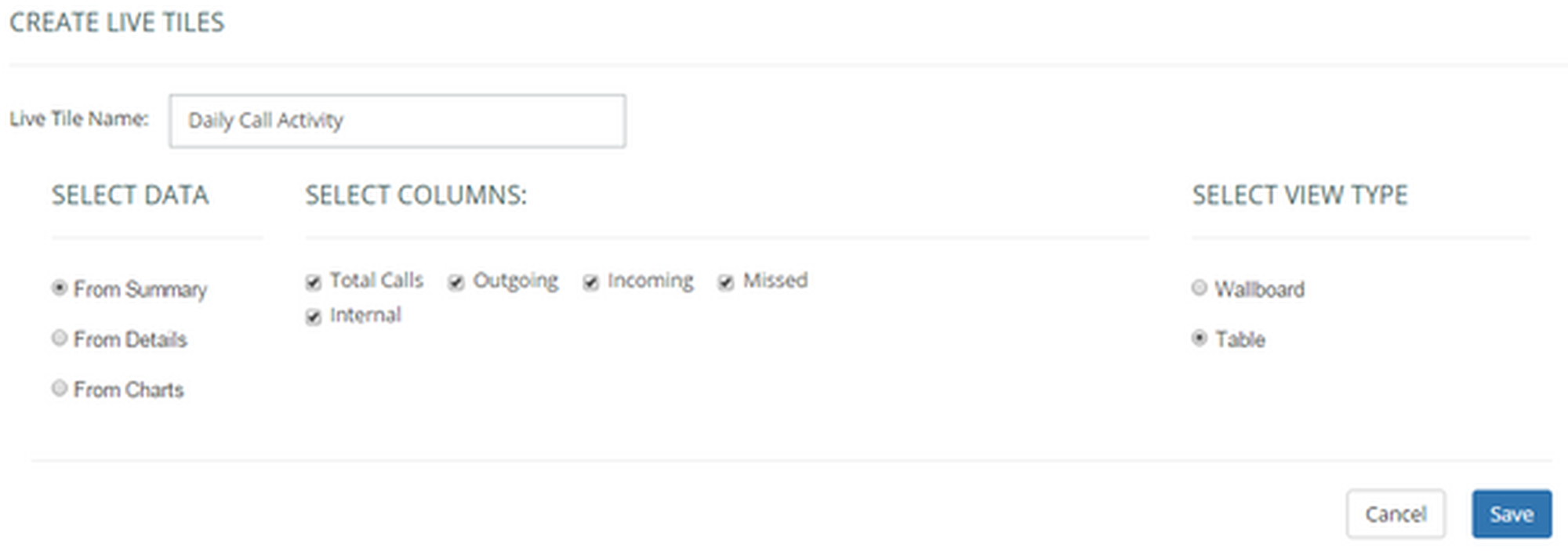
After clicking on the ‘Create Live Tile’ icon, the user will be presented with the screen below:
Firstly the live tile should be named so it can be easily identified from the ‘My Live Tiles’ list in the dashboard section.
Users can specify exactly which data they wish to appear on their custom live tile. Data can be selected from the report summary tiles at the top of the report, the report details or from the report graphs.
Once data has been selected, the user can select a view type. Options such as wallboard, table, chart and speedometer will be available depending on the type of data that has been selected.
The live tile will appear in the list of ‘My Live Tiles’ in My Dashboard. From there it can be added to the display.
To delete a live tile go to My Dashboard – My live tiles and click the ‘no entry’ symbol next to the relevant tile. It is not possible to delete another user’s live tile.
5.4. Schedule Reports
Any report can be scheduled as a new task or added to an existing task.
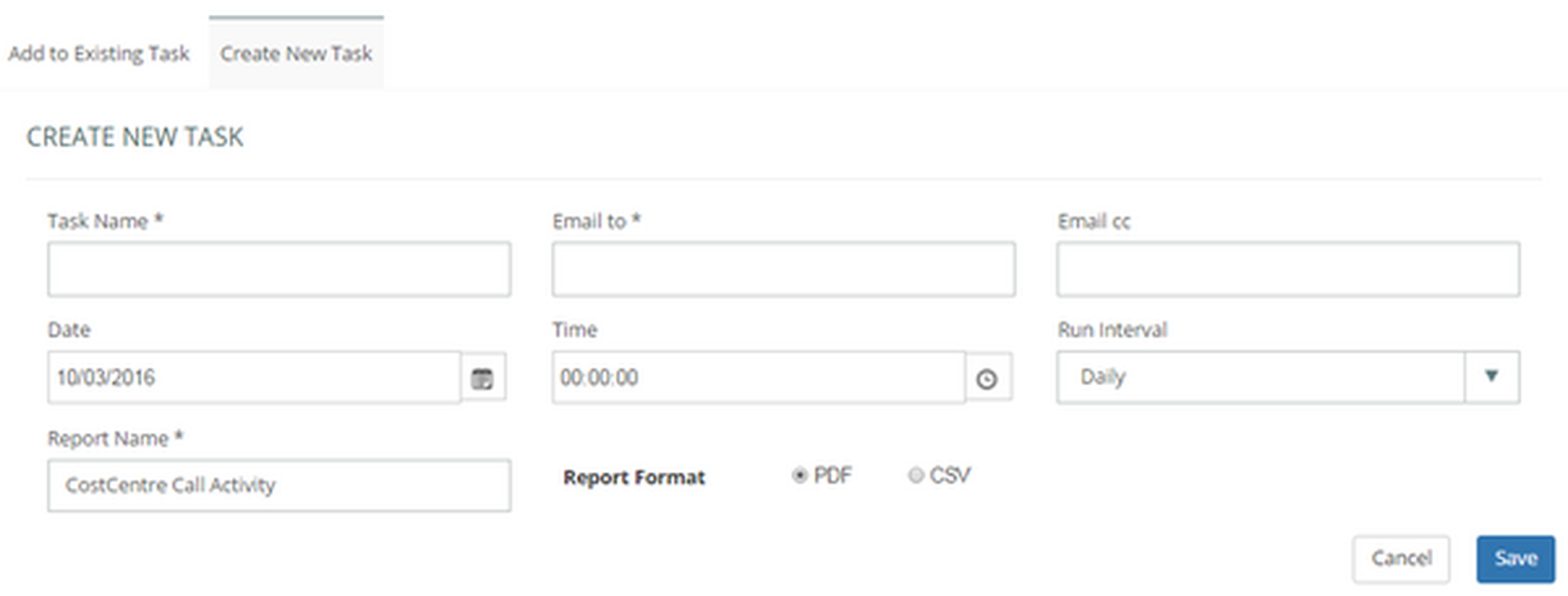
Firstly, when creating a new scheduled report, the user should click on ‘Create New Task’ then allocate the task a name so it can be easily identified in the ‘Scheduled Task’ list in ‘configuration’. Further reports can be added to this task in order to provide one (or more) person(s) with multiple scheduled reports.
One or more email addresses can be entered, then the time, date and run interval for the report can be set. The report should be given a name and the format for the report (CSV or PDF) should be selected.
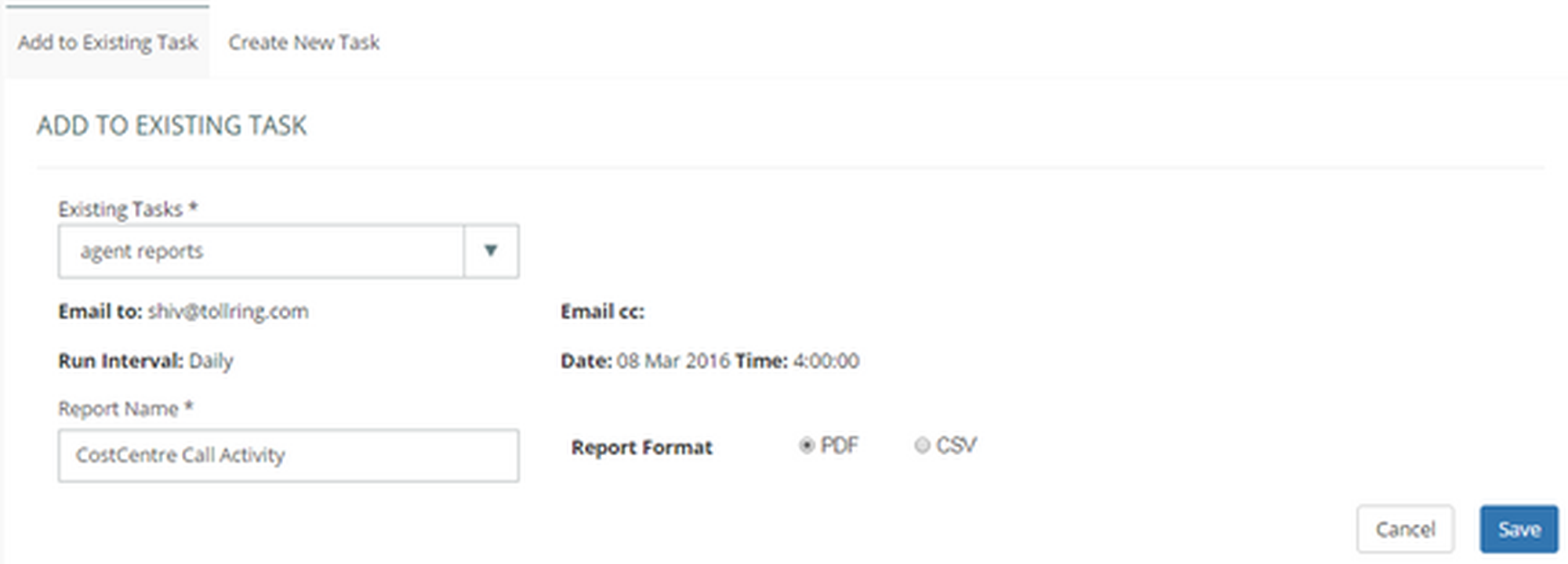
A report can be added to an existing task through the ‘Add to existing task’ tab.
Existing tasks appear in a dropdown list to enable the user to select the task to which the report should be added. Details such as when the report will run, to whom the report is sent, and how often, will appear when an existing task is selected.
The user should allocate the report a name and choose the format of the report (PDF/CSV), then save the report to the existing task. Reports allocated to tasks can be edited / deleted in ‘configuration’.
5.5. Favourites
All the Favourite reports created from the reports catalogue using the favourites icon, will be available in this section.
Select a report name to view the report with the filters applied when it was saved to favourites.