6. Recordings
The call recordings section displays all recorded calls within the business. Users are able to find, play, save, email and evaluate call recordings. There are several filter options to choose from when finding a call, which are covered later in this document.
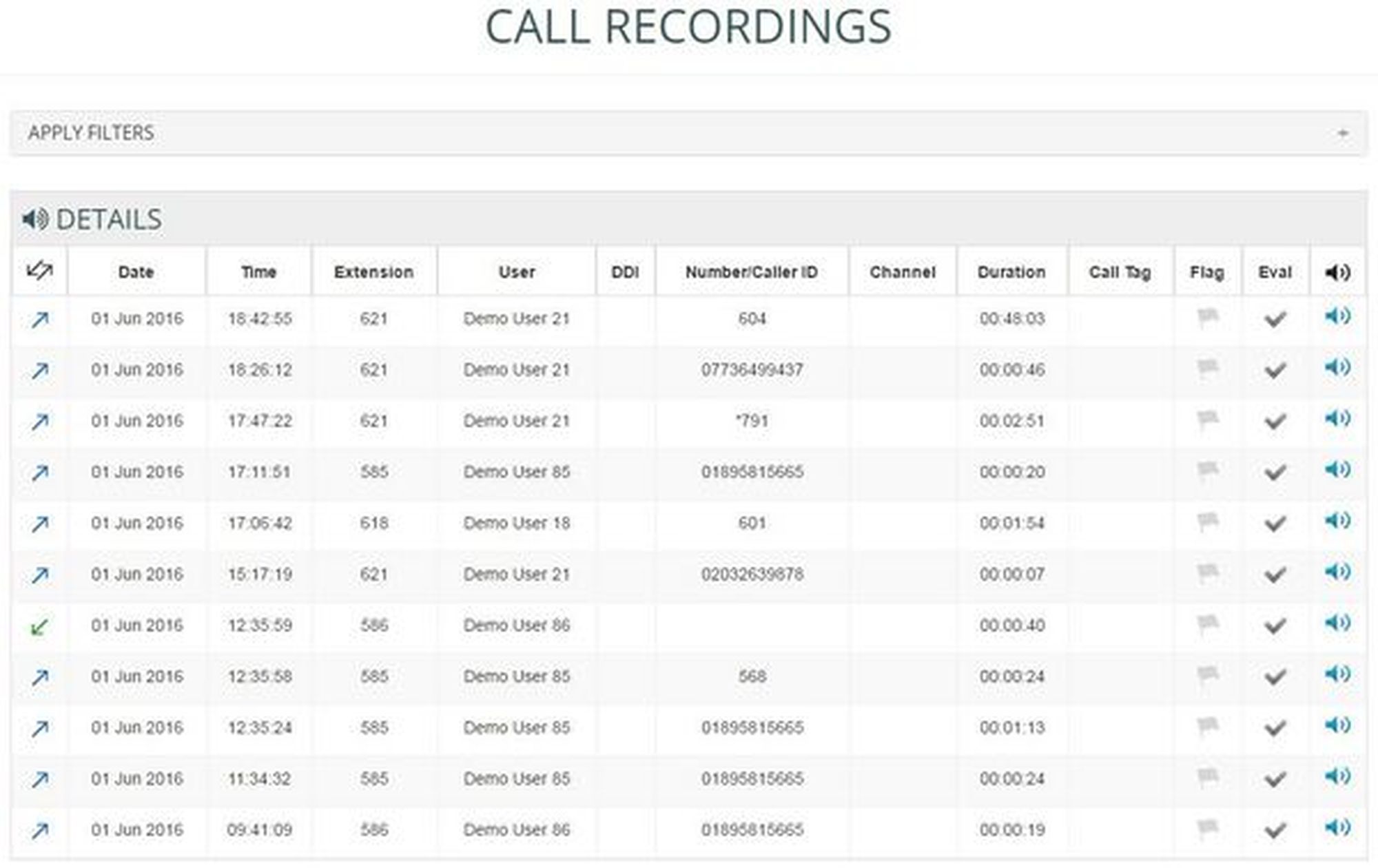
The call recordings screen displays the following stats in a tabular format:
Direction – the direction of the call, whether it’s incoming (green) or outgoing (blue)
Date – the date of call
Time – the time of call
Extension – the extensions that has taken or made the call
User – the name of the User
DDI – the DDI number that received the call
Number\Caller ID – the number dialled or received (withheld numbers will not display any number)
Channel – the channel that the call has come on
Duration – the duration of the call
Call Tag – free text field
Flag – flag a call recording
Evaluation – evaluate a call recording
Play button – play the call recording
Once you click on the play button you will be presented with the call player:
6.1. Call recording player
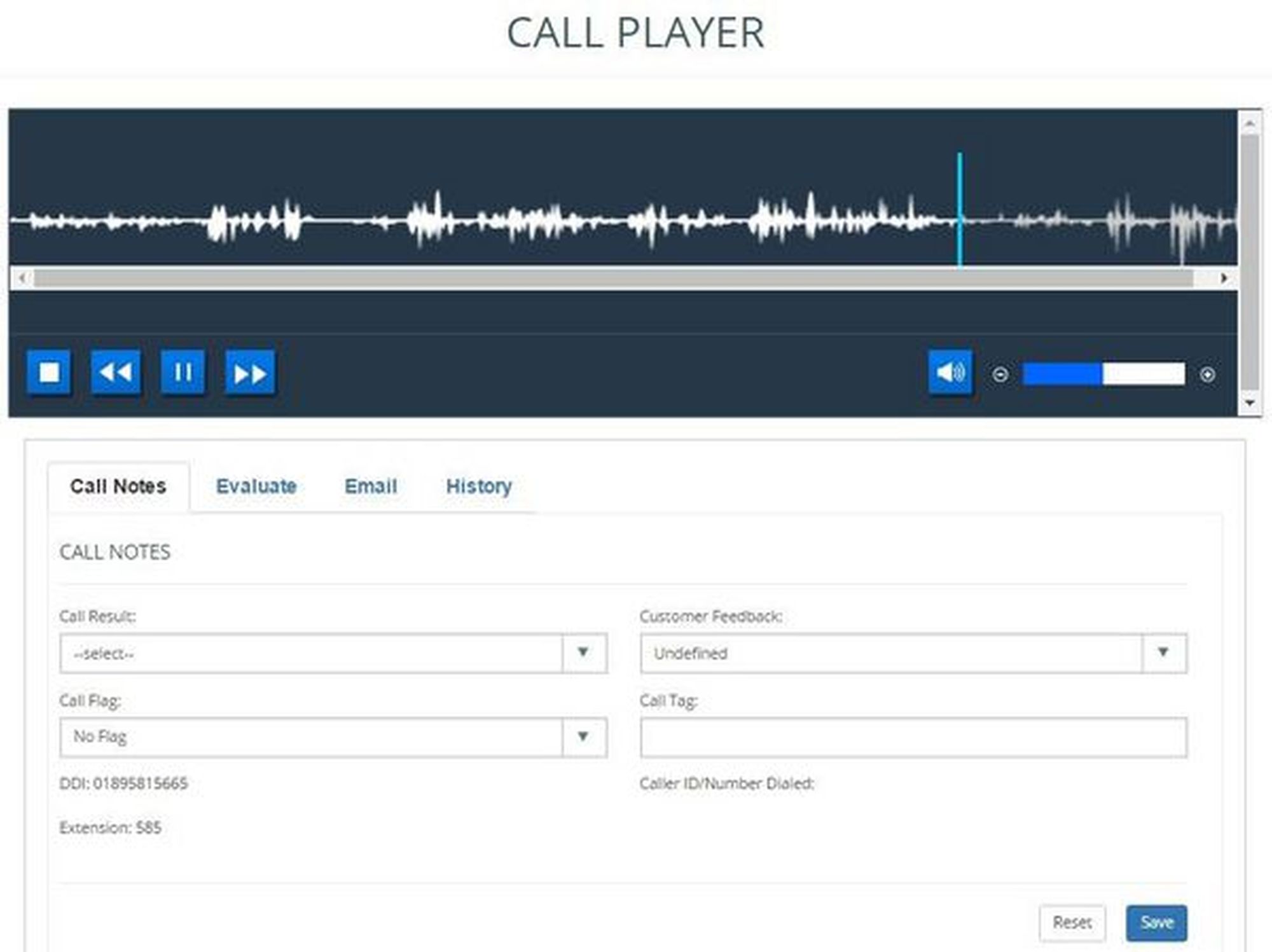
The player has four tabs which are explained below:
Call Notes
Call Result – This dropdown can be used to give the current call a result, for example a complaint call
Customer Feedback –This dropdown can be used to give a feedback to the current call, for example abusive caller.
Call Flag- This dropdown can be used to flag a current call. There are three call flags, red, green and blue. These flags can be used to outline which calls are satisfactory calls and which are unsatisfactory.
Call Tag – This dropdown can be used to add a tag to specific call recording providing any brief information to the call if required.
Evaluate
Users can evaluate call recordings on the following sections and give a star out of 5 which can be available in the Call Evaluation reports.
Call handling
Technical knowledge
Call close
Other – cross selling and customer expectations
Users can email the recordings from this tab and have the option to enter the email address, subject and the message that can go with the recording.
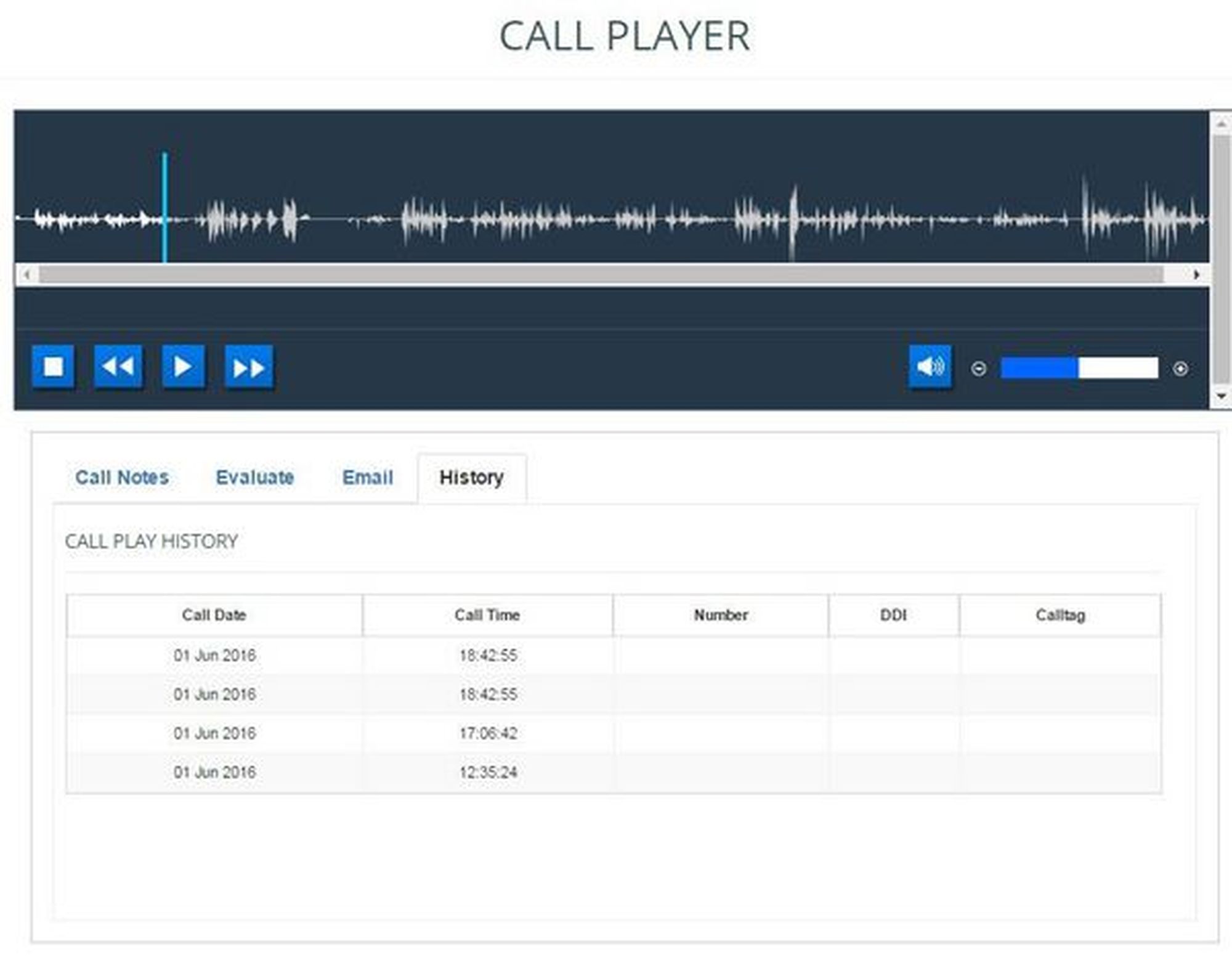
History
Users can access this tab to see any call history for the current extension without having to exit the player screen.
6.2. Applying Filters to Call Recordings
Filters may vary depending on the product purchased.
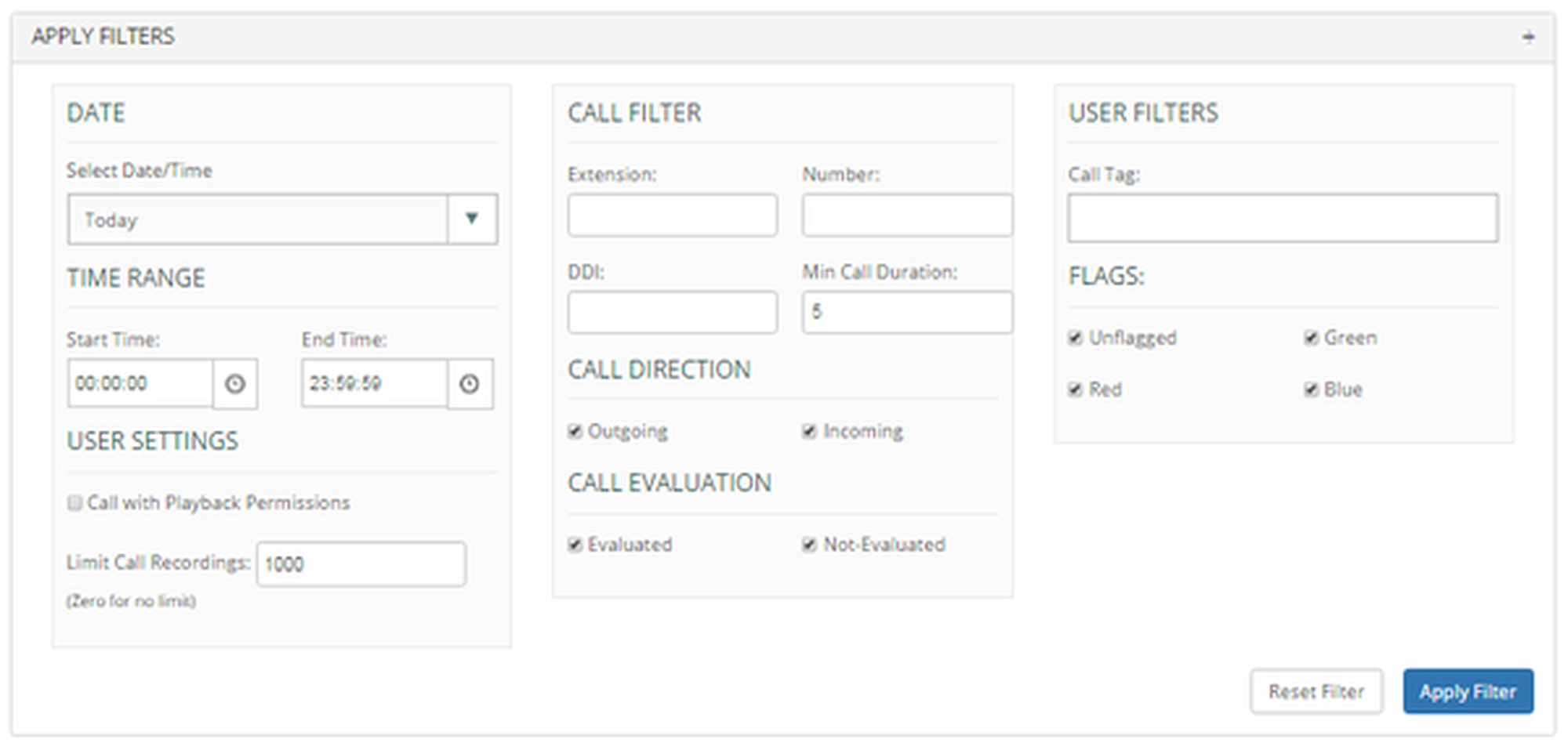
‘Filter’ is a very powerful tool that gives users the ability to narrow down the call recordings to meet their requirements. After applying any filter, it is important to click on ‘Apply Filter’ to enable them to take effect.
Below are the filters options explained:
Date - Users can apply date or time filters to search for recordings on the specified date or time
User Settings – Users can click on ‘call with playback permissions’ to see only the calls they have permissions to listen to. The results can also be limited to a certain number of call recordings (zero is for no limit).
Call Filter - This section can be used to narrow down the call recordings to a particular extension, number, DDI or call duration.
Call Direction – select incoming or outgoing calls.
Call Evaluation – select either evaluated or non-evaluated calls.
User Filters – Users can search for calls by a particular tag or flag.