6. NIA FrontDesk
What is NIA FrontDesk?
In this section, you will learn how to configure a NIA FrontDesk agent.
NIA FrontDesk is an intelligent AI voice assistant that serves as a front-desk knowledge agent. It greets callers, answers frequently asked questions around the clock, and intelligently routes calls using natural language.
NIA FrontDesk can answer common questions directly or intelligently route calls to the right person or team. The caller is transferred to a human agent for further assistance if the AI agent is unable to address the caller's queries.
Please note that the primary goal of NIA FrontDesk is to reduce the number of forwarded calls. The AI agent will always initially attempt to answer questions independently.
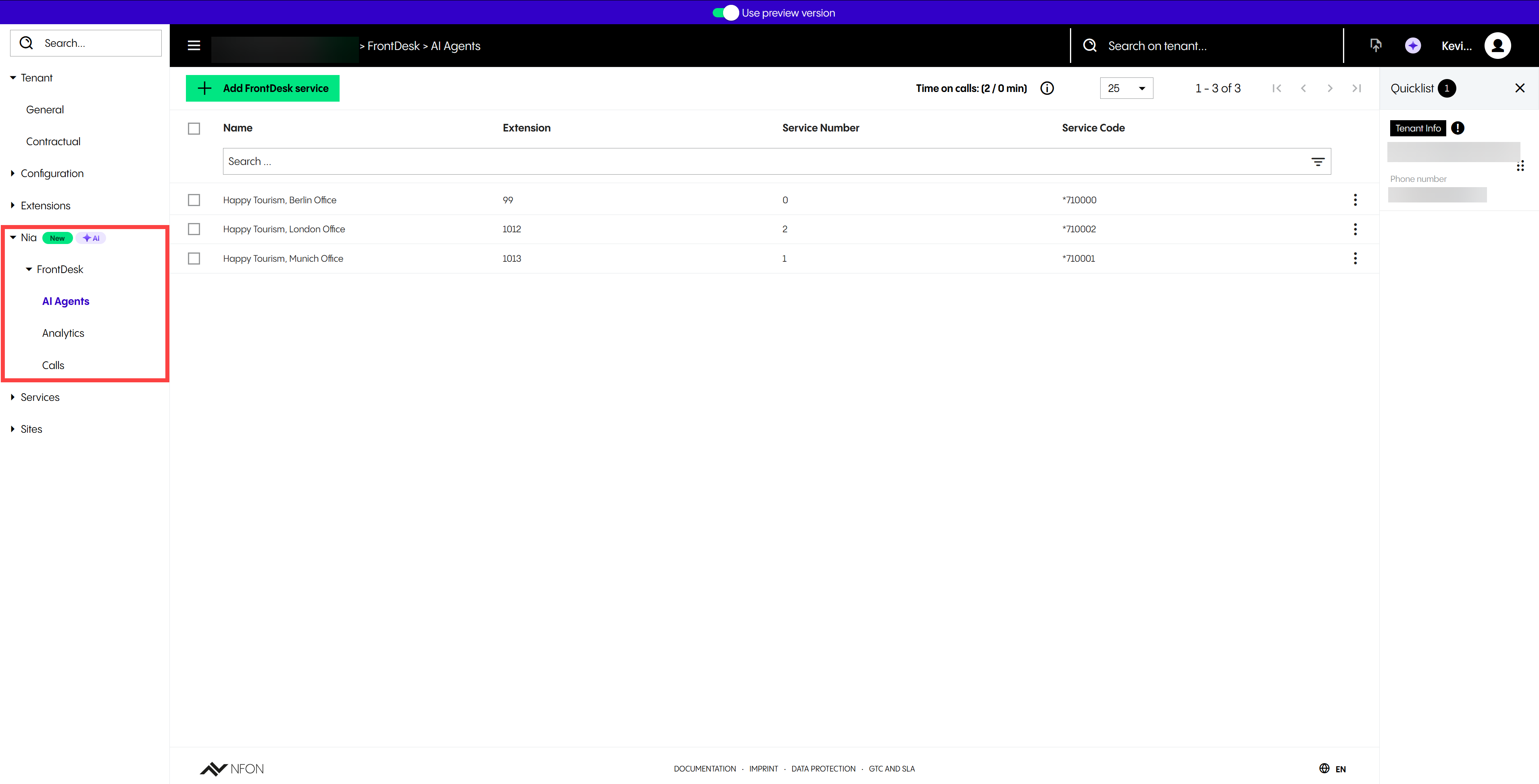
Under NIA FrontDesk, there are three main sections:
AI Agents
Analytics
Calls
6.1 AI Agents
Overview
In this section, you will learn how to configure a NIA FrontDesk agent.
In this view, you can:
Add a new entry
Select one, several or all entries and delete them
Search for a NIA FrontDesk agent using the filter options (you can also use enhanced filters as well as add your own)
Edit, clone, delete an entry or copy it to a clipboard or copy text from a cell (you can also edit an entry by double-clicking on it)
Select how many entries you want to have on the page
See the total monthly minutes that all AI agents spent in calls compared to the minutes in your package (by clicking on Time on calls)
Subscriptions
Go to Tenant > Contractual > Subscriptions to see if NIA FrontDesk has been activated for your tenant.
6.1.1 General
General
Under General, you have the following options:
Display name | Assigns a name to the AI agent. Mandatory field, can be up to 50 characters. Please note that the AI agent may use this information when providing responses. The same rules apply as in Section Phone extensions. |
Company/project description | Offers context and helps the AI agent to give more relevant answers to customer's questions |
Extension number | Assigns an internal extension number. Please note that assigning an extension number is not mandatory, so this field can be left blank. If you decide to assign an extension number, bear in mind that the same rules apply as in Section Phone extensions. |
6.1.2 Referenced by
Referenced by
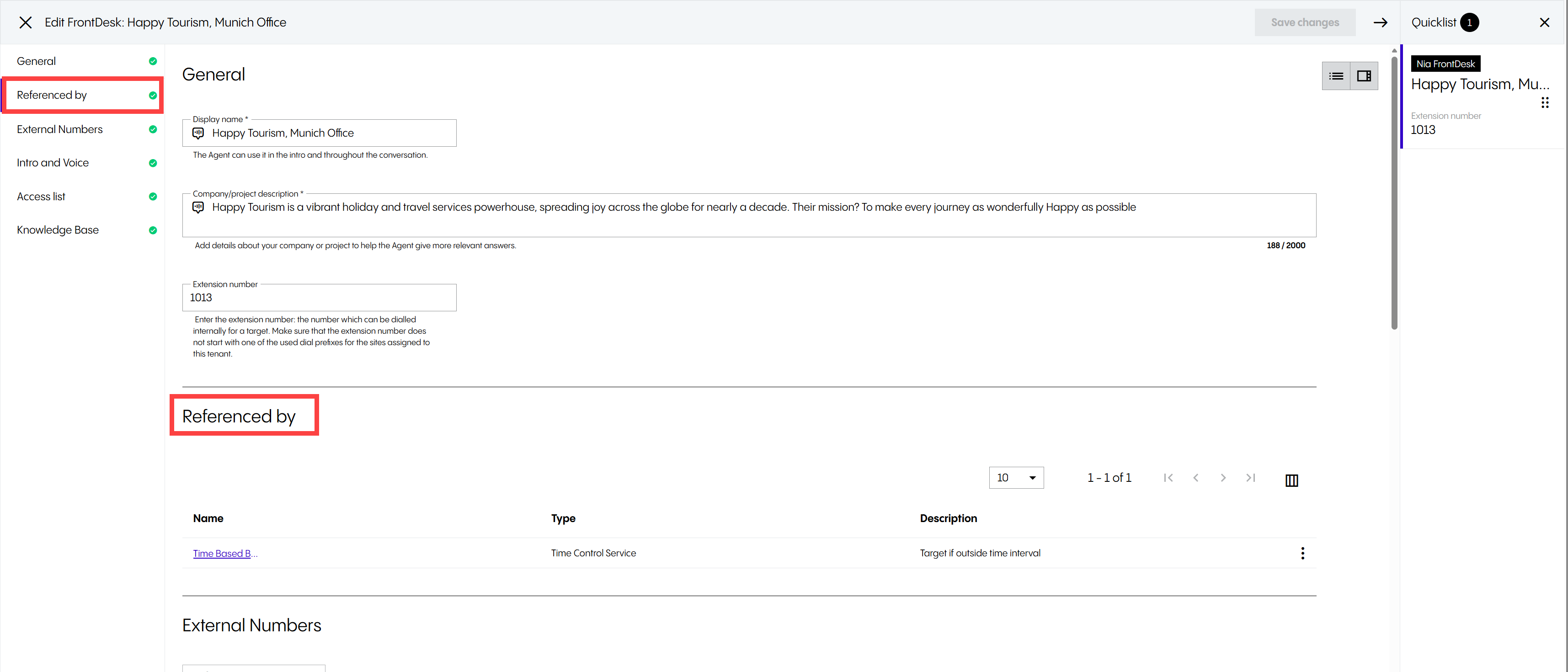
Please note that you can only see this section after you have created your NIA FrontDesk agent. Your agent can be referenced by a service, for example, a Time Control Service or an IVR.
Under Referenced by, you can:
See what service your agent is referenced by
Click on Edit to go to the service
6.1.3 External numbers
External numbers
Under External numbers, you have the following options:
Add configuration | Assigns one or more DDIs (inbound numbers) to the AI agent For more information, see External numbers (DDI). |
6.1.4 Intro and Voice
Intro and Voice
Under Intro and Voice, you have the following options:
Agent initial message | Sets an initial message to greet the caller |
Language | Selects the agent language Please note that it will be a set language. The AI agent will not be able to change the language during a call at a caller's request. We recommend setting up all configurations or prompt fields within the agent in one language. |
Voice of AI agent | Selects the voice of the AI agent TIP: Click the play button to hear what your AI agent will sound like. |
6.1.5 Access list
Access list
Under Access list, you have the following options:
Add access | Defines a routing logics when the AI agent cannot answer the caller's quieries. You can select one or several supported targets, such as
|
Context | Allows custom prompt configuration for target services, for example, groups or skills, however, not individual extensions. The context is crucial for the forwarding to work properly. For example, if an AI agent has been configured to transfer callers to a sales group or skill service, you need to customise each with custom context. Please note that the lack of context information may lead to errors with the AI agent processing as well as to wrong answers or incorrect/unsuccessful call forwarding. |
Fallback contact | Transfers the caller to any supported target or even another AI agent if the AI agent does not understand the caller's request or is unable to process the request, for various reasons. The AI agent will use all the information in the Knowledge Base first and, only after it is not able to resolve the queries, it will use the context, target list and the target context where the call shall be routed. If transfer to any of these targets fails, the agent will use the fallback contact. |
6.1.6 Knowledge Base
Knowledge base
Under Knowledge base, you have the following options:
AI Agent knowledge database | Contains the most important information that the AI agent can use to answer the questions of the caller. Mandatory field, can be up to 10000 characters. |
6.2 Analytics
Analytics
Under Analytics, eight tiles provide an overview of your usage (you can also see the statistics in the diagram below the tiles).
In this view, you can see:
Minutes in your monthly package
Used balance (in minutes)
Total calls with an AI agent(s)
Distribution of calls between AI agents and human agents (in percent)
Number of calls handled by AI agent(s)
Average call time without forwarding
Number of calls forwarded to a human agent
Average call time with call forwarding
Use the drop-down menu to define the reporting period and to filter the calls analytics for all your AI agents or only for specific ones.
6.3 Calls
Calls
In this section, you will find call history and call transcriptions for your NIA FrontDesk agents.
The call history shows all calls made in the last 30 days.
In this view, you can:
See the most important information for each call
Search for call to a NIA FrontDesk agent using the filter options
View an entry, copy it to a clipboard or copy text from a cell (you can also view an entry by double-clicking on it)
Select how many entries you want to have on the page
See detailed information about the call and the call transcription