4. Elements
The category elements includes all basic components of the telephone system, i.e. the telephones themselves and the audio files to use as hold music, hold music for queues and announcements. Elements are required as components for configuring services and terminals.
After you have signed in, the main navigation window appears.
Here you select either Devices or Announcement.

4.1. Devices
Devices
A device is usually a phone. However, there are different types of phones:
standard device (snom desk phone)
Conference phone (Polycom SoundStation)
nPhone (Softphone)
DECT base (Kirk)
DECT handset (Kirk)
FMC device
ATA (Linksys or Patton)
Select your device to suit your needs. If you need a phone for your office, you usually use a standard device. If you travel a lot, you can use your mobile phone as a FMC device. Or if you need a device for your warehouse, you get a DECT wireless handset, so you are always accessible.
First select in the serviceportal ELEMENTS, then select Devices.
 |
In the "Select (List)"-area you see all configured devices. Here you can edit, delete and change an existing device by double-click.
A new device is realised by the Add-button . Here you can select the device and configure it in a new window (e.g. snom821).
If you have bought your device at your provider, then the device is already configured. If you uses own devices, then please follow the next steps.
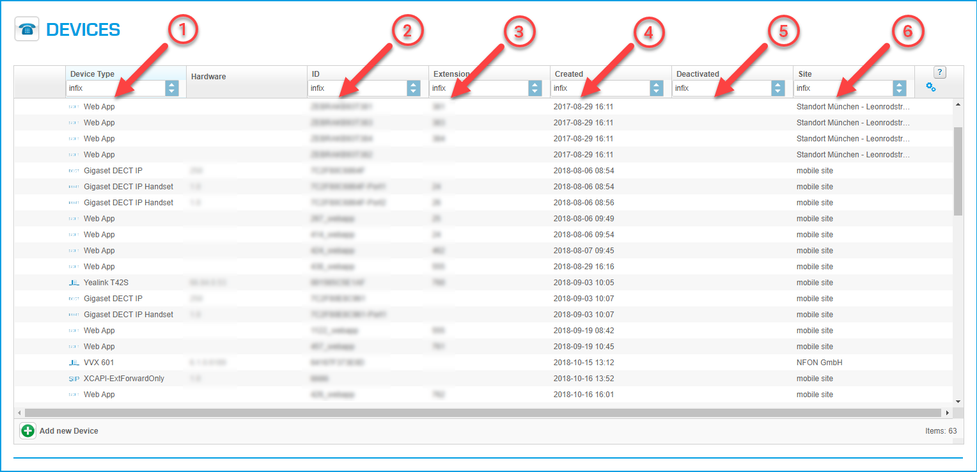 |
Description:
Number | Description |
1. | This section show all configured devices, first the icon then the devicename. |
2. | This section shows, e.g.Mac-Addresses, IPEI, etc. |
3. | This section shows if the device is already allocated to an extension. |
4. | When was the device configured. |
5. | When was the device deactivated. |
6. | Where is the device located, this is important for emergancy situations. |
You can either add a new device or select an existing device. In the List-view you can activate, deactivate, edit or delete a device.
If you push the Add-button, then a new window appears.
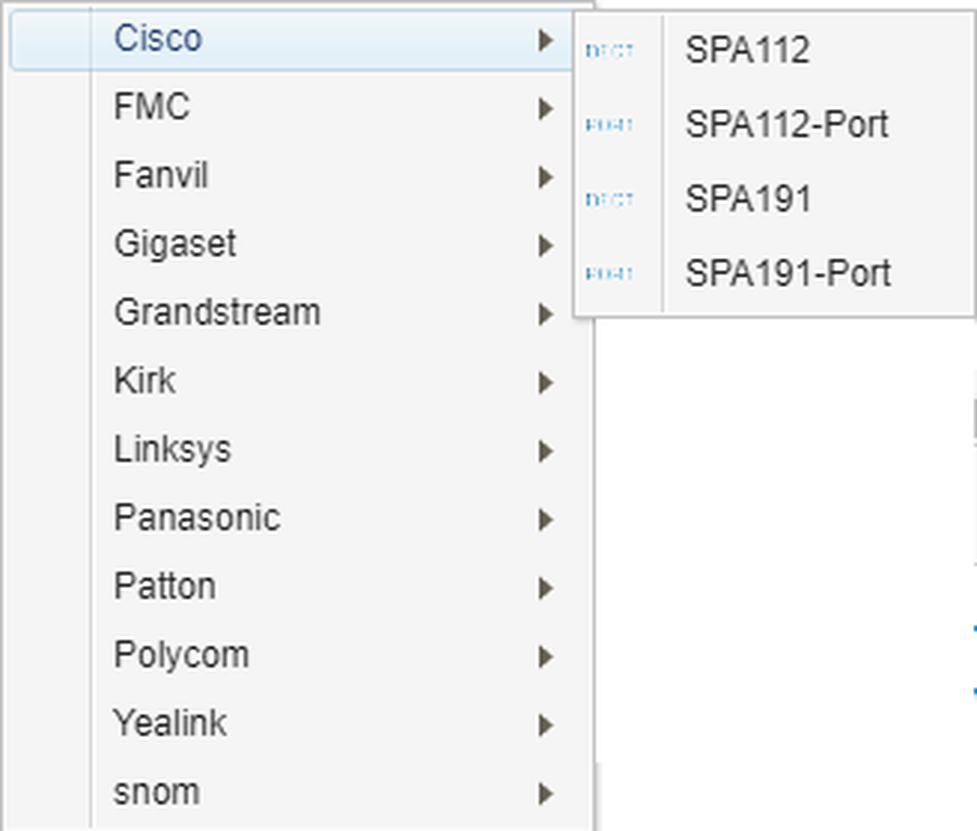 |
Here you select your new device.
Icons | Function | |
| Add icon. | |
| Delete icon. | |
| Edit icon. | |
| Aktivate icon, activate entry. | |
| Deaktivate icon, deactivate entry. |


4.1.1. Add new device
You can add the next devices:
System phones are all phone devices which where certified on our part. If you order these devices at your provider, then the device is automaticly configured.
All other devices, e.g. nreception, unprovisioned sip, etc., can only be configured by your provider.
Sections | Picture | |
System phones |
| |
FMC |
| |
DECT Basis |
| |
DECT Handset |
| |
Kirk/Spectralink |
|
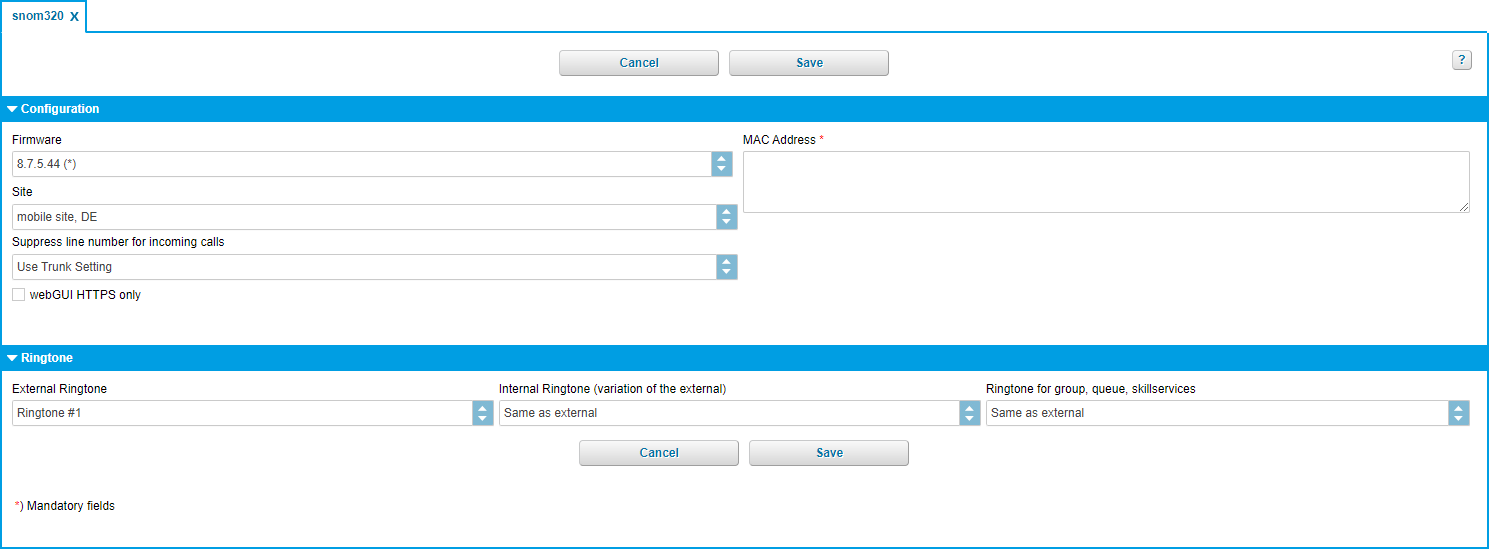
4.1.1.1. System phones
System phones:
 |
Fieldname | Description |
Firmware | Select the latest firmware for your device. |
MAC Adresse | MAC address: These are typically on a decal at the bottom of your telephone (or in the telephone menu). The MAC address only needs to be entered in the respective field. |
Site | Select the location, where you intend on using your device. (This setting is important for emergency calls). |
webGUI HTTPS only | Allows you to restrict access to the phone's WebGUI to HTTPS. This feature is only available for current firmware versions on snom, Yealink, Polycom, Cicso/Linksys and Spectralink devices. |
Fieldname | Description |
External ringtone | Select an external ring tone for your device. |
Internal Ringtone | Select an internal ring tone for your device. Warning: Your device must be able to differ the internal and external ringtone. If you don't see a ringtone choise in this section, then your device doesn't support it. |
Alarm ringtone | In combination with a DACS (Digital Alarm and Communications Server) |
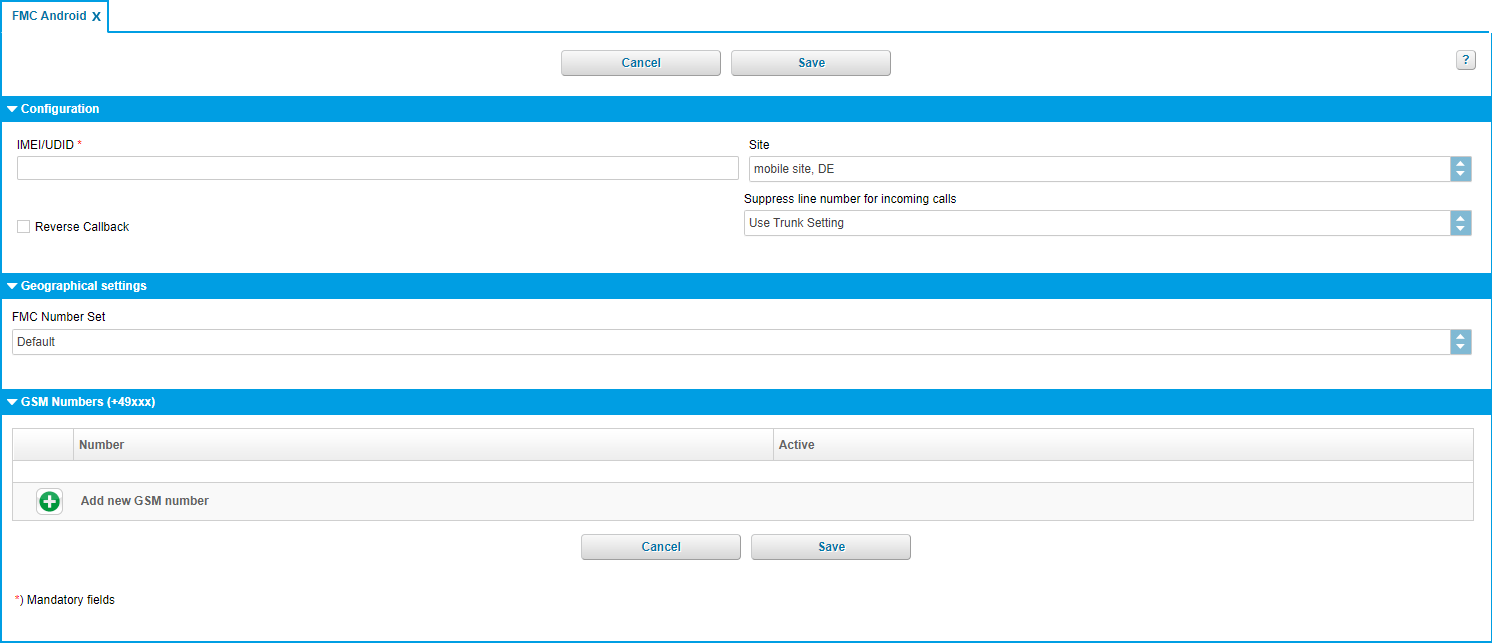
4.1.1.2. FMC
FMC
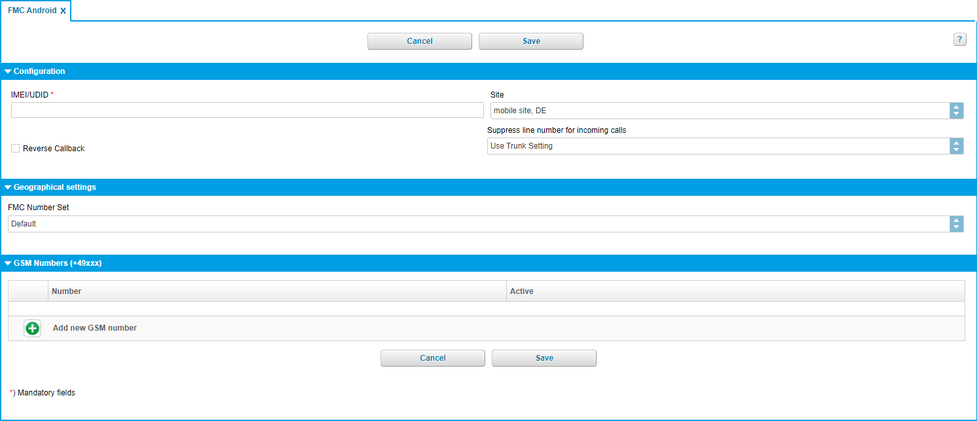 |
Configuration
Fieldname | Description |
IMEI/UDID | Enter the IMEI/UDID of your mobile device. |
Site | You can enter "Site for mobile device", because you don't know where the device is. |
Reverse Callback |
Geographical settings
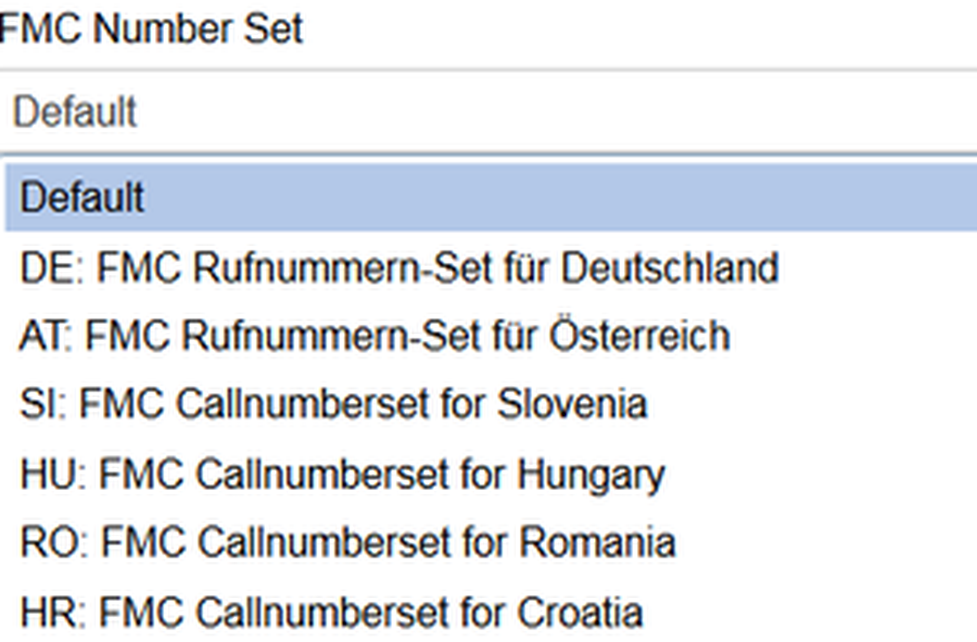
FMC Number set
Enter a country specific FMC number set. Save connection charges when using FMC in the selected country, e.g. Call Back functions.
 |
GSM Numbers (+49xxx)
Fieldname | Description |
Number | You can assign your GSM-number by pushing the Add-Symbol . |
Active | Active. |
Icons | Function | |
| Add | |
| Delete selected item | |
| Edit | |
| Save selection | |
| Exit without save |


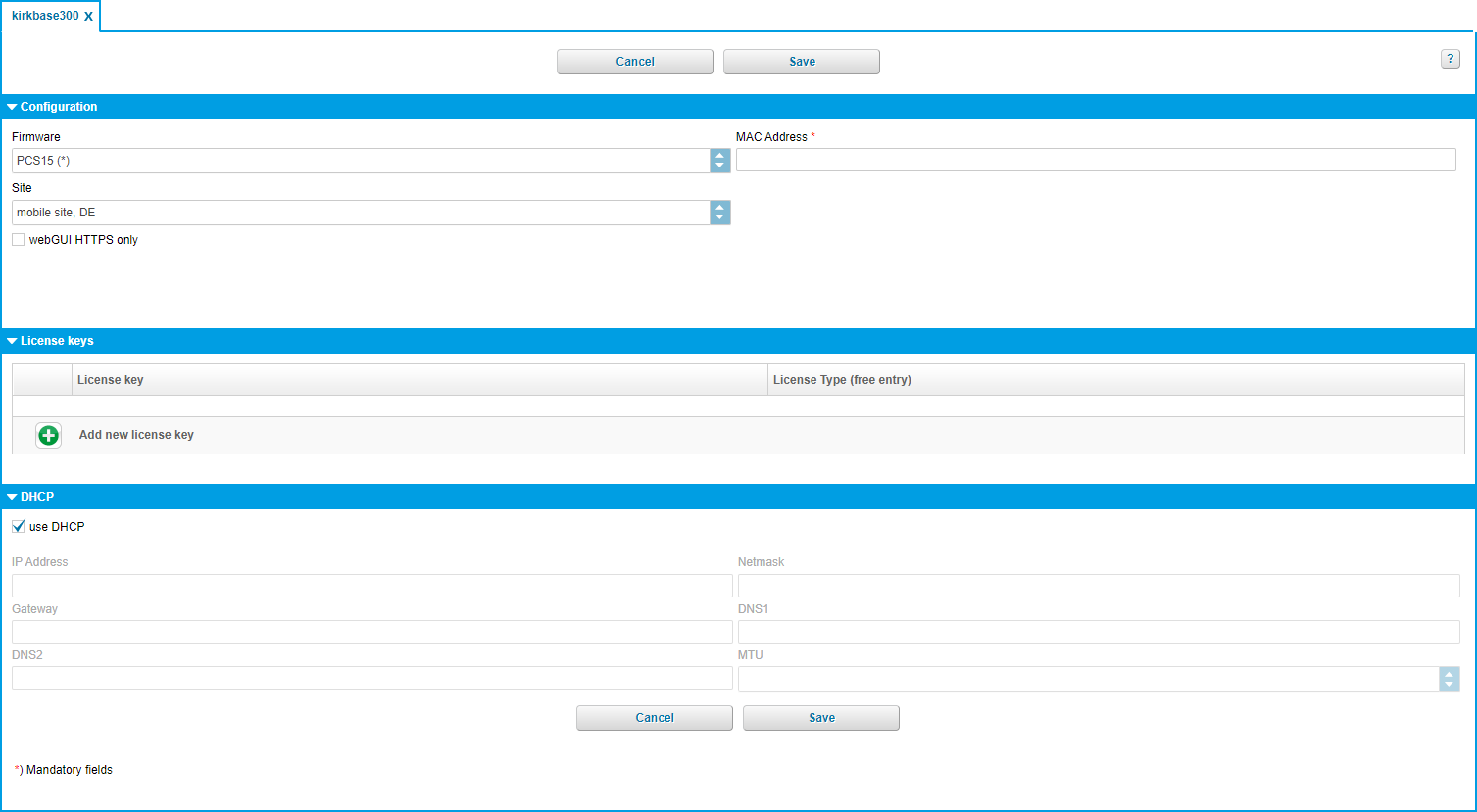
4.1.1.3. DECT base
Fieldname | Description |
Firmware | Select the latest firmware for your device. |
MAC Adresse | MAC address: These are typically on a decal at the bottom of your telephone (or in the telephone menu). The MAC address only needs to be entered in the respective field. |
Site | select the location, where you intend on using your device. (This setting is important for emergency calls). |
DHCP
Fieldname | Description |
use DHCP | activate DHCP. |
IP Address | |
Netmask | |
Gateway | |
DNS1 | |
DNS2 | |
MTU |
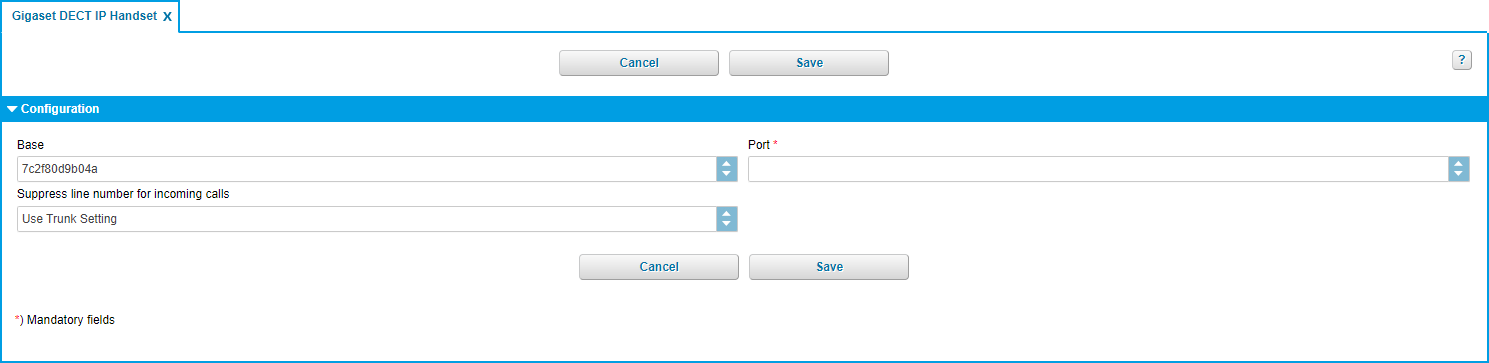
4.1.1.4. DECT Handset
DECT Handset
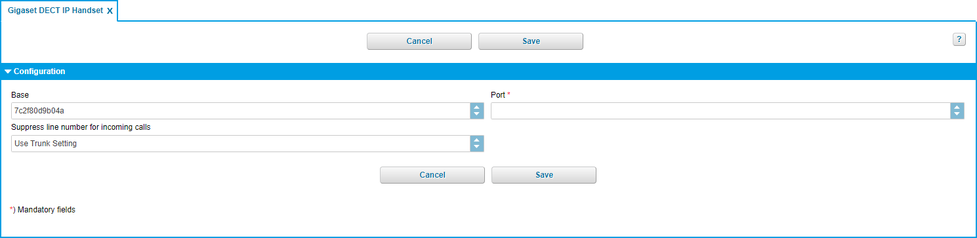 |
Configuration
Fieldname | Description |
Base | Select your base station. |
IPEI | Enter the device number of your handset. |
4.1.1.5. Kirk/Spectralink
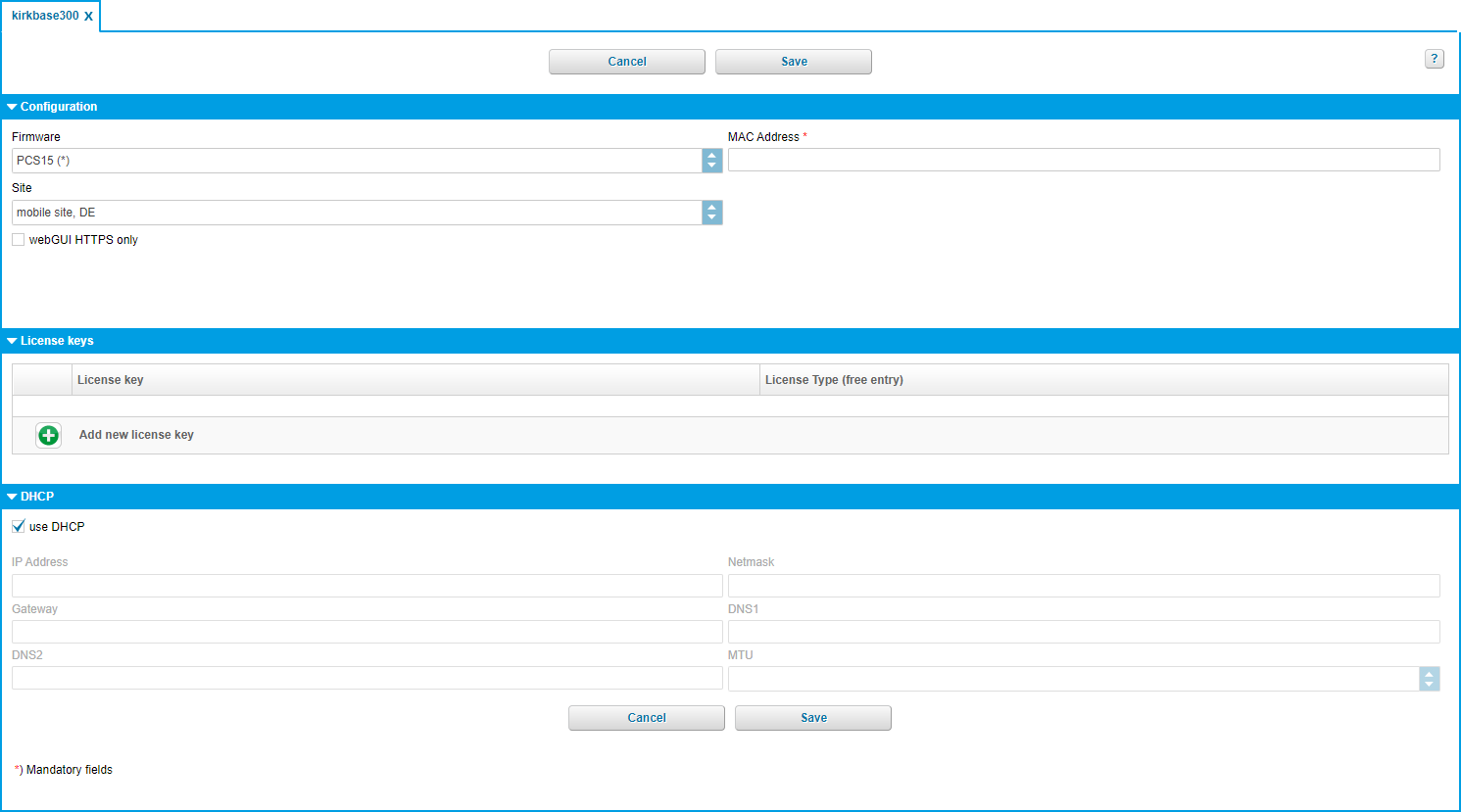
Kirk / Spectralink Base
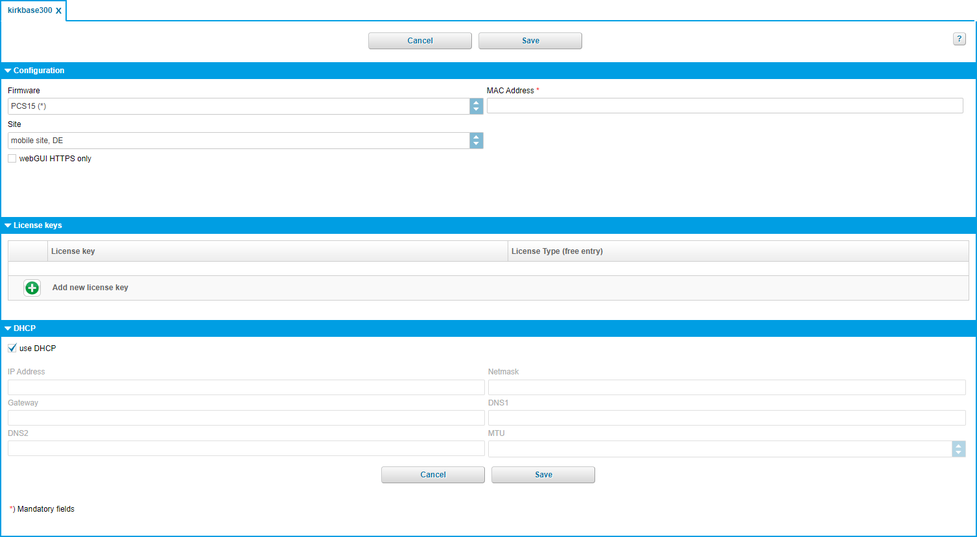 |
Configuration
Fieldname | Description |
Firmware | Select the latest firmware for your device. |
MAC Adresse | MAC address: These are typically on a decal at the bottom of your telephone (or in the telephone menu). The MAC address only needs to be entered in the respective field. |
Site | Select the location, where you intend on using your device. (This setting is important for emergency calls). |
License key
Optional licenses can be entered under the licence key tab.
The following licenses are possible:
Basis (no license):
Works without power supply unit or PoE
Power supply unit is available for an additional charge
Maximum of 12 users / headsets (as KWS300)
6 voice channels (2 more than KWS300)
Maximum of 3 repeaters (multi cell repeater)
Optional licences (system extension via licences):
30 user and 12 voice channels license: use a maximum of 30 users (handsets) though simultanously, the system's voice channels is doubled by 6 (12 in total ).
Multi Cell license: 3 additional base stations on the system. Up to 6 Repeater (Multi Cell) at full version of a base station.
Bundle license: combination of the 30 user and 12 voice channels and mutli cell license
Automatic Alarm Call license: configure automatic alarm calls for the handset alarm sensors (6040 and 7040)
For every licence order there is one license key. In order to assign a valid licence to the Spectralink IP-DECT Server 400, a licence has to be entered for the respective server in the administration portal under Elements / Devices (kirkbase400).
DHCP
Fieldname | Description |
use DHCP | activate DHCP. |
IP Address | |
Netmask | |
Gateway | |
DNS1 | |
DNS2 | |
MTU |
4.1.2. Installed devices
Sections | Pictures | Link | ||
Configuration |
|
| ||
Ringtone |
|
| ||
Configuration |
|
| ||
Geograhical settings |
|
| ||
SIP |
|
| ||
Network |
|
| ||
Monitoring |
|
| ||
Codec profile |
|
| ||
uaCSTA |
|
|










Suppressed line number for incoming calls
1. Activate function for trunks
Go to Administration > Trunks.
Search for the required K-number.
Search for the corresponding trunk in the list.
Set the tick for Always use the preferred outbound trunk.
Save the setting.
2. Activate function for devices
Go to Elements > Devices.
Search for the required K-number.
Search for the required device in the list.
Set Configuration > Suppress line number for incoming calls to On.
4.1.2.1. Configuration
Configuration für Devices:
 |
Fieldname | Description |
Firmware | Select the latest firmware for your device. |
MAC Adresse | MAC address: These are typically on a decal at the bottom of your telephone (or in the telephone menu). The MAC address only needs to be entered in the respective field. |
Site | Select the location, where you intend on using your device. (This setting is important for emergency calls). |
Suppress line number for incoming calls | Function for trunks:
Function for devices:
|
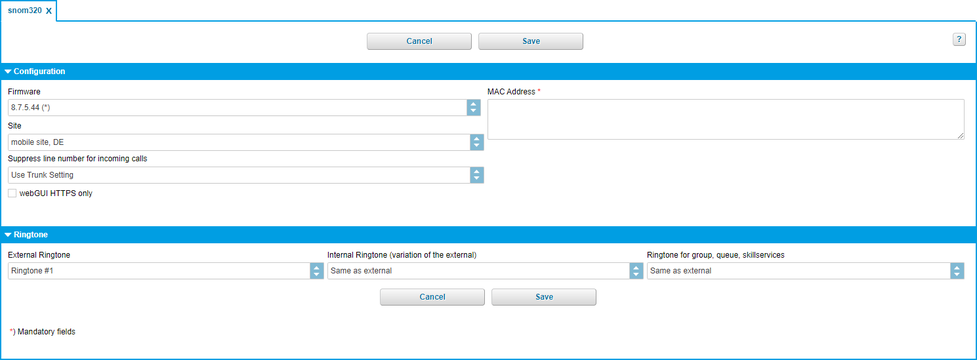
4.1.2.2. Ringtone
Ringtone for Devices:
 |
Fieldname | Description |
External ringtone | Select an external ringtone for your device. |
Internal ringtone | Select an internal ringtone for your device. Warning: Your device must be able to differ the internal and external ringtone. If you don't see a ringtone choise in this section, then your device doesn't support it. |
Ringtone for group, queue, skill services | Select a ringtone for group, queue, skill services Warning: Your device must be able to differ the internal and external ringtone. If you don't see a ringtone choise in this section, then your device doesn't support it. |
Note
For example, to add a DECT handset, a DECT base or an FMC extension, please refer to the respective device manuals for the configuration instructions.
When using used devices, always restore them to factory default before using them.
4.1.2.3. Configuration
Configuration for Devices:
 |
Fieldname | Description |
use Site configuration | Use site configuration. |
Icons | Function | |
| Activate |

4.1.2.4. Geographical settings
Time zone for Devices:
 |
*Settings "Dial prefix" and "Language" apply when no extension is registered on the telephone.
Example:
The telephone is in UK and is assigned to the location in UK.
Let's say that on this site, the telephone would use the dial prefix 9 and the language English.
Now an extension 355 which defines its language as German and its dial prefix as 9 is registered on the telephone.
Now the extension settings apply on this telephone.
This means, that one the extension 355 is registered on the telephone, it will be used in German with a dial prefix 0 and once there is no registered extension on the telephone, it would be used in English with the dial prefix 9.
Fieldname | Description |
Dial prefix* | What dial prefix is the telephone using |
Language* | Telephone language "Default" means that the standard language of the custumer defined for this site will be used. |
Public Space | The Public Space feature reduces the function range of the telephone. Such function as conference, transfer, hold, DND, navigation keys, menu, call lists are not available. The Public Space feature is currently available for the following telephone models:
|
Time zone | Here you can define your time zone. Select the area and the location. |
4.1.2.5. SIP
SIP definitions for Devices
 |
For information and/or changes, please contact your provider.
Fieldname | Description |
CANREINVITE | Set by special administrator. |
NAT | Set by special administrator. |
4.1.2.6. Network settings
Network information for Device:
 |
Fieldname | Description |
VLAN tagging | |
Voice VLAN | |
Data VLAN | |
Port speed | Input : Auto-Sensing or 100M Full |
NTP Server |
4.1.2.7. Monitoring
Monitoring for Devices:
 |
Fieldname | Description |
Server | |
Level | Off, Minimal, Moderate, Detailed. |
Until | Date |
4.1.2.8. Codec profile
Codec profile for Devices:
 |
Fieldname | Description |
Codec profile | Standard-Codec (G711) or HD-Codec (G722, Fallback=G711). |
4.1.2.9. uaCSTA
uaCSTA definitions for Devices:
 |
Fieldname | Description |
Active | Activate the service for the respective device. |
Server | IP address of the NCTI server |
Port | Port of the NCTI server |
Protocol | Used protocol |
Password | Enter your password. |
Note
You have either assigned the corresponding parameters during the installation of the NCTI server or you have received them from the NFON Support.
4.2. Announcement
Announcement
On the administration portal, please click on the navigation item "ELEMENTS", then "Announcement".
 |
Definition: Announcements are fundamental settings for:
Queues (“Welcome to Company XYZ…")
Voice dialogues (“For technical support, please press “1”…”).
The structure of the announcement menu is:
Music:
Hold music
Hold music (queue)
Announcements:• General announcements (for example for queue or voice dialogue)Callers always hear the hold music when the call is on hold.On the one hand, there is hold music, which applies to the entire telephone system. You can also assign different hold music to each queue. Personal voice mail announcements are not part of the general announcements. These are configured directly under the extension.
Configuration:
On the administration portal click on the navigation item "Elements/Announcement", in the main window (List) you can add a new announcement by clicking the Add-button , it is also possible to change an existing announcement (double click).
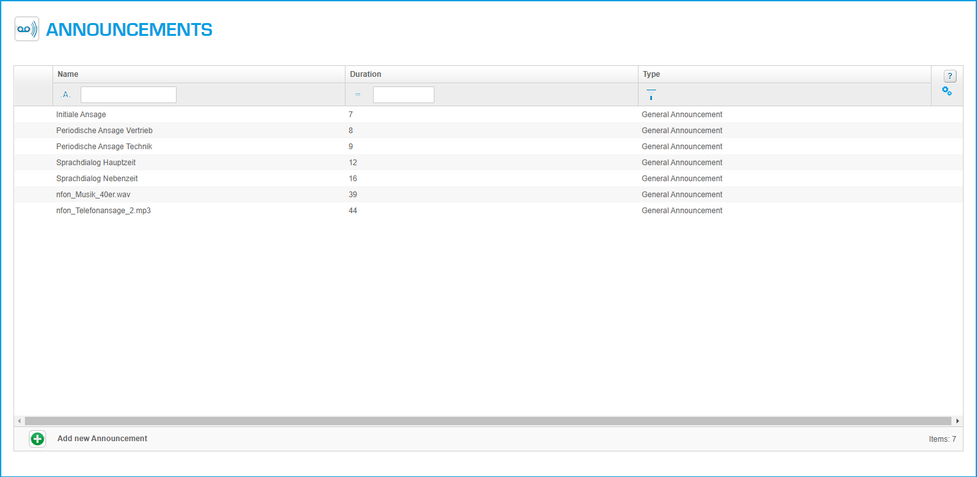 |
A new window with "New Announcement" with several sections is shown:
Sections | Pictures | |
New Announcement |
|

4.2.1. Announcement
Configuration for Announcement
 |
Fieldname | Description |
Type | You can select a file for three different types of announcements. - Hold music - Hold music (queue) - Hold music (skill) - General announcement |
Name | Upload an announcement file. Click on the Add-button , this opens a pop-up, allowing you to browse through your drive for an announcement file. In general, only MP3 files or WAV files can be used for all 3 types. To ensure the best audio quality, the file has to be 16 Bit, mono 8000 Hz. |
Note
The use of copyright protected music needs to be authorised by the local representation for music rights such as e.g.:
PRS for Music
GEMA
Note
The maximum file size for announcements is 7 MB.
Icons | Function | |
| Add Announcement | |
| Play announcement |
