3. History & Voicemail
History
The History tab shows a list of recent calls. The call history is updated automatically; however, you can manually update it by swiping from top to bottom.
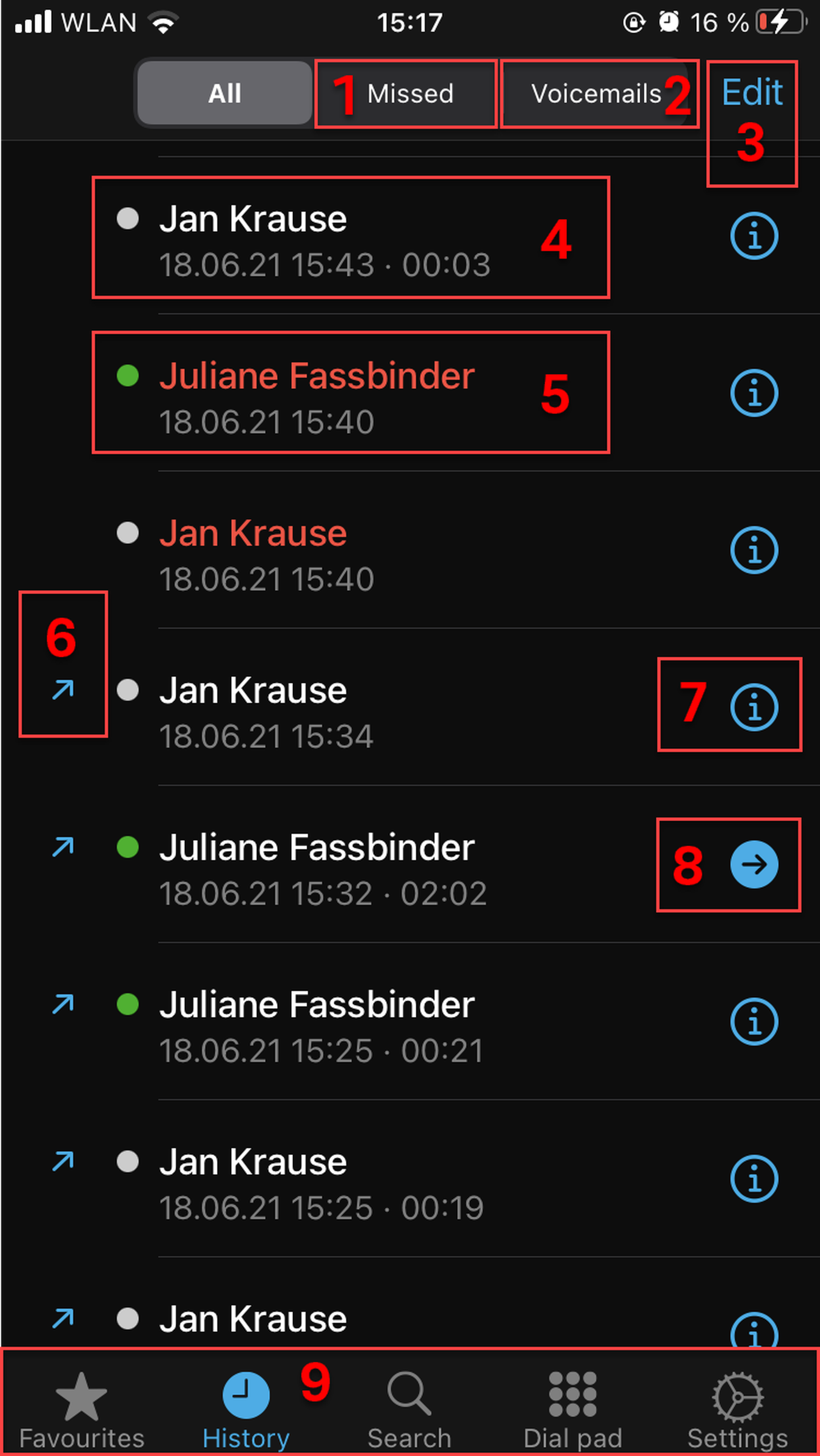
In this view, you can
Switch to Missed calles
Switch to Voicemails
Edit the calls (delete all or select some calls and then delete them). You can also delete a specific call by swiping across the call entry from right to left. It is also possible to delete a call entry if you click on the info button or the arrow symbol on the right; the Delete entry option is shown then.
See incoming calls (no symbol)
See missed calls (in red)
See outgoing calls (upwards-pointing arrow)
See information about the caller and when the call was made
See that the call has been transferred. If you click on the arrow, you can see who the call was transferred by.
Switch to Favourites, Search, Dial pad or Settings tabs
Voicemail
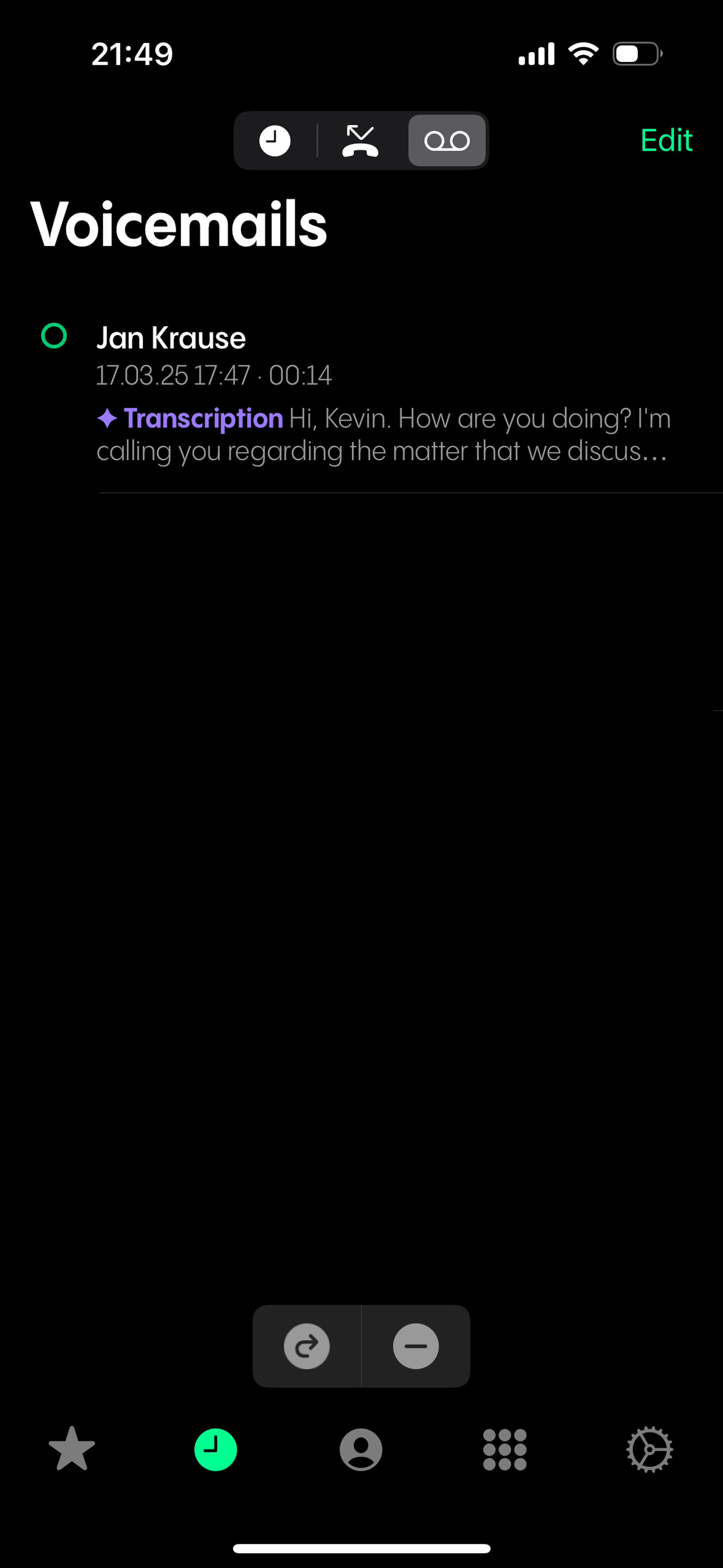
In the Voicemeils tab, you see the list of the voicemails.
In this view, you can
See who left the voicemail and when
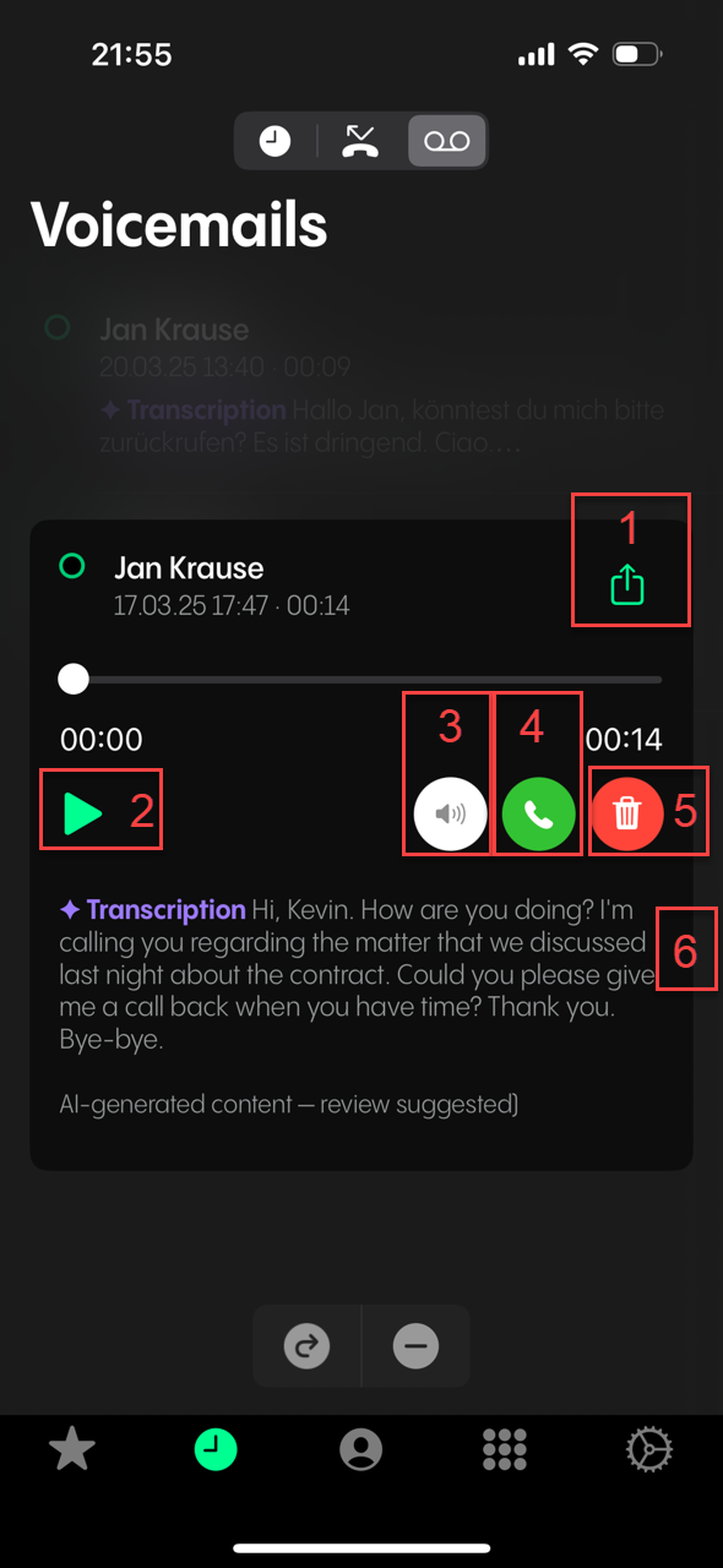
Tap on a voicemail message to:
Forward the voicemail per email (a Forwarding window appears)
Play the voicemail message
Swap between the speaker and earpiece while listening to the message
Call the person who left the voicemail
Delete the voicemail
See the AI-generated voicemail transcription if this option has been activated in the Admin Portal, see Voicemails,Geographical settings and Call handling.