2. Favourites, Conferences & Meetings
2.1. Favourites
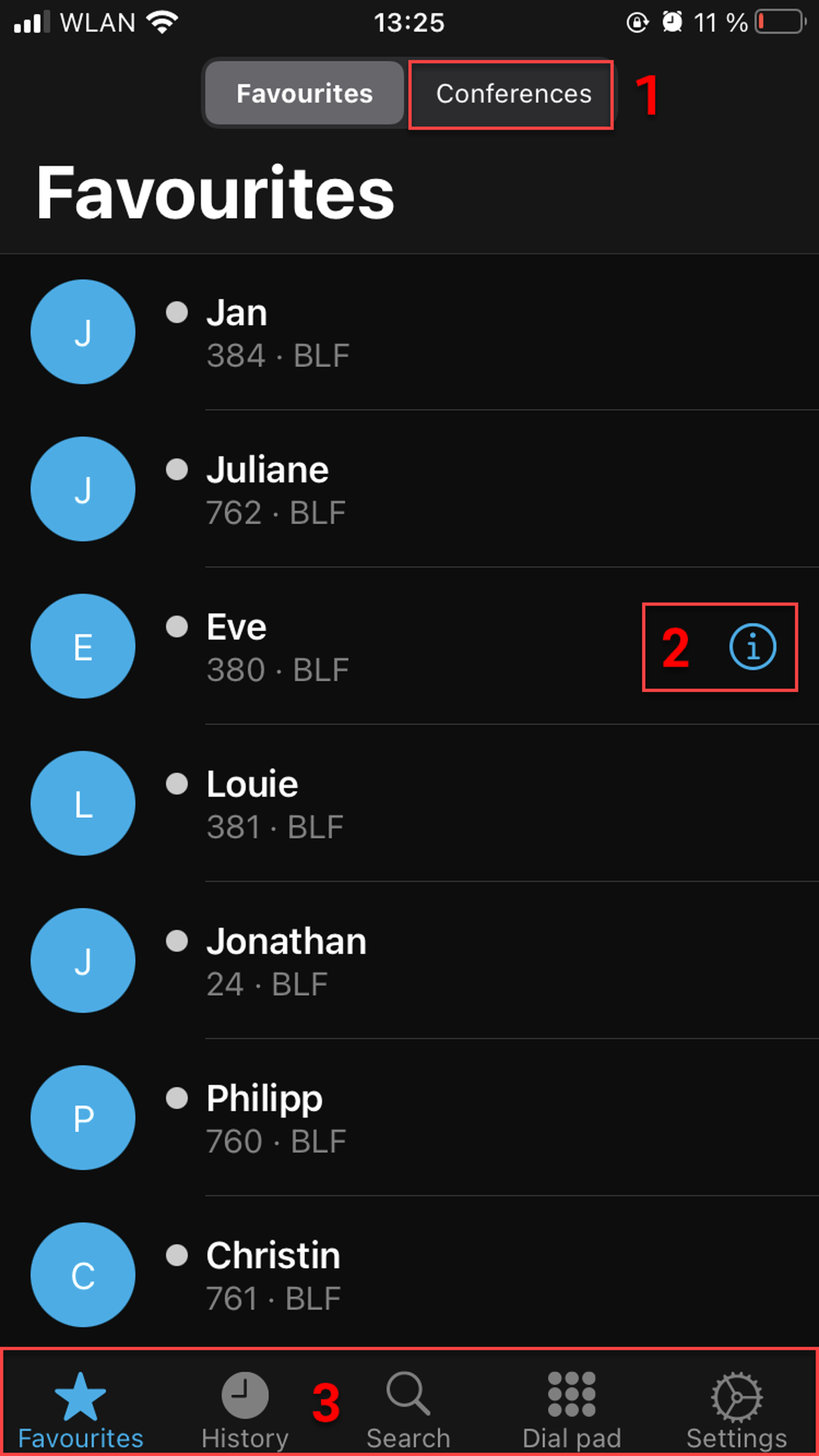
Once logged in, the first initial screen is the Favourites which matches the function keys of your extension.
In this view, you can
call someone from the list and
see their BLF status.
Overview
In this view, you can
Switch to Conferences
See that the user is in your pick-up group
Switch to History, Search, Dial pad or Settings tabs
2.2. Conferences
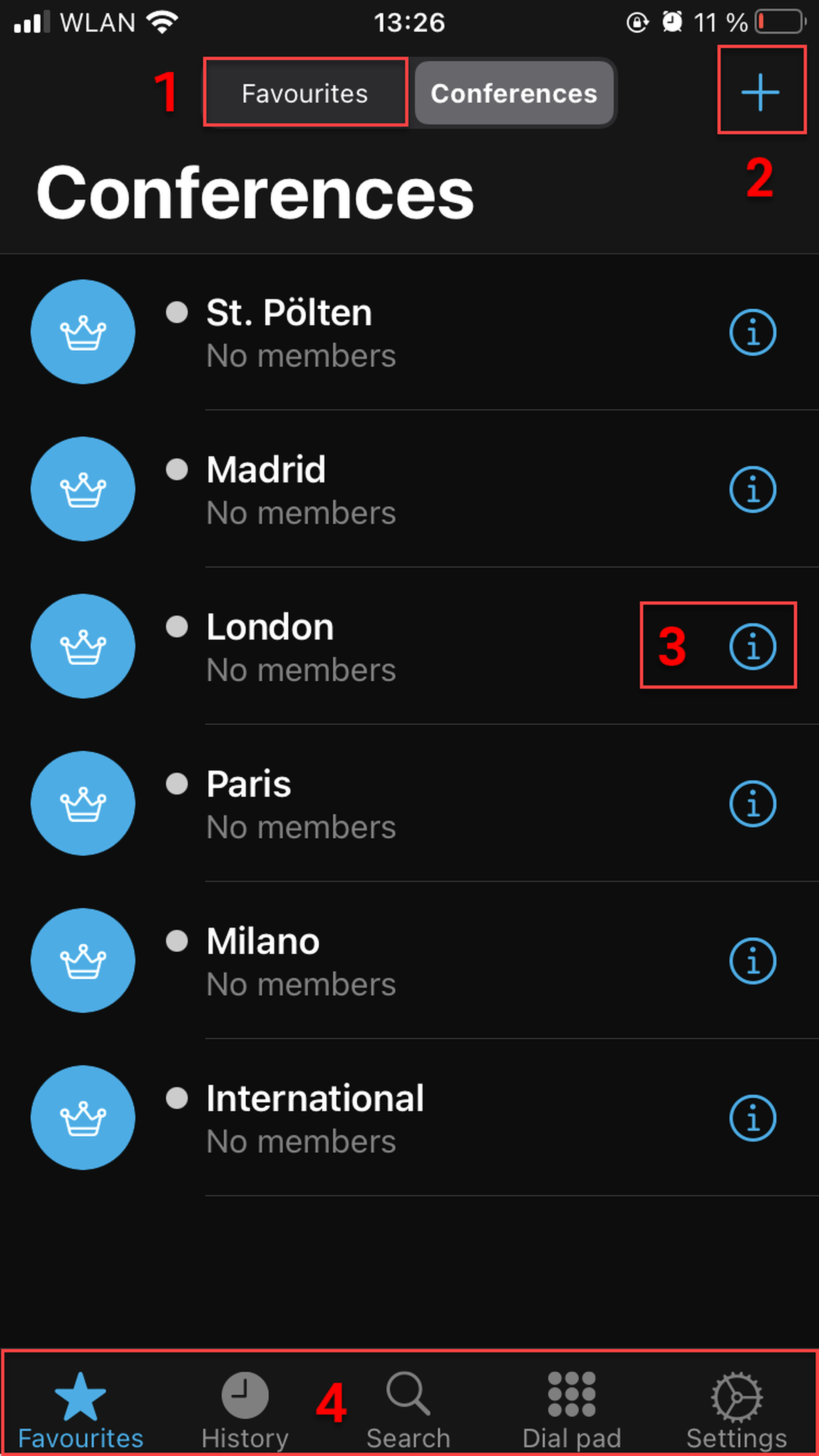
In this view, you can
join a subscribed conference (by calling the conference and entering the pin),
subscribe to a conference
and see detailed information about the conference.
Overview
In the Conferences view, you can
Switch to Favourites
Subscribe to a conference
See detailed information about a conference
Switch to History, Search, Dial pad or Settings tabs
Subscribing to a conference
To subscribe to a conference:
1. Tap on the plus symbol in the upper right-hand corner in the Conferences view.
2. Search for a conference.
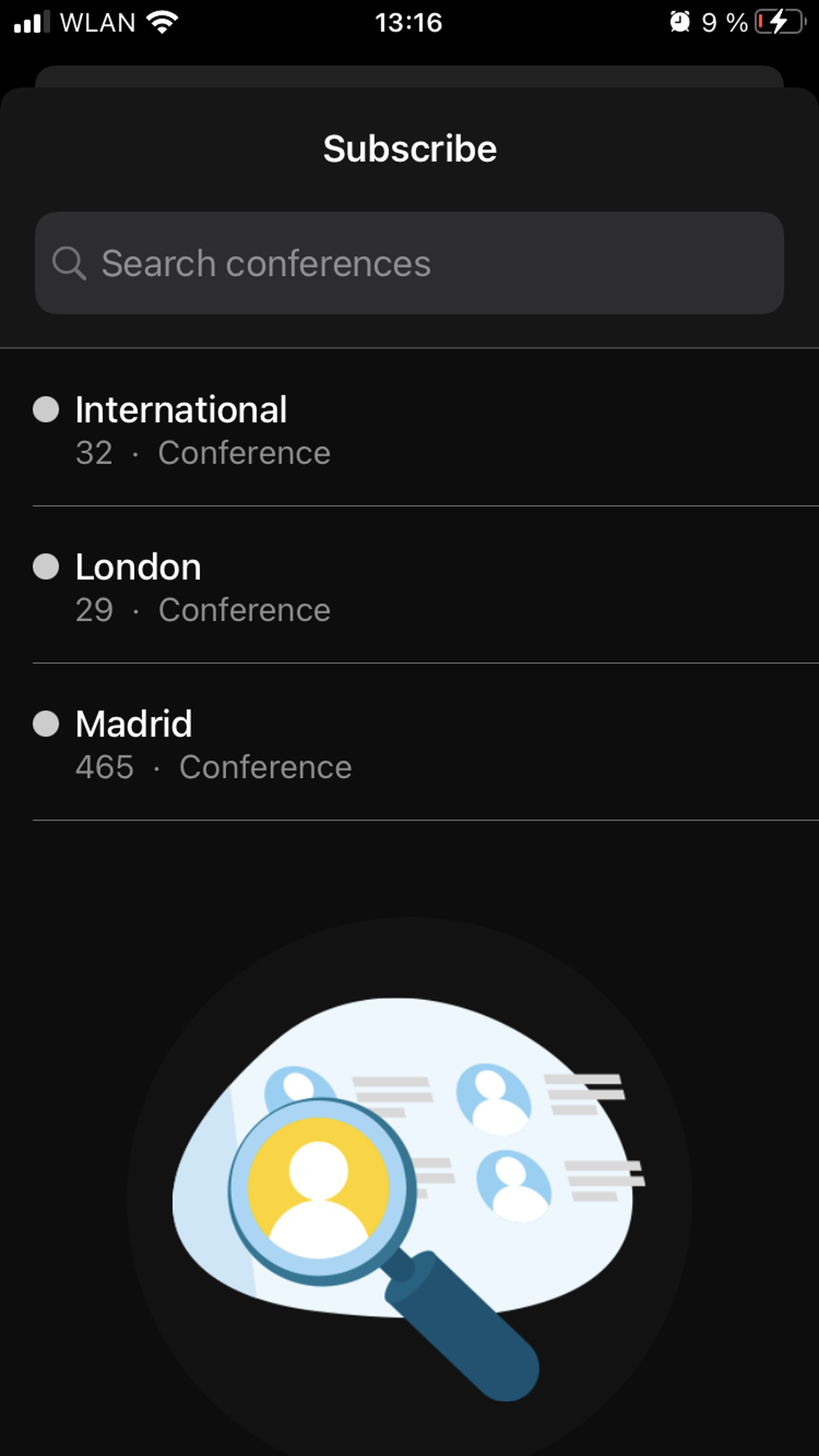
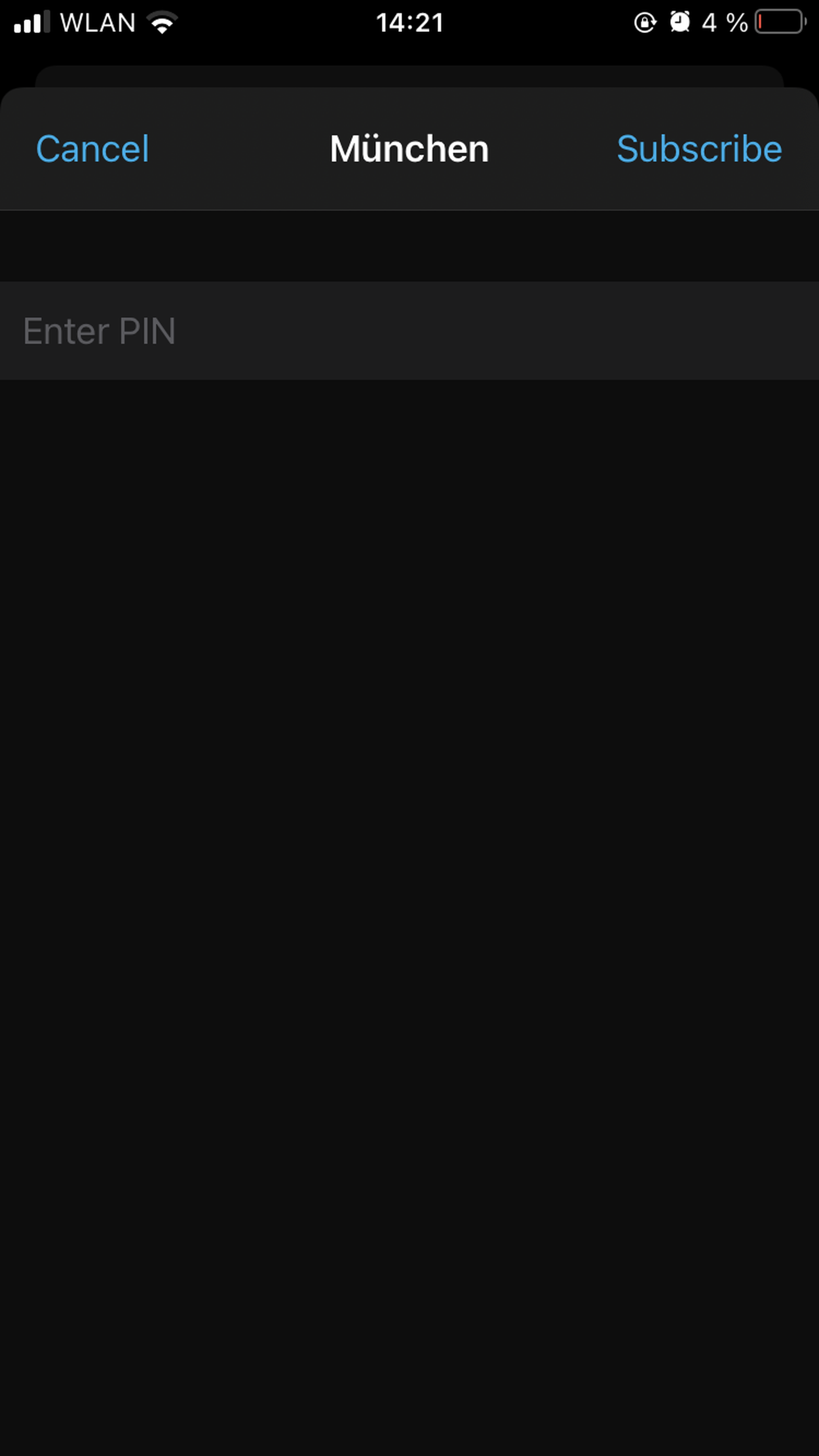
3. Enter the PIN for the conference.
4. Tap on Subscribe.
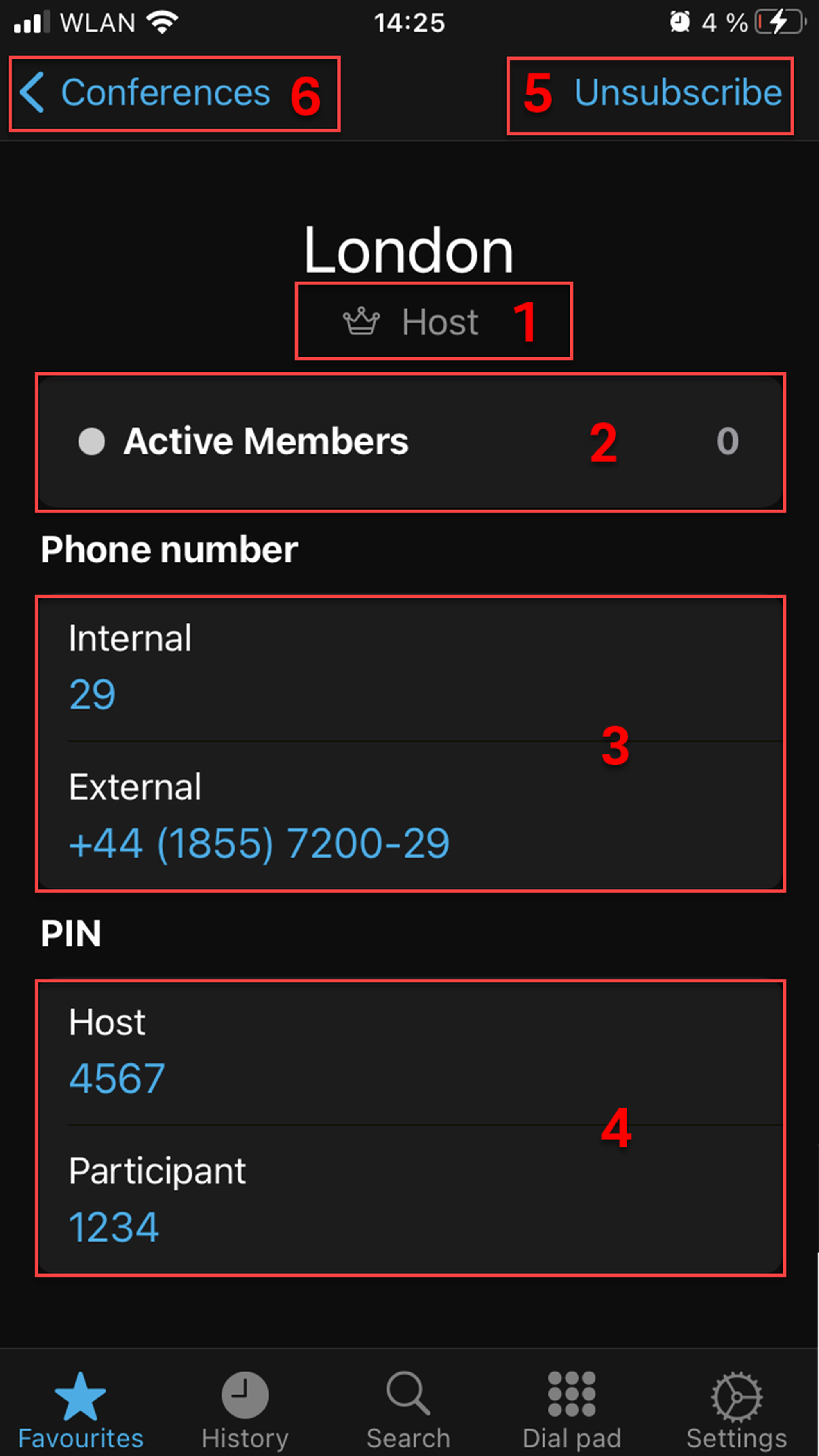
Showing detailed information about a conference
If you click on the info button next to a conference name, you can see detailed information about a conference.
In this view, you can
See the host
See the active members of the conference
See the internal and external phone numbers to dial into the conference
See the host and participant PINs
Unsubscribe from the conference
Go back to the Conferences view