2. Changing user data
Changing user data
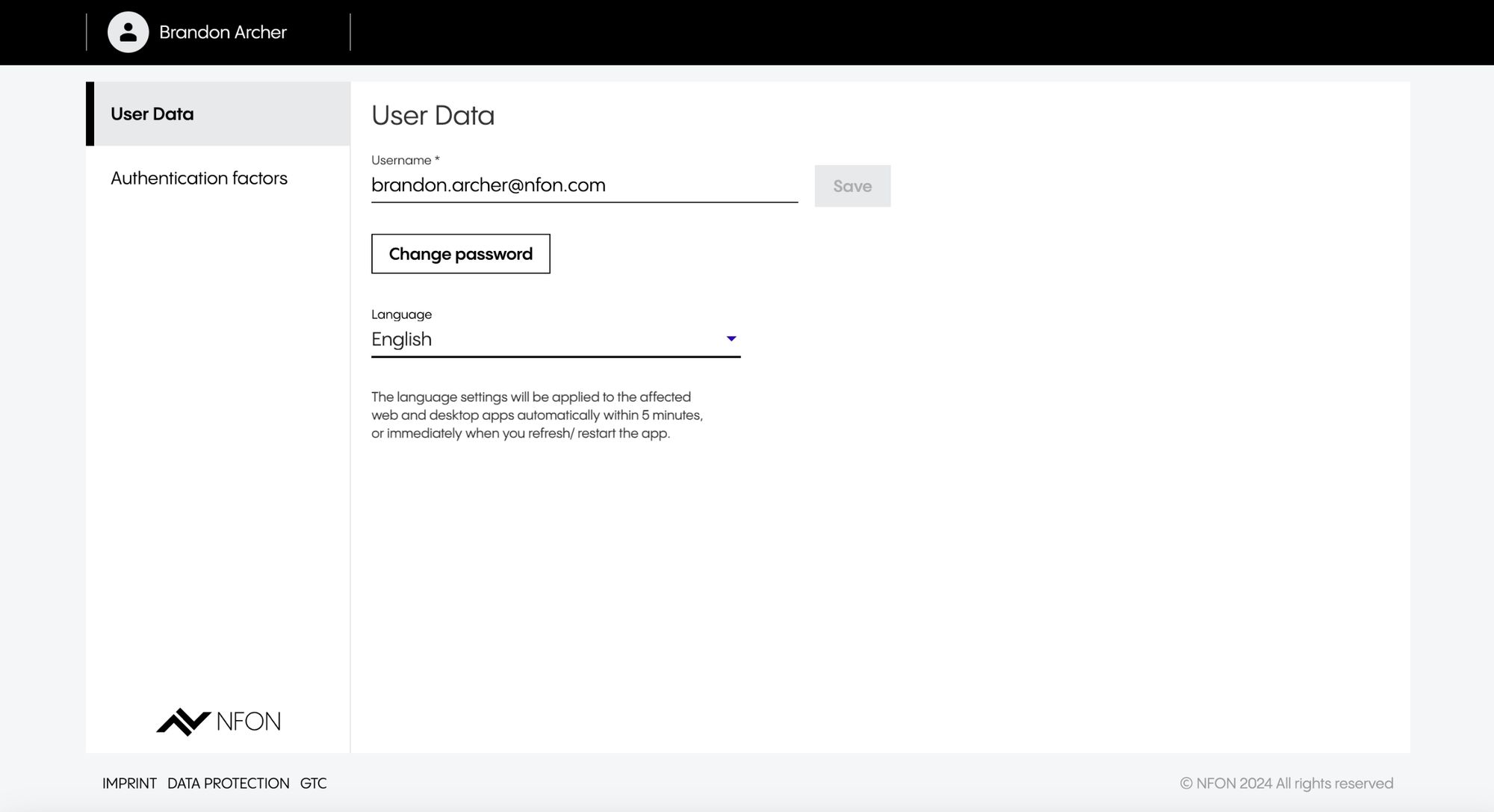
Once in the User Profile application, you will land in the User Data. in this tab, you can:
Change username (email address)
Change password
Change language
Changing username
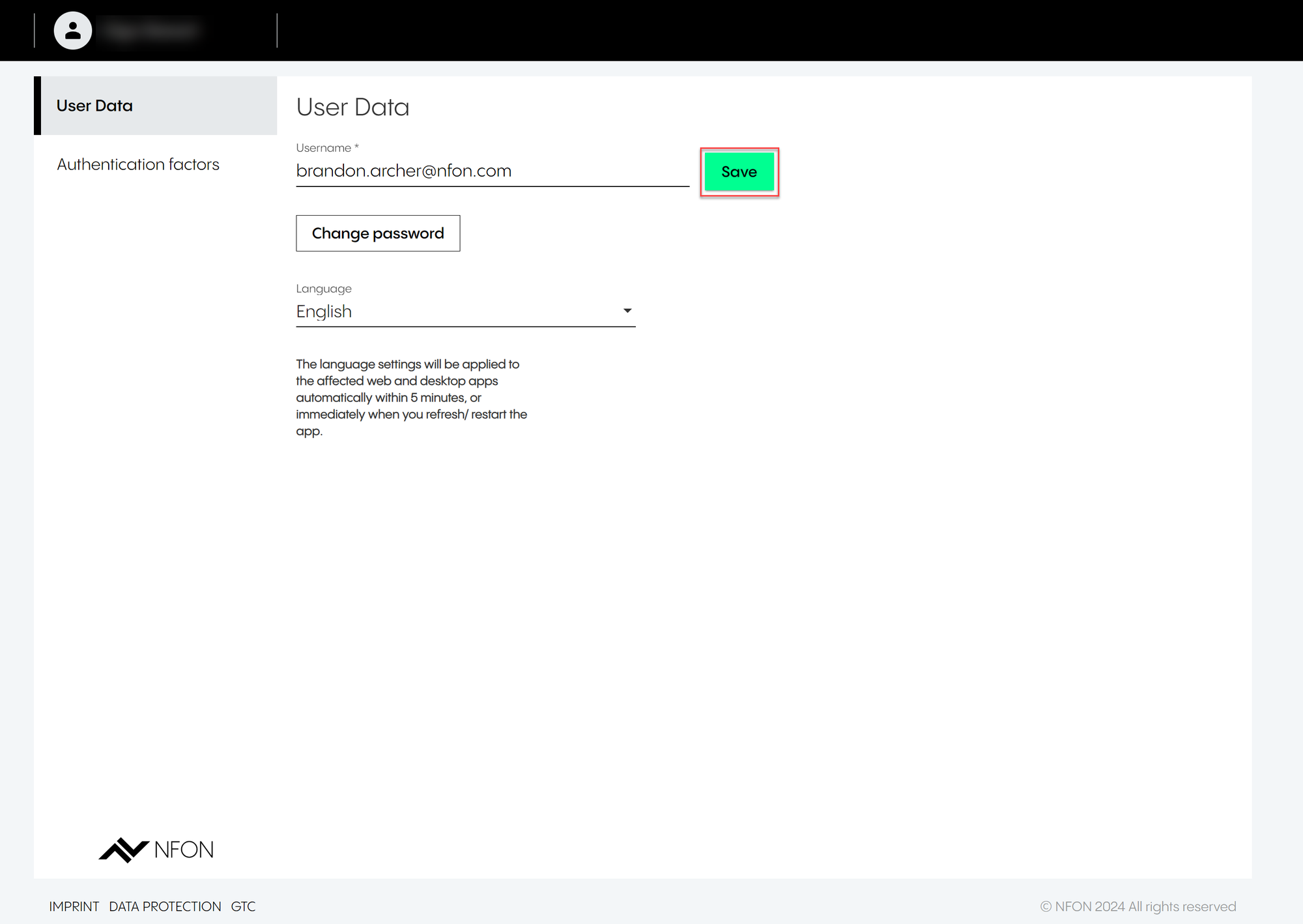
To change username:
Go to the Username field.
Make changes.
Click Save.
Changing password
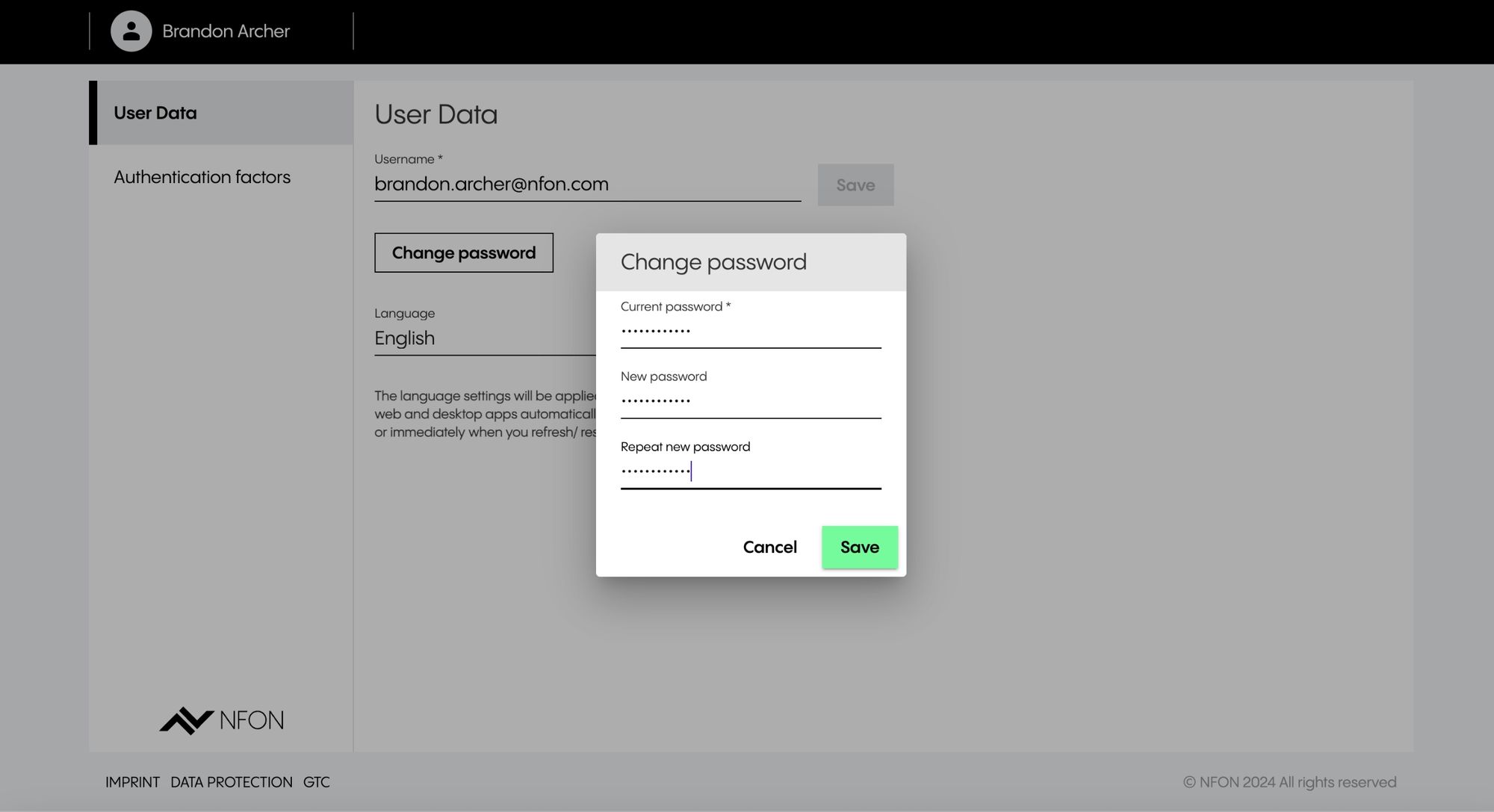
To change the password:
Click Change password.
⇒ An input widget will open.
Enter your current password and new password.
Click Save.
⇒ The password has been saved successfully.
Changing language
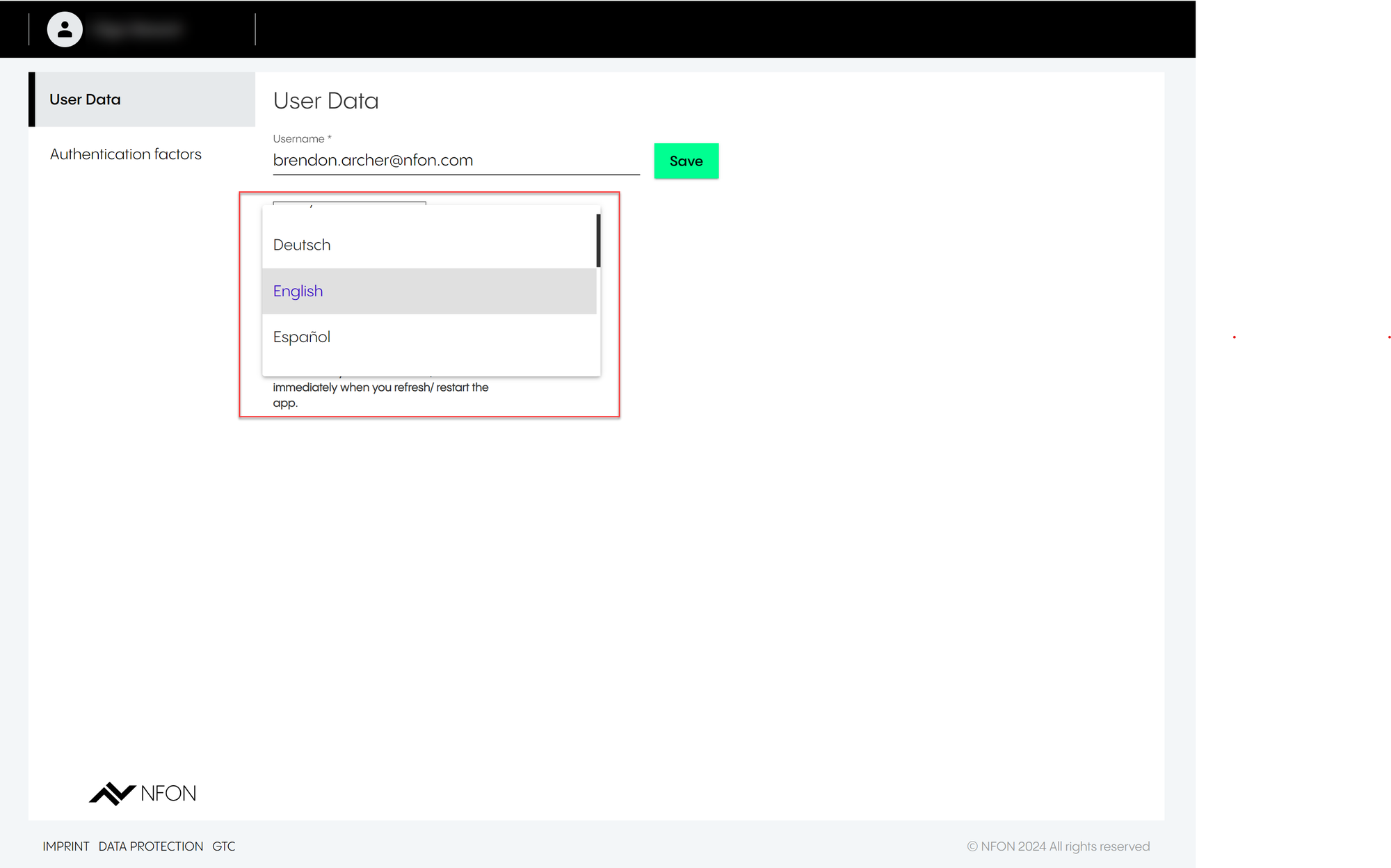
To change the language:
Go to the language field.
Select a language.
⇒ The language will be applied to all the affected web and desktop apps automatically within 5 minutes, or directly after refreshing or restarting the respective app.