2. Agent page overview
Agent page overview
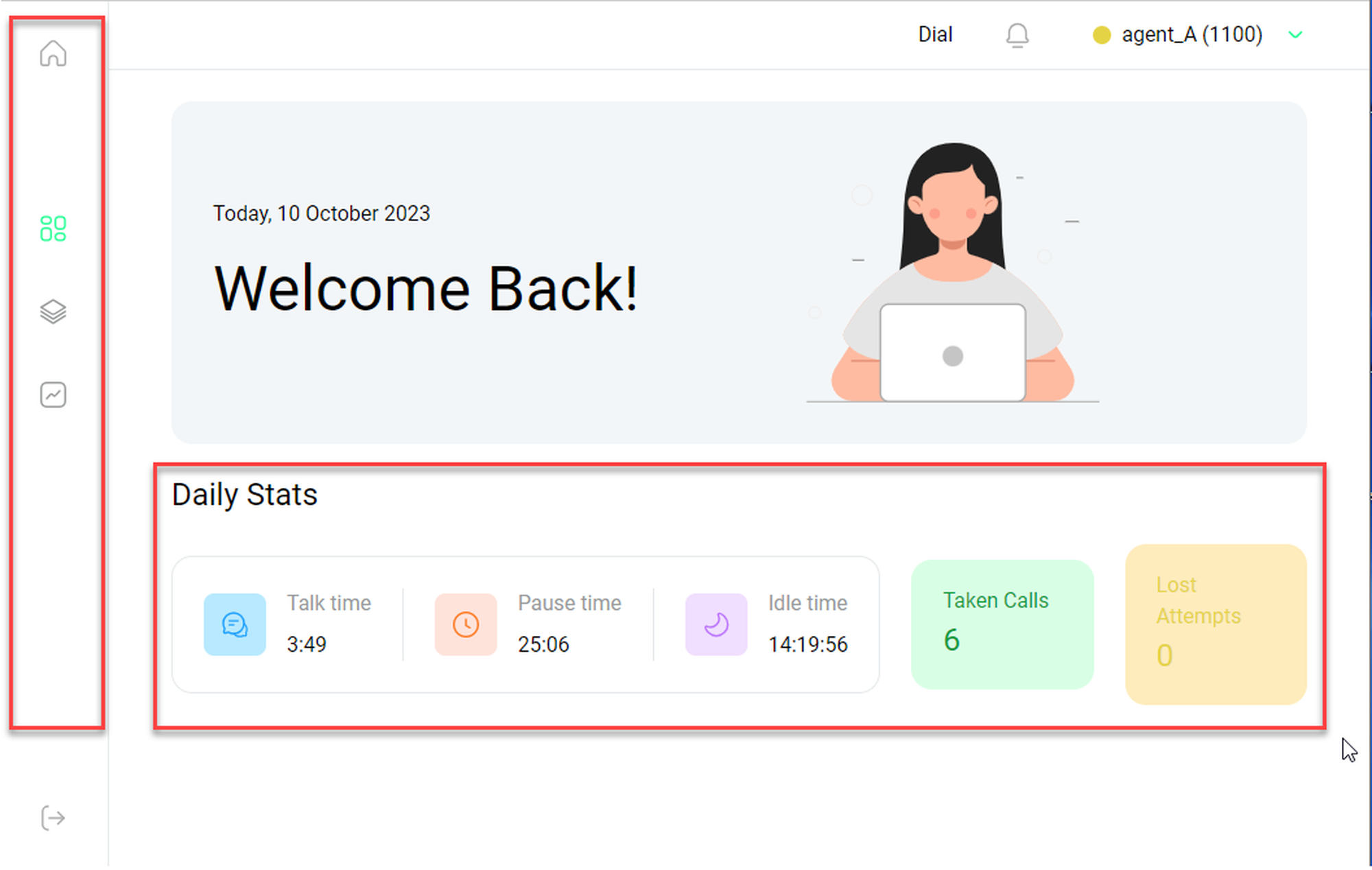
After logging into the Nmonitoring Queues portal, as an agent you are directed to the Agent Page Overview – not the general starting home page. In the presented overview you can see your daily stats: talk time, pause time, idle time, taken calls and lost attempts. On the left side, you will find an icon bar that will grant you access to the following pages:
Overview
Changing status to pause
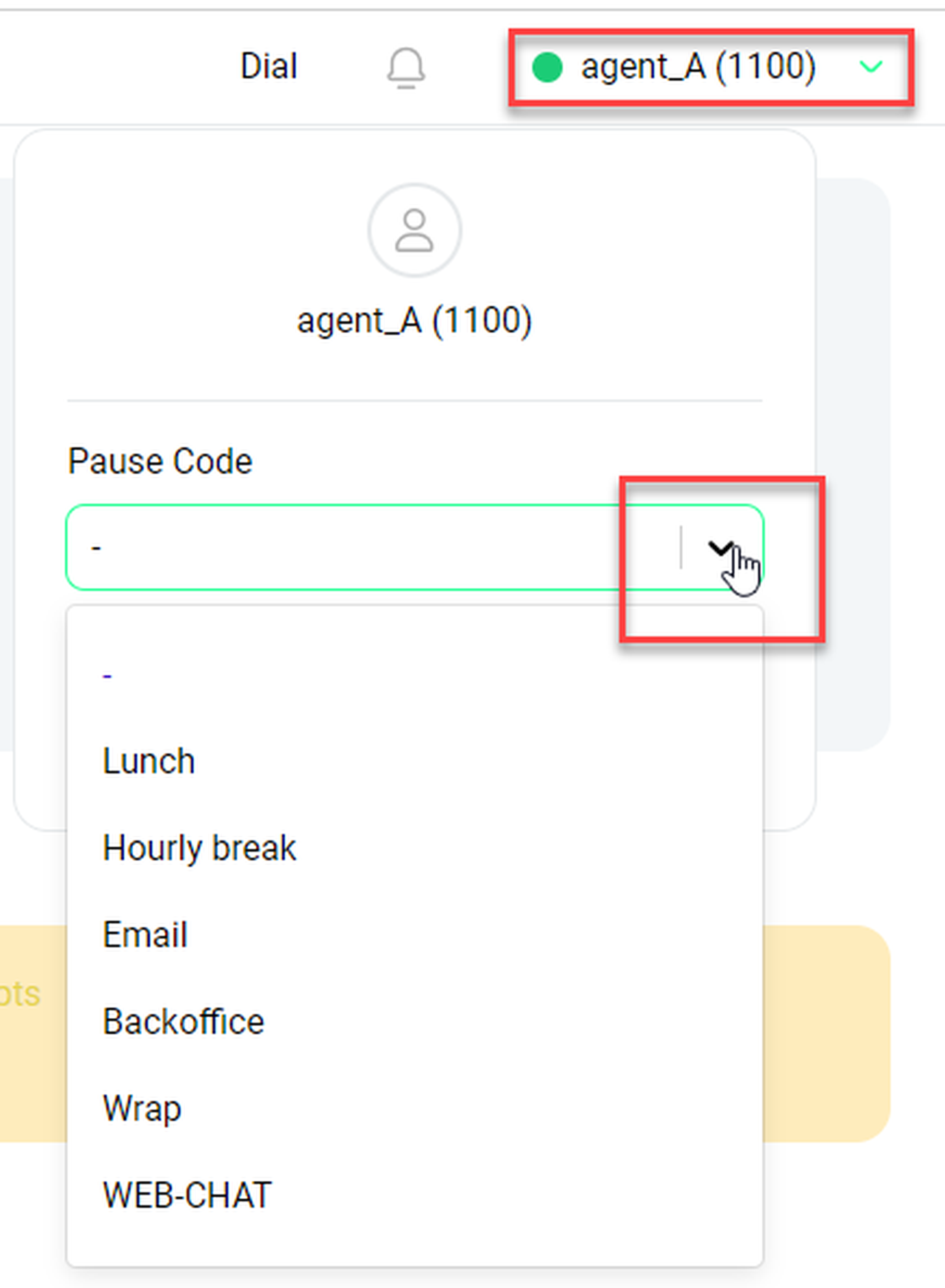
In the upper right-hand corner, you will find your agent name and a status icon that should be green (active).
Click on this area to open the pause menu.
⇒ Here you can start a pause. In the pause menu you can open a drop-down menu and choose a specification for your pause status, for example, "Lunch".
Start a pause by changing your signalled status to red (not available).
NOTE
If an agent wants to log on to a skill, the administrator must first assign it to the appropriate agent in the Administrator portal of the PBX. As soon as the agent selects a logon skill, the agent is logged on to all available skills.
2.1 Control page
Control
Starting from the Agent page overview, you can access the Control page via the icon bar on the left (the icon that is green instead of grey on the screenshot). When you hover over the icons, there is also a tooltip showing Control.
On the control page, you can:
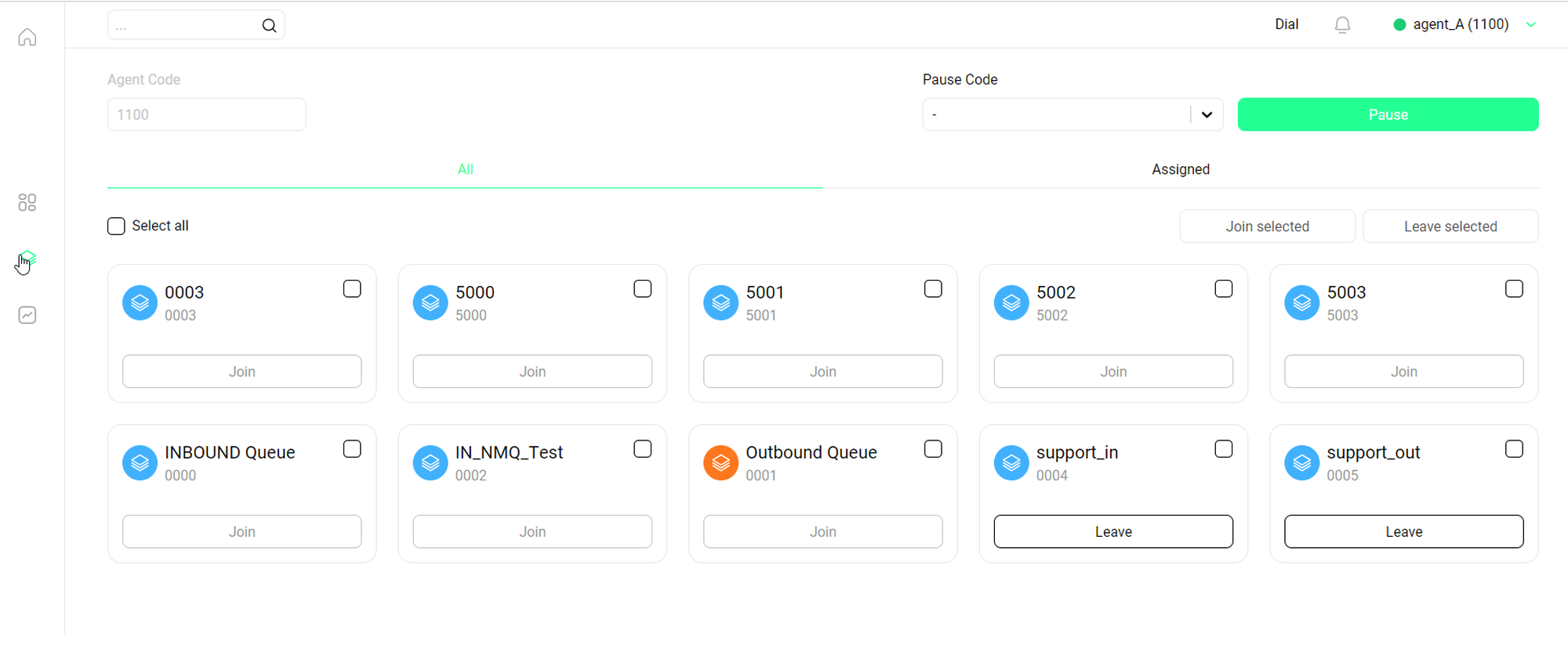
See all queues/skills available to you
Join a queue/skill
Leave a queue/skill
Activate your pause status
Joining/leaving a queue/skill
Each queue/skill is represented by a tile with some basic information.
Click Join to join a queue/skill.
⇒ After joining, the same button will display Leave.
Click Leave to leave the queue/skill.
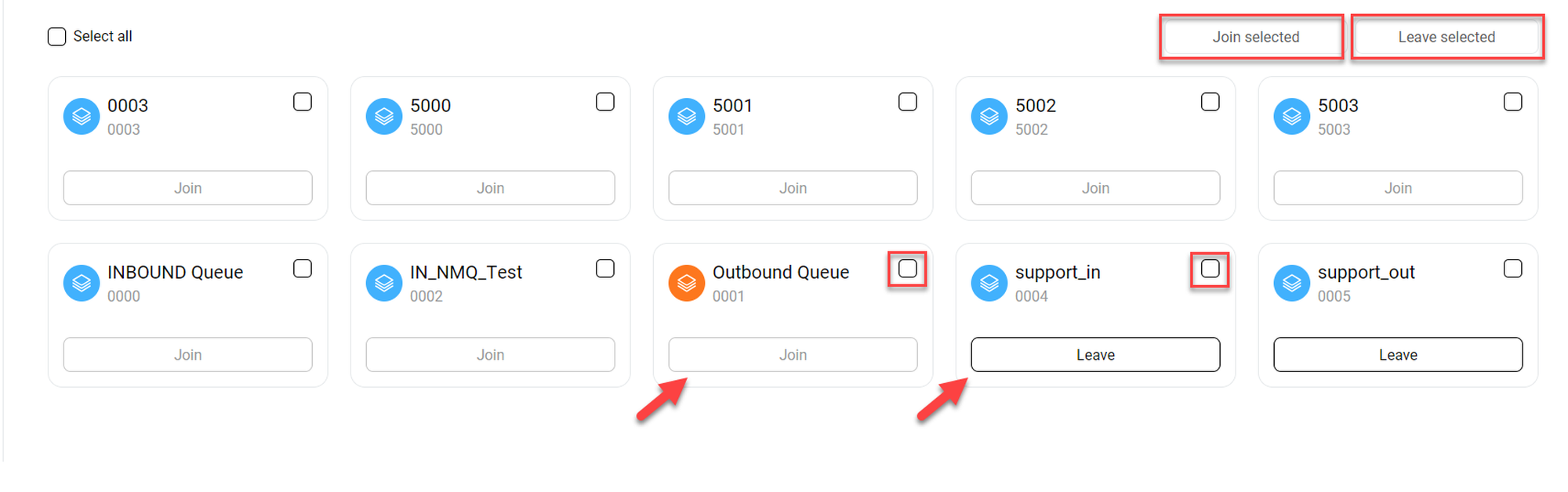
Alternatively, you can join or leave mutliple queues/skills at once. Each queue/skill has a tickbox in the upper right-hand corner of its tile.
Joining/leaving several queues/skills:
Tick the boxes of all queues/skills you want to join.
Click Join selected (or Leave selected respectively) above the queue/skill tiles to the right.
Please note that leaving/joining a queue/skill takes a moment (usually less than a minute). This period is indicated by a loading symbol.
Activating the pause status
To activate your pause status:
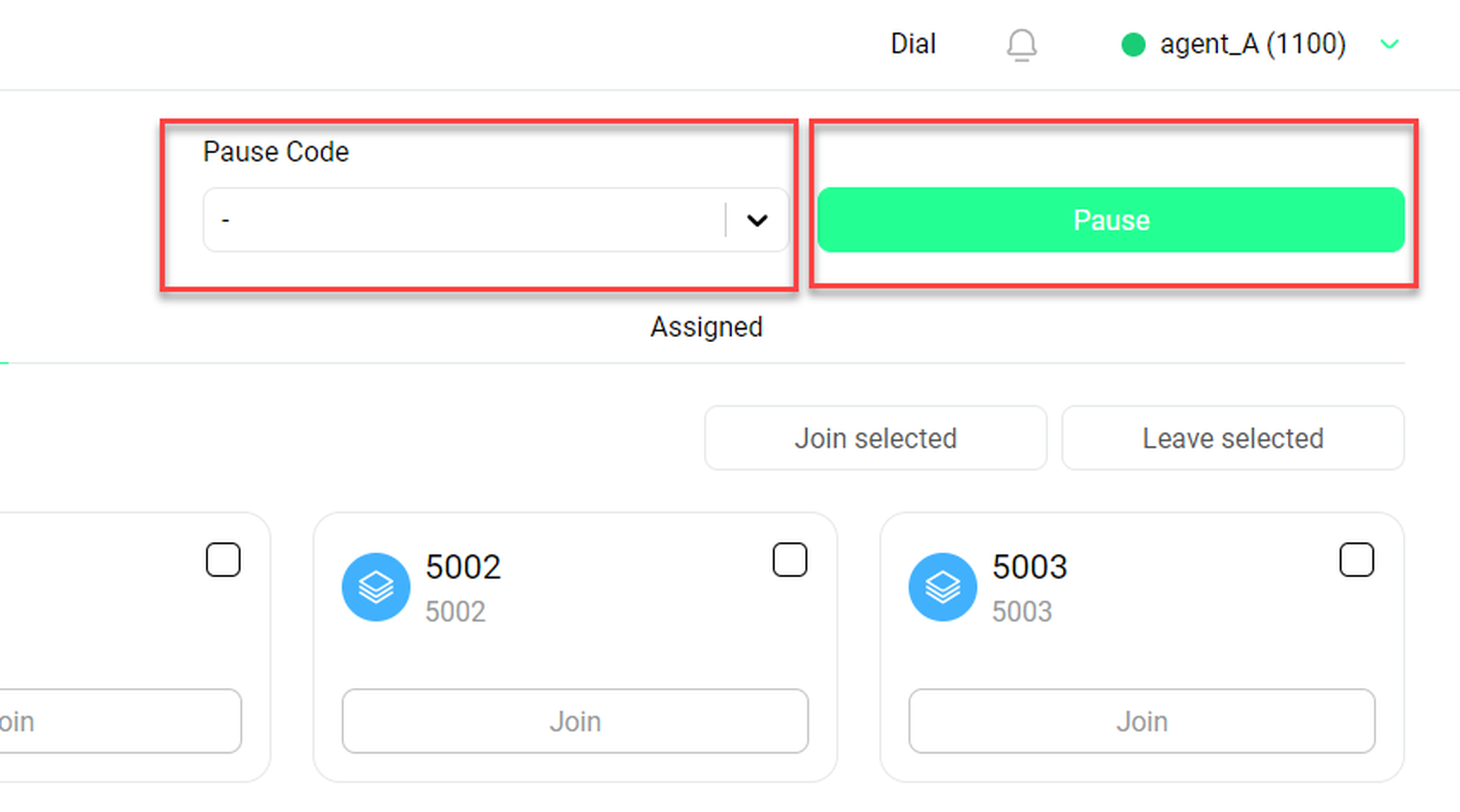
Click Pause in the upper right-hand corner of the page.
Next to the pause button you will also find a drop-down menu where you can select a specific pause type, such as "lunch", "meeting" or "buisy". Those specified paused statuses have to be customised by your administrator (or possibly supervisor). If they haven't been customised, the drop-down menu will be empty.
Tip
You can also activate your pause status on the agent starting page. This is described in Agent page overview. Please note that it makes no difference which way you activate your pause status.
2.2 Interaction page
Interaction page
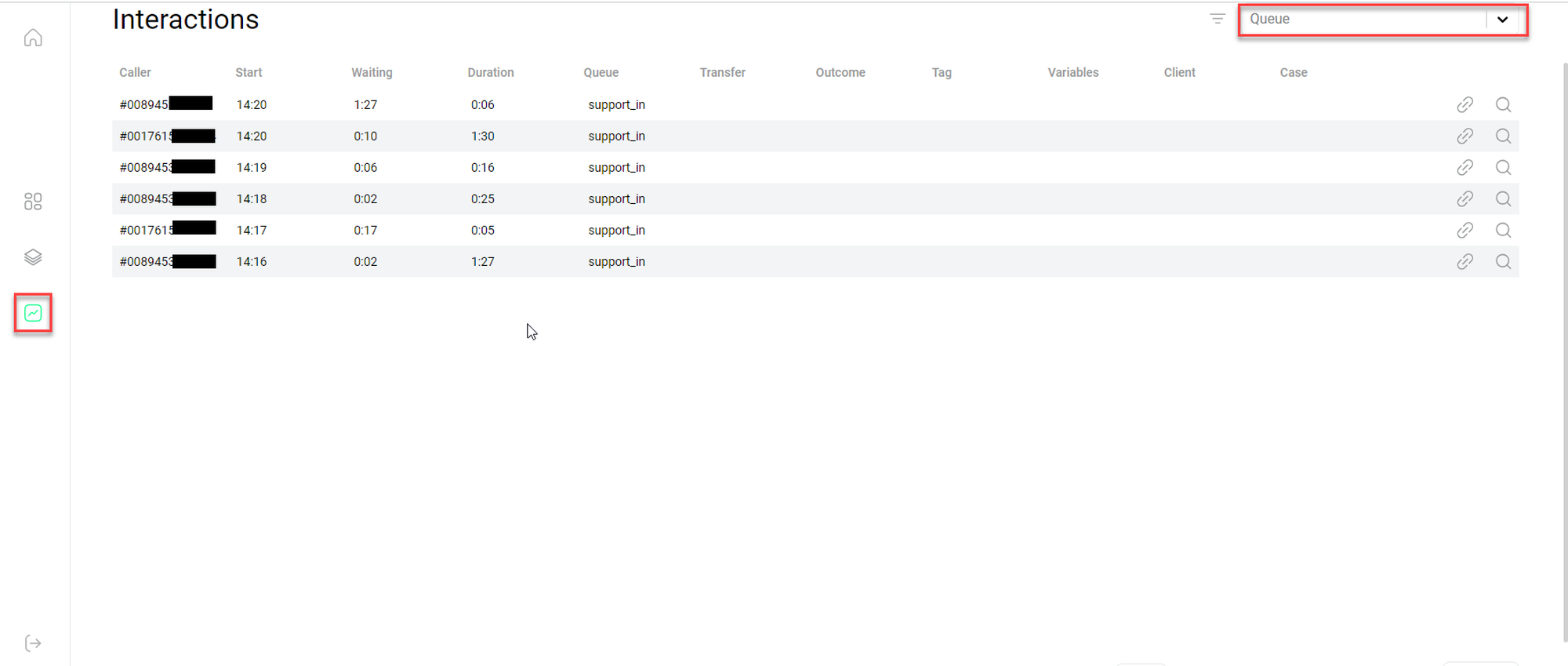
Starting from the Agent page overview, you can access the Interaction page via the bar on the left (the icon that is green instead of grey on the screenshot). There is also a tooltip showing Interaction when you hover the cursor over the icon.
On the Interaction page, you will find brief information about your calls. All interactions (inbound and outbound) of your extension that were made while you were logged in to a queue or skill monitored by NMQ are displayed. In the upper right-hand corner you can select a specific skill/queue from the drop-down menu, limiting the calls shown to you in the table to this specific queue/skill.
2.3 Home (agent view)
Home (agent view)
The home page is the starting page in NMQ when you log in as an administrator. It contains all more andvanced functions that make NMQ the useful tool for live monitoring and data analysis. However, most (if not all) of this functionalities are not availalble to agents. Therefore, it makes sense that the agent page is your starting page. The home page might be of limited use to you as an agent.
However, agents of the user class Agent_SSR have limited access to self-monitoring and self-reporting. As an agent of this class, you can manage your tools for self-monitoring and self-reporting on the home page.
As an agent, the Home view does not offer you a lot of options.
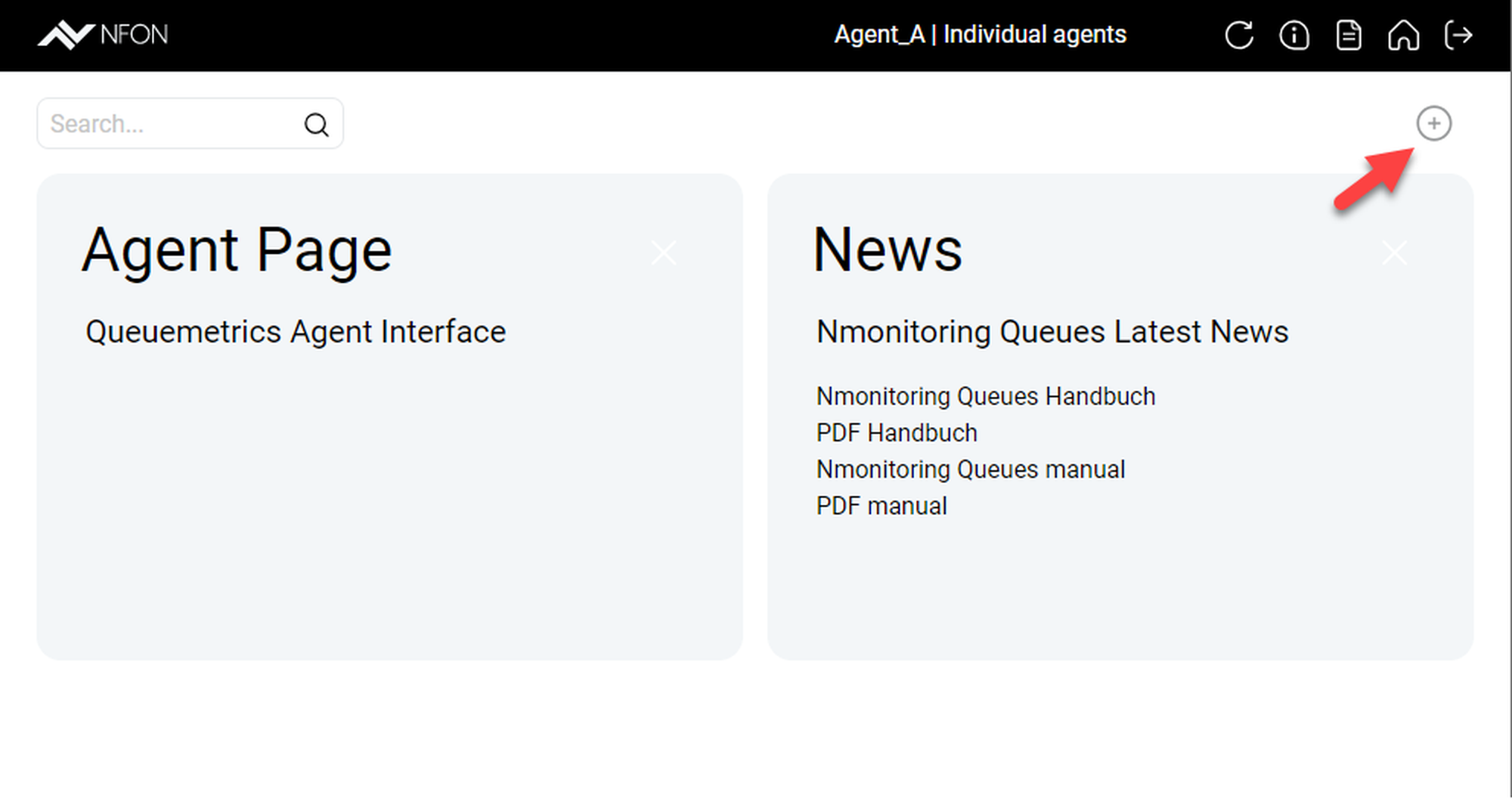
Click on the tile Agent Page to go back to the agent page overview.
The News tile offers you some links to the helping content/manuals for NMQ.
Click on the plus button in the upper right-hand corner to open a sidebar to modify the tiles available to you on this page.
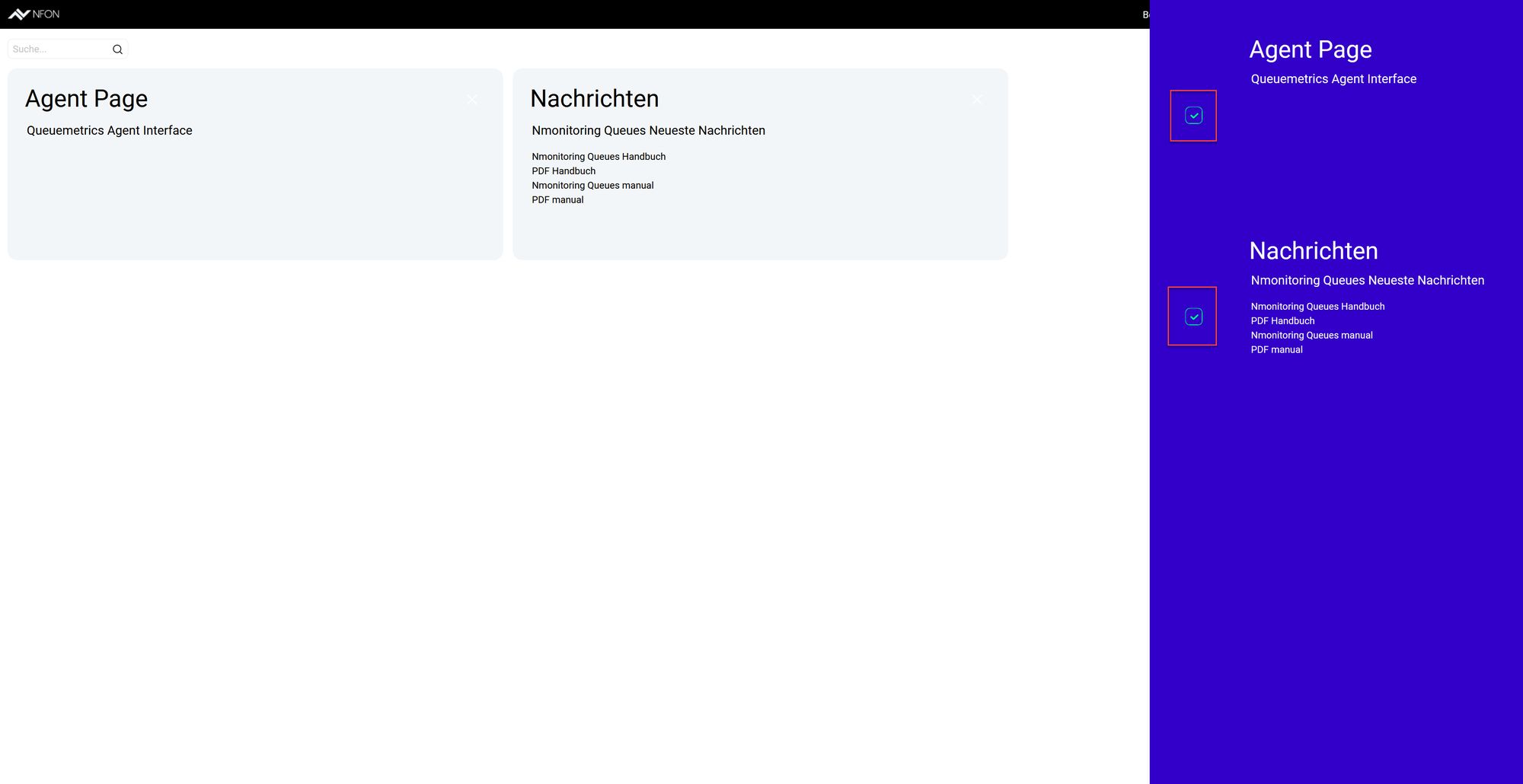
⇒ After clicking the plus button, you can see a list of the tiles available to you in the Home view at the side. Each tile has a tick box. All boxes are ticked as a default.
Untick a box to remove the respective tile from the Home view.
In general, it is much more useful for admin users, since they have a lot more tiles available.
Agent with self reporting
As an agent with self reporting, you will find a gear button just beside the plus button, giving you access to your reporting options.
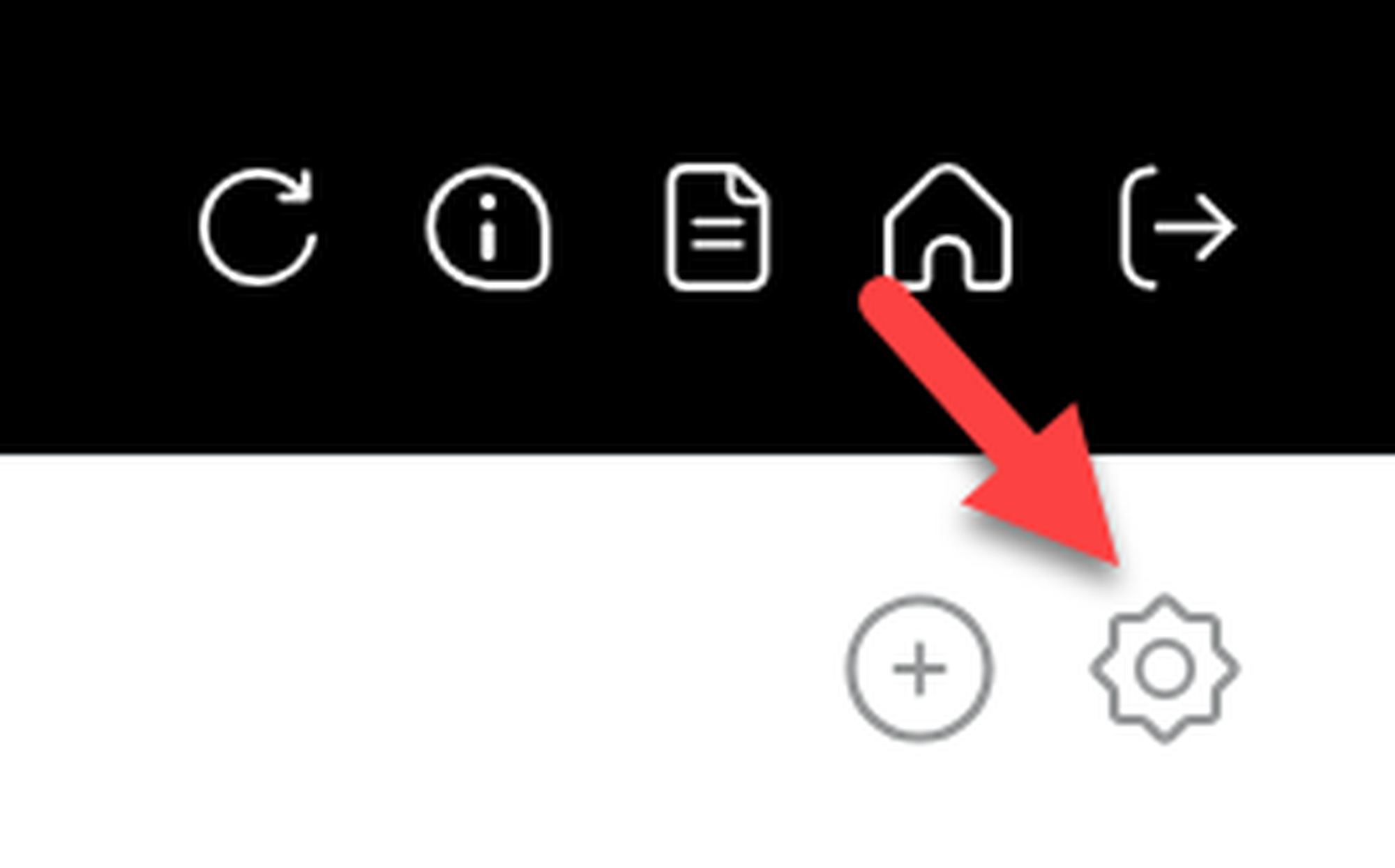
Accessing configuration
Click on the gear icon.
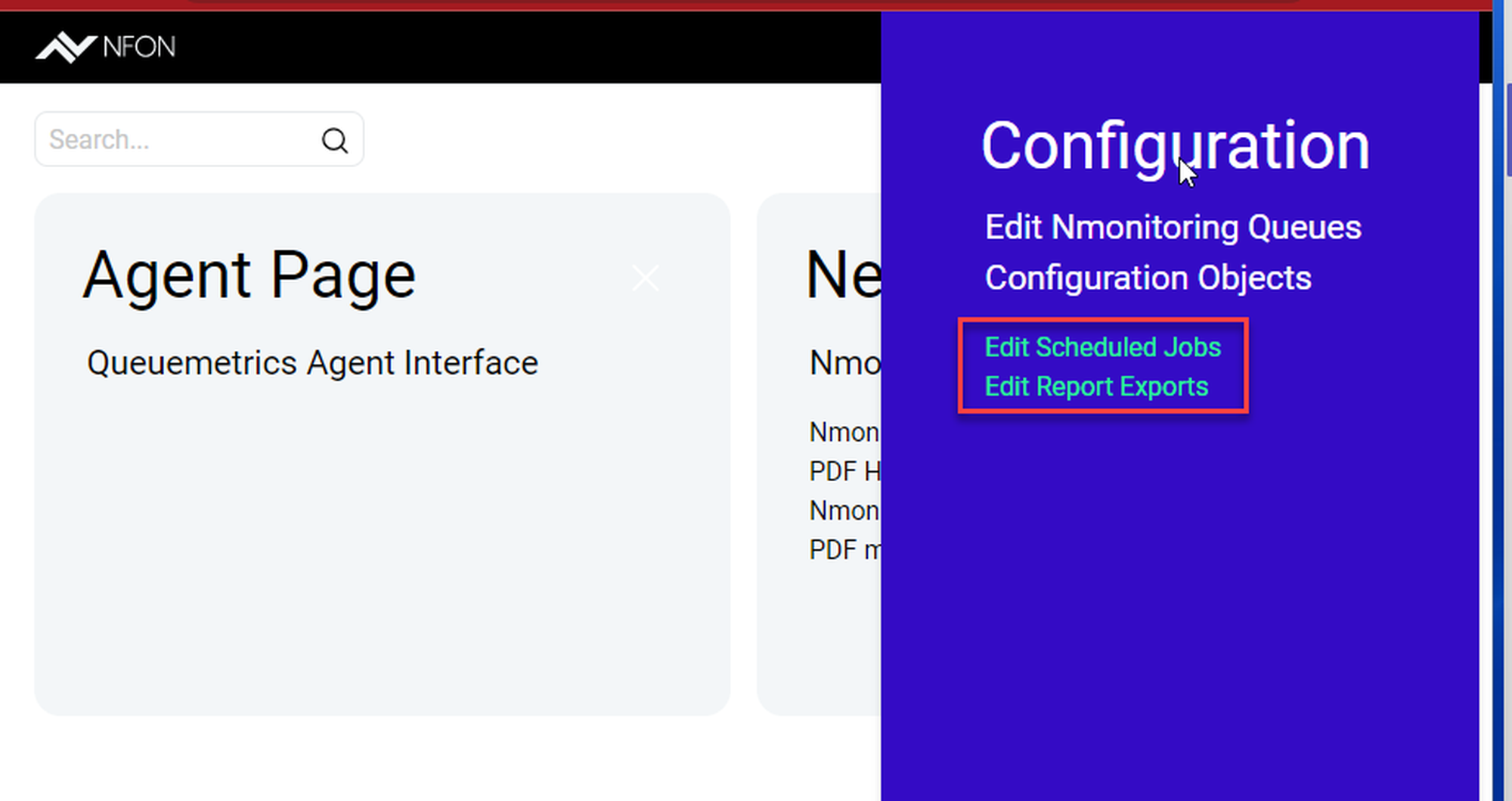
⇒ The Configuration sidebar opens.
Here, you can:
Edit scheduled jobs
Edit report exports
See Reports for more information on how to edit your report exports and how to schedule export jobs.
Tip
You are an administrator of the PBX connected to NMQ and want to edit the access levels of your agents? For more information, see Configuration.