3. Using the agent page as supervisor
3.1 Supervisor views and rights
Supervisor views and rights
Supervisor is a user with the system user class Supervisor. The administrator assigns the system user classes. Note that you have to log out and log back in after your administrator has assigned the Supervisor user class to you.
The administrator can configure a supervisor with or without access to the agent page. In the standard setup, you have access to the agent page as a supervisor.
Supervisor with agent page
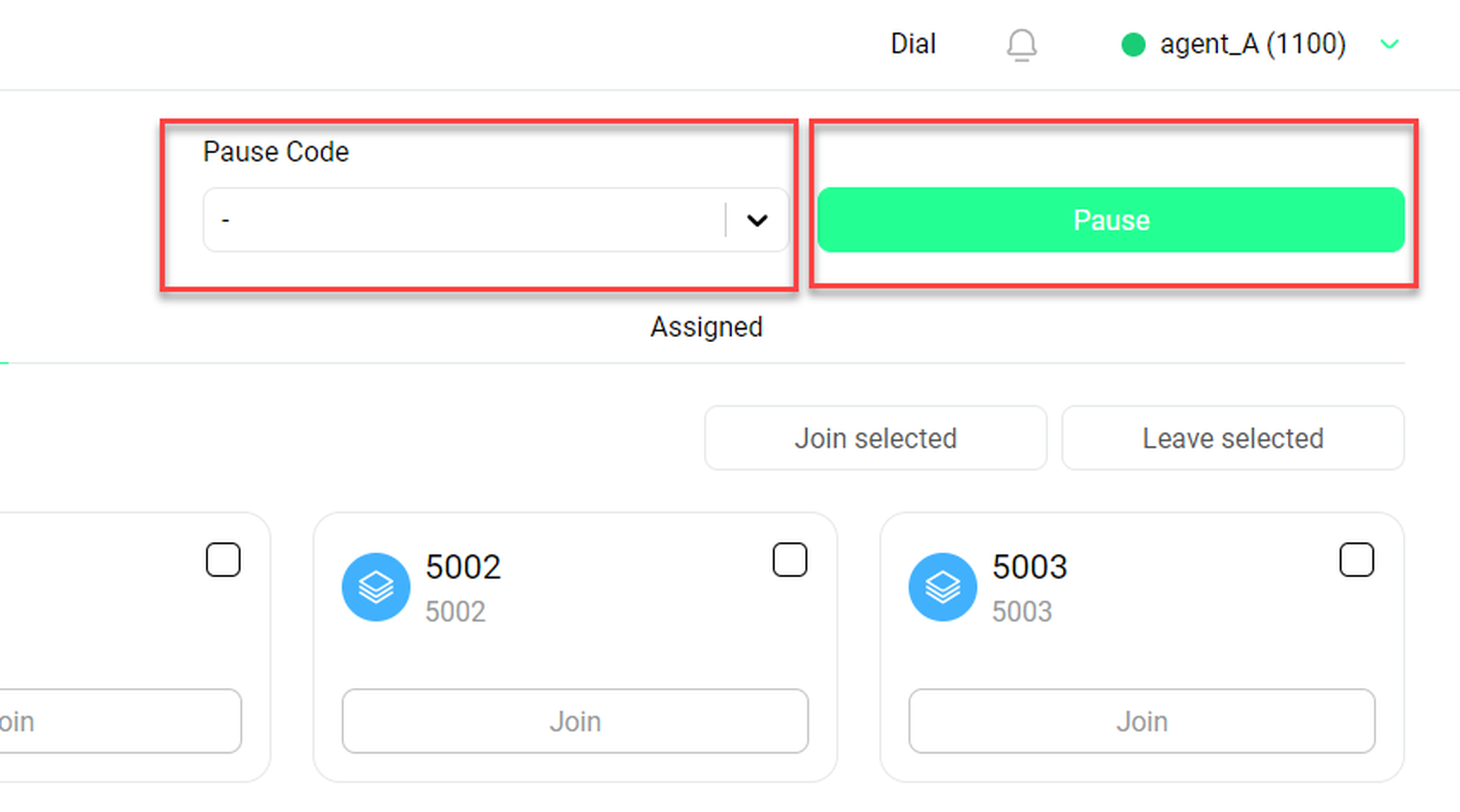
As a supervisor, you might also have access to the agent page. In that case, your starting page is the agent page and you have the same view as an agent on the agent page and can log on/off to a queue or skill like an agent. For more information on the agent page, see Using NMQ as an agent . Unlike the agent, as a supervisor you can manage and monitor not only your own qeues/skills, but also those of the agents assigned to you.
Supervisor without agent page
As a supervisor without access to the agent page you will start on the standard starting home page, like an administrator (see Supervising and Administrating ****).
3.2 Agent page (supervisor view)
Agent page (supervisor view)
After logging in to NMQ as a supervisor, you are directed to the agent page overview, not the general starting home page.
The subpages of the agent page are similar for agents and supervisors.
Here you can find the information for the following:
Home
The home page is different for supervisors and agents. For more information about the home page, see Home (supervisor view) .
3.3 Home (supervisor view)
Home (supervisor view)
Starting from the agent page, you can access the home page via the Home icon in the upper left-hand corner. There is also a tooltip showing Home when you hover the cursor over the icon.
As a supervisor without agent page, you can ignore this step. The home page is already your starting page.
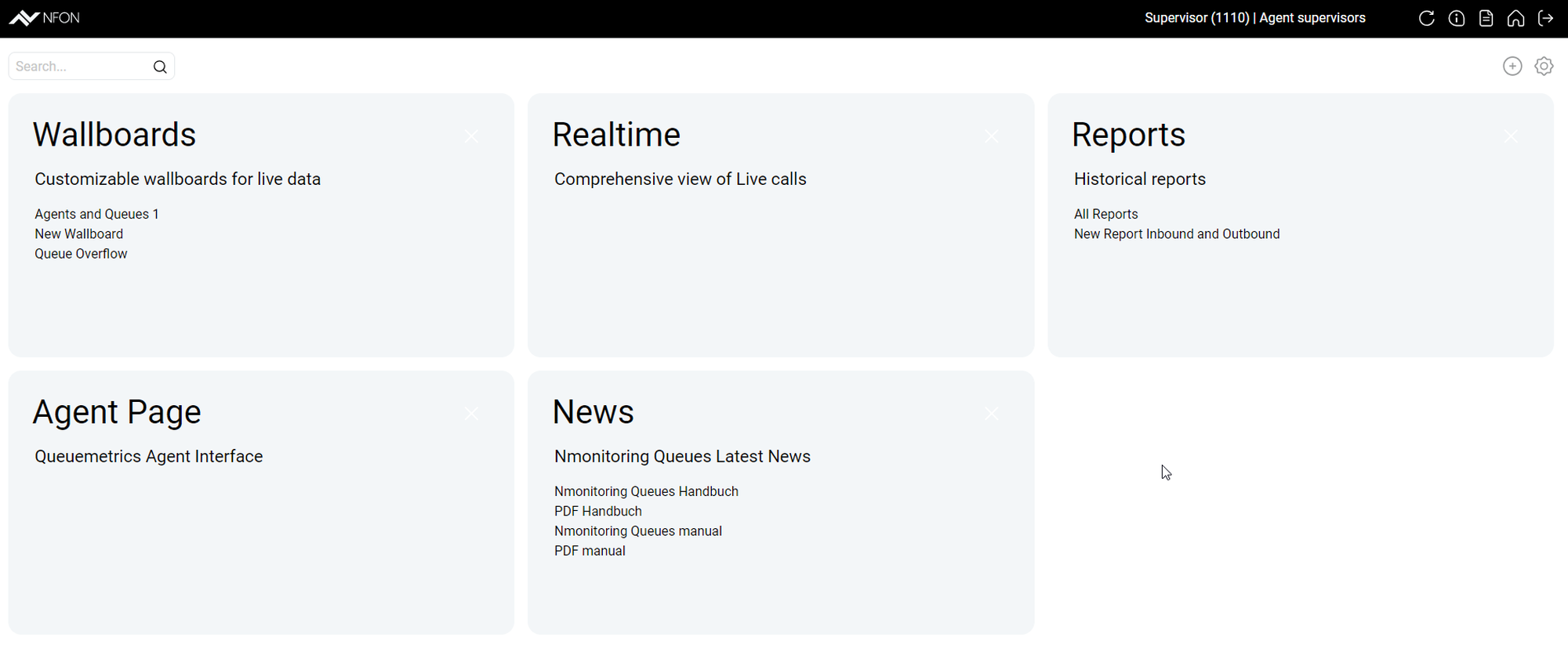
On the home page, you have access to to a number of tiles, such as Wallboard, Realtime or Reports. Which tiles are available to you is configured by your administrator. In the standard setting, you can access:
Wallboards: You can have as many active wallboards as you want. Unlike real-time monitoring, wallboards are configurable and customisable. They allow monitoring under selected viewpoints.
Realtime: Realtime monitoring enables the analysis of queue and agent activities for the current time. This page represents the current activity on your PBX and is constantly updated.
Reports: Reports are used to evaluate queues, skills and agents synchronised with the system.
News: News give you access to the Nmonitoring Queues documentation.
Agent Page: This option takes you back to the agent page (visible only for supervisors with agent page).
Find more information on how to use wallboards, reports and realtime, see the respective chapters in Supervising and Administrating.