3. Managing an ad-hoc conference call
3.1. Creating an ad-hoc conference call
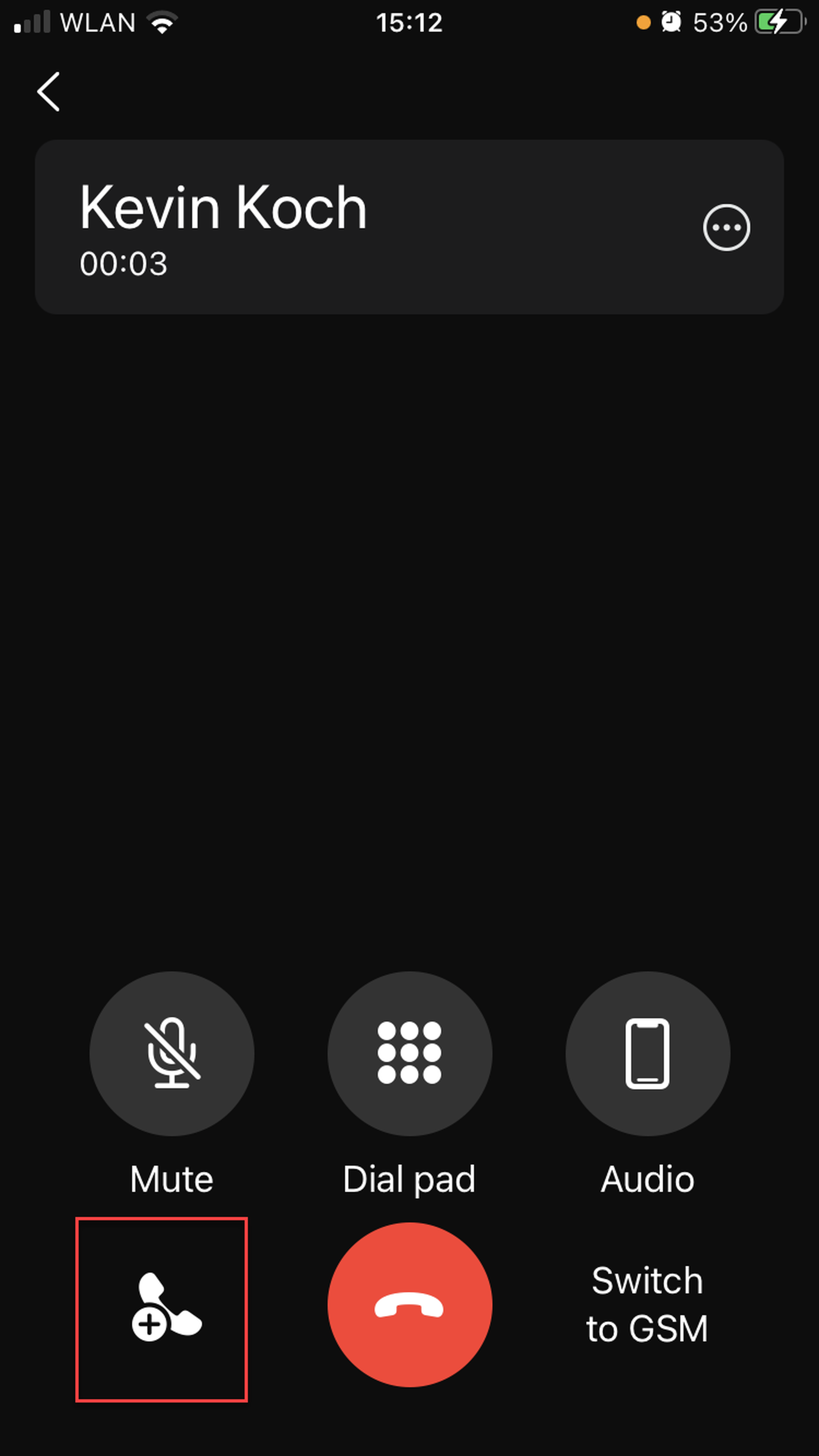
1. When in a call, tap on the Add a new call button.
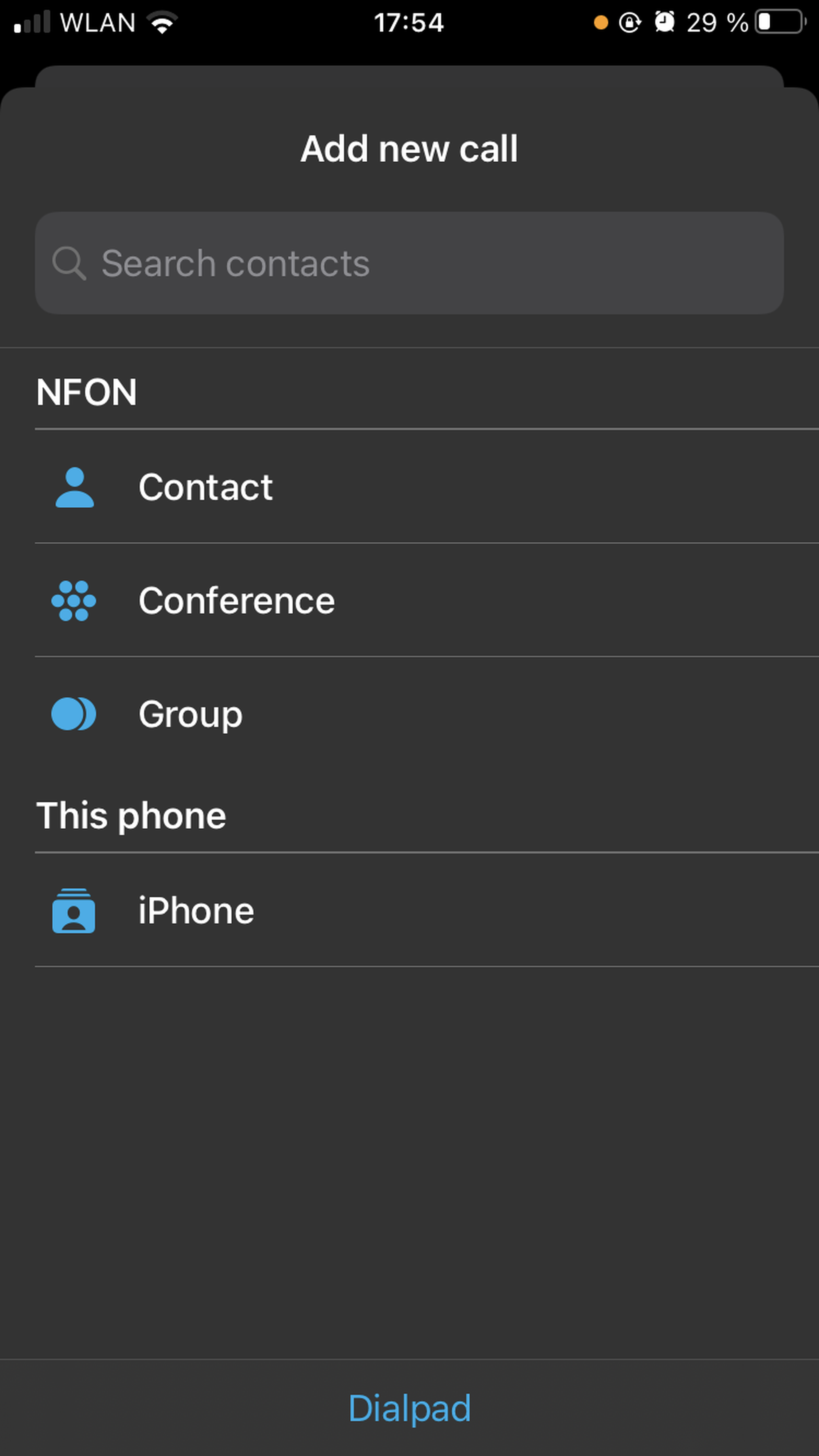
2. In the Add a new call window which opens, search for a person you want to add to the call.
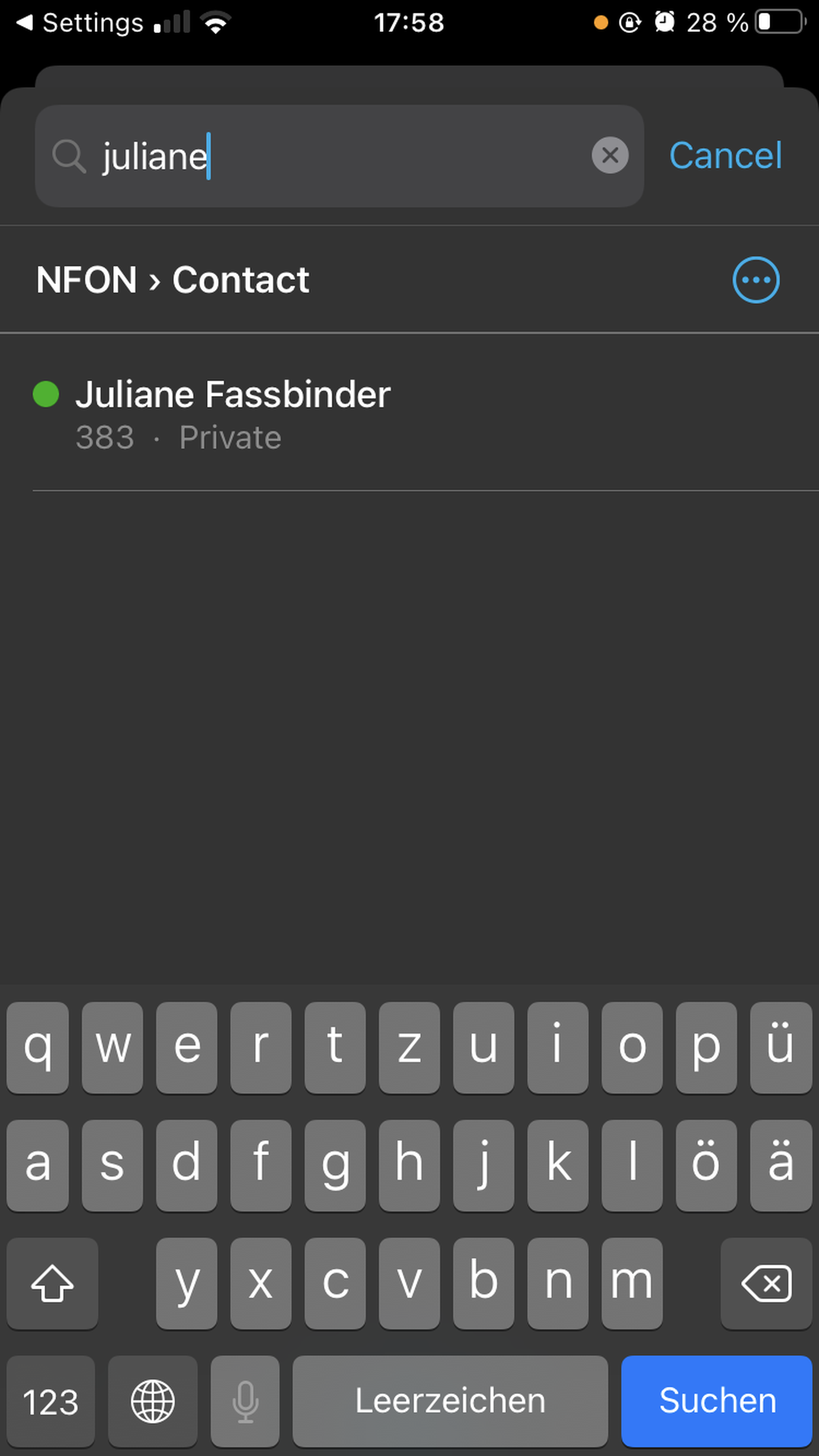
3. The app finds the contact.
4. Call the selected contact. Please note that the first person is put on hold in the meantime.
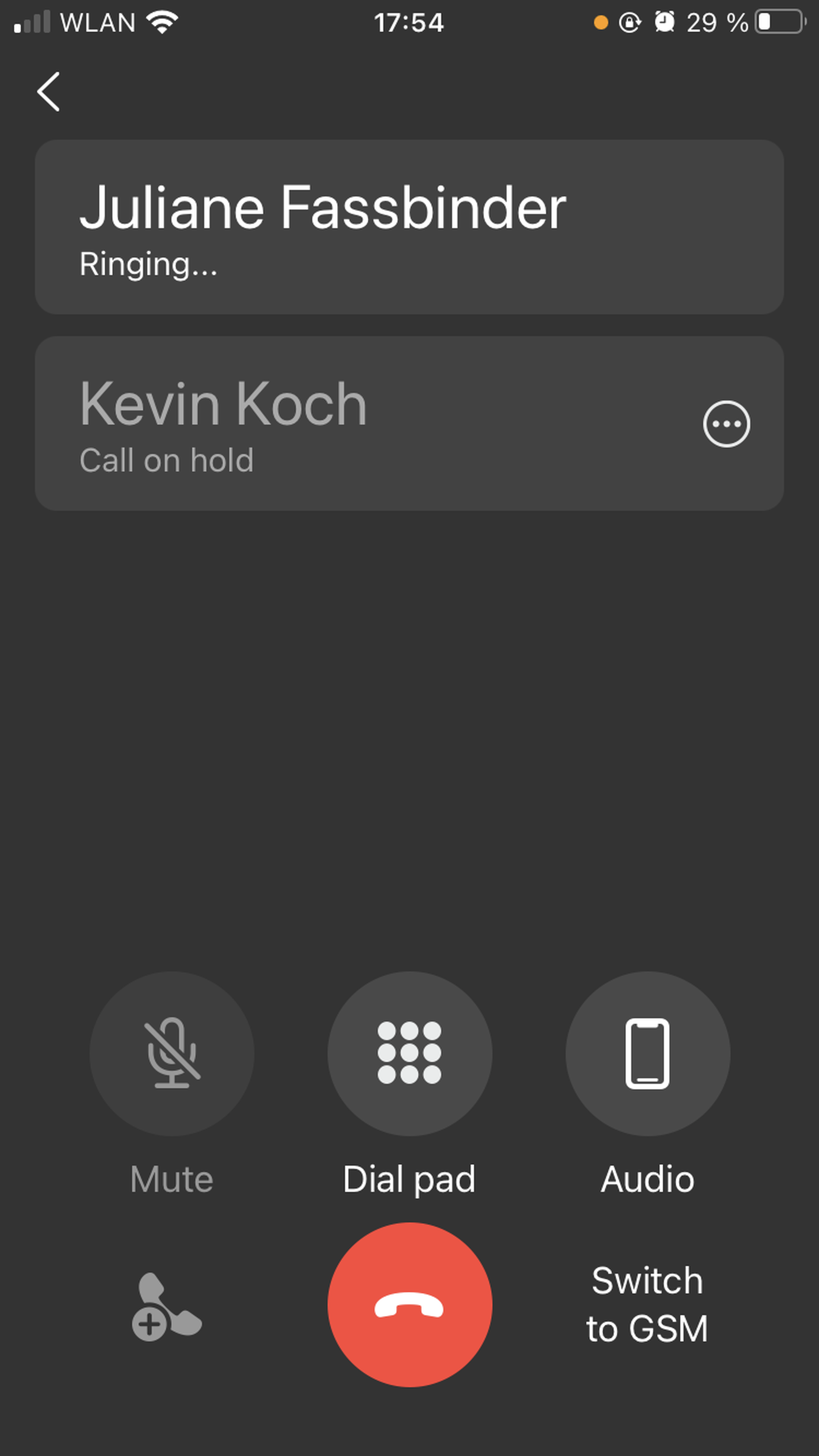
5. When the selected contact picks up the call, click on Merge to create an ad-hoc conference.
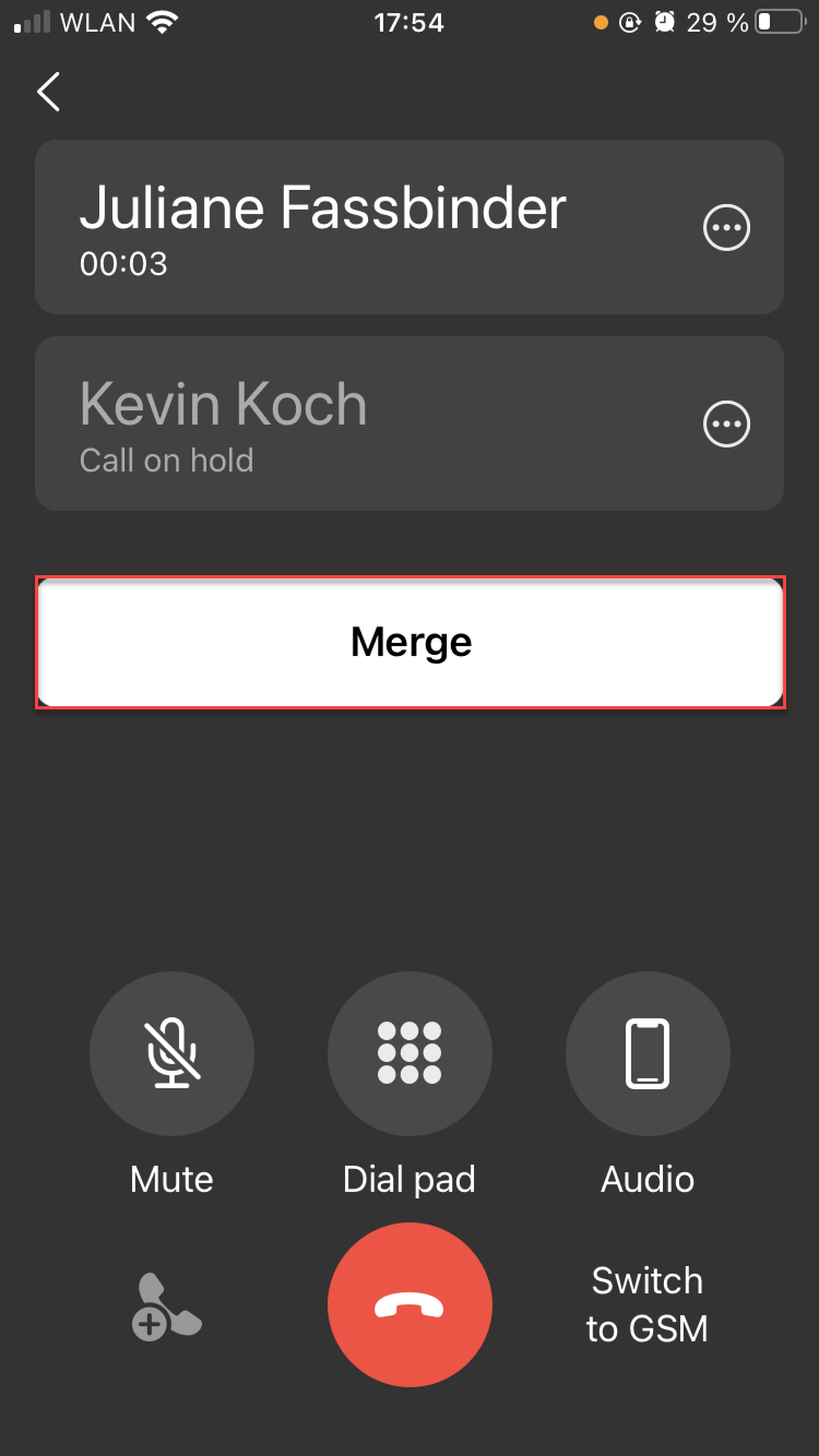
6. You are now in an ad-hoc conference.
3.2. Managing options in an ad-hoc conference call
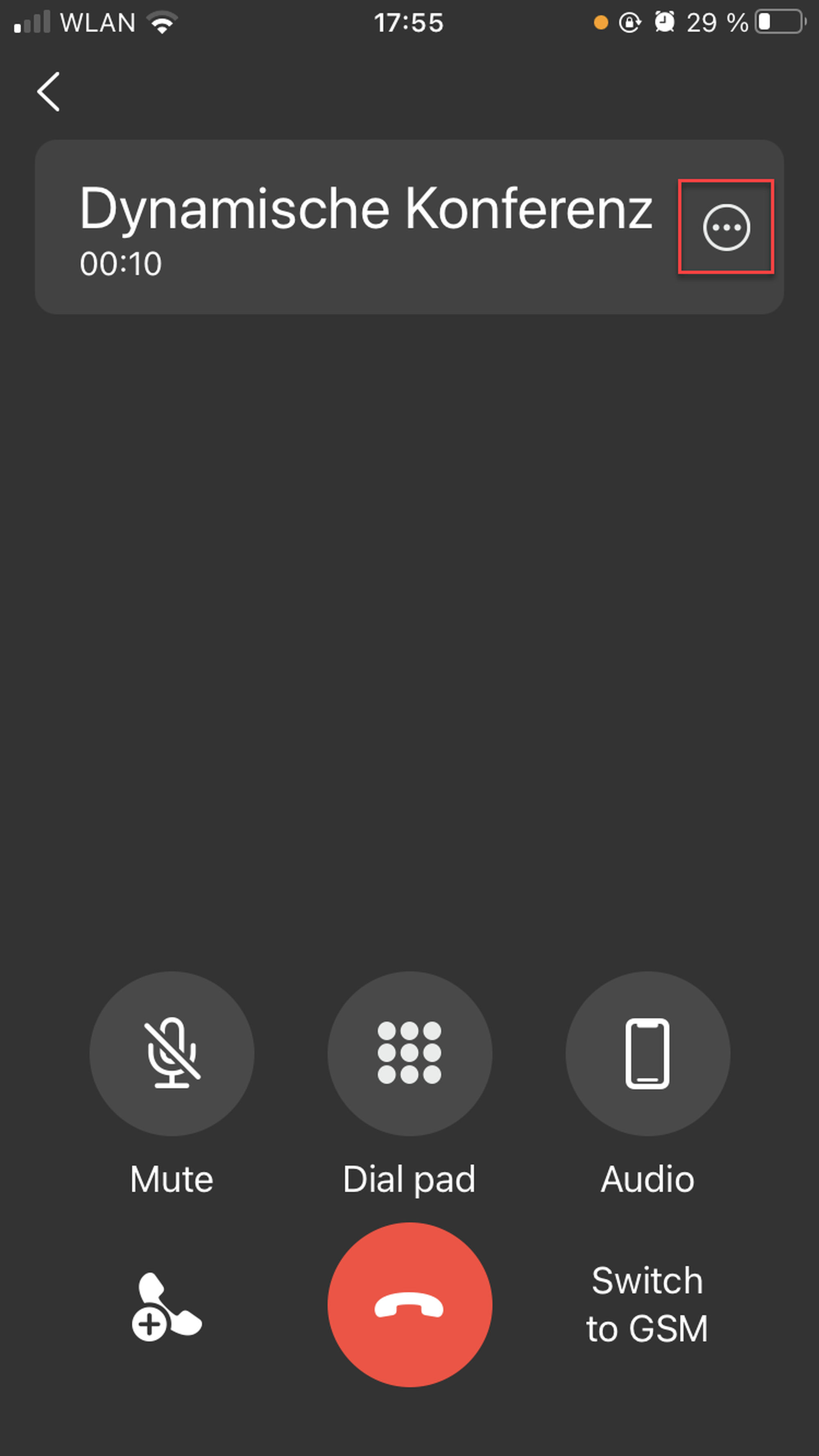
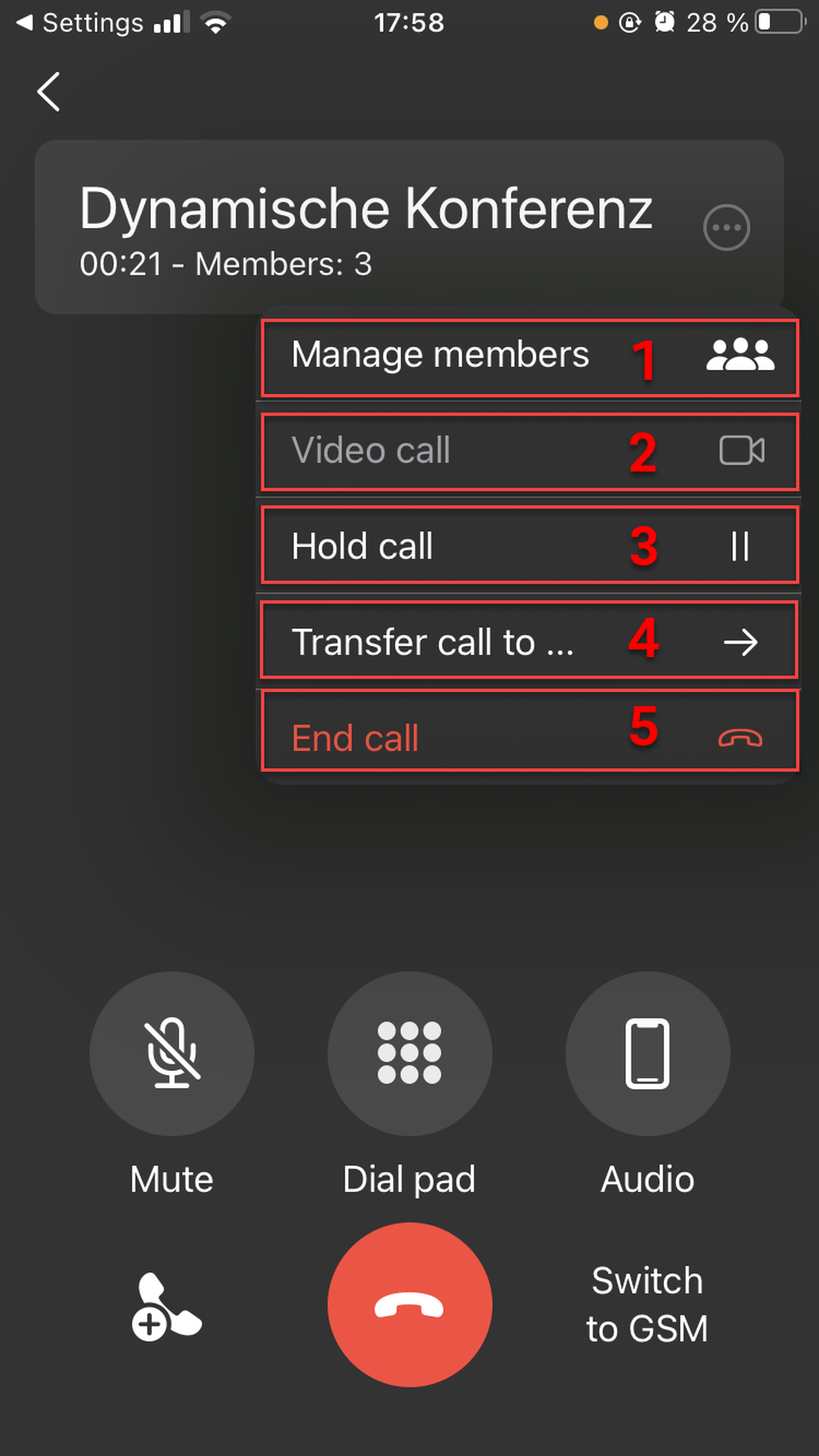
When you click on the options (three dots in the upper right-hand corner) in an ad-hoc conference, the following appears.
In this view, as a host, you can
Manage members
Switch to a video call
Put the call on hold
Transfer the call
End the call
Managing participants
In this view, you can
Open the options to manage the participants and the conference
Go to the Raised hands tab
See the host and the options
See the participants and the options
Mute all participants
Lock the conference
Save the changes by clicking on Done.
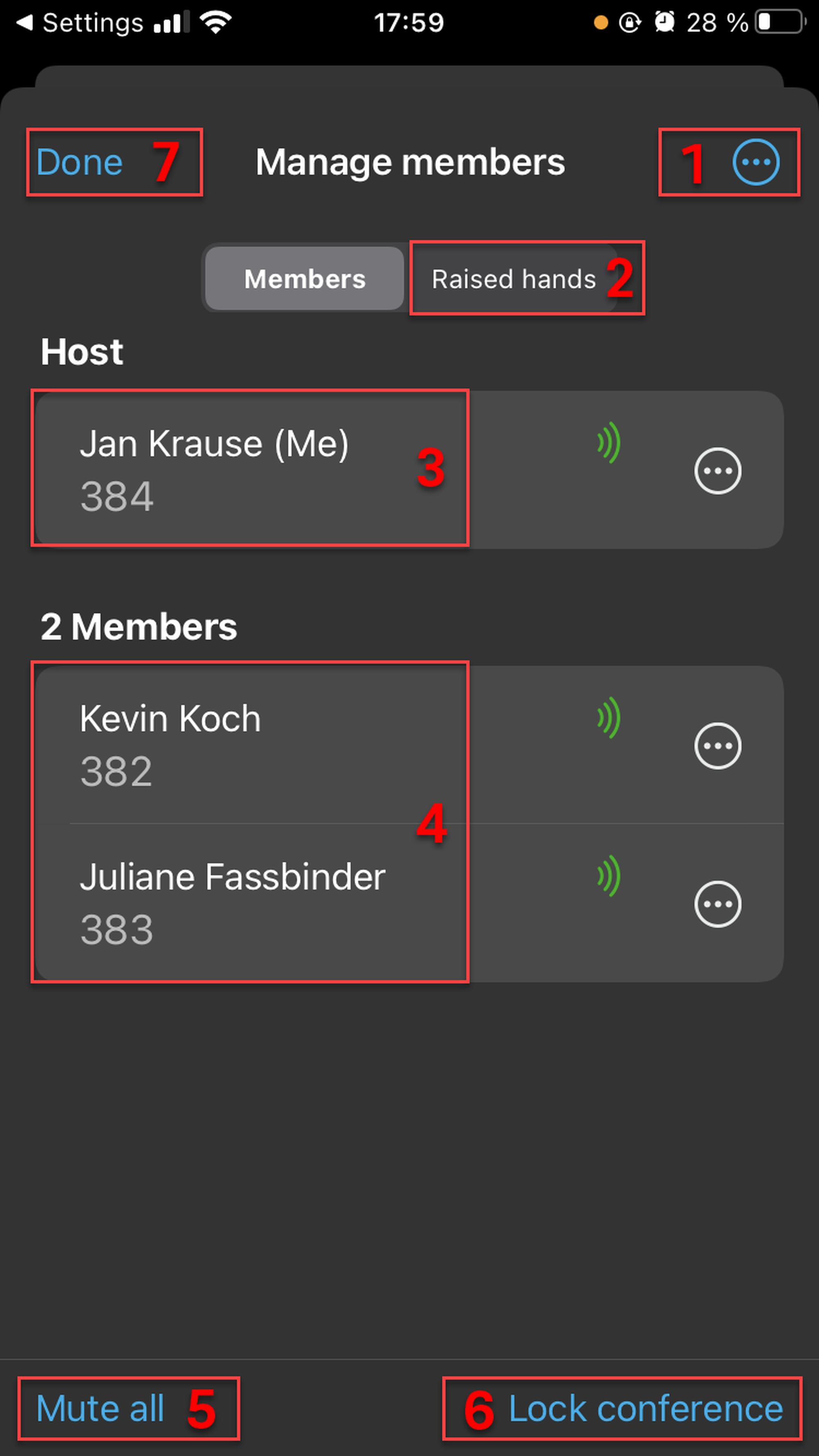
Managing participants and conference call
When you click on the options to manage participants and the conference call (three dots in the upper right-hand corner), the following appreas.
In this view, as a host, you can
Add a new participant
Lock the conference
Mute all participants/unmute all participants
Lower all hands (if there are raised hands)
End the conference call
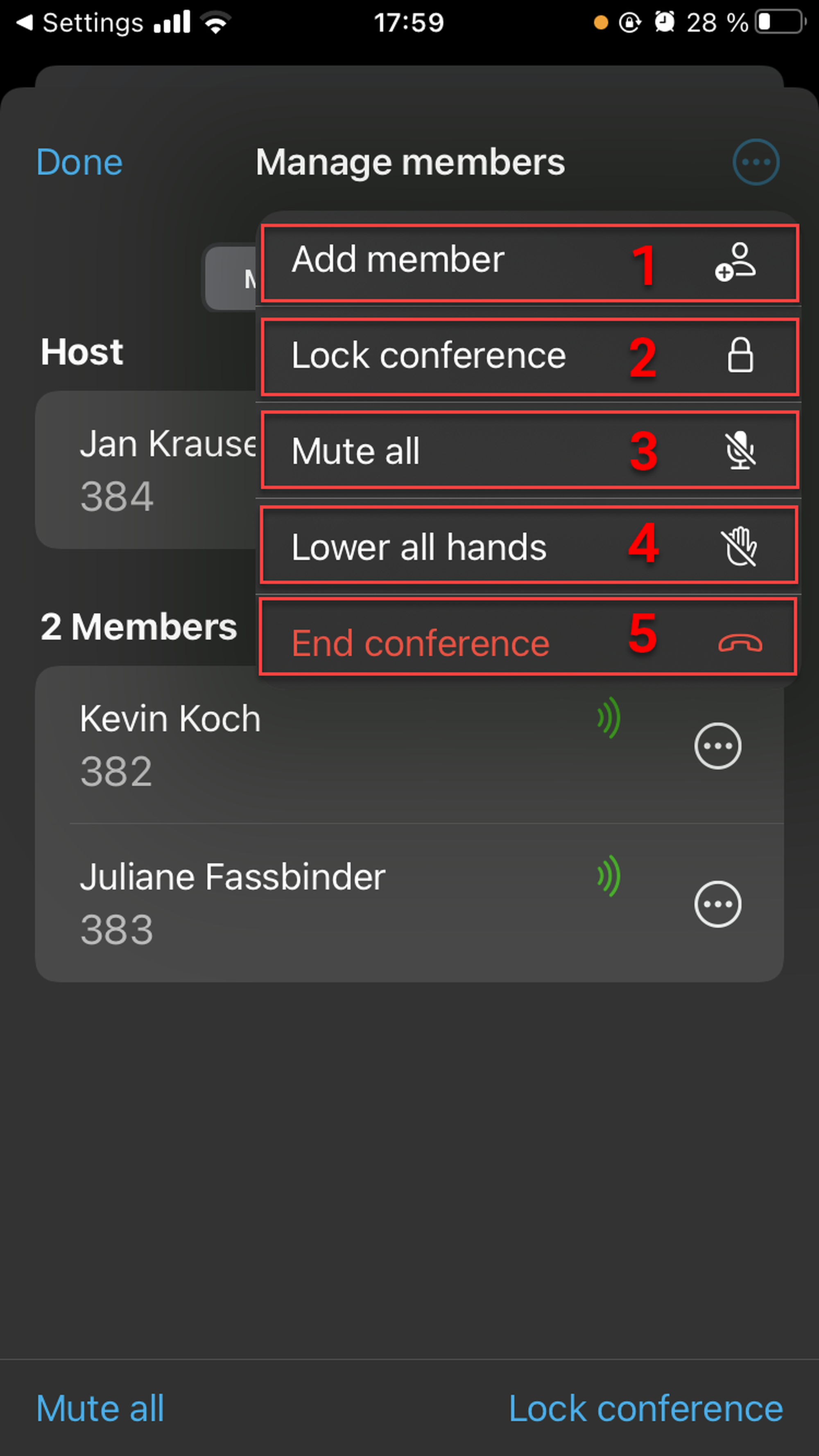
Managing host options
In this view, as a host, you can
Mute yourself
Raise hand
Leave the conference (this will end the call for all the participants)
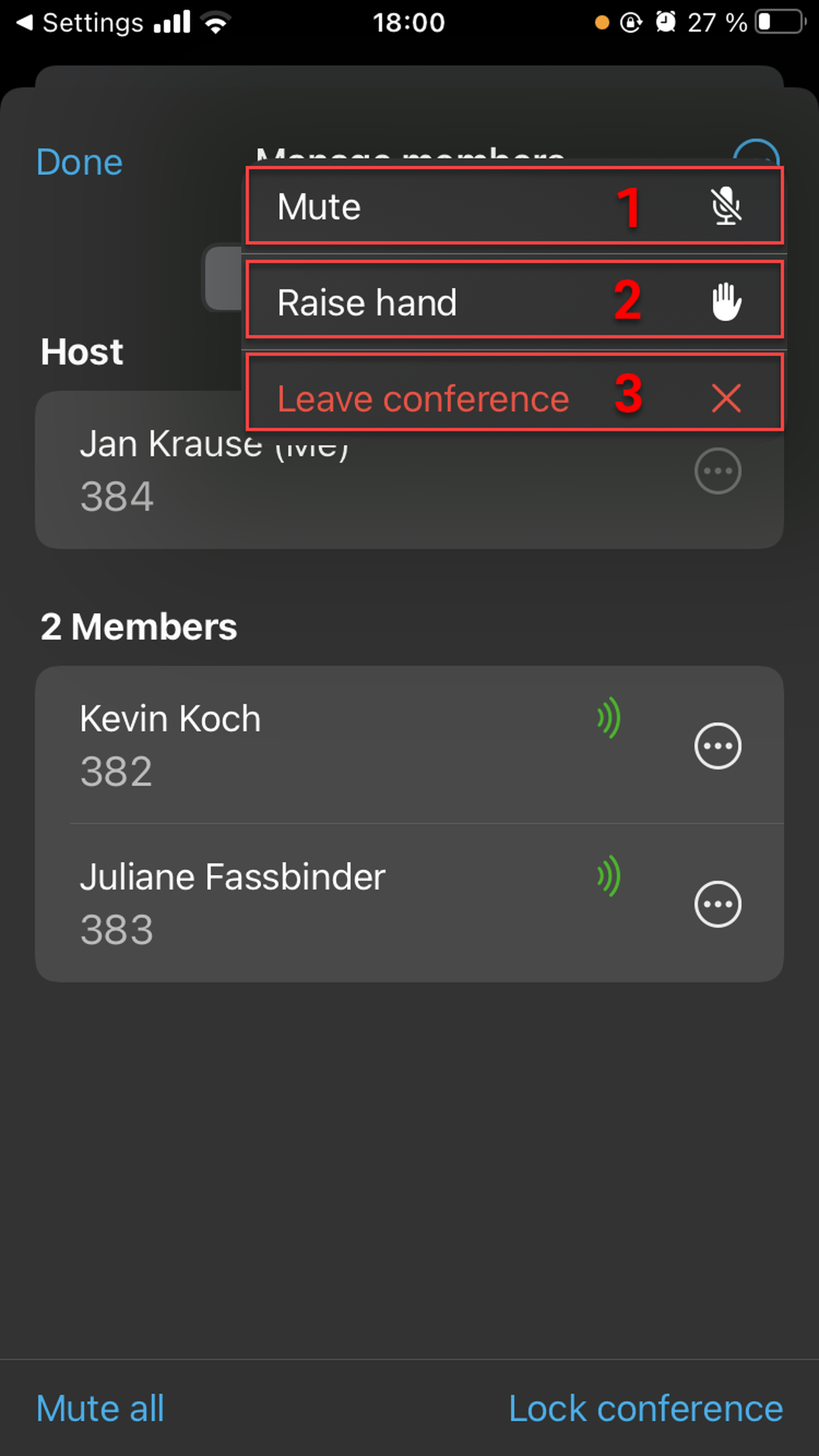
Managing participant's options
In this view, as a host, you can
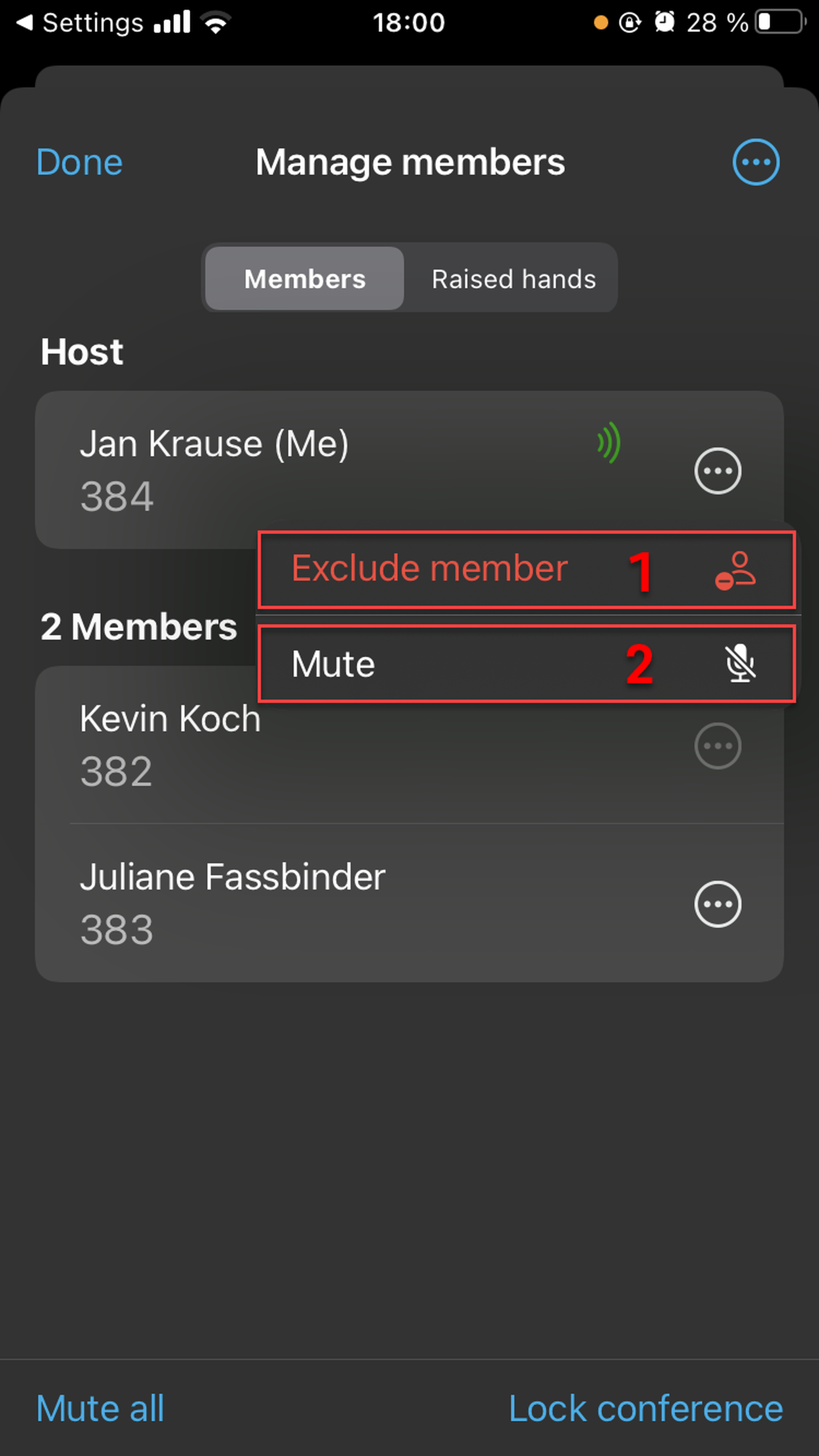
Exclude a member (this member will no longer be a part of the conference)
Mute a member