6. Meet & Share
6.1 Joining a Meeting
To join a meeting, you need an invitation. After you have received an invitation to a meeting, there are several options to join:
Joining a meeting via the app
Joining a meeting via an invitation link
Rejoining a meeting from history
Joining a Meeting via the App
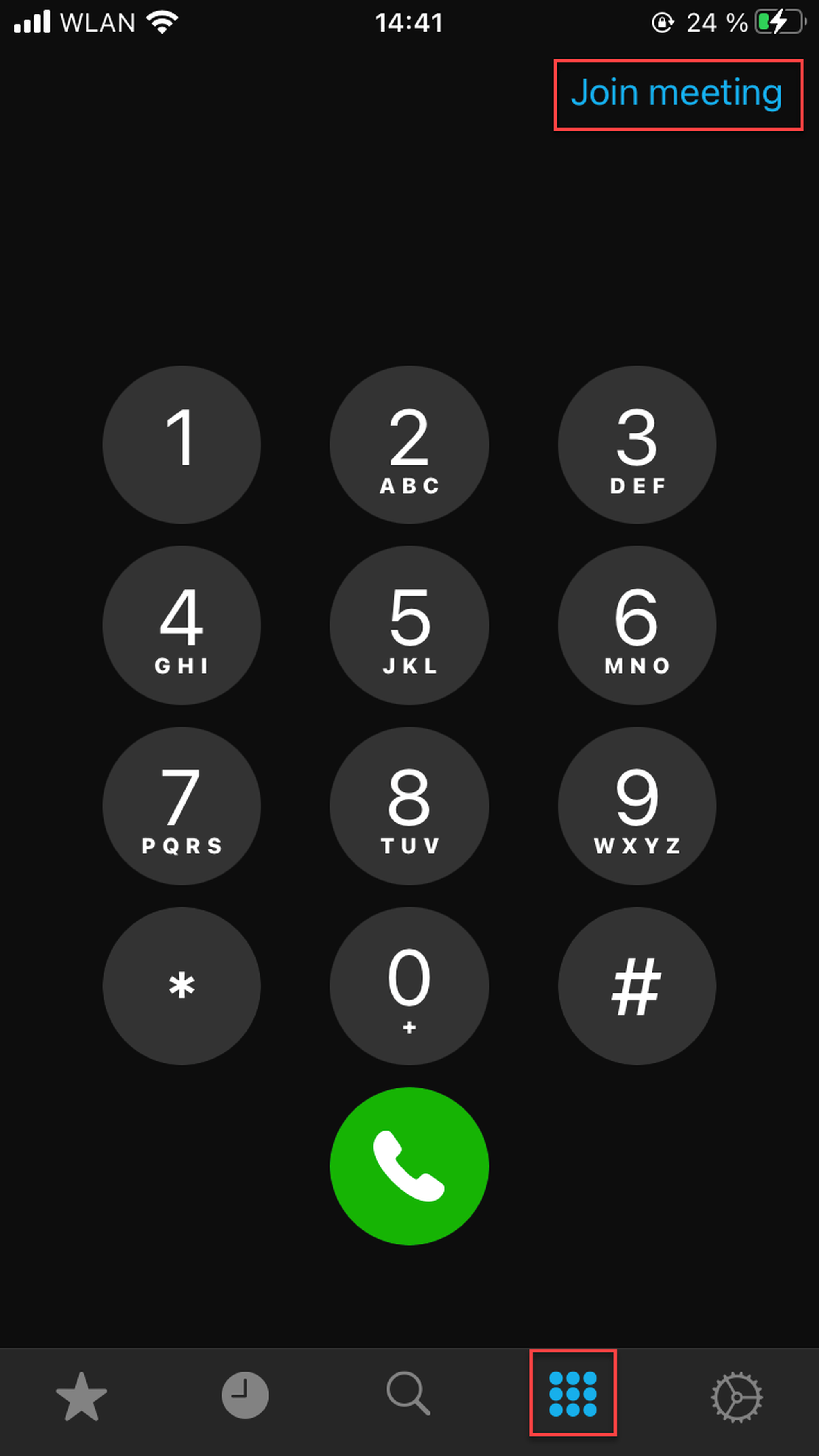
To join a meeting via the app:
Tap on the dialpad icon in the bottom menu
Tap on Join meeting
A pop-up window will appear in which you can enter the meeting URL or link ID
After entering the meeting URL or the link ID, tap on Join
Joining a Meeting via an Invitation Link
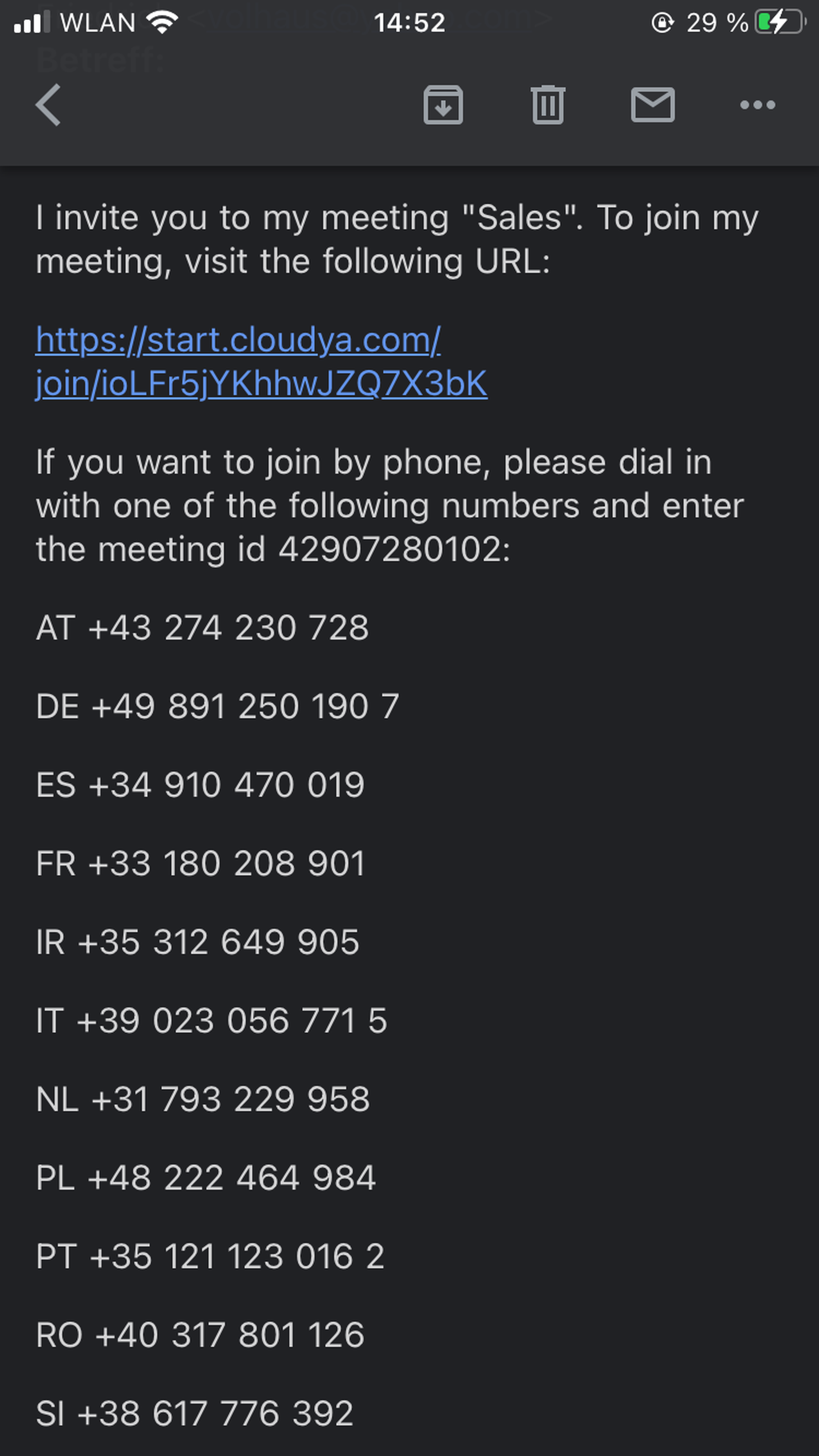
If you have received an invitation link (e.g. by email), tap on the link to join the meeting. The app will automatically connect you to the meeting.
Rejoining a Meeting
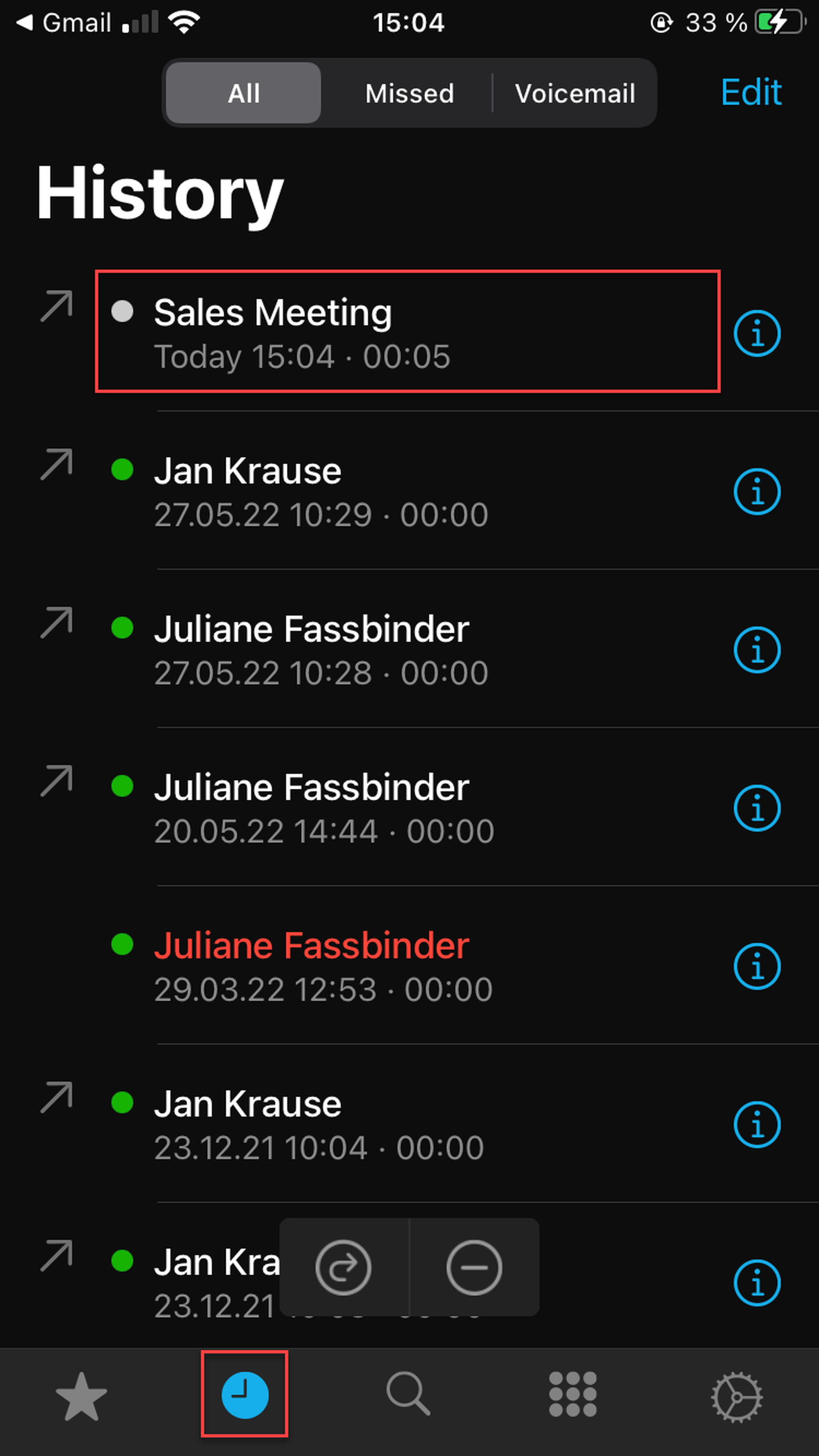
To rejoin a meeting in which you have previously participated:
Tap on History in the app menu at the bottom
Tap on a meeting you have joined before
The app will automatically connect you to the meeting.
6.2 Meeting Features
Audio Mode
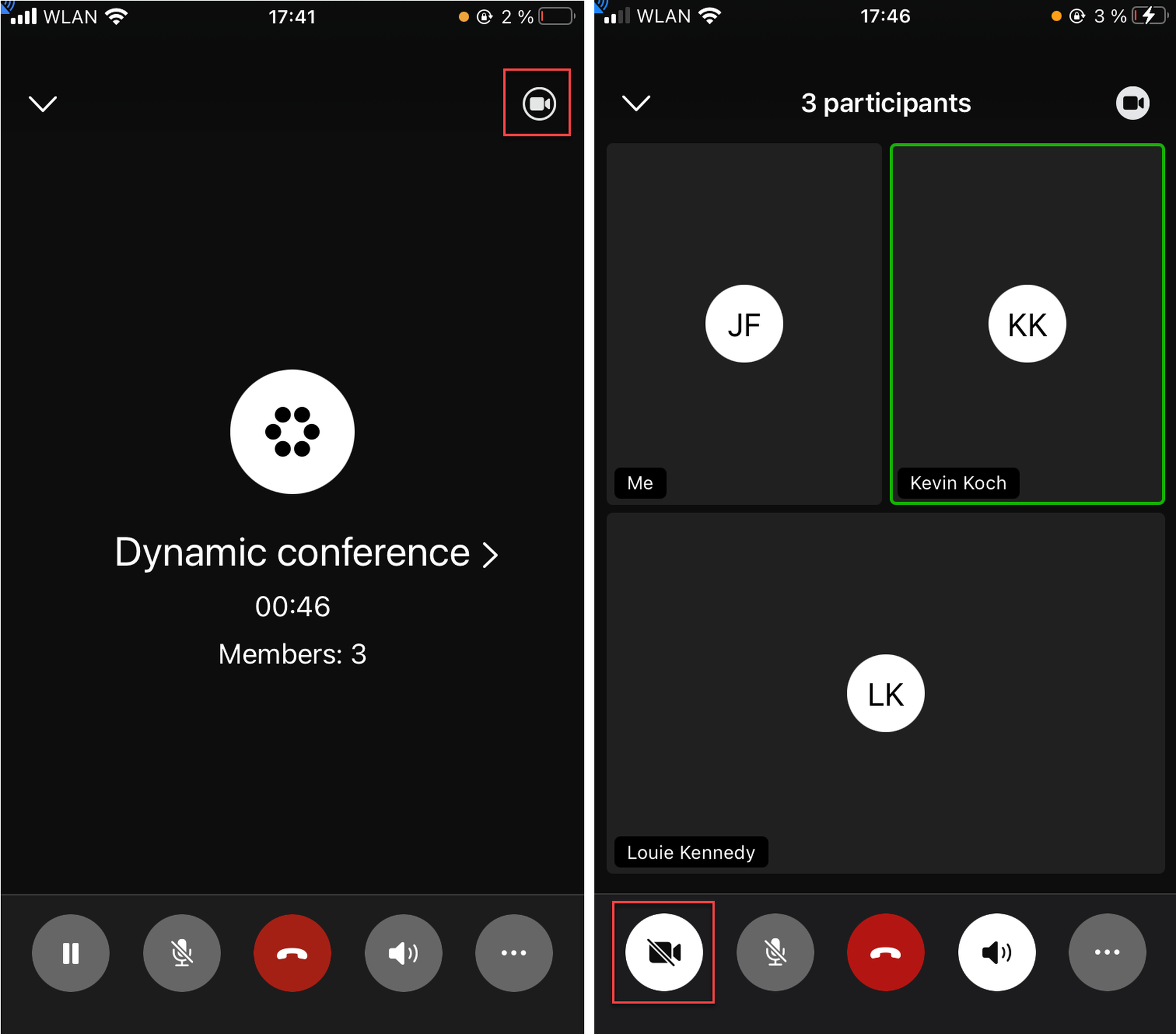
After joining a meeting, you will initially participate in the meeting in the audio mode.
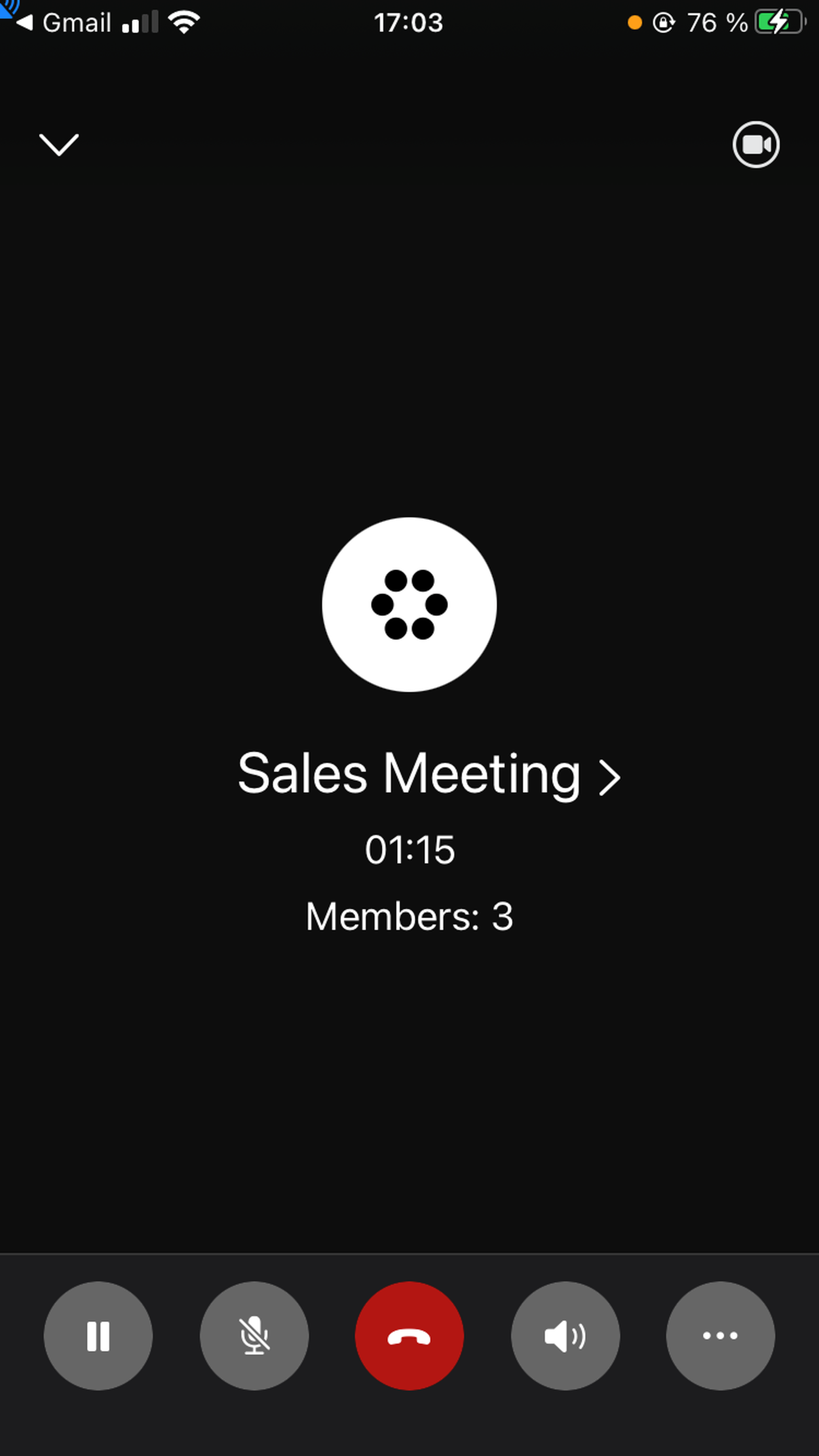
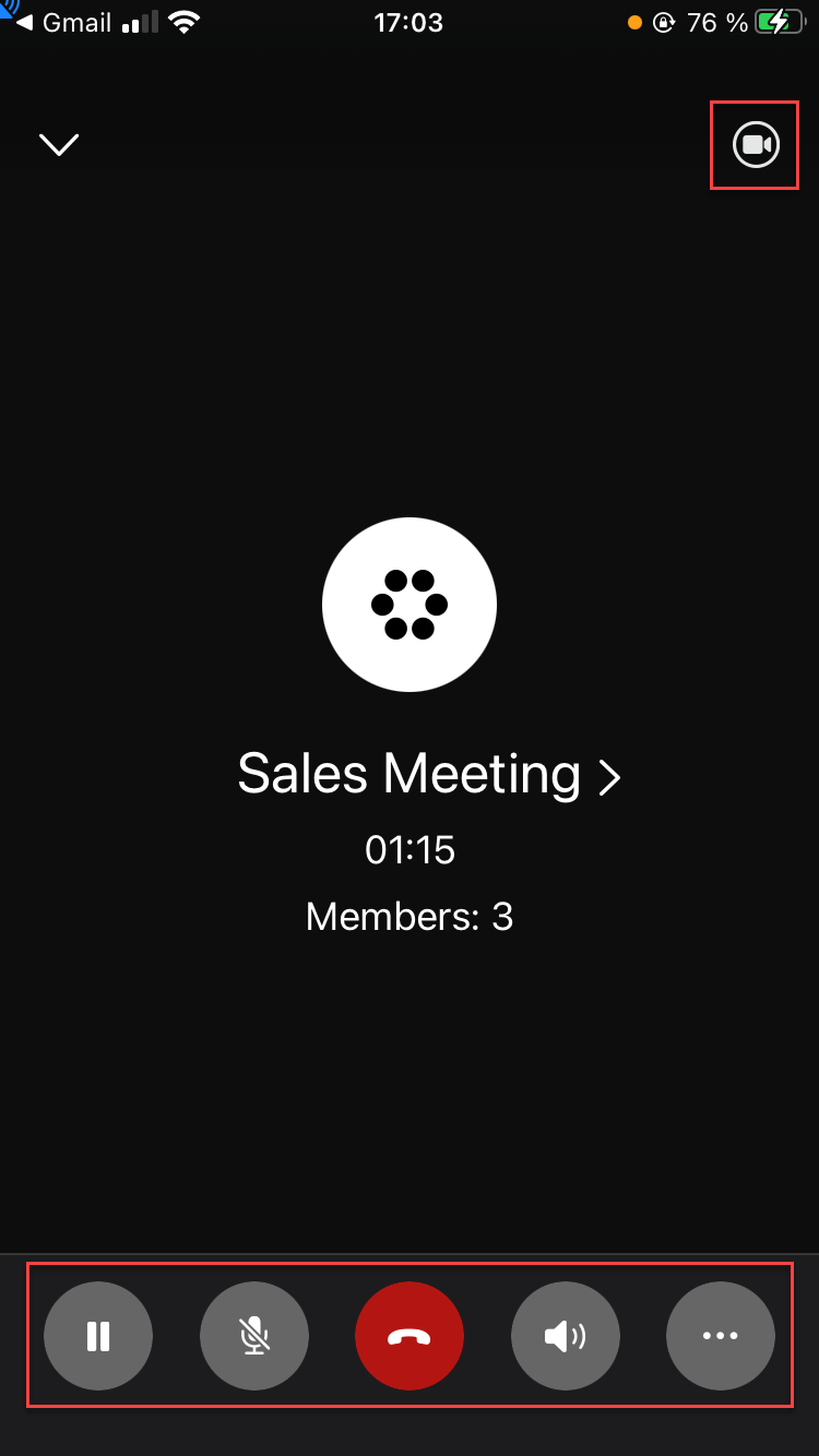
Using the icons in the bottom bar, you can:
Put the call on hold
Mute/unmute
Leave conference
Select audio output device
Access call, video and conference options (three dots)
Tapping the video icon in the top right corner, you can:
Switch to video mode
Call, Video and Conference Options
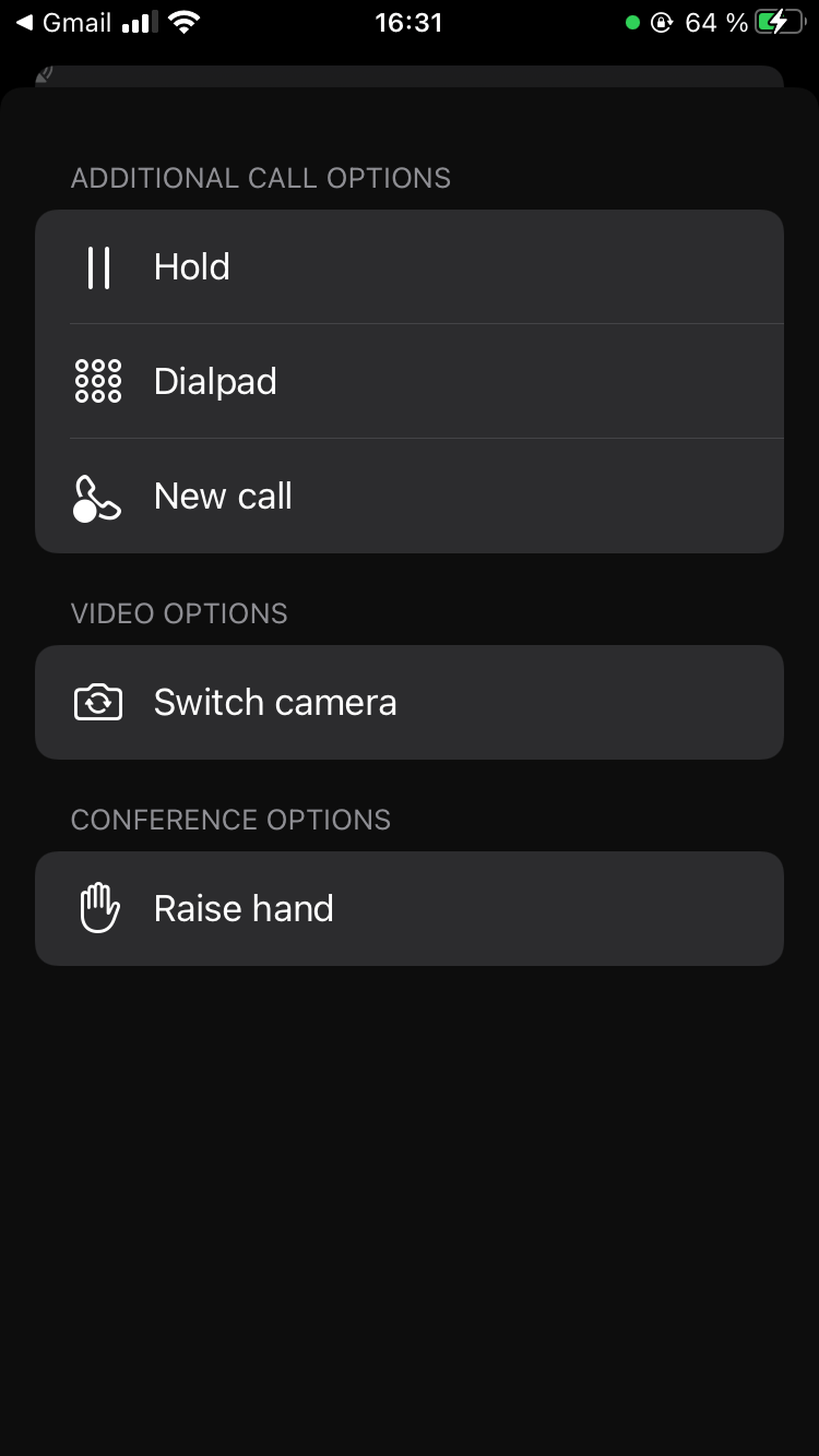
Tap on the three dots in the bottom right-hand corner to access call, video and conference options. In this menu, you can:
Put the conference on hold (cameras are switched off automatically and the conference goes to the audio mode; press unhold to resume the meeting; to switch back to the video mode, tap on the top-right camera and then the camera in the bottom bar)
Go to the dialpad
Make a new call (the conference is set on hold and you can make another call)
Switch camera (front/back)
Raise hand
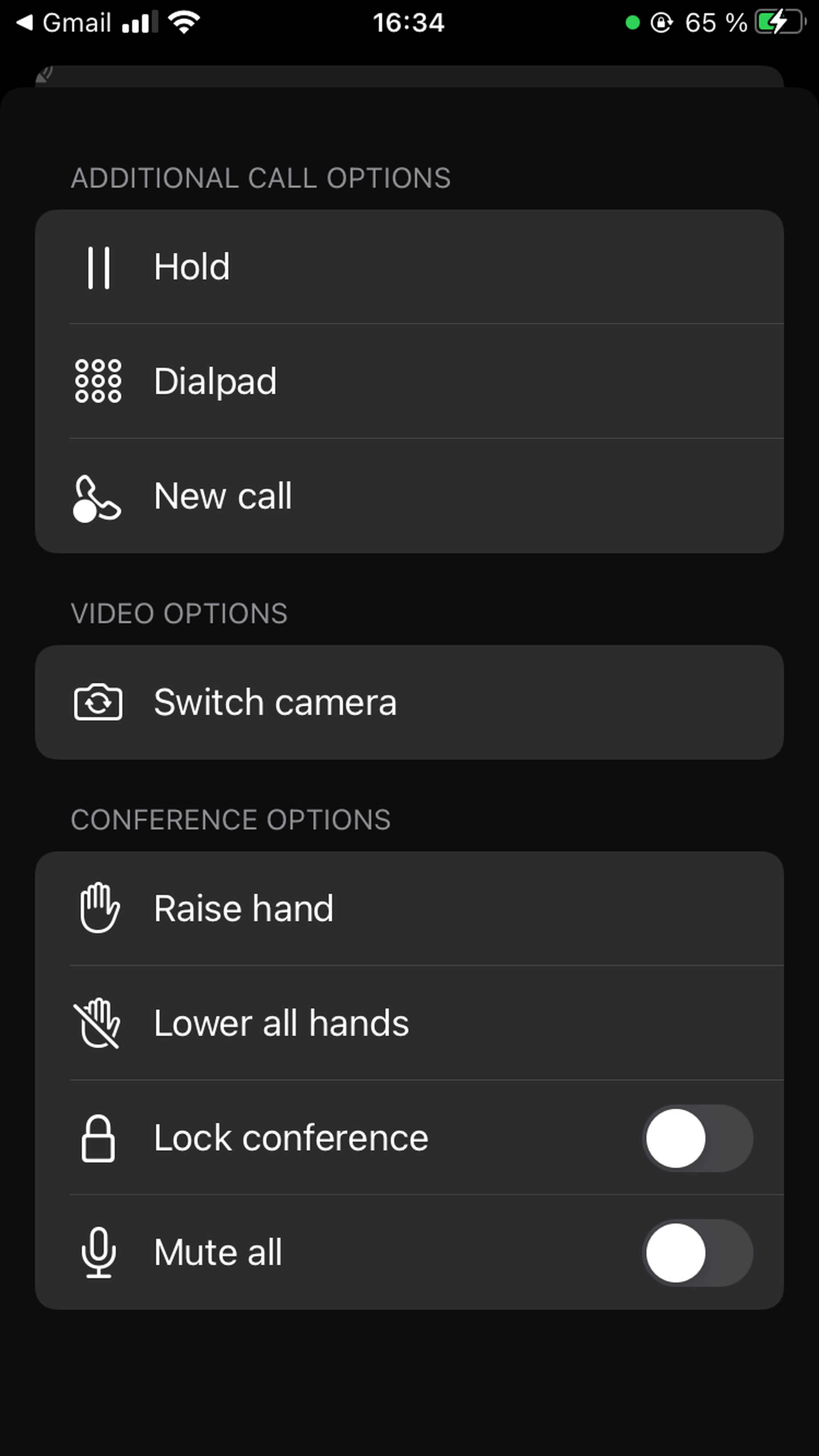
As a Host, you have additional conference options:
Lower all hands
Lock/unlock conference
Mute/unmute all
Members/Manage Members
When in the audio mode, tap in the middle of the screen. You will see two tabs, Members and Raised hands.
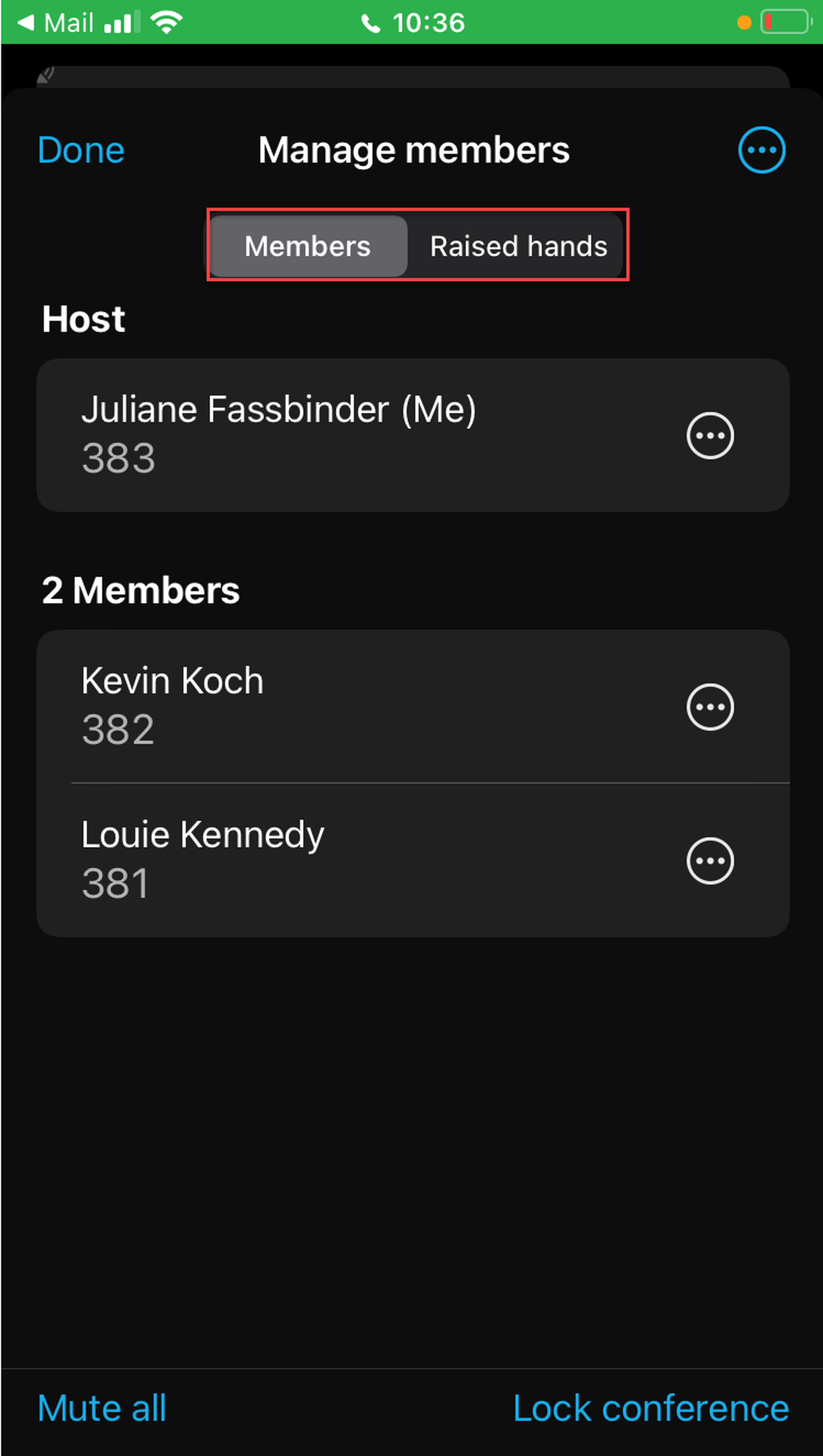
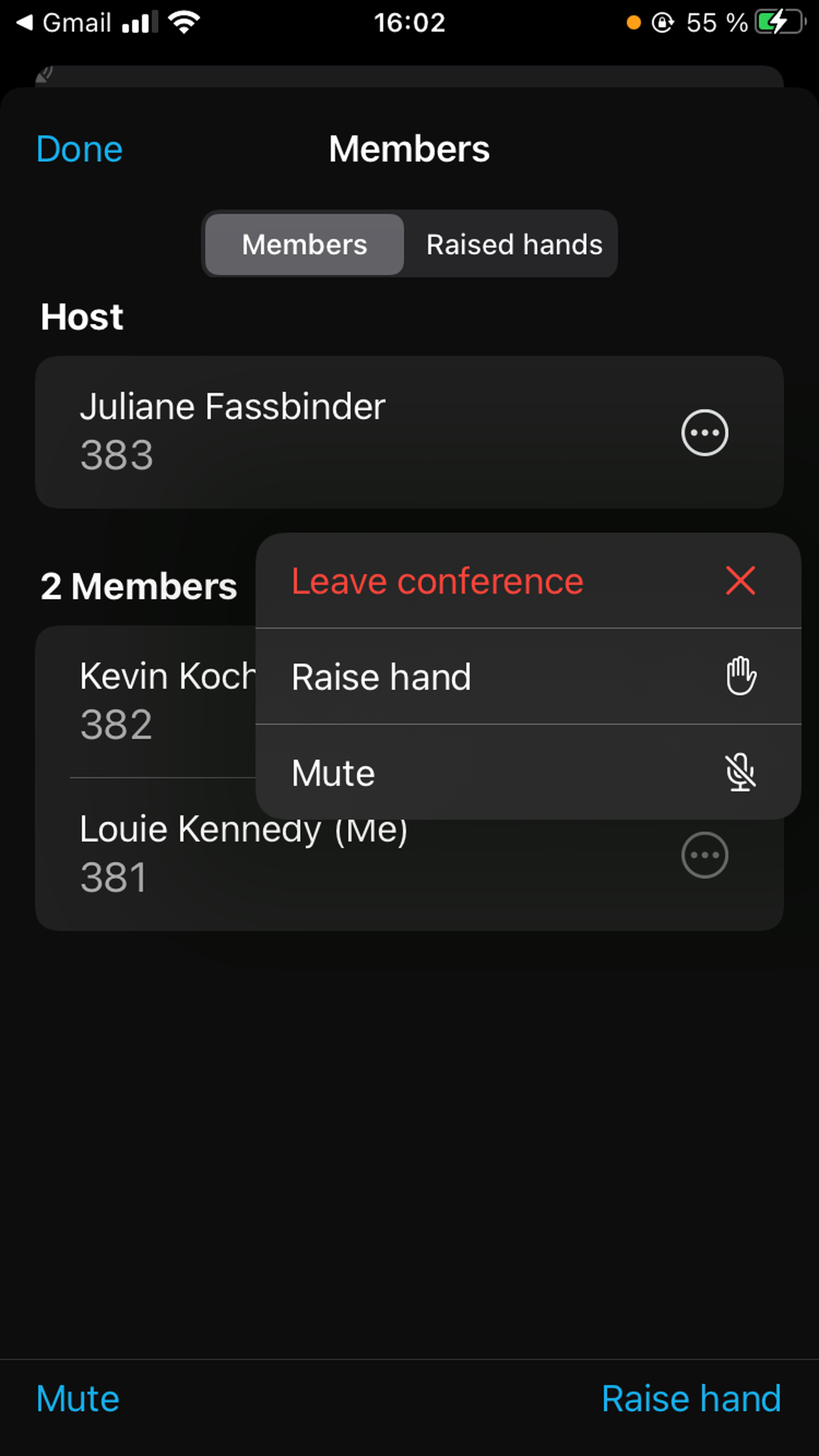
In the Members tab, as a participant of a meeting, you can:
Mute/unmute yourself
Raise/lower hand
Leave conference
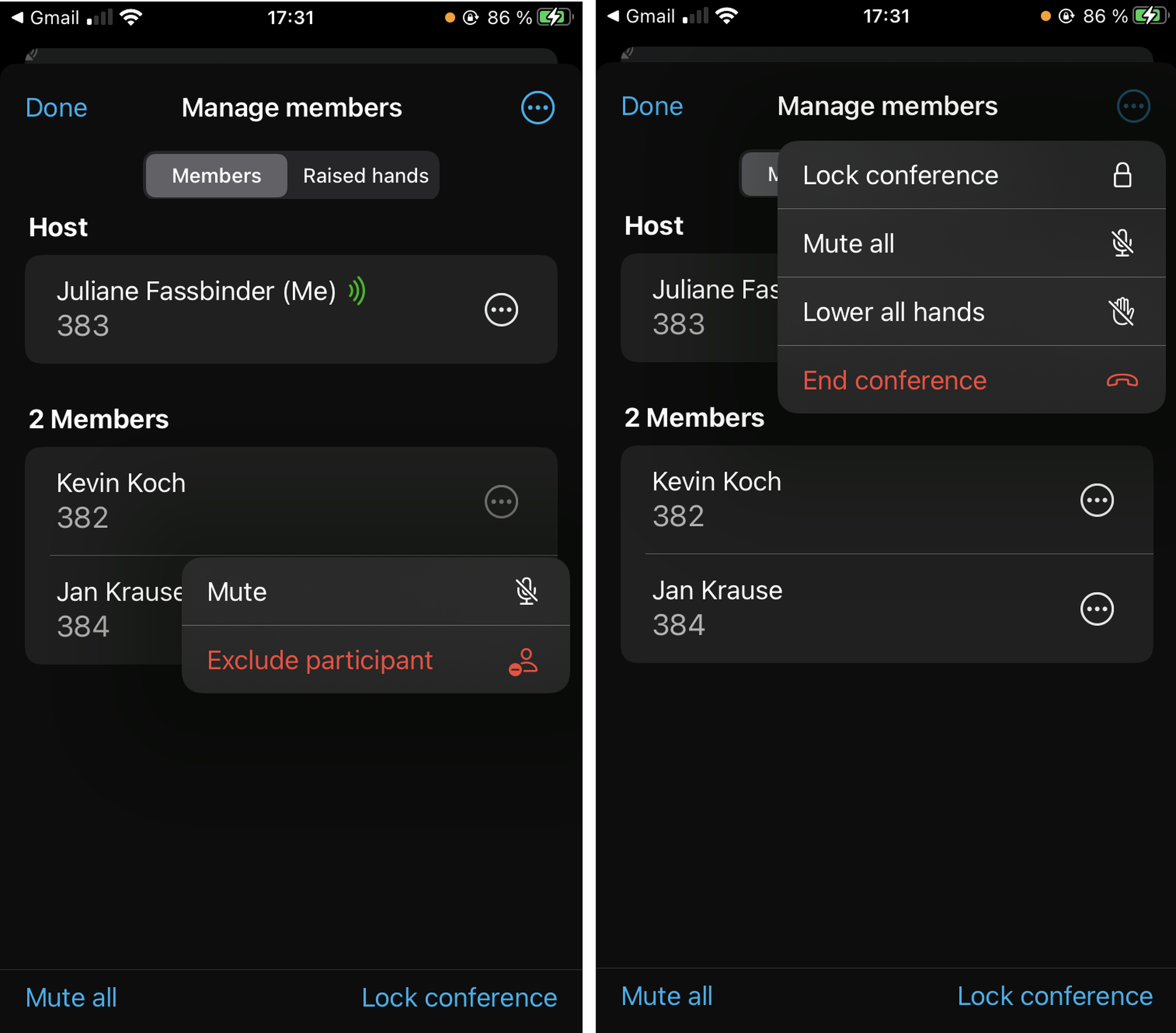
In the Members tab, as a host, you have additional options:
Mute/unmute all
Lock/unlock conference
Mute/unmute participant
Exclude participant
Lower all hands
End conference
Video Mode
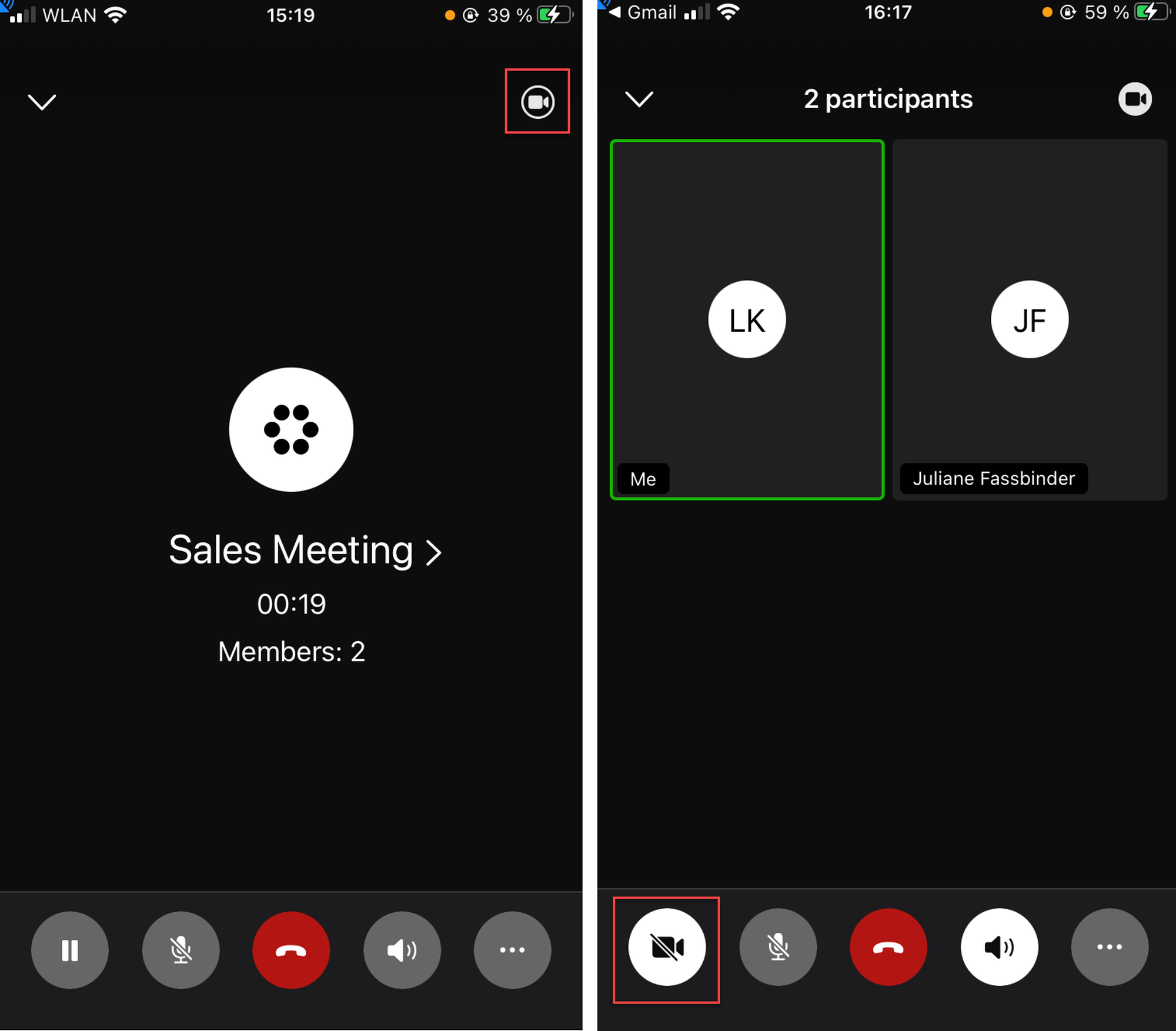
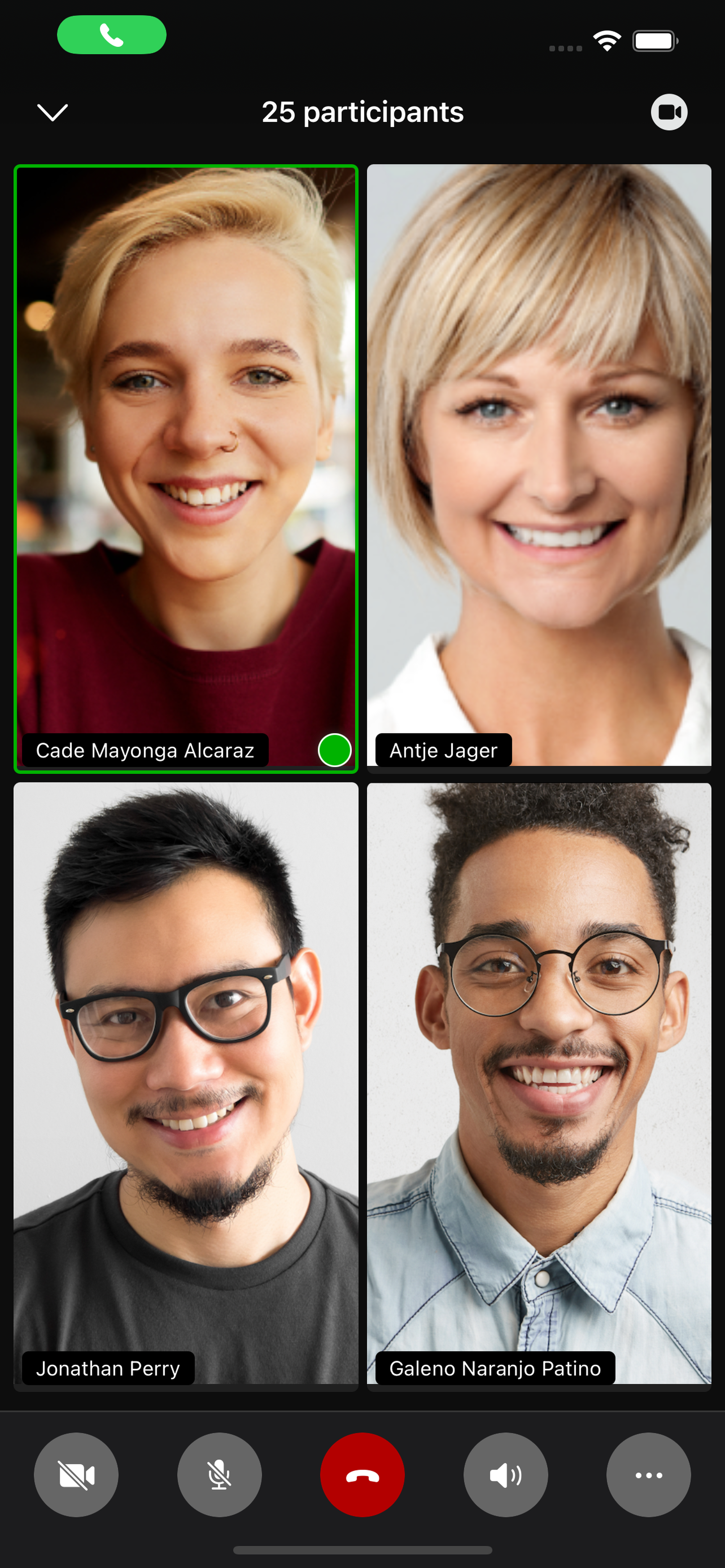
To start the video mode:
Tap on the camera icon at the top right-hand corner
Tap on the camera icon at the bottom left-hand corner. You will have to give the app permission to access your camera.
If there are more than 4 participants, swipe to the right or left to see other members of the conference.
Long Press on Video
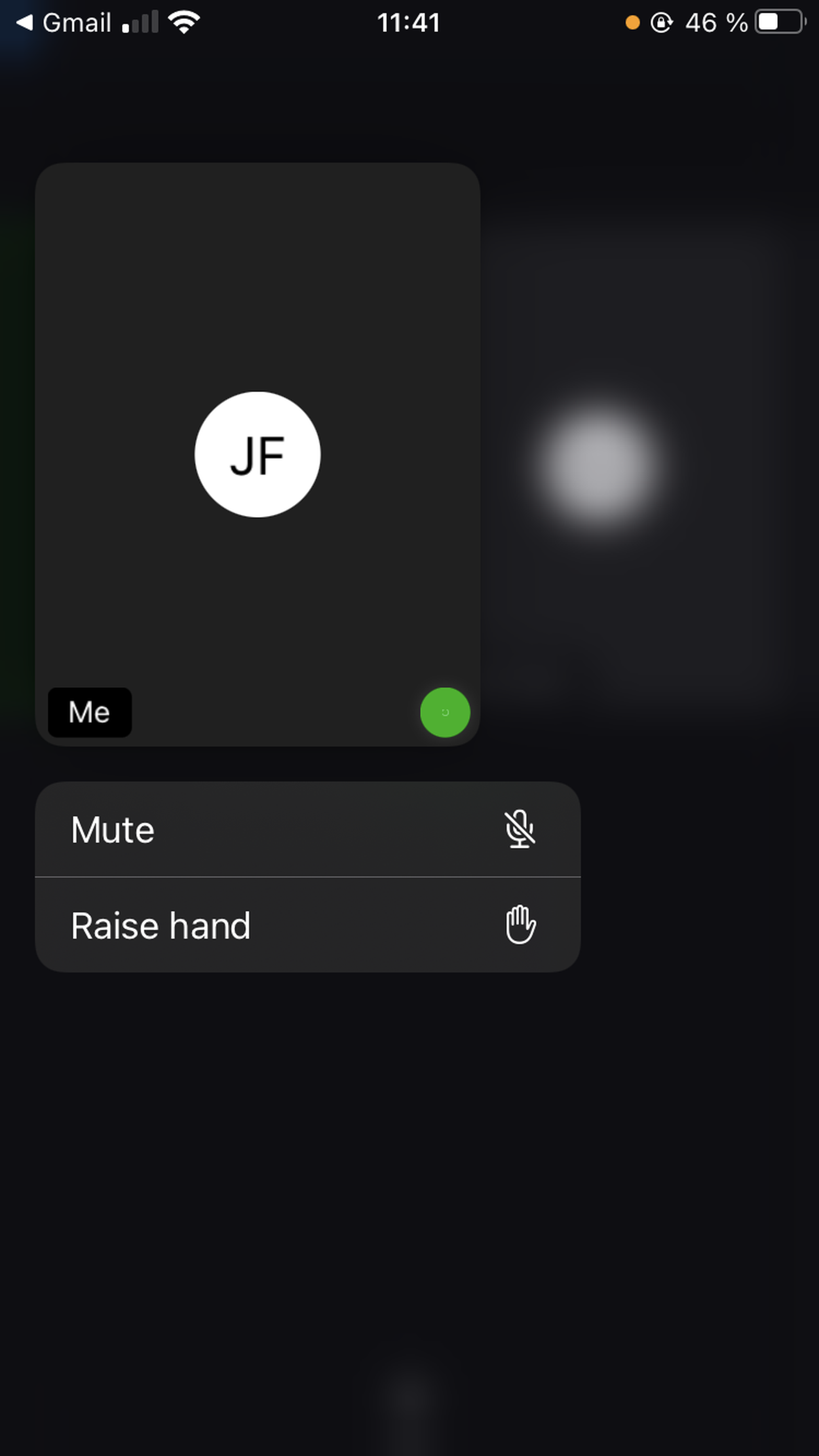
When doing a long press on your own video, you can:
Mute/unmute yourself
Raise/lower hand
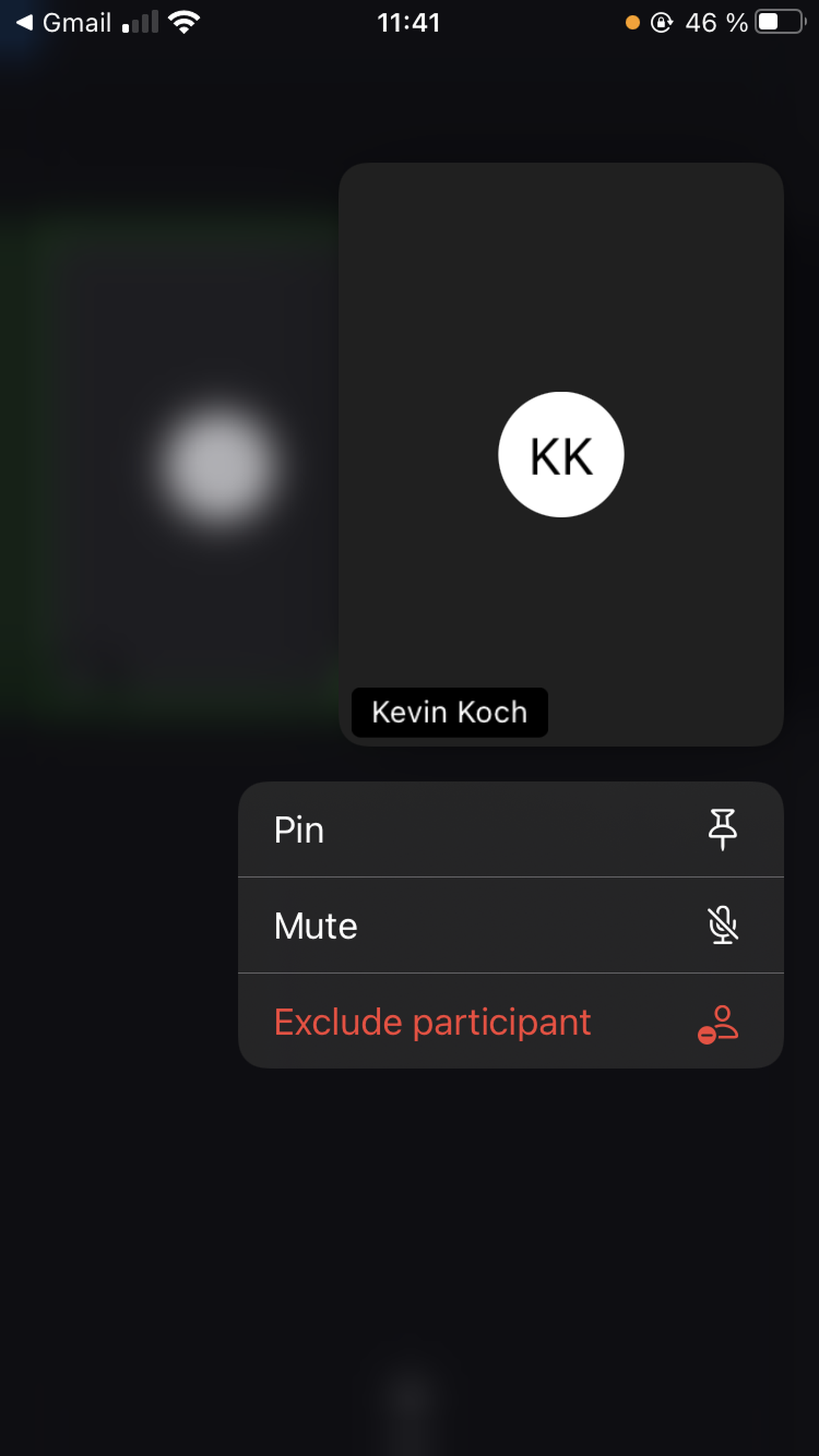
When doing a long press on other participant's video, you can:
Pin/unpin the video of a participant
When doing a long press on a participant's video, as a host you can:
Mute/unmute participant
Exclude participant
6.3 Switching to Video Mode in a 1:1 Call
1:1 Call
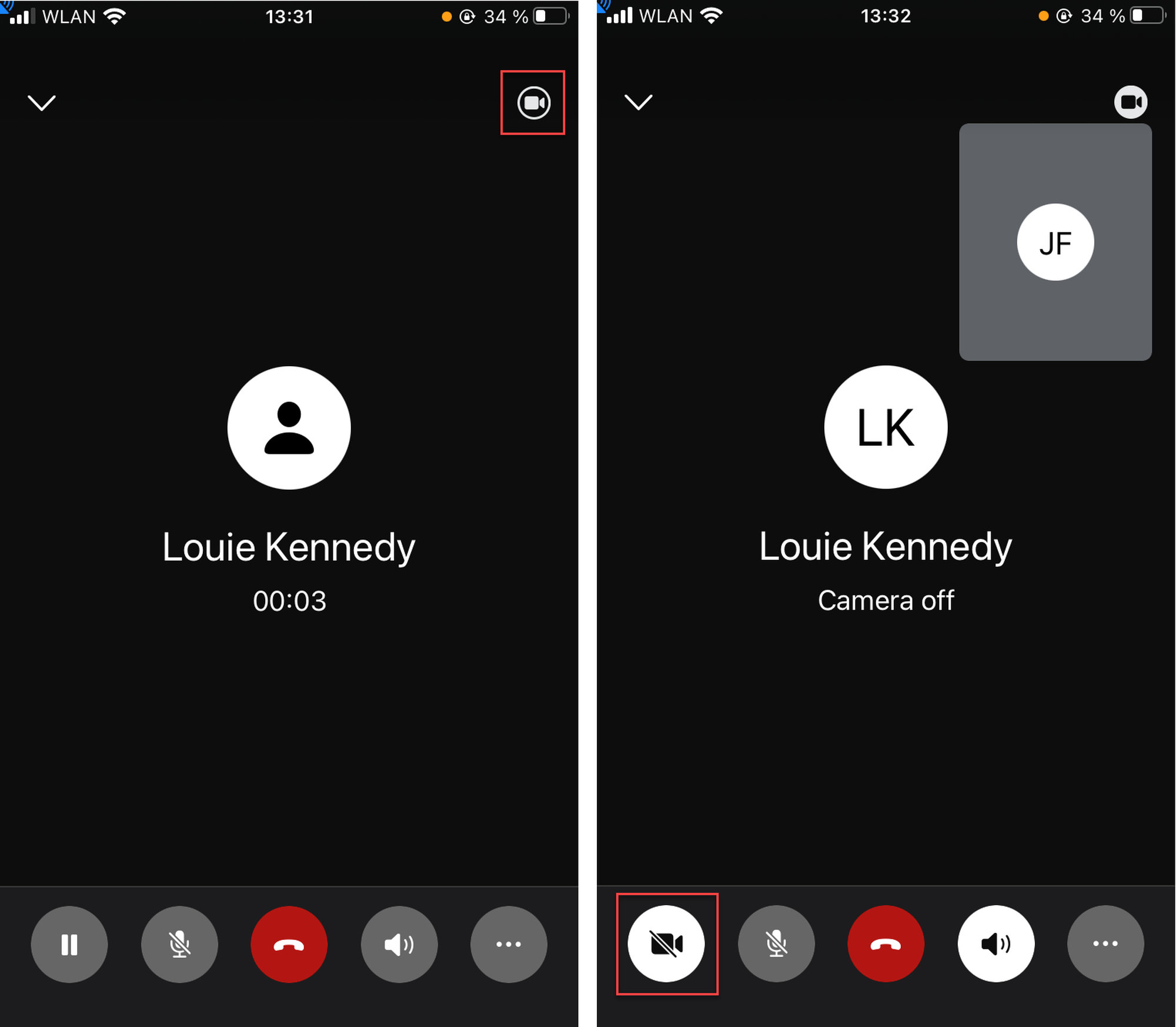
In a 1:1 audio call, you also have an option to switch to a video call.
Start video by tapping on the camera icon in the top right-hand corner
Activate camera by tapping on the camera icon in the bottom bar
Swap Video
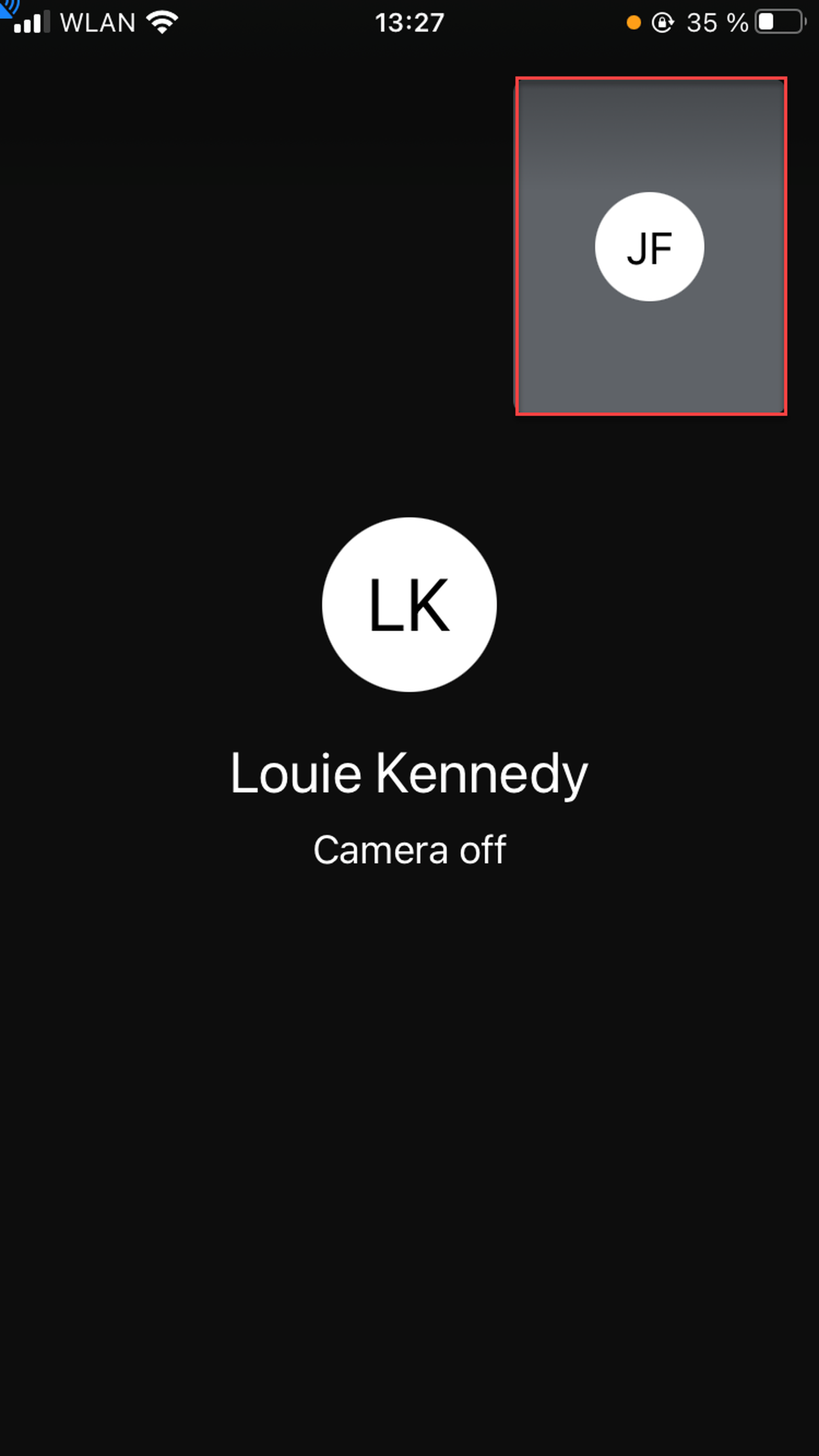
Your own video is shown in a small picture in the top right-hand corner, the other participant's video is shown as a full-size picture. Tap on the small picture to swap the videos.
6.4 Switching to Video Mode in an Ad-hoc Conference
Ad-hoc
When in an ad-hoc audio conference, you can switch to a video conference (go to Chapter C.3 to see how to create an ad-hoc conference).
Change to the video mode as described in Chapter 6.2.