1. Basic functions
1.1. Telephone overview
Gigaset N510 IP PRO
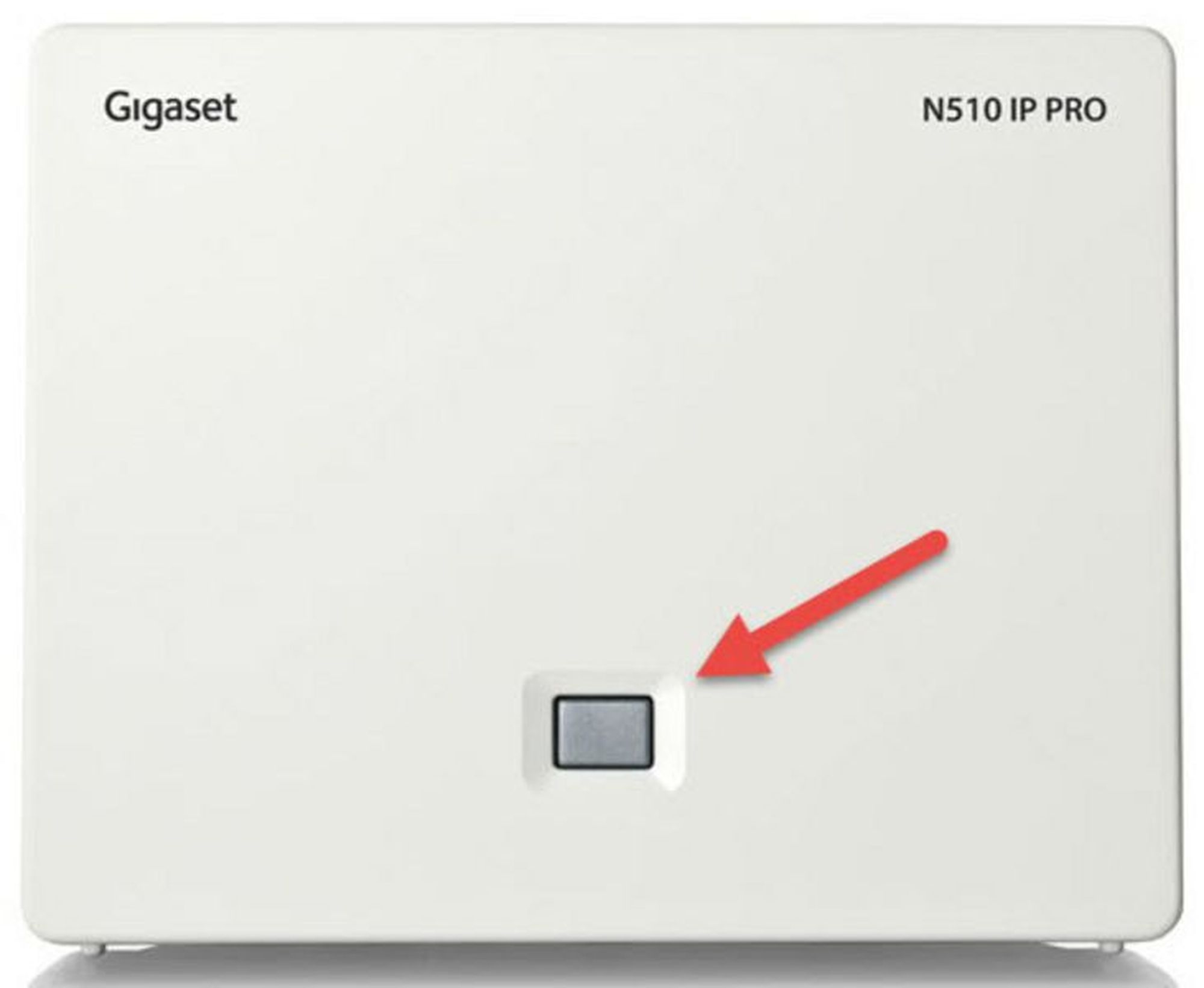
Key | Key function |
1 | Registration / paging key |
Action | Functions of the registration / paging key of the base station |
Lights up | LAN connection active (phone is connected to router) |
Flashes | Data transfer to LAN connection or base in registration mode |
Press briefly | Launch paging (handset search), display IP address of the base on the handset Press and hold (ca. 5 seconds)Set base to registra |
Press and hold (ca. 5 seconds) | Set base to registration mode. LED flashes at one-second intervals. |
DECT handset Gigaset S650H
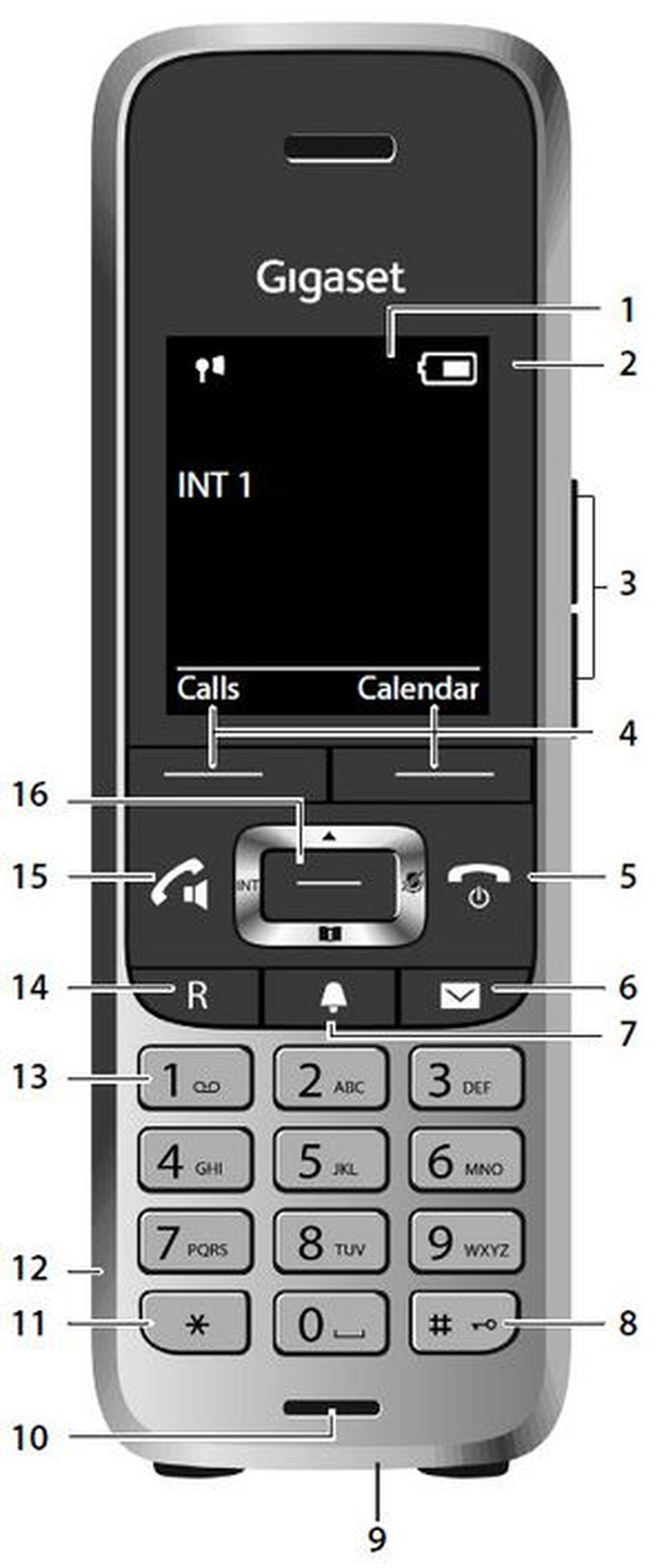
Key | Key function |
1 | Display |
2 | Status bar |
3 | Volume keys |
4 | Display keys |
5 | End call key, on / off key |
6 | Message key |
7 | Profile key |
8 | Hash key (keypad lock) |
9 | USB connection socket |
10 | Microphone |
11 | Star key |
12 | Headset connection |
13 | Key 1, can be assigned with the voicemail function |
14 | R-key (e.g. consultation and connect) |
15 | Talk key / handsfree key |
16 | Control key / menu key |
Note
Other handsets function similarly to the DECT handset Gigaset S650H.
For detailed information, please refer to the manufacturer's operating manual.
1.2. Placing calls
Placing calls with the mobile handset
Pick up the handset and dial the telephone number.
To correct a digit, press  .
.
Press
 or
or  .
.To end the call, press
 or return the mobile handset to the charger.
Using the hands-free feature
Dial the telephone number and press
 .
.To end the call, press
.
Tip
To return to using the receiver, press .
Adjusting the receiver or speaking volume
Press on options and select then volume and save.
Placing a call using the redial list
The redial list stores the last 10 numbers dialed (max. 32 digits each).
Press
 .
.Select the desired telephone number.
Dial the telephone number you need to reach.
To cancel, press
.
Central phonebook
You can open the phonebook by pressing and holding the phonebook key (on the bottom of the menu key).
Select Options on the display and refine your search.
1.3. Incoming calls
Answering calls with the mobile headset
When a call is coming in, the mobile handset’s ringer indicator flashes rapidly.
Remove the mobile handset from the charger and press
or  when the device is ringing.
To end the call press
.
Adjusting the ringer volume on the mobile headset
When the mobile handset rings during an incoming call:
Go into the menu and click on settings.
Click on tones and signals and select then ringtones.
Select the volume or melodies.
1.4. Missed calls
Missed calls are indicated on the mobile handset display (“Missed Calls”).
To access the missed calls list, press the softkey  .
.
You can then page through missed calls using  button.
1.5. Hold
During an external call press the display key
 .
.
The active call is now placed on “Hold”.
To stop holding the call, select
 .
.
1.6. Call waiting/Toggle calls
You are currently in a call. The call waiting tone indicates a second call is incoming. Simultaneously, a line icon flashes at the top of the display and the display also shows the telephone number or, for internal calls, the name of the extension.
Press
to accept the waiting call.Using the
 you can now switch between the two calls.
To end a call, simply press
during the active call.
The other call is now on “Hold”.
Press
, to return to the call on hold.
1.7. Conference calls
Your mobile handset allows you to make a 3-way call.
Call the 1st party.
Press
 .
.Then call the 2nd party and wait until you have reached the 2nd party.
Press
.In order to end the conference, press
or  .
.
Note
A conference call with more than 3 parties can easily be set up on the administration portal: Please refer to the administration portal manual.
1.8. Call transfer
Attended call transfer
During an active call, press the display key
.Now, dial the party to whom you would like to transfer the call.
To do so, enter the party's telephone number and wait for the other party to answer, then announce the call. This step can also be omitted, if necessary.
Press on Options and transfer the call.
Unattended call transfer
During an active call, press the display key .
Now, dial the party to whom you would like to transfer the call.
To do so, enter the party's telephone number and wait for the other party to answer, then announce the call. This step can also be omitted, if necessary.
Press
.
1.9. Telephone menu
You will find the following options by clicking on the soft key menu:
In order to access the telephone menu, click on the following keys:
Click in the middle of the control key.
Open the info centre.
Here, you will find user-defined information services.
Alternatively, you can add the menu to one of the two keys under the display.
Click on one of the two keys and hold for 3 seconds. Select then info centre.