2. Installation
2.1. Overview
Note
The prerequisite is the installation and configuration of the Gigaset N720 IP PRO base station according to the manufacturer's manual.
Before you begin using your new DECT system, we would like to provide you with a brief overview of the steps required for installation.
Add the DECT manager (N720 IP PRO) and the DECT handsets on the administration portal. You can add up to 100 handsets.
Add a phone extension for the DECT mobile handsets on the administration portal and assign the respective device.
Register mobile handsets to the base.
The following pages provide a detailed description of the individual steps.
2.2. Adding the DECT base
2.2.1. Installation of the DECT Master Base
Installation of the DECT base with your telephone system:
No. | Description | Picture | |
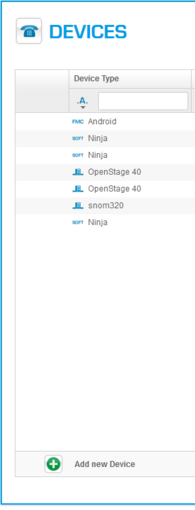
1. | Once you have logged in to the administration portal, go to the Elements/Devices tab and select "Add new Device". |
| |
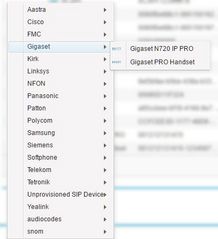
2. | Please select under Gigaset the Gigaset N720 IP PRO device. |
| |
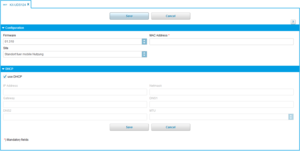
3. | A new window appears, select here your firmware version. |
| |
4. | Enter the MAC-address. You will find the MAC-address on the back site of the Gigaset DECT manager. | ||
5. | Save your entries. | ||
6. | Connect your DECT base to your LAN network. The base station will now be synchronised. This can take a while and depends of the firmware upload time. |
2.3. Adding DECT mobile handsets
The mobile handsets are registered to your telephone system as follows:
No. | Description | Picture | |
1. | Select "Add new device" on the administration portal under the tab Elements/Devices. |
| |
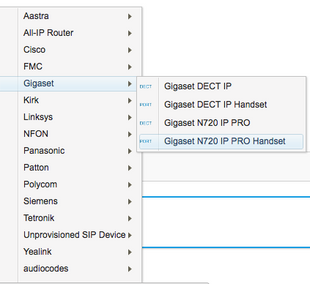
2. | Please select the Gigaset N720IP PRO handset under Gigaset. |
| |
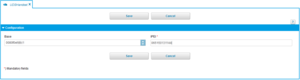
3. | A new window appears, select here your base station. |
| |
4. | In order to find the IPUI on your mobile handset click on menu and enter *#06# | ||
5. | Save your entries. |
2.4. Adding an extension
No. | Description | Picture | |
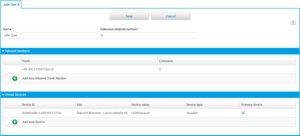
1. | Once you are logged into the administration portal, go to the Targets tab and select "Add New Target". For more details, see the administration portal manual. | ||
2. | A new window appears, please enter the following information: name, extension and the trunk, if necessary. Select your handset under the devices field: [MAC address of the base station] - [IPEI mobile handset] |
| |
3. | For all other settings, see the administration portal manual. | ||
4. | Save your entries. |
2.5. Registering mobile handset to the DECT base station
The base station will automatically be registered. During the final step, you need to register the mobile handset to the base station. This is done using the menu of your Gigaset mobile handset.
1. Press "Register" on the display.
2. The mobile handset will now register automatically.
3. After registration the display shows the next information: extension: name is visible on the display.