1. Basic functions
1.1. Telephone overview
Panasonic DECT basis station (KX-TGP600)
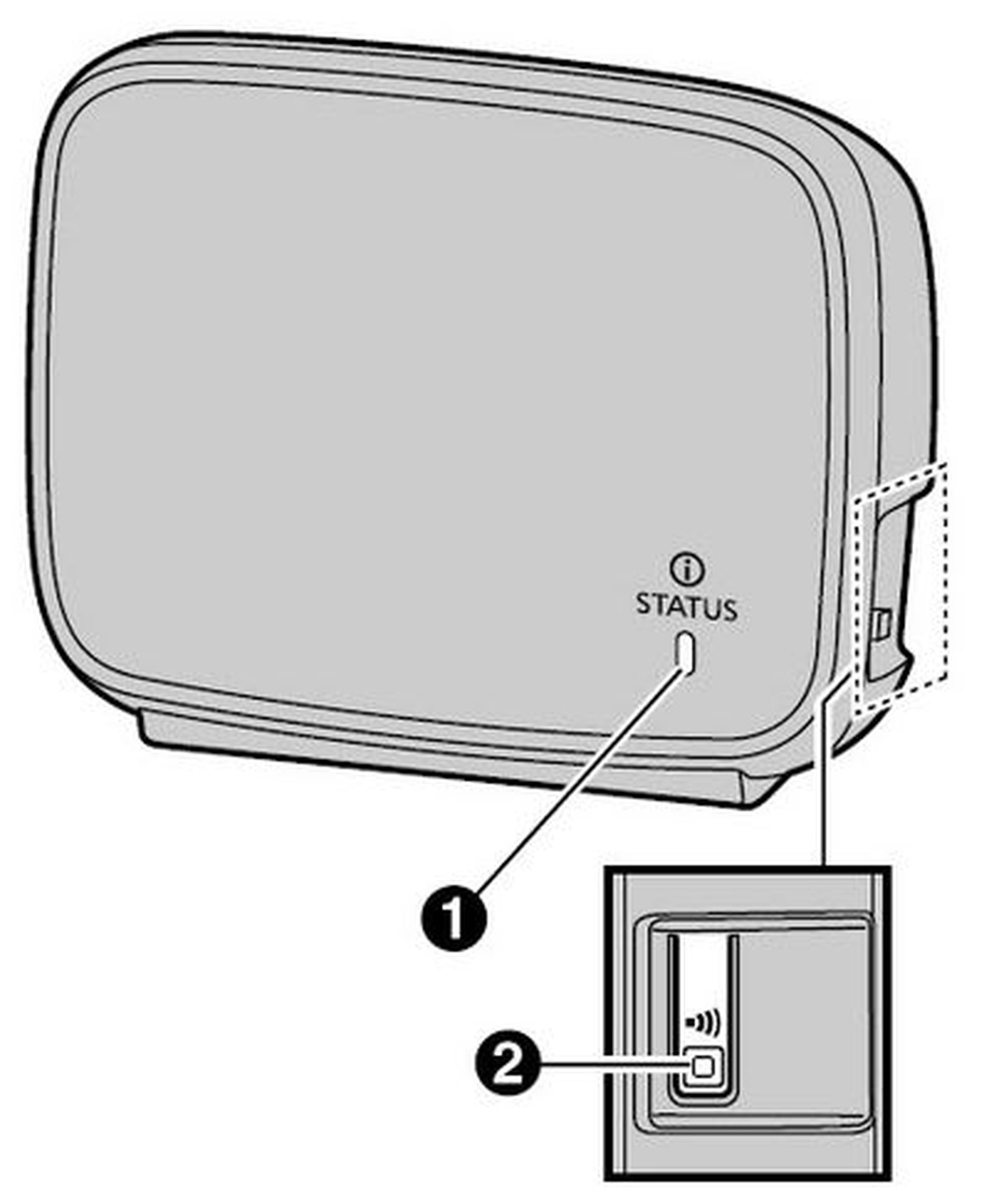
Pos. | Description |
1. | Status indicator Displays the status of the device and network |
2. | Handset locator button Allows you to call all mobile handsets |
Panasonic DECT handset (KX-TPA60)
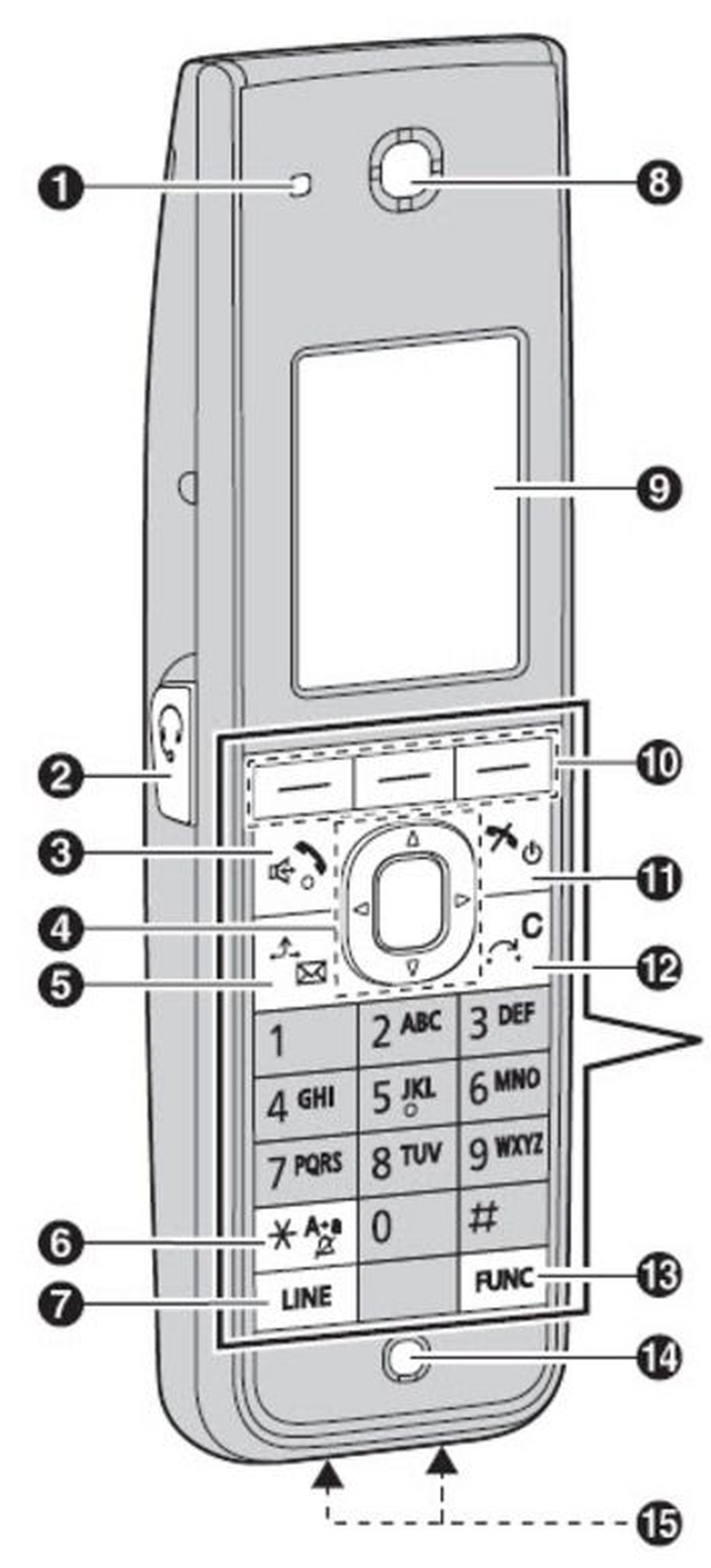
Pos. | Description | ||
1. | Ringer/Charge/Message indicator | ||
2. | Headset jack | ||
3. |
(TALK/ Speakerphone) key | ||
4. | Navigator key | ||
5. |
/
/(HOLD/MSG) key | ||
6. |
(silent mode) key | ||
7. |
(LINE) key | ||
8. | Receiver | ||
9. | Display | ||
10. | Soft key | ||
11. |
(POWER / CANCEL) key | ||
12. |
/
/ (XFER /CLR) key | ||
13. |
/ (FUNC) key | ||
14. | Microphone | ||
15. | Charge contacts | ||
16. | Strap holes | ||
17. | Speaker |


Panasonic KX-TPA65
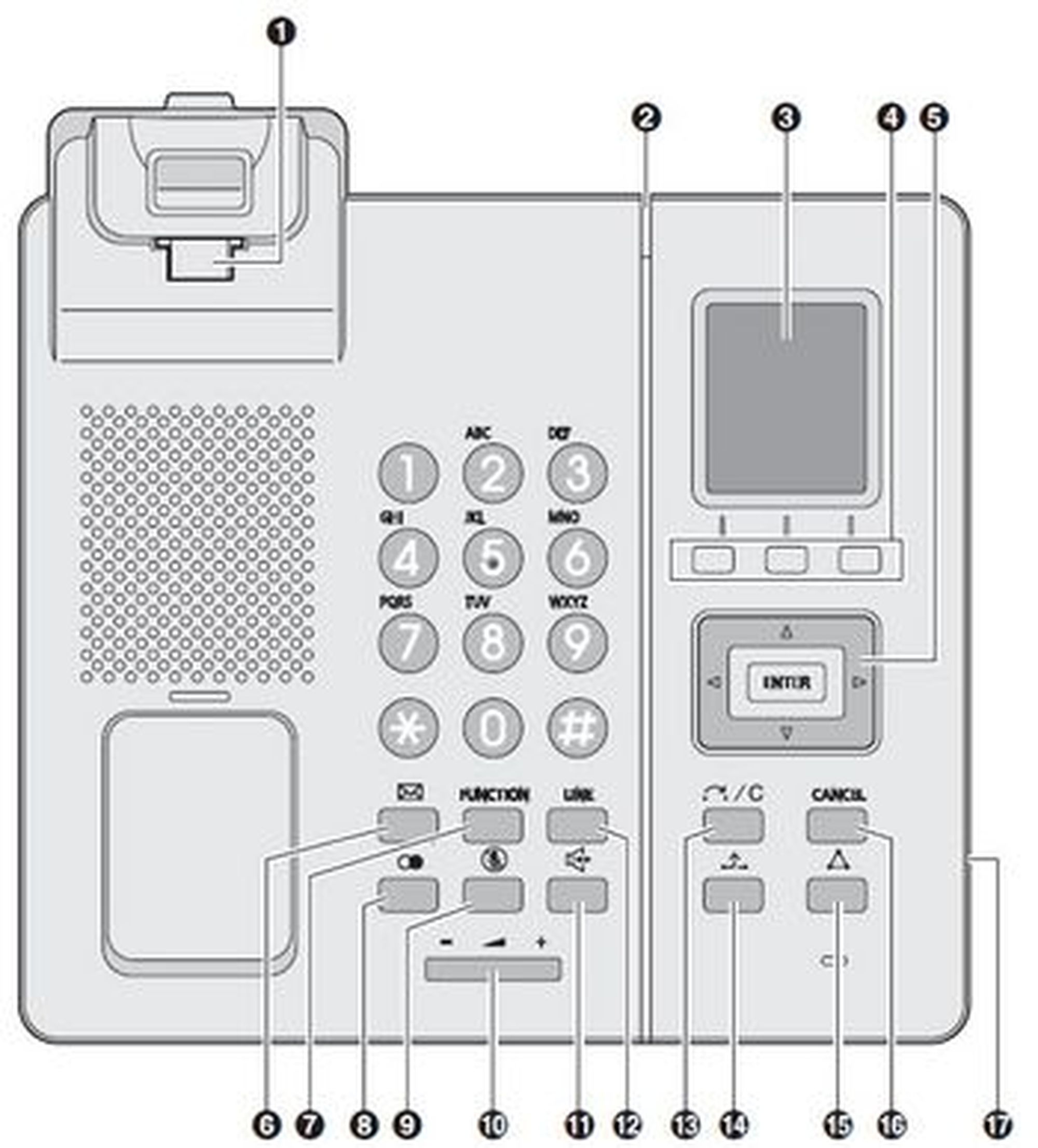
Pos. | Description | ||
1. | Handset hook | ||
2. | Ringer / Message indicator | ||
3. | Display | ||
4. | Soft keys (A/B/C) | ||
5. | Navigator key | ||
6. |
(MESSAGE) key | ||
7. |
(FUNCTION) key | ||
8. |
/
/ (REDIAL) key | ||
9. |
/ (MUTE) key | ||
10. |
/ (VOL) key | ||
11. |
/ (SP-PHONE) Speakerphone) key | ||
12. |
/ (LINE) key | ||
13. |
/ (TRANSFER /CLEAR) key | ||
14. |
/ (HOLD) key | ||
15. |
/ (CONF) key | ||
16. |
/ (CANCEL) key | ||
17. | Headset jack |


Note
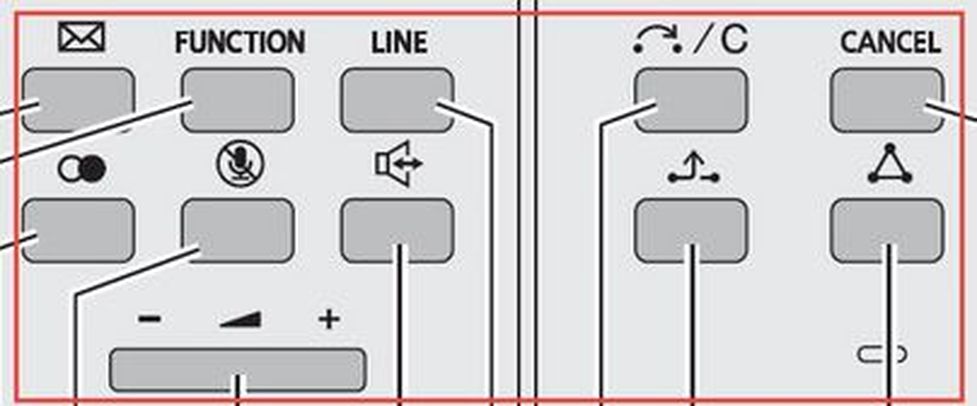
Please note that the phone key labels differ based on country. Please find two available models below.
Two available models of the KX-HDV line
 |
 |
1.2. Placing calls
Placing calls
Press
 .
.Dial the telephone number.
Press
 .
.
Placing a call using the incoming call log
Press
 or
or  .
.Select the desired telephone number
 or
or  , then press .
Usage of the phone book
Press
 or press
  .
.Select the desired entry and press
.
Placing a call using the outgoing call log
If a call is received from a phone number stored in the phonebook, the number and name of the caller will be displayed in the call log.
While in standby mode, press
or .Press
or to select an outgoing call record, and then press .
End a call
To end a call press
 .
.
Usage of the speaker/phone key (handsfree)
Toggle between Receiver mode and Hands-free mode during a conversation, press
. During a conversation using a headset, Hands-free mode does not work.
Adjusting the Receiver/Speaker/Headset Volume
During a conversation, press
or to adjust the volume (Level 1).
1.3. Handling calls
Incoming call
If you receive a call, the ringer indicator illuminates.
To answer an incoming call, press
.To end the call press
or return the mobile handset to the charger.
Missed calls
Missed calls are indicated on the mobile handset display (“Missed Calls”).
- To access the missed calls list, press the softkey .
- You can then page through missed calls using  /
/  .
.
In order to delete a single entry or all entries, as well as to save the entries, press  .
.
Hold
You can put a call on hold by holding the call at your extension.
To hold the current call:
Press  during an external call, then press . The active call is now placed on.
To retrieve a call on hold at your extension:
Press
 .
.Press the dial key corresponding to the slowly flashing green DN key, or press
/ , to select a slowly flashing green DN key, and then press  .
.
Call Waiting
During a conversation, if a second call arrives, you will hear a call waiting tone. You can answer the second call by disconnecting or holding the current call.
To disconnect the current call and then talk to the new party
Press
, while hearing the call waiting tone.Press
.
Toggle calls
To hold the current call and then talk to the new party
Press
 , while hearing the call waiting tone.
Press
.Press the dial key corresponding to the flashing green DN key, or press
or , to select a flashing green DN key, and then press .
1.4. Conference calls
Three-party Conference
During a conversation, you can add an additional party to your call and establish a conference call.
Making a Conference Call
Press
, and then press 5 ("Conference").Dial the party you want to add to the conversation, and then press
.After the called party answers, press
, and then press 5 ("Conference").
Discharge a participant from a conference call
During a conference, you can discharge other participants from the conference call. You can use this feature only when have started the conference yourself.
Press the key
during the conference call.Press then the key
.Press the dial key or the key
or , and then press to select the DN key (flexible key) that corresponds to the party you want to disconnect.Press
.Press
.Press the dial key, or press
or , nd then press , to select the DN key (flexible key) thatcorresponds to the remaining party.
Ending a Conference Call
To go on-hook and end the conference call, press .
1.5. Call transfer
Attended call transfer
You can transfer a call to another phone extension (internal or external).
During an active call, press
 .
.Dial the party to whom you would like to transfer the call, then press
.Wait for the other party to answer, then announce the call.
Press
.
Unattended call transfer
During an active call, press
 .
.Dial the party to whom you would like to transfer the call without making an enquiry.
Press
.