1. Basic functions
1.1. Overview of keys
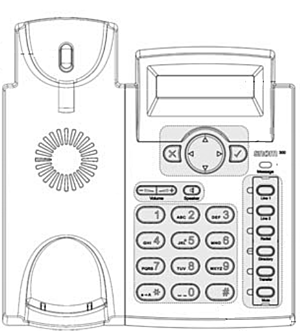
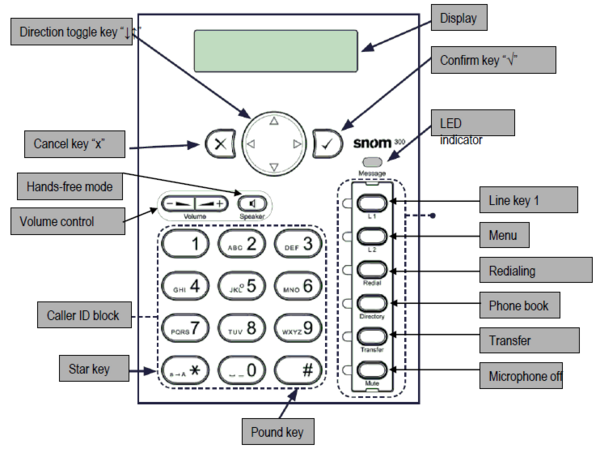
snom 300:
Note
The snom 300 does not feature programmable function keys. The existing function keys cannot be overwritten with those from the administration portal.
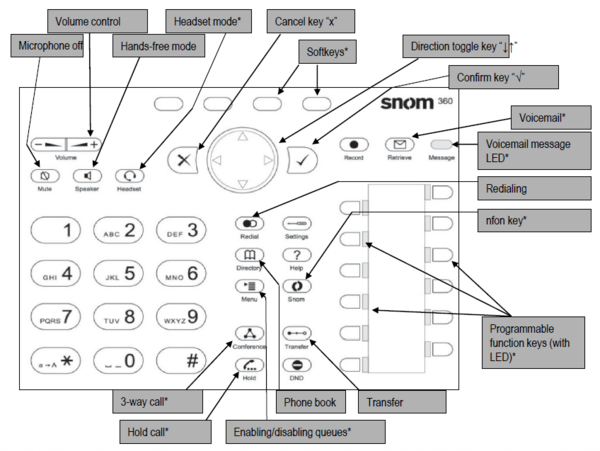
snom 320/360/370:
1.2. Keys in detail
*) not on snom 300
| You can use the “toggle key” to scroll in the display. On the start screen: Down -> Settings Up -> Call lists |
| Redialing | ||
| Cancels an action or entry |
| Maintenance menu: The functions are visible but not activated* | ||
| Confirms an action, selection or entry |
| After pressing this key you can enter a name to select a party. The phone book must first be set up on the administration portal – see administration portal manual | ||
| Adjusts the receiver or ringer volume. |
| Shows device SIP, IP and MAC address* | ||
| Switches the microphone off during a call |
| Enables queues to be enabled or disabled* | ||
| Hands-free mode (able to answer) |
| Enables queues to be enabled or disabled* | ||
| Headset mode (able to answer)* |
| starts a 3-way call* | ||
| Record call (inactive)* |
| Transferring calls | ||
| Access voicemail* |
| Hold call* | ||
| Voicemail message LED |
| Do Not Disturb mode on/off. The telephone won’t ring, same as for "call forwarding... delayed” to the caller On the snom 300, please press the mute key to switch to DND |




1.3. Outgoing call
When dialing an internal telephone number, only the extension needs to be entered.
When dialing external telephone numbers, you must first dial ‘0’, then enter the external number.
- To complete the dialing process, press the confirm key in either case or pick up the receiver.
If the receiver is not lifted the call will be placed in hands-free mode.
- To end the call, return the receiver to the cradle (for calls in hands-free mode), simply press the cancel key .
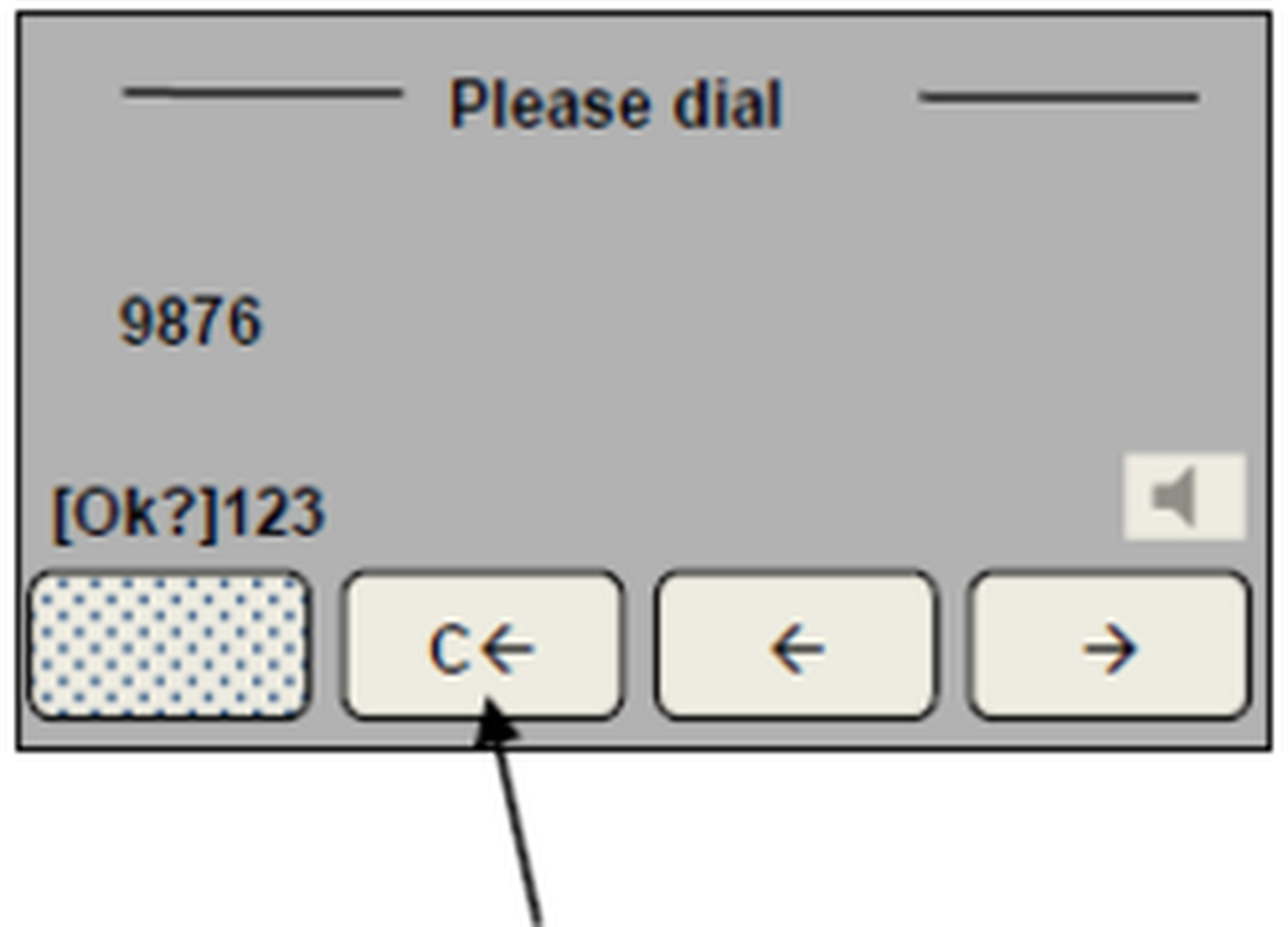
- If you made an incorrect entry while dialing the number, you can correct the entry with the “C←” key (softkey function).
Or delete the entire entry by pressing the cancel key  .
.
1.4. Incoming call
- Pick up receiver or press the ‘Speaker’ key  for hands-free mode.
With a headset connection you can answer the call by simply pressing the ‘Headset’ key in headset mode  .
.
- After ending the call return the receiver to the cradle or press the cancel key  .
.
Note
To enter the headset mode on the snom 300, hold the speaker key for two seconds.
1.5. Call waiting and toggling calls
If you are already making a call, the top left LED lights up.
A call waiting tone indicates a second call is coming in. At the same time LED 1 flashes. Press the “Function key” (next to LED) to answer the call.
You can now toggle between the calls by directly pressing the “Function keys”. In doing so, the active call is indicated with a steady LED light and the waiting call with a flashing LED light.
To end a call press the cancel key
. Returning the receiver to the cradle ends both calls.
Note
If another call comes in during an active call, you can ignore it by pressing and holding the key for several seconds. To end the active call first, briefly press the key. You can then answer the incoming call.
You can transfer the call whithout taking it. Press the Transfer key and dial the telephone number to which you would like to transfer the call to.
1.6. Alternate operation
Alternate operation, if function keys are programmed differently
- When the call waiting tone sounds, press the “Hold” key to place the current call on hold  .
.
- Press the Confirm key  to answer the new call.
- Now press the “Hold” key again, then the “Toggle" key  to select the respective party. Then press the confirm key“ add the selected party to the line.
Tip
You can make up to 5 parallel calls.
1.7. Transfers
Attended call transfer
- Press the hold key .
- Dial the number of the other extension.
- Confirm with .
When the call is answered, announce the call being transferred.
- Press the transfer key  .
.
Unattended call transfer
- Press the transfer key .
- Dial the number to which you are transferring the call.- Confirm with .
Note
Depending on the model, press the corresponding button on the display.
1.8. Retrieving voicemail messages
Proceed as follows to retrieve the messages on your mailbox:
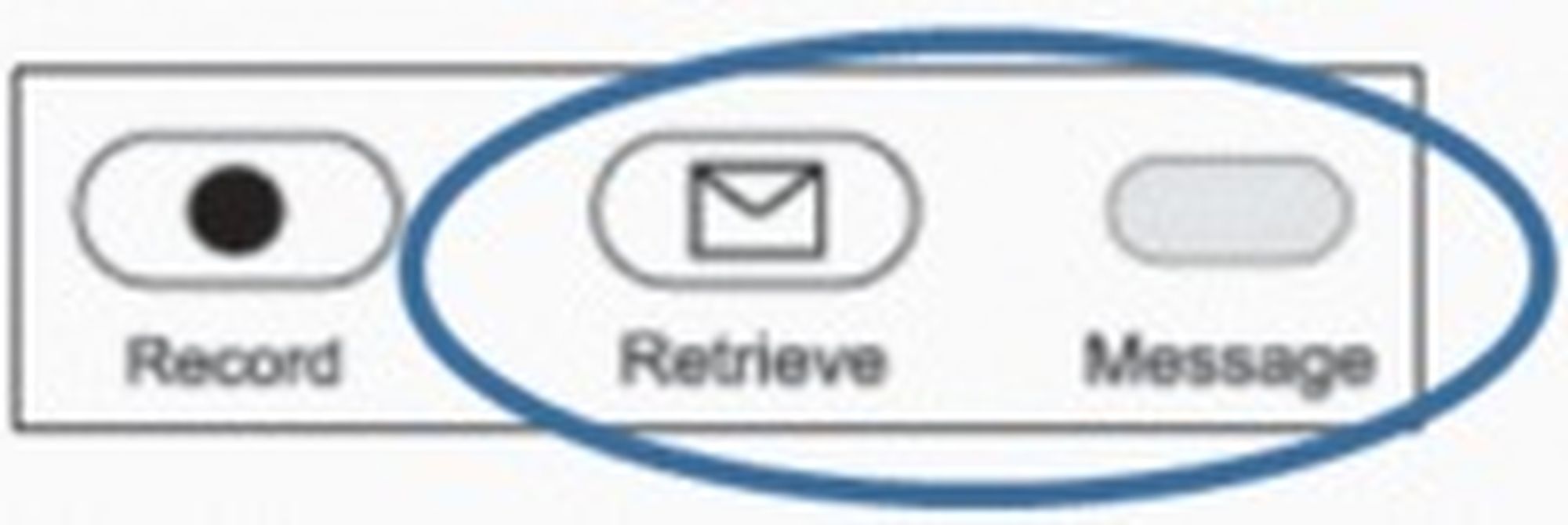
- Press the Retrieve key  (“Message” LED blinks if a message has arrived).
- Following the prompt, enter the voice mail password on your dial pad.
Then press 1 to listen to messages. After listening to the message press:
7 to delete
5 to replay the message
6 to go to the next message
- To end, hang up or press the Cancel key .
1.9. 3-way calls
Proceed as follows to initiate a 3-way conference call:
Call party 1
Press the “Hold” key
once party 1 has been reached.Call party 2 and wait until party 2 has been reached.
Press the “Conference” key
 .
.
Note
Depending on the model, press the corresponding button on the display.
Note
A conference call with more than 3 parties can easily be set up on the administration portal: Please refer to the administration portal manual for this purpose.
1.10. Redialing
Placing an outgoing call from the redial list
Proceed as follows:
Press the “Redial” key
 .
.Press the “up” or “down” softkey, to select the desired party/telephone number or alternatively the toggle key
to select the desired party/telephone numberPress the confirm key
or pick up the receiver.
Note
Depending on the model, press the corresponding button on the display.
1.11. Calling from the call list
Proceed as follows:
Press the “List” softkey.
Select the desired type (missed calls, incoming calls, outgoing calls) (with the “up” or “down” softkey, or as an alternative with the “Toggle key ↑↓”
.Press the confirm key
or pick up the receiver.
1.12 Completion of Calls on No Reply
The Completion of Calls on No Reply (CCNR) creates a callback in case a person cannot be reached (e.g. the person is not on its desk or busy) at the moment.
Note
To use this function, the CCNR function has to be enabled in the administration portal and in the phone extension. Click on the CCNR check box under Administration / Profile to activate the function.