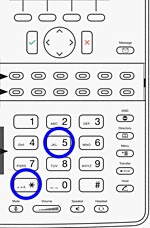
1. Basic functions
1.1. Overview of keys
snom 710, snom 715
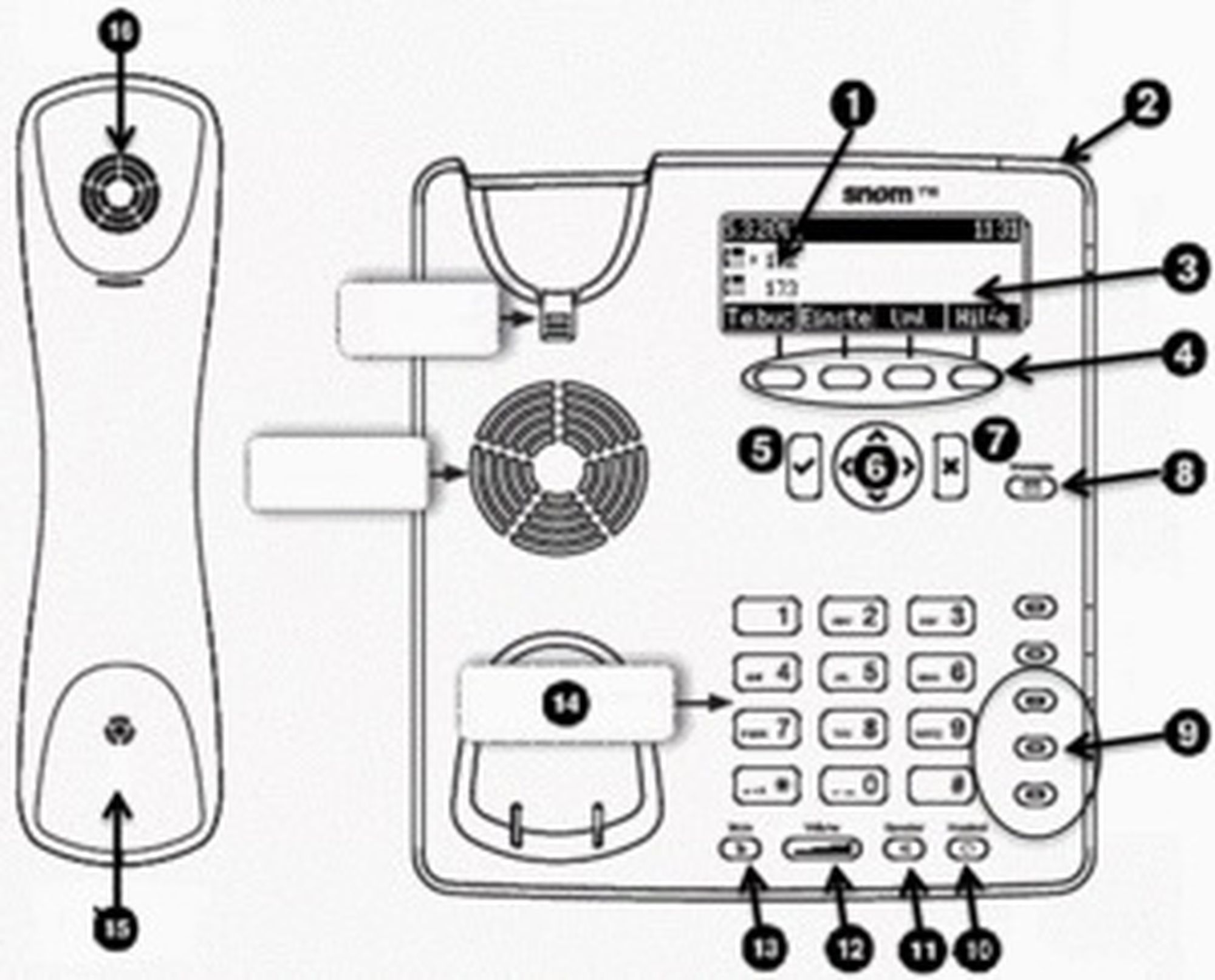
1 | Telephone status |
2 | LED call indicator |
3 | Display |
4 | Soft keys |
5 | Confirm key |
6 | Navigation key |
7 | Navigation key |
8 | VoiceMai key with LED |
9 | Freely programmable function keys with LEDs |
10 | Freely programmable function keys with LEDs |
11 | Speaker key with LED |
12 | Volume key |
13 | Mute key with LED / DND key when in idle mode |
14 | Alphanumeric keypad |
15 | Receiver microphone |
16 | Receiver speaker |
snom 720
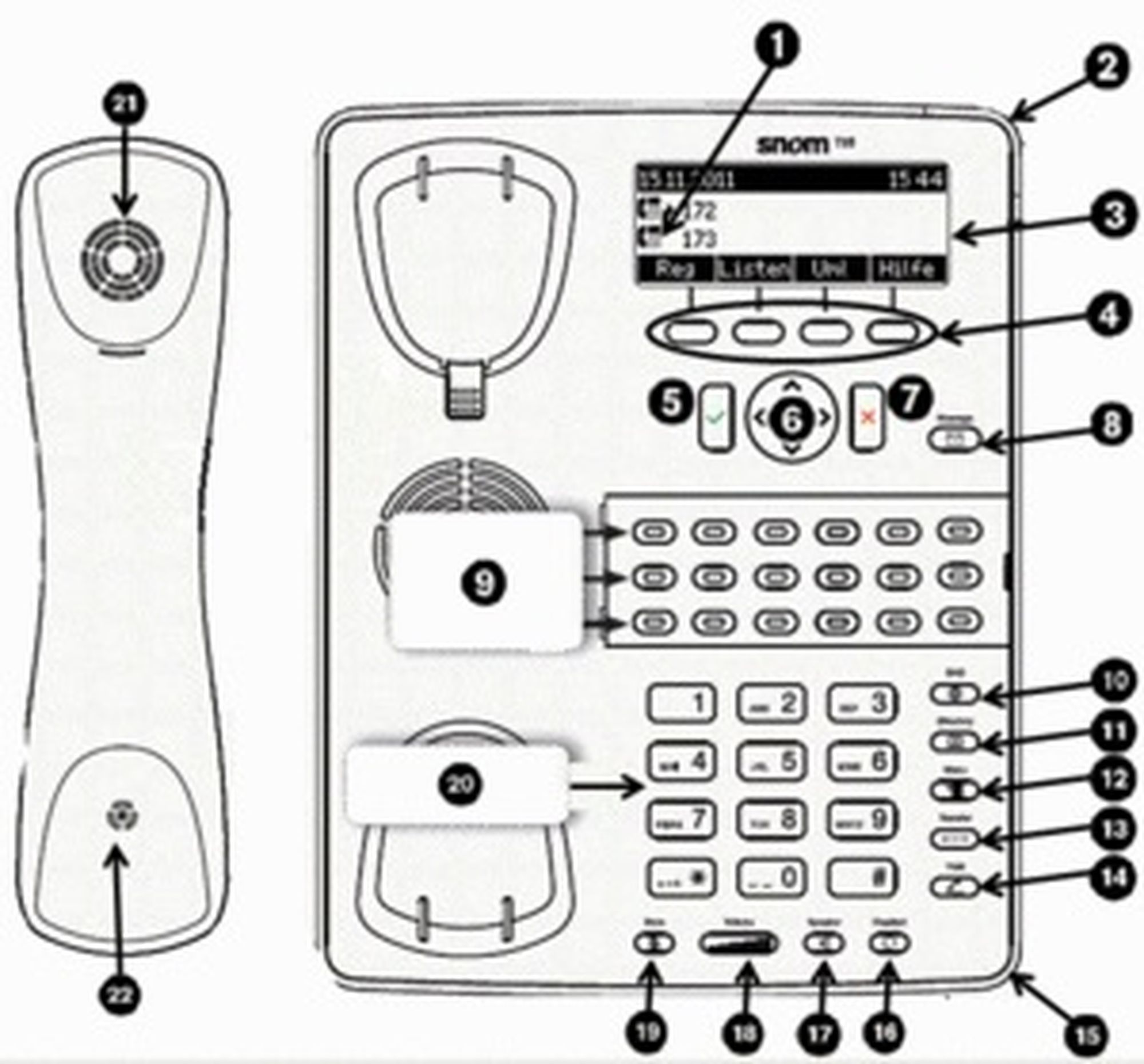
1 | Telephone status |
2 | LED call indicator |
3 | Display |
4 | Soft keys |
5 | Confirm key |
6 | Navigation key |
7 | End key |
8 | VoiceMai key with LED |
9 | Freely programmable function keys with LEDs |
10 | DnD key (do not disturb) |
11 | Phone book key |
12 | Menu key |
13 | Transfer key |
14 | Hold key |
15 | Microphone for speaker function |
16 | Headset key with LED |
17 | Speaker key with LED |
18 | Volume key |
19 | Mute key with LED |
20 | Alphanumeric keypad |
21 | Receiver microphone |
22 | Receiver speaker |
snom 760
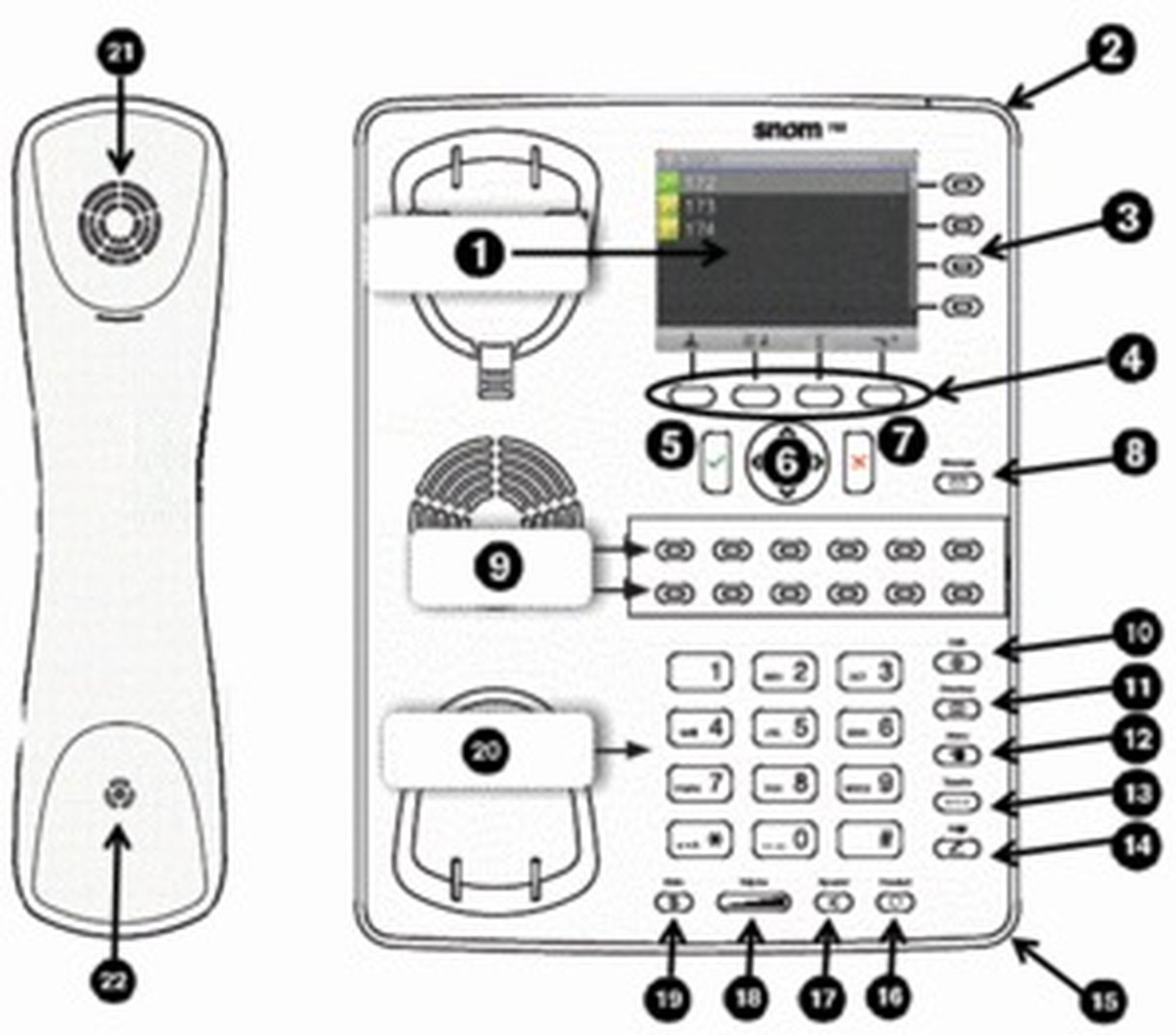
1 | Display |
2 | LED call indicator |
3 | Not programmable line keys |
4 | Soft keys |
5 | Confirm key |
6 | Navigation key |
7 | End key |
8 | VoiceMai key with LED |
9 | Freely programmable function keys with LEDs |
10 | DnD key (do not disturb) |
11 | Phone book key |
12 | Menu key |
13 | Transfer key |
14 | Hold key |
15 | Microphone for speaker function |
16 | Headset key with LED |
17 | Speaker key with LED |
18 | Volume key |
19 | Mute key with LED |
20 | Alphanumeric keypad |
21 | Receiver microphone |
22 | Receiver speaker |
Keys in detail:
Key | Description |
Use the toggle key to browse through the display. On the home screen: Down: Settings Up: Call lists | |
Confirms an action, selection or entry | |
Cancels an action, selection or entry | |
Mutes the microphone during a call | |
Adjusts the receiver volume or the ring tone volume | |
Hands-free mode (answering possible) | |
Headset mode | |
Access voicemail | |
Do not Disturb mode on / off. Extension works as in “Delayed call forwarding”. | |
Phone book (Set up via the administration portal) | |
Menu | |
Transfer call | |
Hold call |
LED indicators
Call LED*:
Rapidly flashes red with an incoming call.
Continuous, bright red while dialling, during a call and when a call is placed on hold.
Continuous somewhat less intensive red indicates a missed call.
2. Function keys LED:
The standard setting is “Line”. I.e., if the first four freely programmable function keys are not programmed, the function keys with LEDs can be used as line keys.
Rapidly flashing green when the respective line has an incoming call.
Continuous green when the line is in use.
Slowly flashing green when the line has a call on hold
3. Voicemail LED:
A continuous red light indicates a new message has been saved in voicemail.
*The LED indicator of snom 710 flashes solely in green color.
1.2. Outgoing call
Note:
When dialling an internal telephone number, only the extension needs to be entered.
When dialling external telephone numbers, you must first dial ‘0’, then enter the external number.
Selecting the audio component
1.) Receiver
- Pick up receiver, enter number and press .
.
- Enter number and pick up receiver.
2.) Headset
- Enter number and press.
3.) Speaker / microphone
- Press the speaker key  to activate the speaker or the microphone respectively.Enter the number and press .
Dialling a number from the call lists
- Go to “Lists” and select the respective list. Press to open the desired list.
- Select the number you would like to phone and confirm with .
Calling from the phone book
- Press the phone book key.
- Enter the initial letter of the name or additional letters as necessary. You can also use the arrow keys.
- Press to select the respective number.
Note
You will find the directory key on snom 710 on the upper function key. Please notice that the handling is identical to snom 720/D725 and 760/D765.
1.3. Incoming call
There are various options for answering an incoming call:
With the receiver
- Pick up the receiver.
With the headset
- Press .
With the speaker / microphone
- Press the speaker key to activate the speaker / microphone and answer the call.
1.4. Hold
- Press the hold key  /
/  (on snom D735 and D785) to place the active call on hold.
Calls on hold are indicated in three ways:
by the display text
the slowly flashing green/red line LED (i.e., when the first four freely programmable function keys are not programmed; on snom D735 and D785 the LED flashes red only
and with the continuous red call LED.
Calls on hold can now be transferred or other calls can be made or put on hold.
- Press the hold key / (on snom D735 and D785) or the respective line key, to return to the call on hold. If the party on hold hangs up while on hold, the connection is terminated.
Tip
Please click on the soft key "Hold" under the display to use "Hold" with snom 710.
1.5. Call waiting and toggling calls
If a call comes in while you are on a call, the display shows an icon with a ringing receiver and a double call waiting tone (double beep) can be heard.
Options
You can answer the incoming call, which automatically places the active call on hold.
Ignore the incoming call with
 . The caller hears a busy tone.
You can also transfer the incoming call without announcing it.
Note
If another call comes in during an active call, you can ignore it by pressing and holding the X key for several seconds. To end the active call first, briefly press the X key. You can then answer the incoming call.
On snom 710, press the "Trans" soft key to transfer the current call. You can then answer an incoming call.
1.6. Call transfer
There are two options for transferring a call:
Attended call transfer
- Press the hold key , on snom D735 and D785 the hold key is different and looks like this .
- Dial the number of the other extension
- Confirm with .
When the call is answered, announce the call being transferred.
- Press the transfer key .
Note
- To perform an announced call transfer with the snom 710, push the soft key Hold during an active conversation.
- Dial the desired number and press the soft key Trans to transfer the call.
- To perform an unannounced call transfer with the snom 710, push the soft key Trans to transfer the call directly.
- The remaining procedure is equal to snom 720 und 760.
1.7. 3-way calls
In order to start a three way conference, proceed as follows:
- Place the two other parties on hold.
- Next, press the “Conf. on” button to initiate a 3-way call. On snom D735 and D785 confirm with the soft key "Conference On"  .
.
- To hold a 3-way call, press the "Hold" button , on snom D735 and D785 press the key.
- To end a 3-way call, press the softkey button „Conf. on“, on snom D735 and D785 press the key  .
.
Both parties are then placed on “hold” and you can decide whether you wish to continue speaking with a single party or hang up.
1.8. Accessing voicemail
Proceed as follows to retrieve the messages on your mailbox:
- Press the voicemail key  /
/ . It lights up, when you have received a new message.
- Enter your voicemail PIN.
- Then press 1 to listen to messages. After listening to the message press:
7 to delete
5 to replay the message
6 to go to the next message
- To end, hang up or press the Cancel key.
1.9. Call forwarding
1.10. Callback