2. Description of the user interface
2.1. Navigation
1. The function Targets is described in C 3. Targets.
 |
2. The function Elements contains the functions "Devices" (see C 4.1) und "Announcements" (see C 4.2).
 |
3. The function Administration contains the functions "Profil" (see C 5.1), "Sites" (see C 5.2), "Batch Import" (see C 5.3) and "Phonebook" (see C 5.4).
 |
4. The function DID is described in C 6. DID.
5. The function Help opens our main documentation page.
2.2. Main window
Description of the main and list window, example Targets.
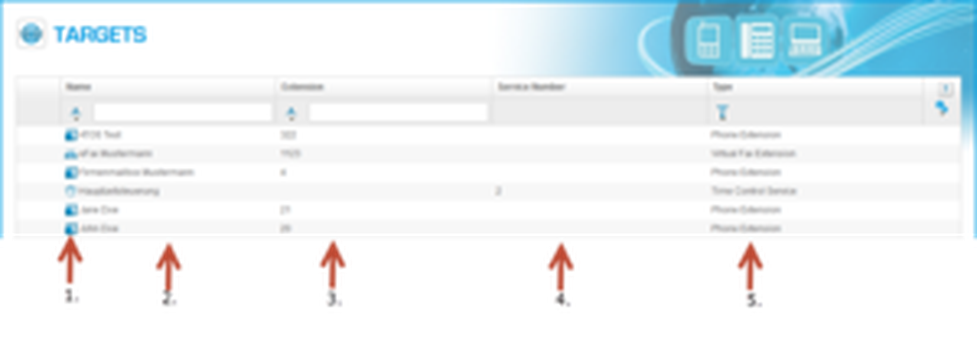 |
Number | Description |
1. | If you click in these areas, the rows are sorted (a-z or z-a). |
2. | Helptext for thi function. |
3. | Select specific information by entering name or part of a name (names,numbers and so on). |
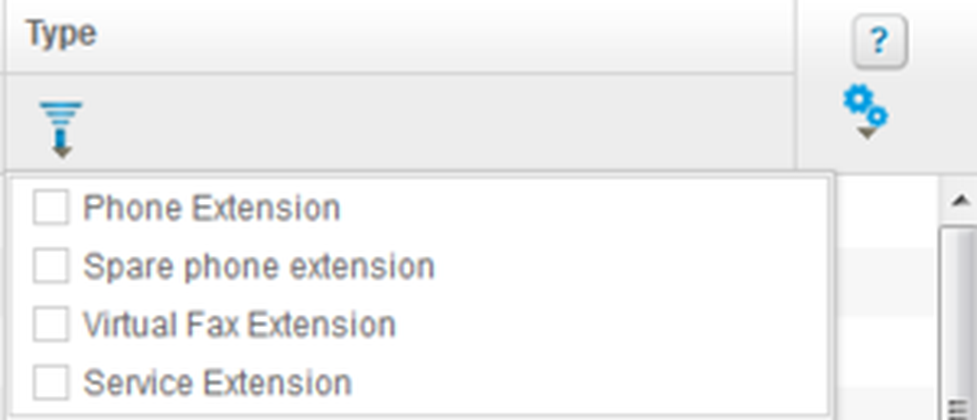
4. | Typ selection. |
5. | Reset filter and rows selection. |
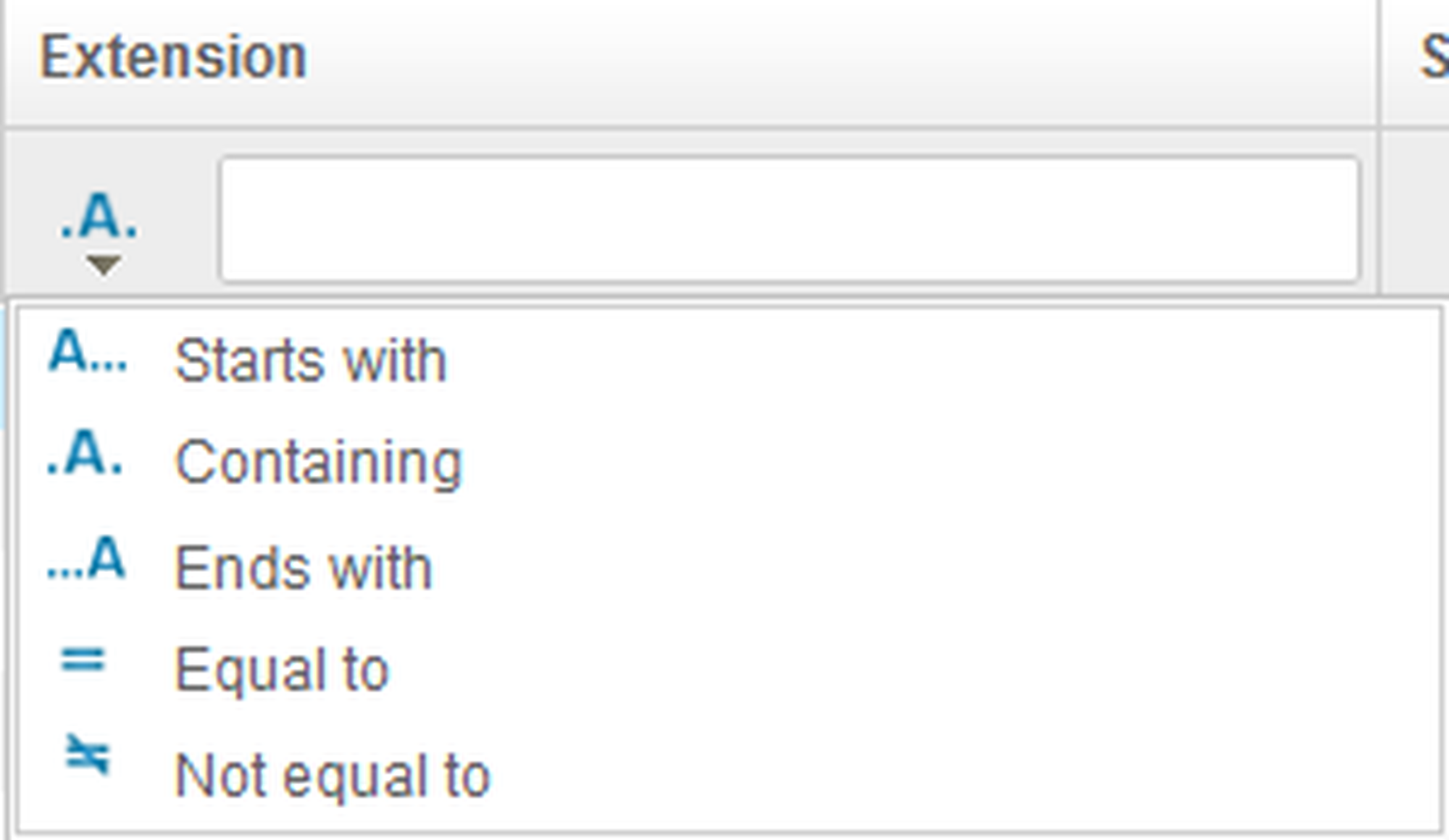
3. Here you can select the criterias for 3a.
 |
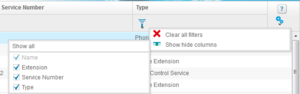
5.Here you can reset the filter and select with rows should be shown.
2. Result area (List), e.g. "Targets".
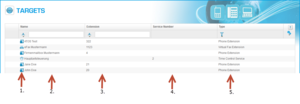
Number | Description |
1. | Here are the symbols of the different Services, e.g. phone extensions, eFax. |
2. | Here the names of the services are shown. |
3. | The assigned extension is shown. |
4. | The assign service number. |
5. | Which type of services. |
1. Next symbols are available:
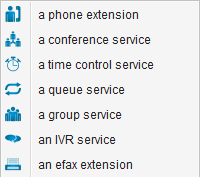
You can select every item.

 You can edit your selection and a new confiration-window is opened.
 You can delete the seleted item.
Note
You can mark multiple extensions, devices and phonebook entries by holding the CTRL key or CMD key and clicking on the entries simultaneously. On the lower part of the monitor you can delete an entry by clicking the red delete smybol .
3. Footer line, e.g. Targets.
 |
If you push the ADD Symbol you can add a new target:
In the right corner of the footer line you can see the number of objects.
2.3. Configuration
If you select one or more List-elements (e.g. under Targets) and you open them (double-click), then the selected items are opened in a new configuration window, using different tabs for every item. You can select more then one item and you can close them by clicking the X. If you have made changes in a tab, then the header information in the tab is in italic.
 |