9. Meet & Share
9.1 Starting and planning a meeting
Starting an instant meeting
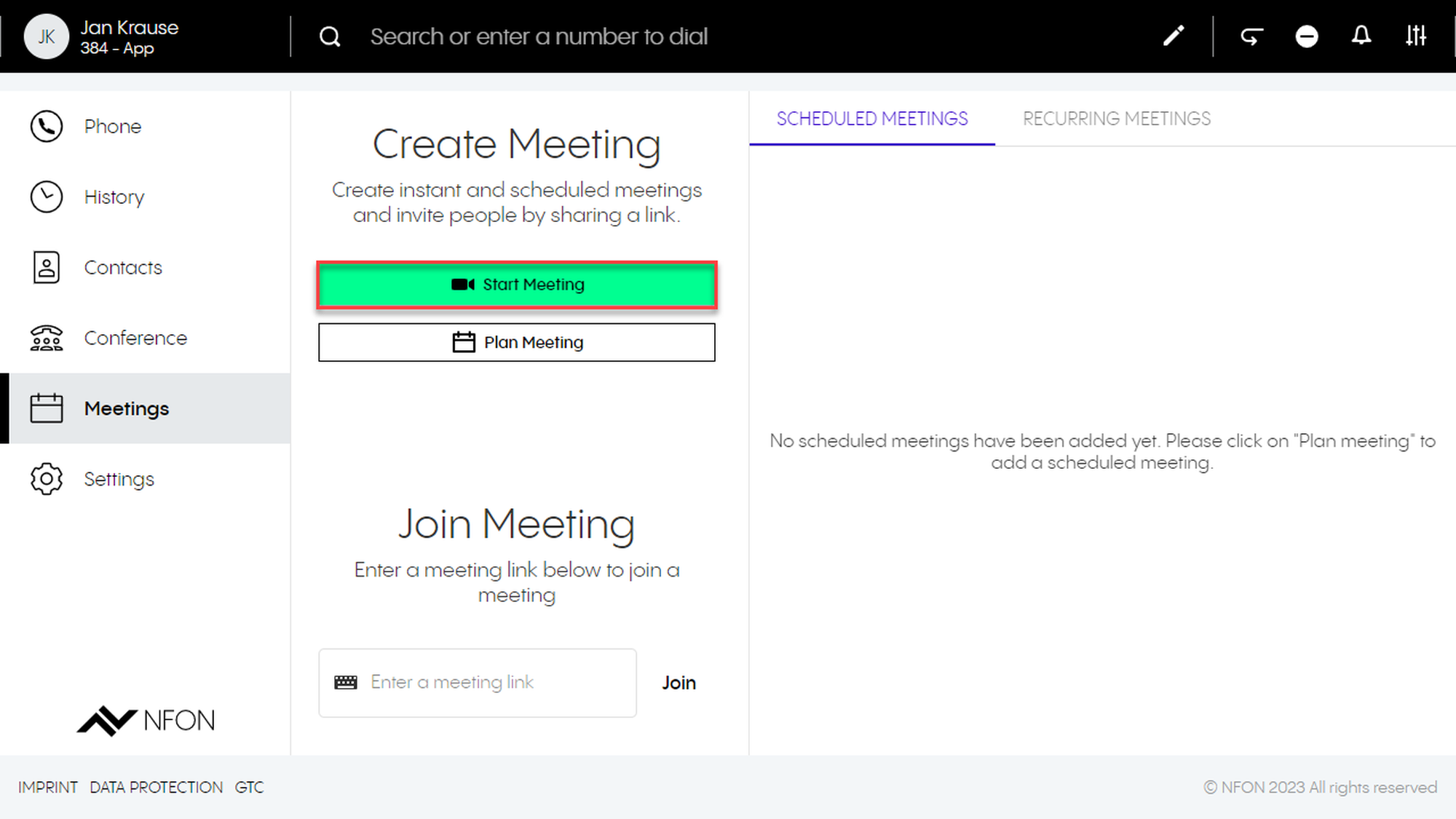
Under Meetings in the navigation menu on the left, you have the option to create an instant meeting:
- Click Start Meeting to start an instant meeting
Scheduled and recurring meetings
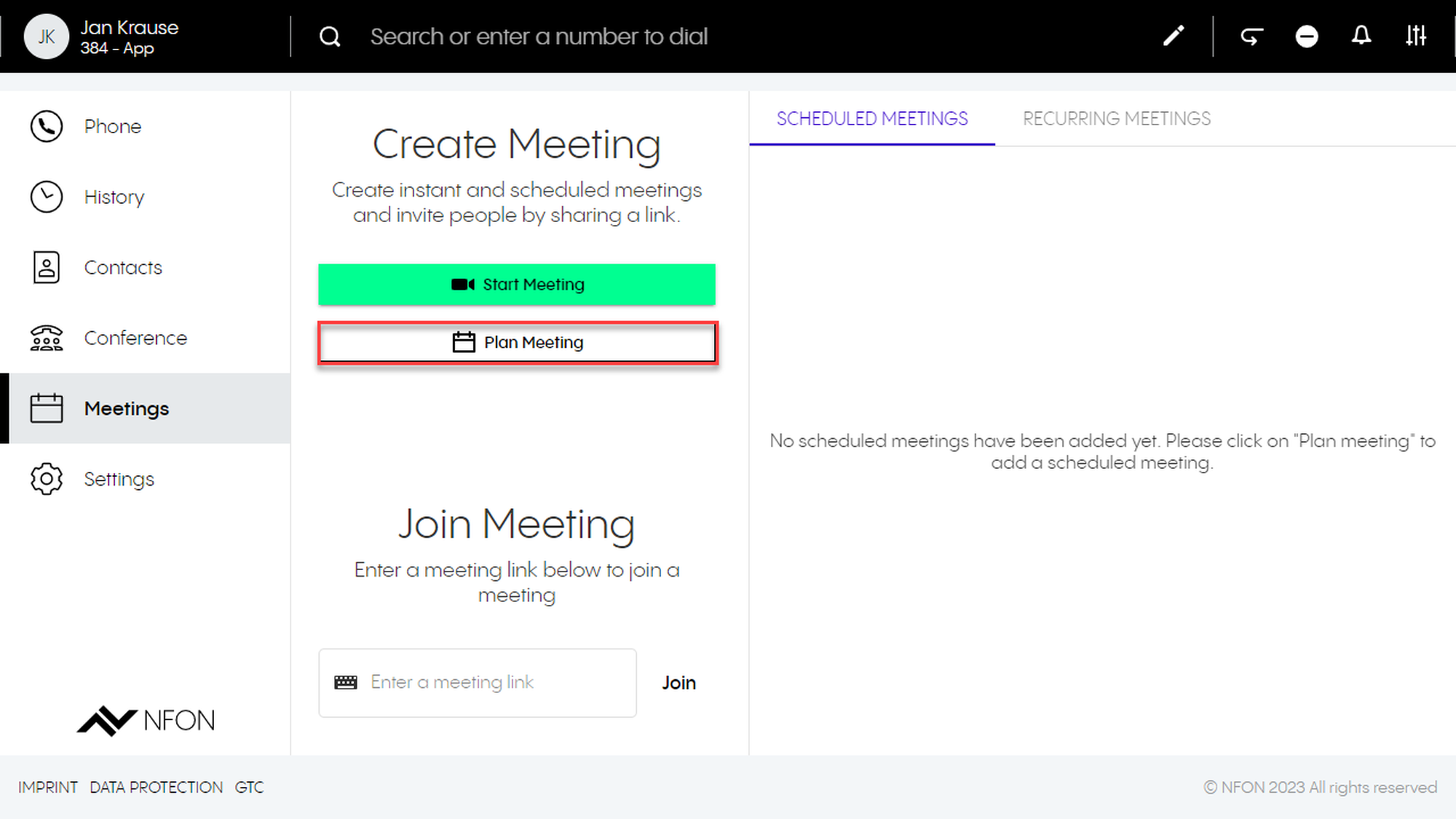
Under Meetings in the navigation menu on the left, you also have the option to create scheduled and recurring meetings
- Click on Plan Meeting to set up a scheduled meeting or recurring meeting
A new window opens for the configuration of the planned meeting:
In the Add title field, enter a name for the meeting
Under Start Date and End Date, specify the duration of the meeting
To plan a meeting for a whole day or several days, click the All day toggle.
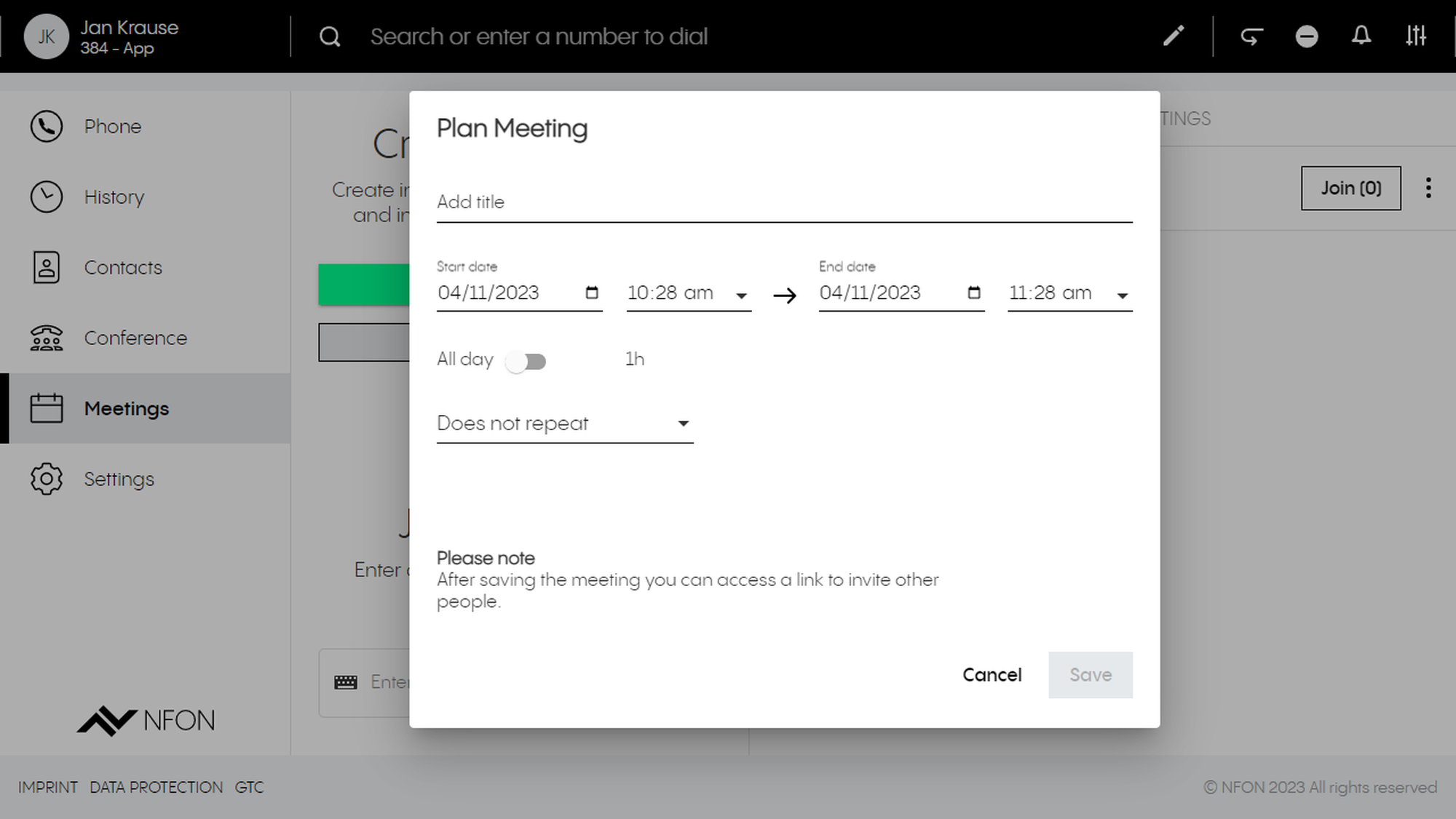
Specify if the meeting is a recurring meeting. Click on Does not repeat, to open a drop-down menu and choose between the following options:
Does not repeat
Every weekday (Mo-Fr)
Weekly
Monthly
Yearly
After you have configured the planned meeting, click Save.
⇒ Planned meetings with the configuration Does not repeat are displayed under the Scheduled Meetings tab. Planned meetings that repeat are displayed under the Recurring Meetings tab.
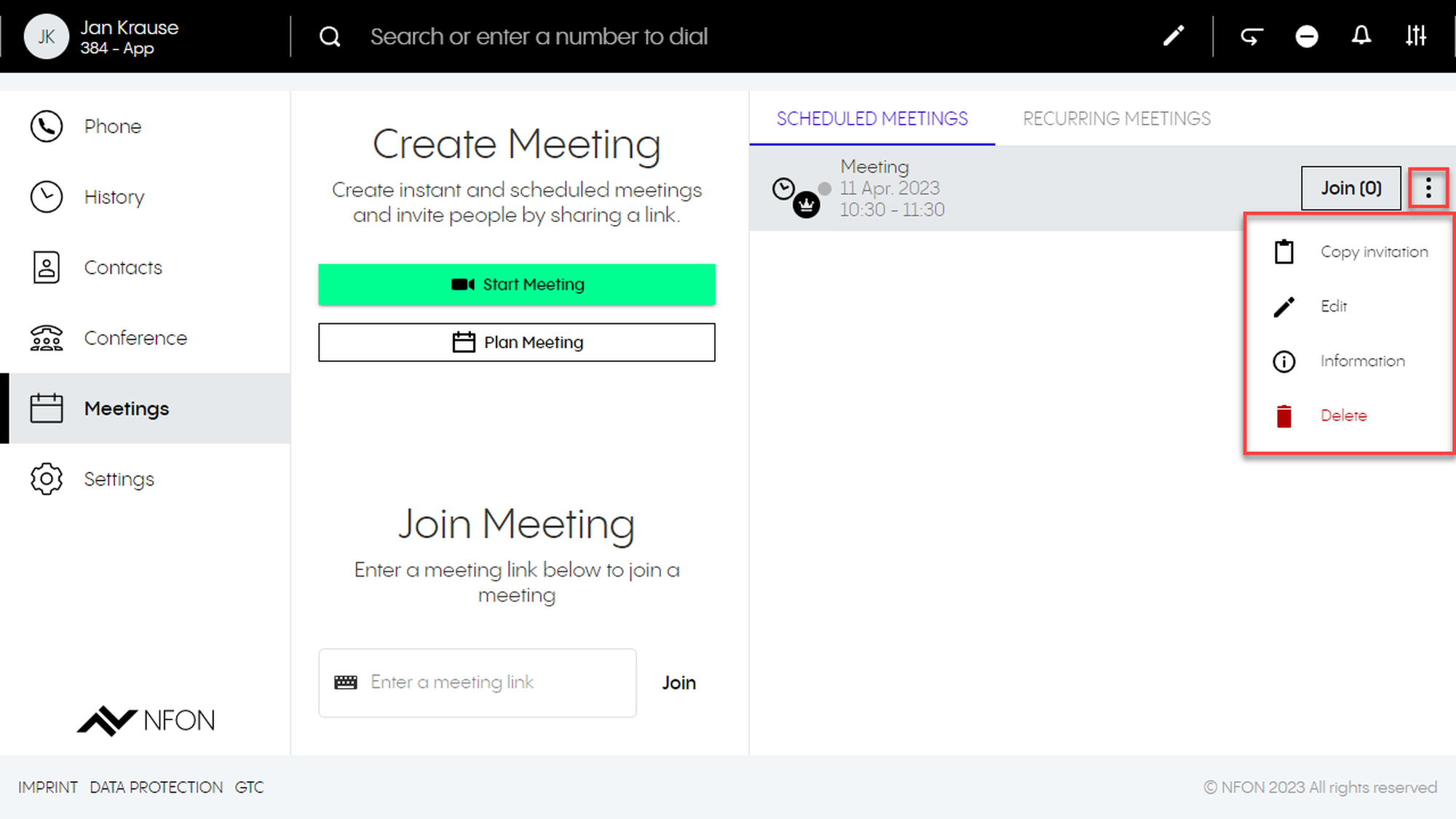
To copy an invitation, edit, access information or delete a scheduled or recurring meeting, click on the three dots next to this meeting.
Tip
If a scheduled meeting is used (people click on the invitation link), its lifetime will be extended by another 30 days every time it's used. This means that if you keep using a scheduled meeting, it will never expire. Its lifetime will always be 30 days from the day it was last used. A scheduled meeting only expires if it is "idle" for more than 30 days.
9.2 Inviting to a Meeting
Inviting to a scheduled/recurring meeting
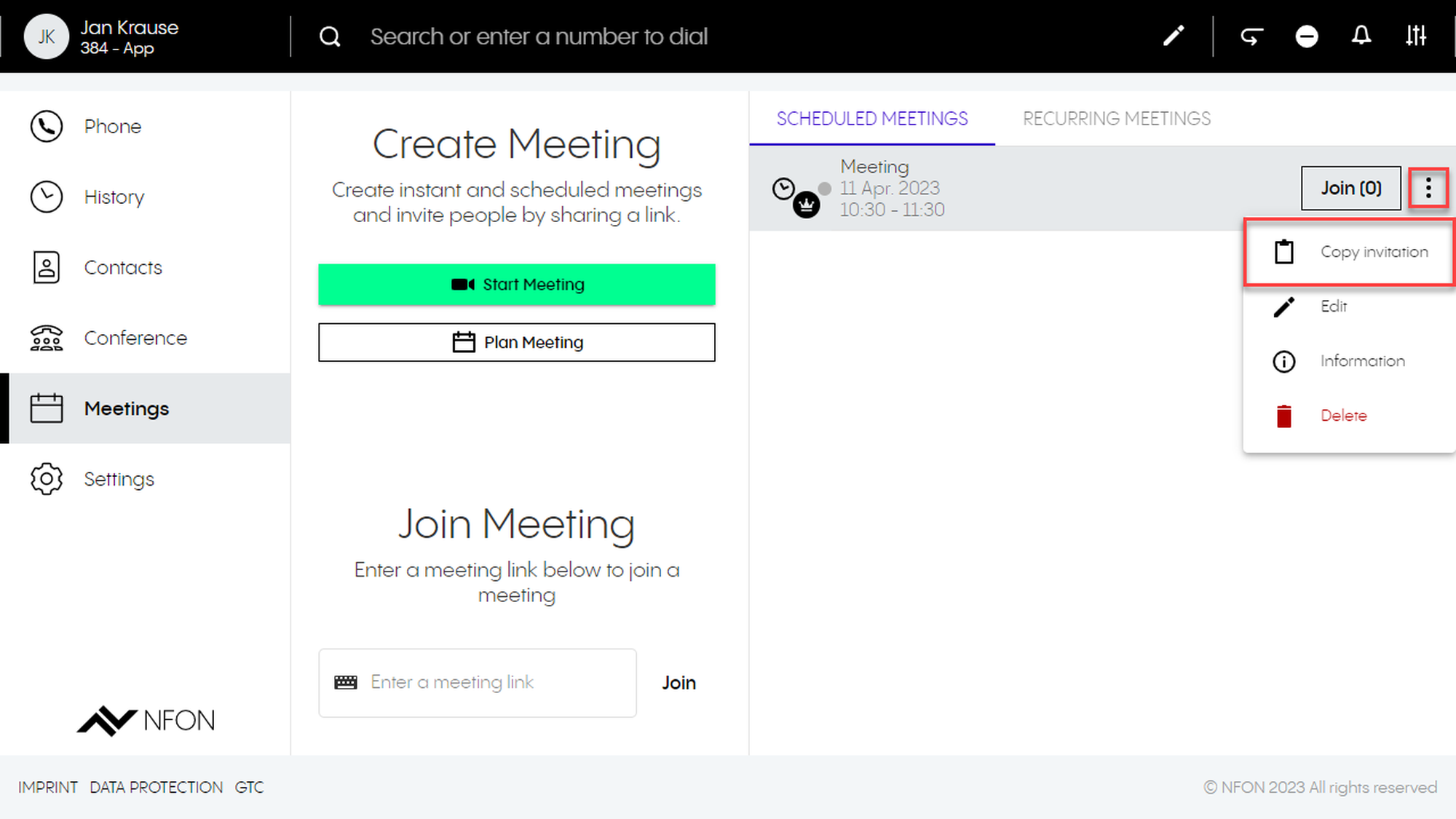
To invite a person to a scheduled/recurring meeting, they need the meeting link. The meeting link can be copied as an invitation:
1. Click on the three dots next to the meeting.
2. Click on Copy invitation (under Information you will see the meeting link as well as the meeting dial-in code and the dial-in numbers).
Inviting while in a meeting
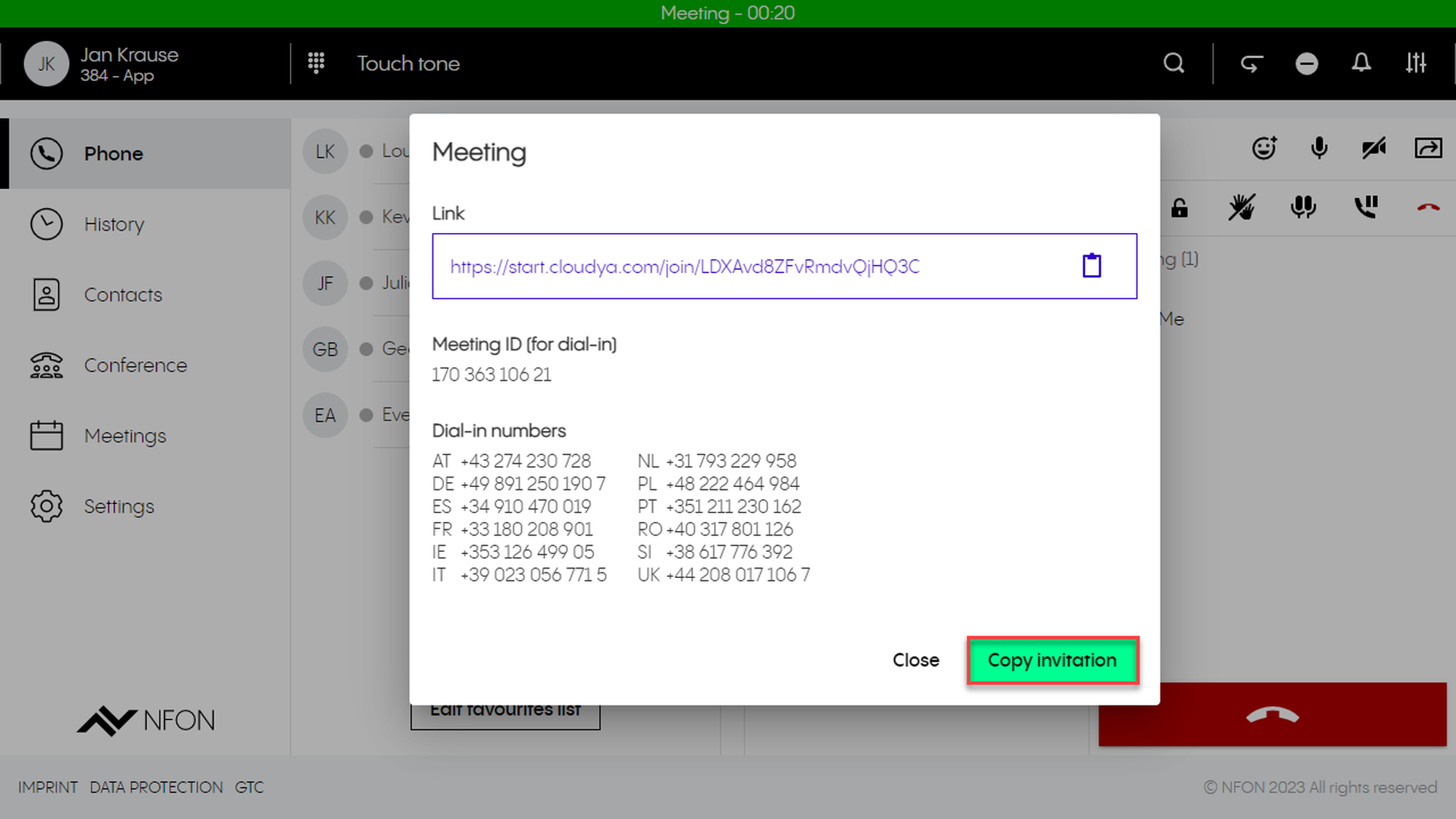
You can also invite a person while in a meeting. To invite while in a meeting:
1. Click on the Information icon to open the meeting information.
2. Click on Copy invitation.
Inviting while in cinema mode
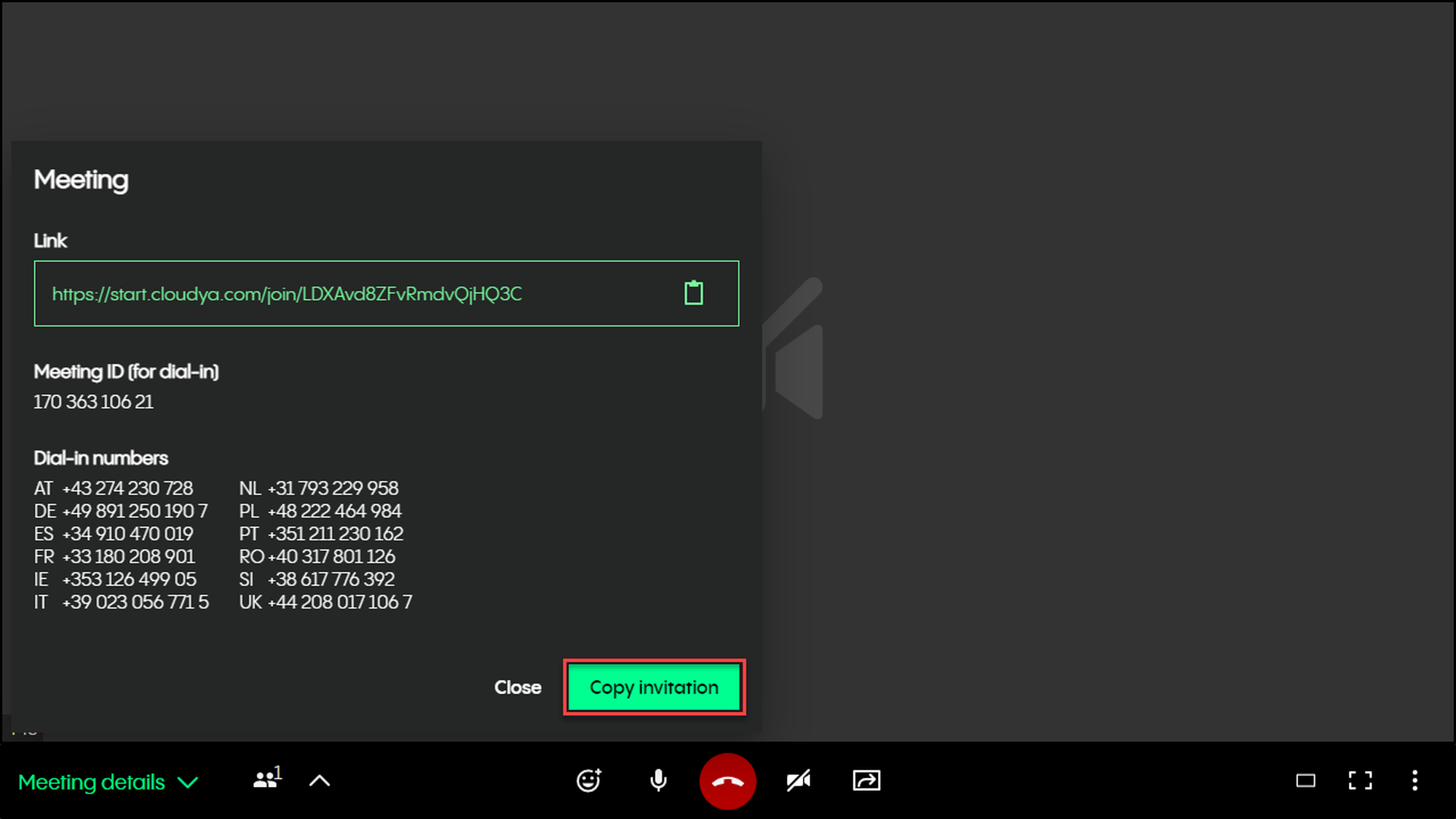
You can also invite a person while in a meeting using cinema mode. To invite while in cinema mode:
Click on Meeting details on the bottom left. A popup with the meetings details opens.
Click on Copy invitation.
9.3 Joining a Meeting
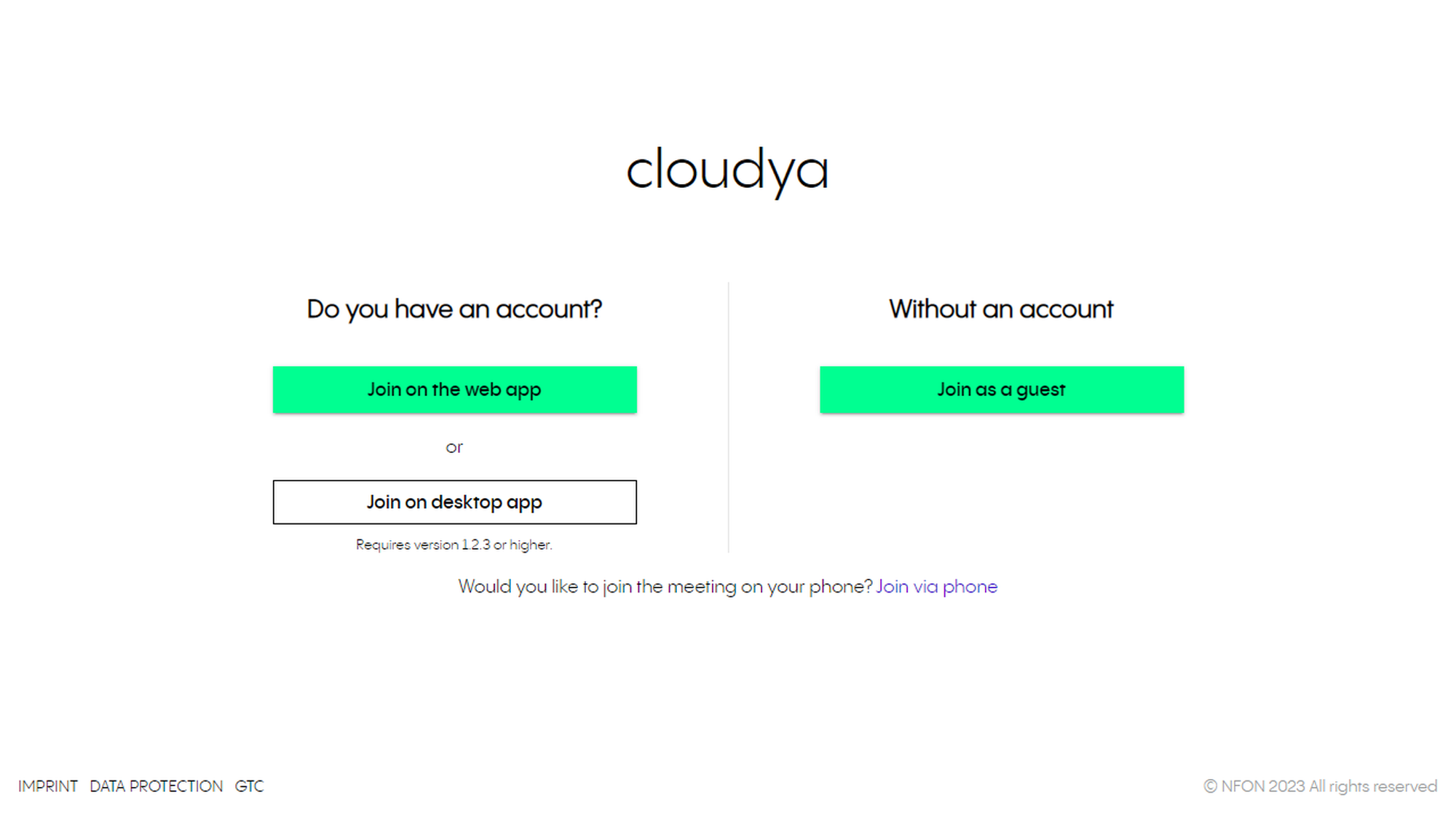
To join a meeting, you need an invitation. After you have received an invitation to a meeting, there are several options to join a meeting.
Using the link in the browser
If you have a Cloudya account, copy the link in the browser and login with your account. You can join the meeting on the Web app or on the Cloudya desktop app.
If you do not have a Cloudya account, copy the link in the browser and continue as a guest.
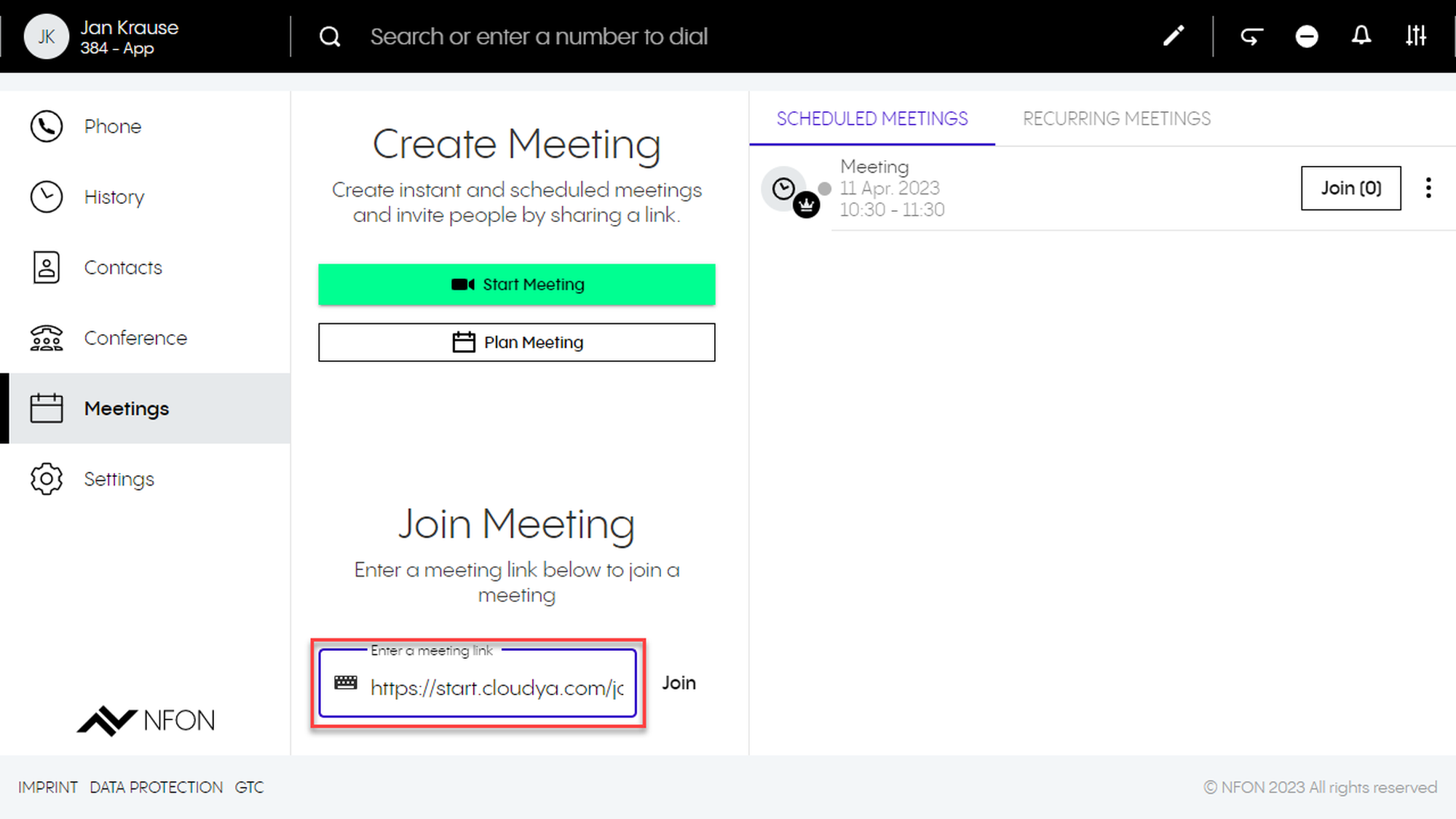
Using the link in the join meeting section
Paste the meeting link into the input field under Join Meeting and click on Join.
Joining a meeting via dial-in
It is also possible to join a meeting with an audio-only device, such as a desktop phone:
as "new", individual participant
or connected to a participant who already joined the meeting. In this case TWO clients are connected to the user. This can be used for conference rooms with conference audio equipment.
This is done by entering an optional participant ID when dialing in. The participant ID is displayed in the Cloudya App Suite Client on the first device in the meeting information.
In both cases, dial a PSTN number, then an announcement is played, asking the participant to enter the meeting ID.
After this, the optional Participant ID can be entered.
9.4 Meeting Features
Meeting features as participant
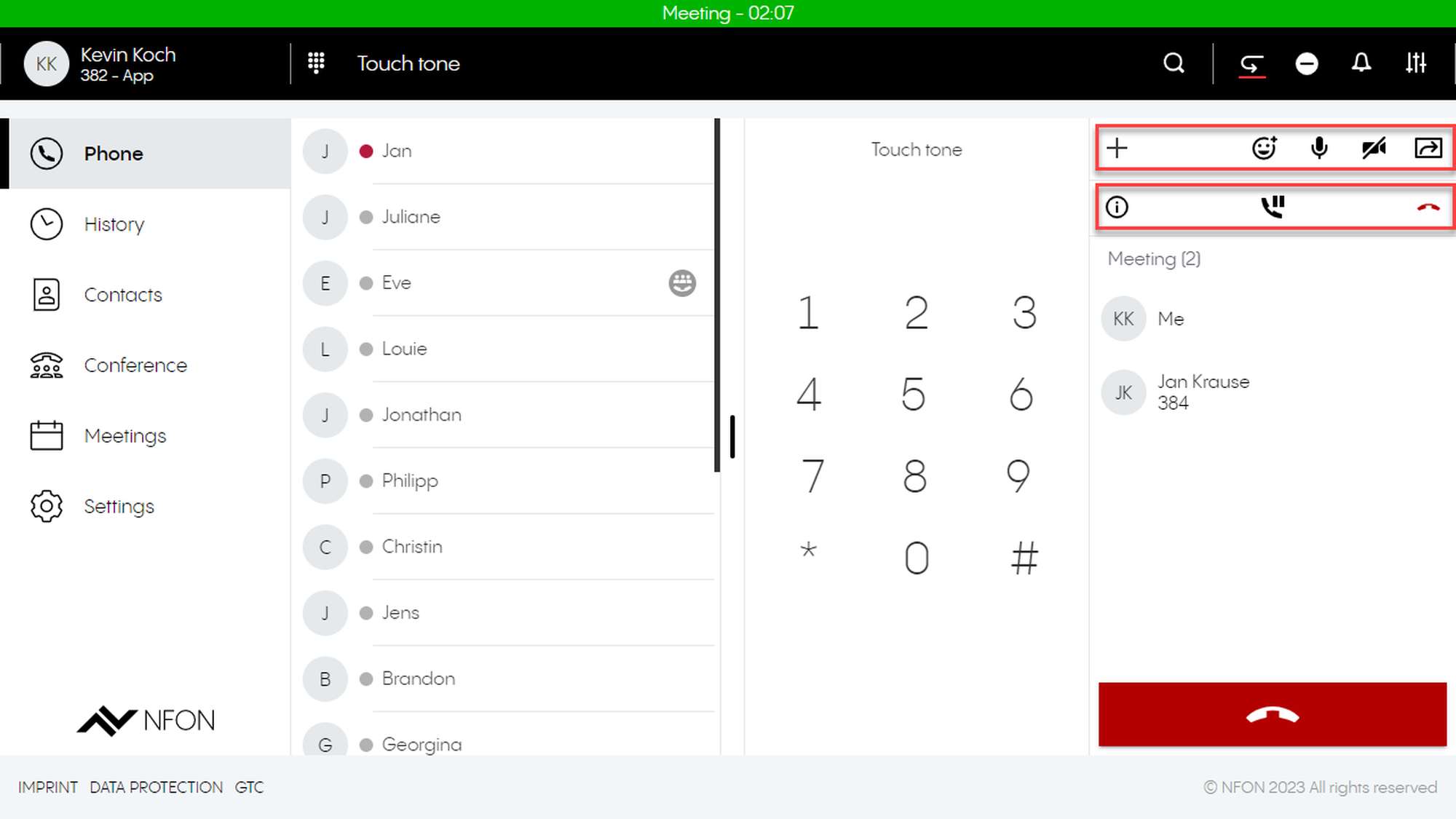
As a participant in a meeting, you have the following features:
Start screen sharing/change what you are sharing or stop sharing
Activate video/turn off video
Mute/unmute yourself
Use emojis
Activate/Deactivate Fullscreen
Leave meeting
Put the meeting on hold
View meeting details (copy invitation)
Cinema mode
You can change the number of participants you see on the screen, starting from a number of five participants.
Meeting features as host
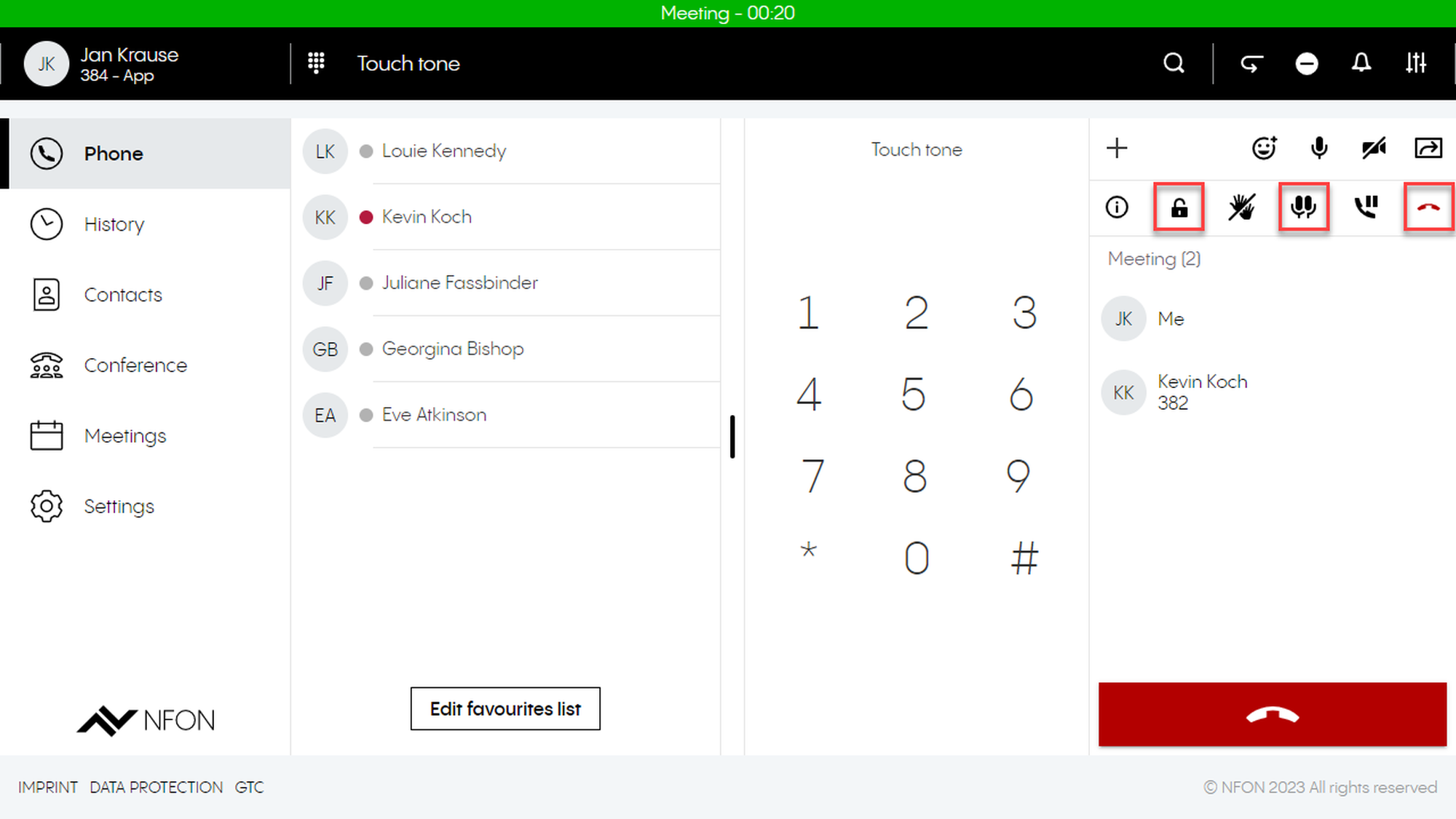
As a host of a meeting, in addition to the participant functions, you have the following options:
Lock the conference/make the conference public
Mute all/unmute all participants
End the conference for all participants
9.5 Visual Reactions
Visual Reactions
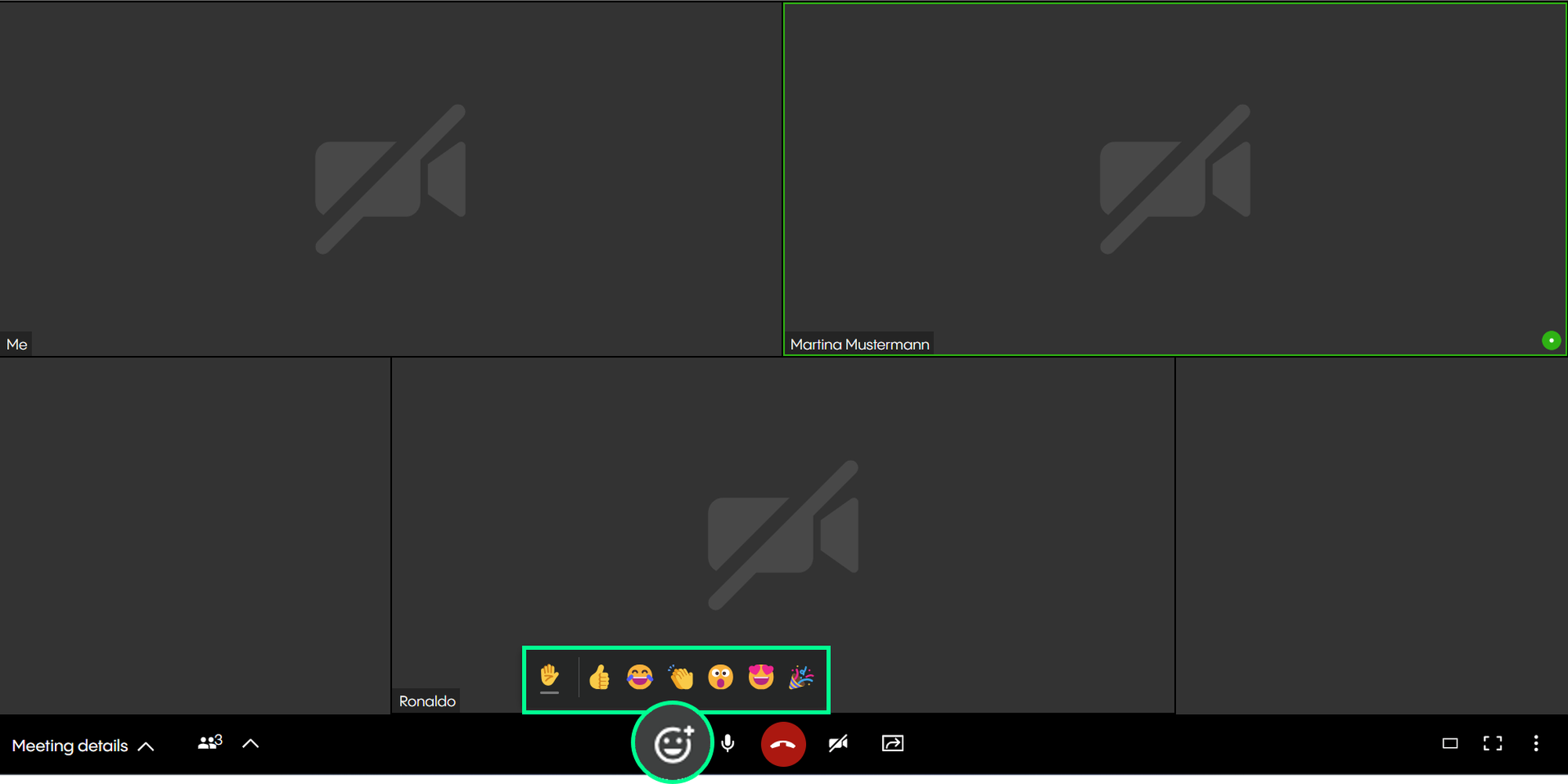
As a meeting participant, you can use the following different visual reactions:
thumbs up
face with tears of joy
clapping hands
face with open mouth
smiling face with heart-eyes
party popper