4. Managing a dynamic conference call
4.1 Creating a dynamic conference call
What is a dynamic conference call?
A dynamic conference is a conference call that you can start spontaneously by merging calls that are on hold and an active call into one conference call. Once a dynamic conference is started, most options are identical with a planned meeting using meet & share (find more details in the according chapter).
Maximum Participants in a dynamic conference are 8 for the non-premium version of the app and 25 for the premium version.
What are the differences between a dynamic conference and a planned meeting?
While the dynamic conference is spontaneous, a meeting is a conference call that is scheduled in advance, and you have an invitation link that you can share with everyone you want to join the call.
On a dynamic conference, the person who initiated the conference call is the host. On a meeting, the person who scheduled the meeting is the host.
If you join via the web app / desktop app, a meeting starts in video mode while a dynamic conference starts in audio mode. Joining via the mobile app, you always start in audio mode. In any case, you can switch between audio and video mode.
Starting a dynamic conference call
When you are in a call with someone and you want to add another participant:
1. Put the first call on hold and start a second call to the person you want to add to the conference. Or start a second call to another person right away - in this case the first call will be put on hold automatically (consult the chapter Making a call if you are unsure about this step).
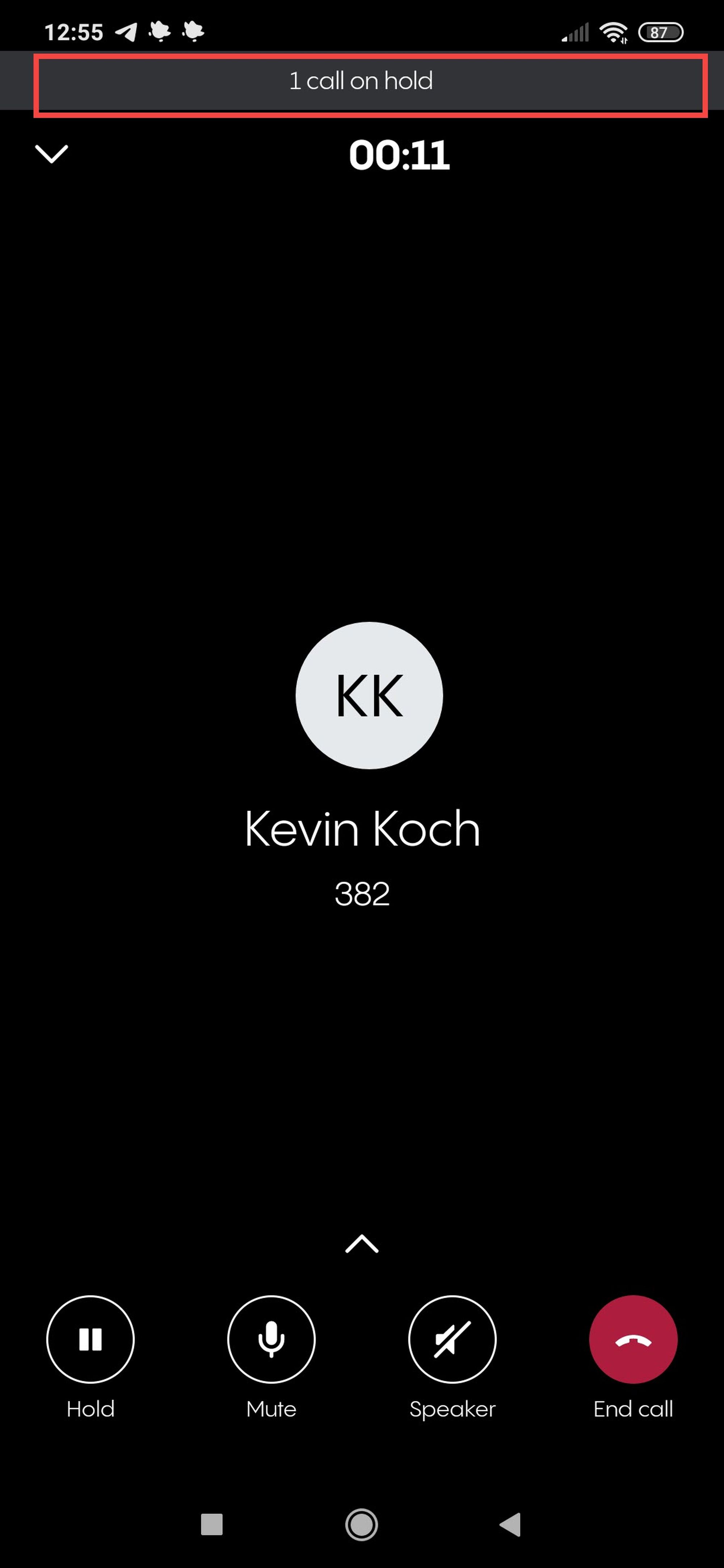
2. Tap on the call on hold which is displayed as a bar at the top of your screen.
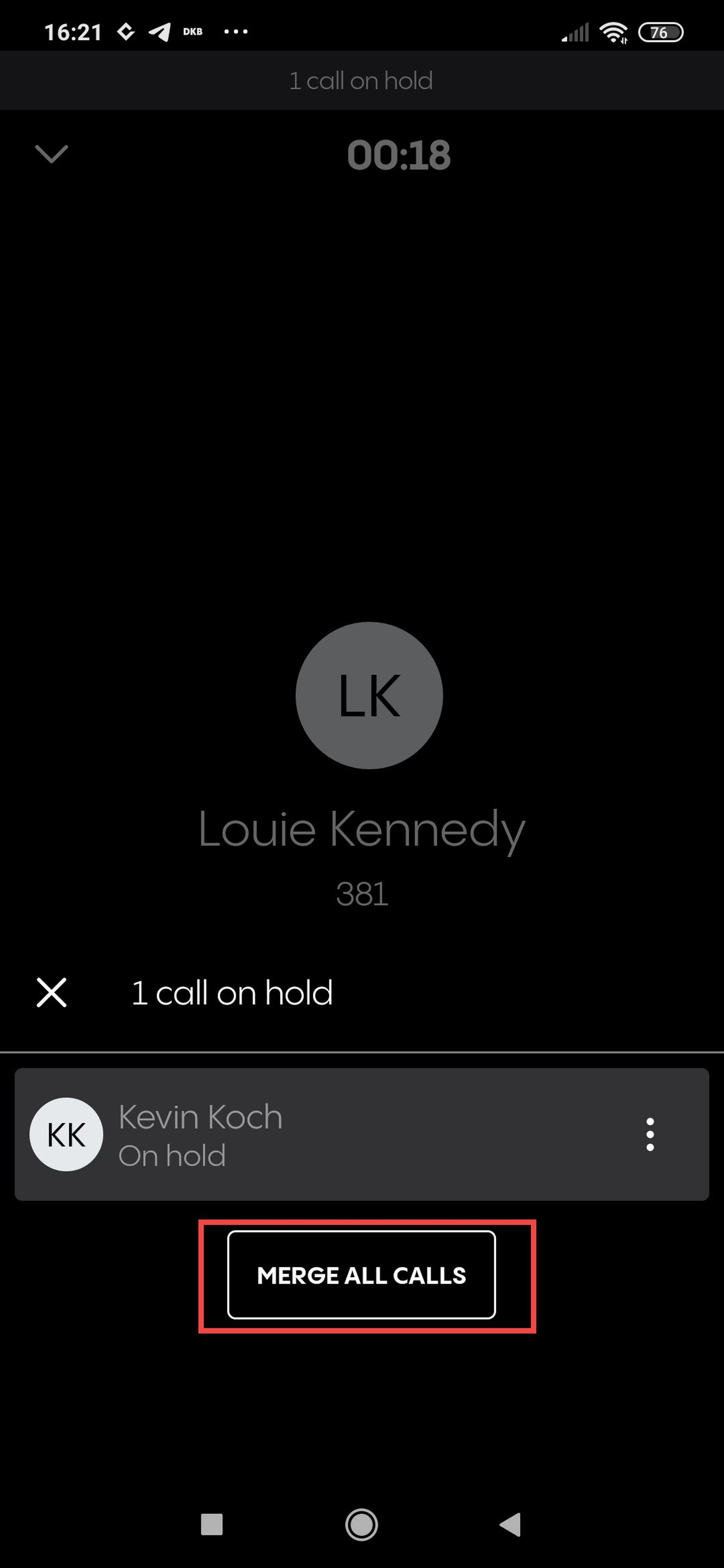
3. Tap on Merge all calls to start an ad-hoc conference call.
Note: You could repeat step one and two by putting the second call on hold and call a third participant. Then tap on the bar for Calls on hold and press Merge all calls. In this case it will merge your active call with the two calls you have on hold.
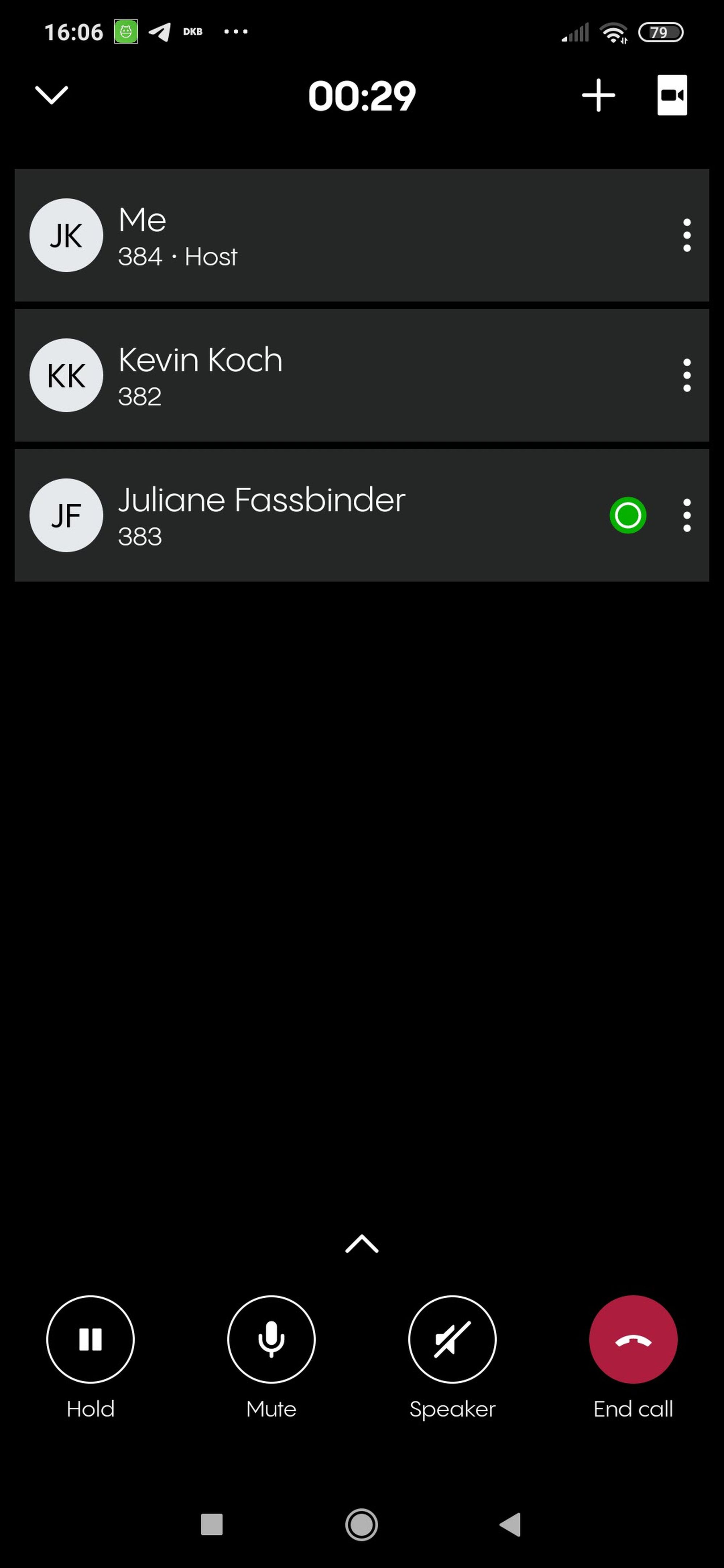
4. You are now in an ad-hoc conference. Since you have started the conference you are it's host which gives you some additional options which are explained in the next section 4.2.
4.2 Managing options in a dynamic conference call
Options overview for a dynamic conference
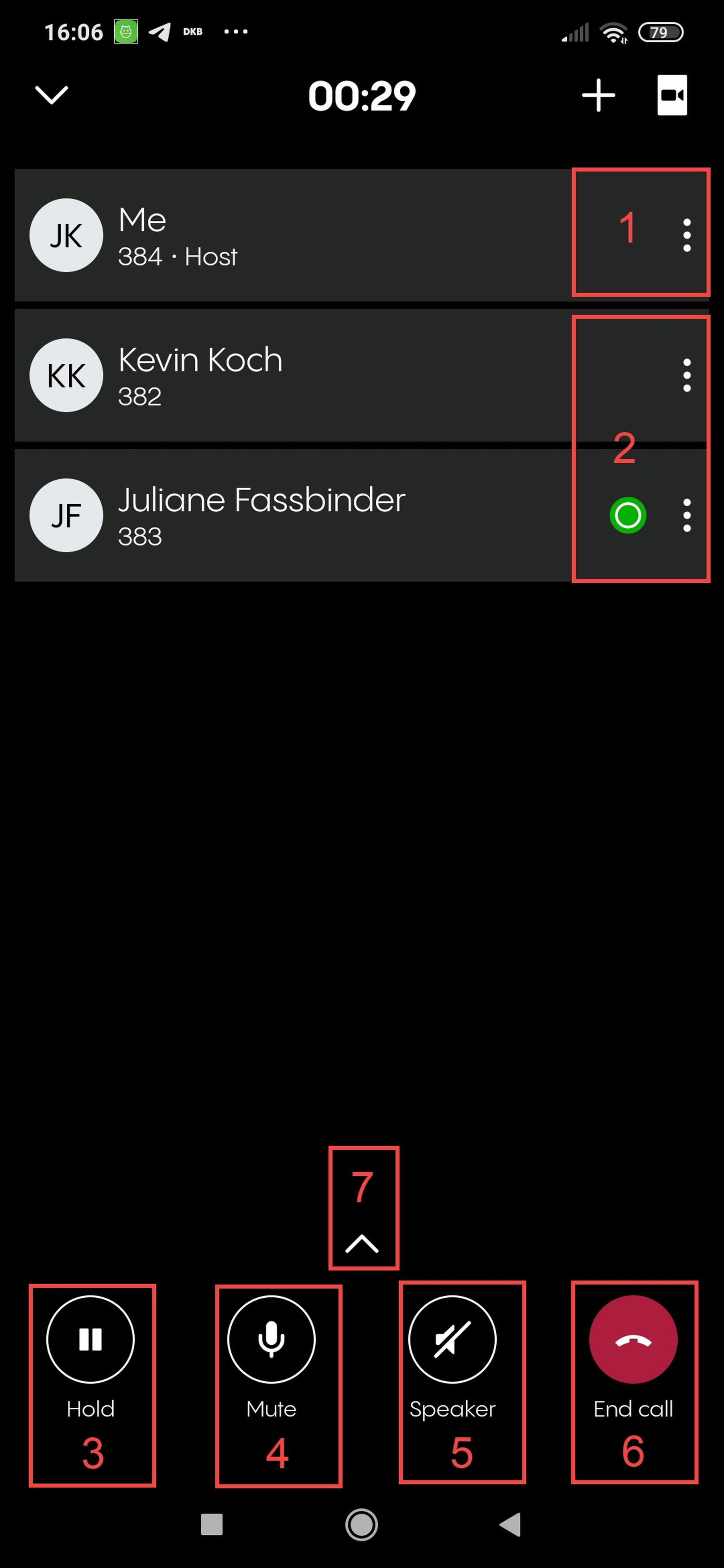
Once you have started a dynamic conference as a host you have the following options:
Tap on the options menu (three dots) of yourself.
Tap on the options menu (three dots) of any other participant.
Put the call on hold. Please be aware that this puts the whole conference on hold.
Mute yourself.
Put the conference call on speakers.
End the call.
Please be aware that this would end the conference for all participants since you are the host. If any other participant ends his call the conference woud continue.
Open the advanced options including emojis and options exclusice to you as the host.
Managing the advanced options
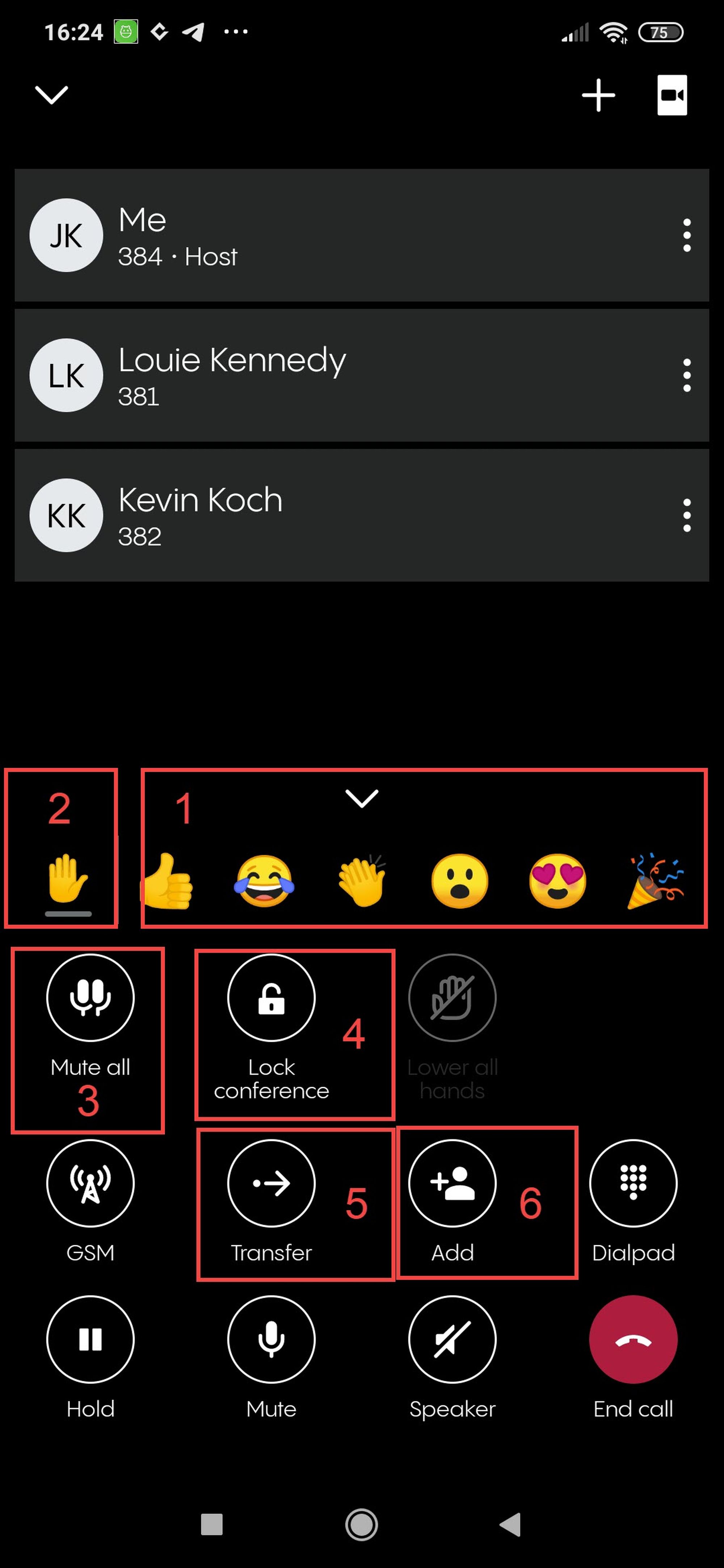
If you tap the advanced options button (7 in the options overview above), you have a number of options specific to conference calls or hosting a conference call:
Use emojis like thumps up or applause. They will pop up next to your name and fade away over a few seconds.
Use the raise hand emoji. It will appear next to your name and will disappear only after you tap the emoji again.
Mute all participants of the conference except for you. (host only)
Lock the conference in order to prohibit other participants from joining. As the host you will still be able to invide new participants. (host only)
Transfer the call. Please note that transferring a conference call is usually not recommended. Find more details in the warning below.
Add other participants to the conference. (host only)
In the advanced options you will also find the options to activate your GSM calling or use your Dialpad like in every other call.
Note
We do not recommend using the transfer option on conference calls. If you do so, the person the call is transferred to will not have the visibility of the conference views nor have access to the conference tools. You can NOT merge two conferences by transferring one conference to another. Do not try! It can lead to unexpected malfunctions since the conferencing system is not designed for it!
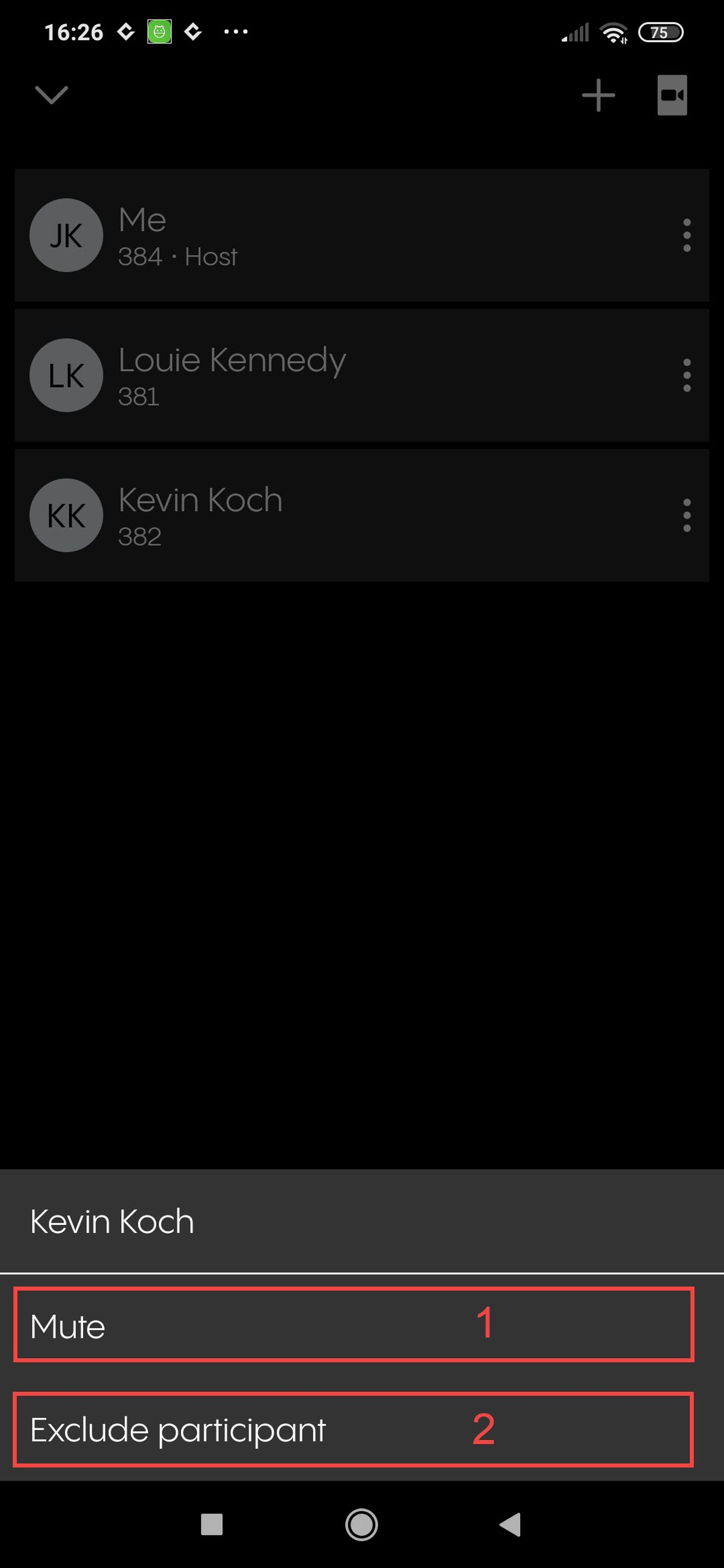
When you click on the option menu of a participant (2 in the options overview above), you can:
Mute the participant.
Exclude the participant from the conference. Please be aware that the participant can rejoin the conference unless you also lock the conference in the advanced options (4 in the last paragraph).
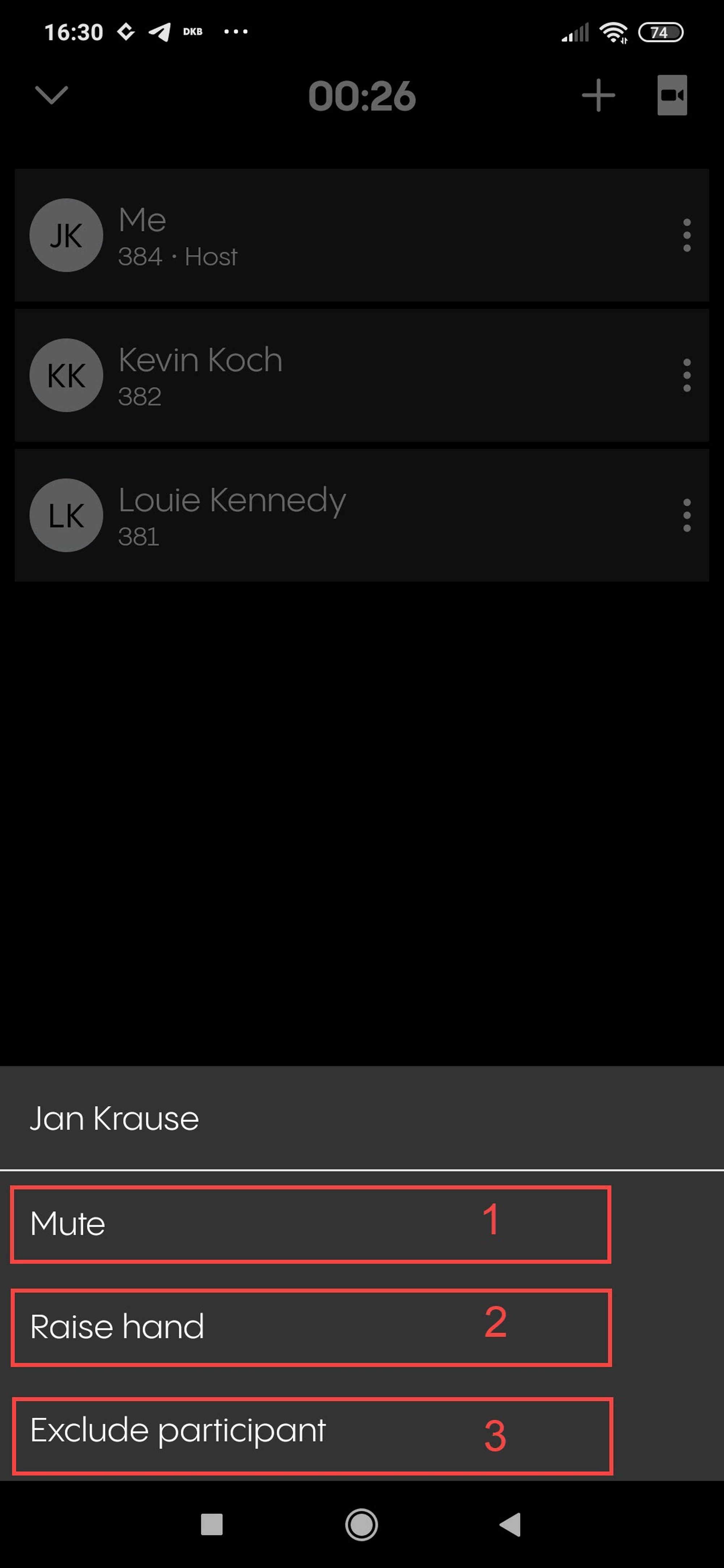
If you tip on the participant options from yourself (1 in the options overview above), you can:
Mute yourself.
Raise your hand (the raise hand option is also available in the advanced options menu).
Leave the conference (this will end the call for all the participants).
Changing to video mode and gallery view
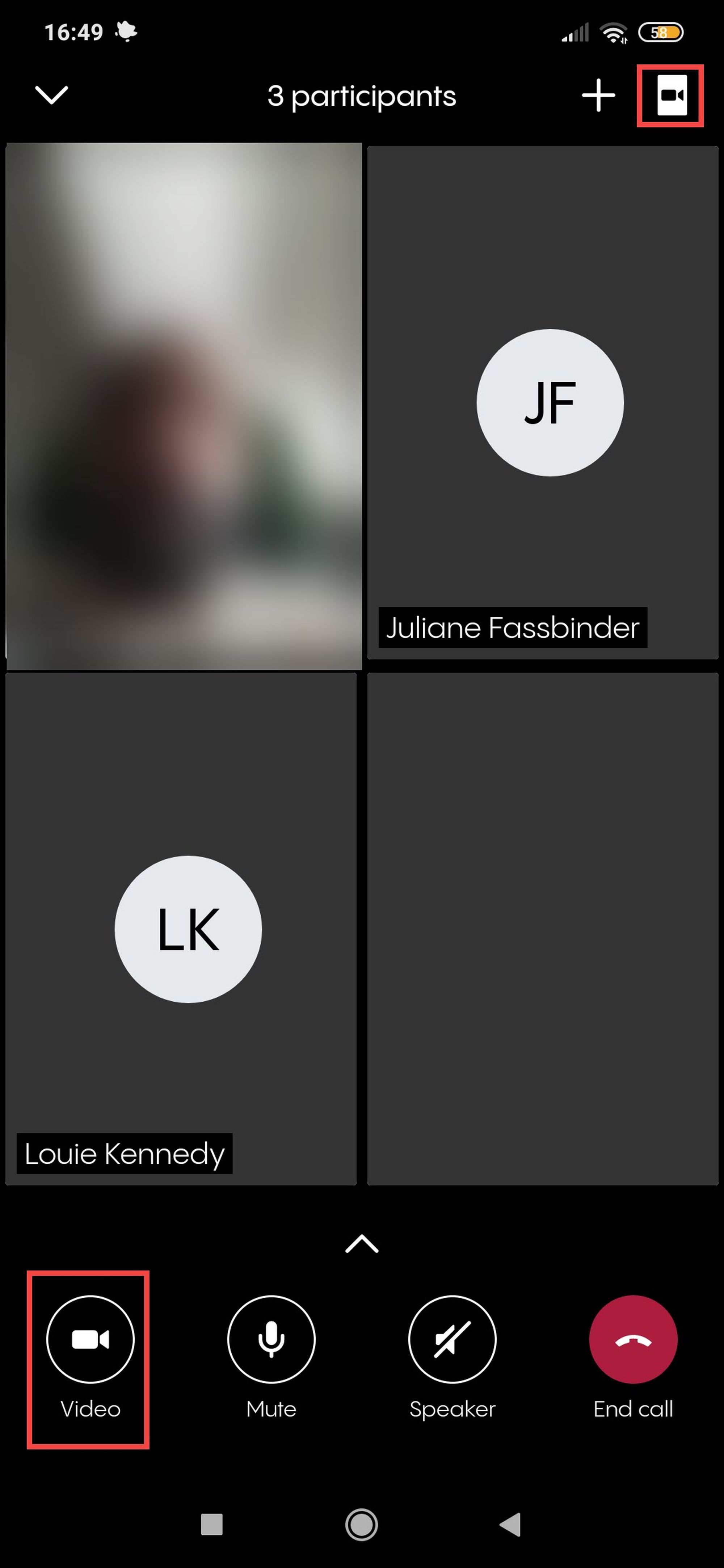
Like on any other call, you can change to the video mode by tipping the camera button in the upper right-hand corner. While in a conference, the video mode is automatically displayed in gallery view.
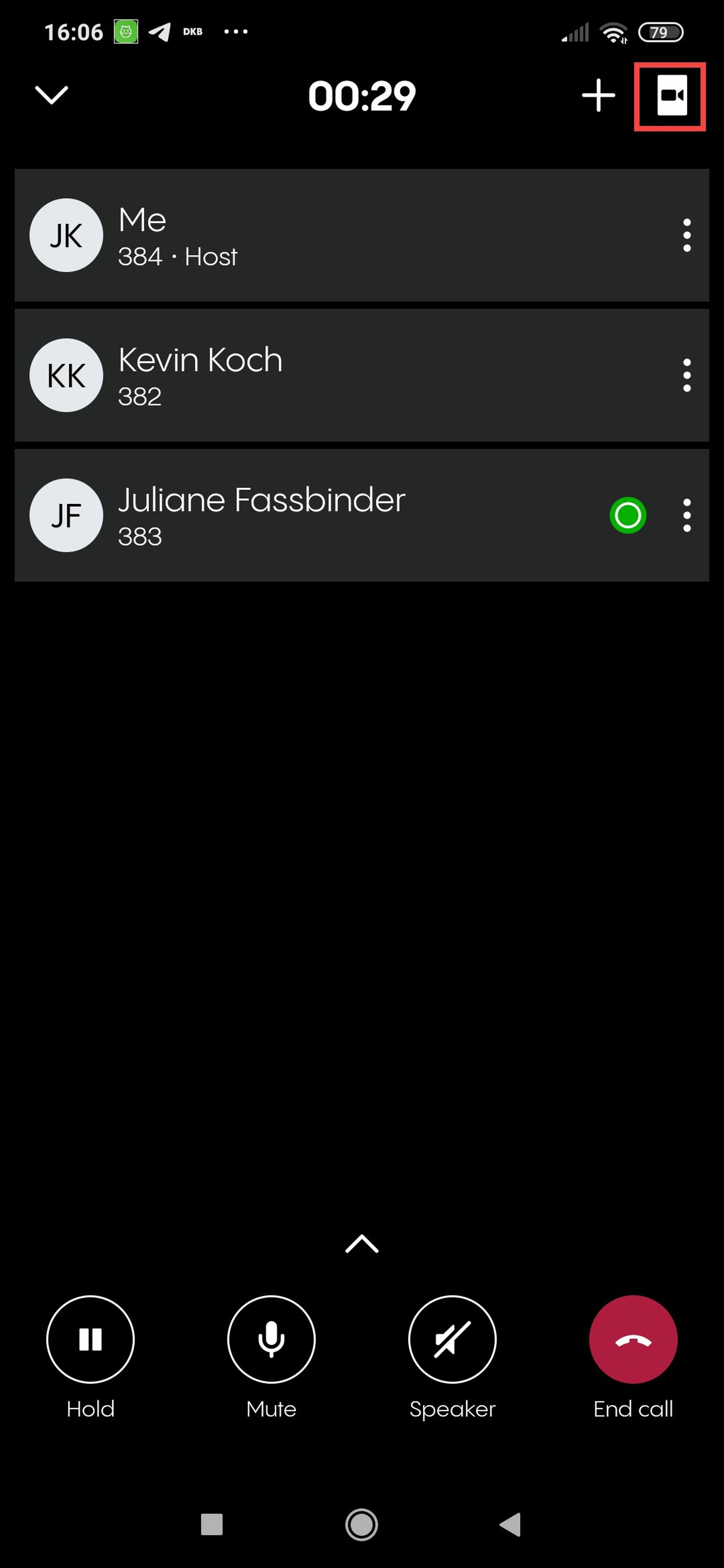
While in video mode, you can:
Tip again on the camera-button in the upper right-hand corner to switch back to audio mode.
Tip on the camera button that has appeared among the options below the gallery to activate or deactivate your camera.
You still have all options described above in the paragraphs Advanced options and Options overview.
Adding new participants while in a dynamic conference
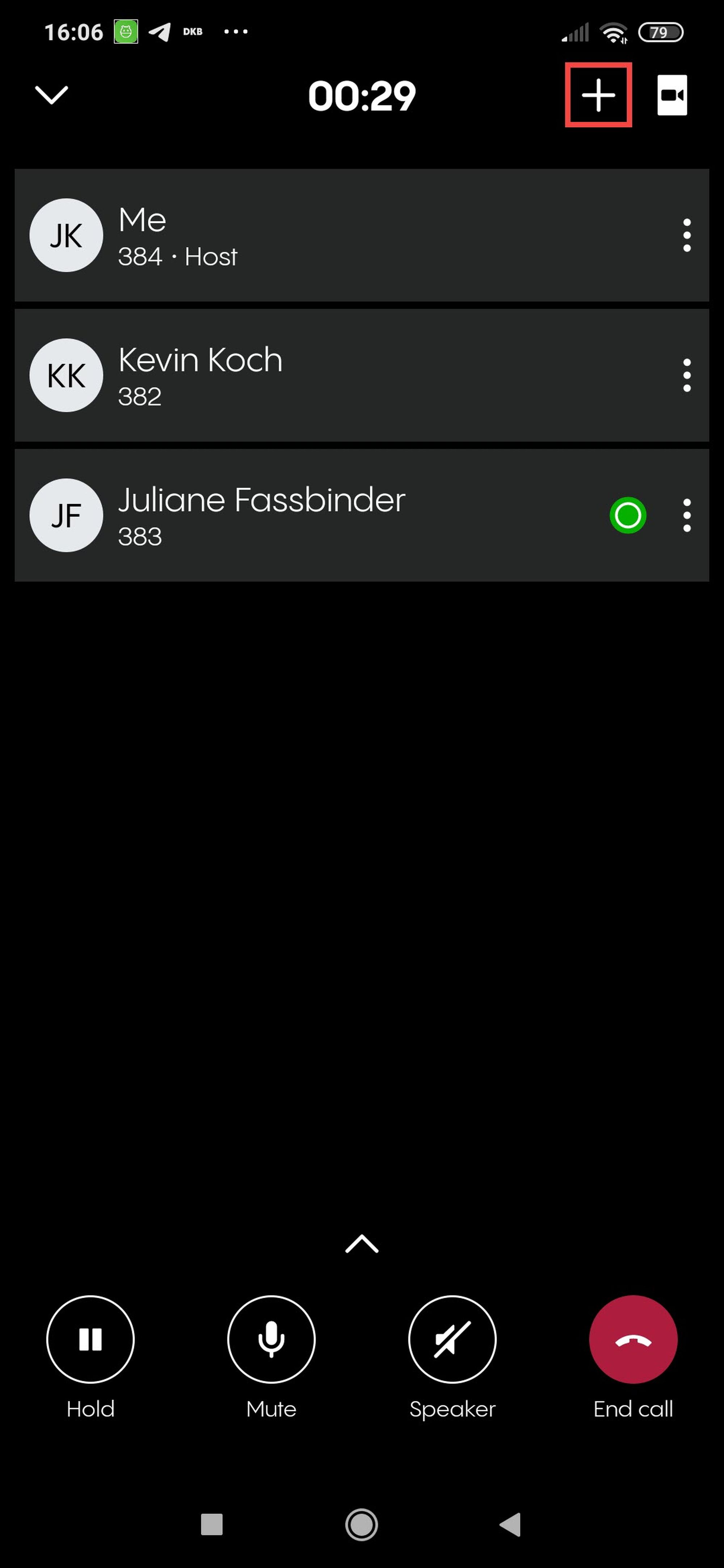
1. Once you have started a conference, you can use the + button in the upper right-hand corner to add new participants.
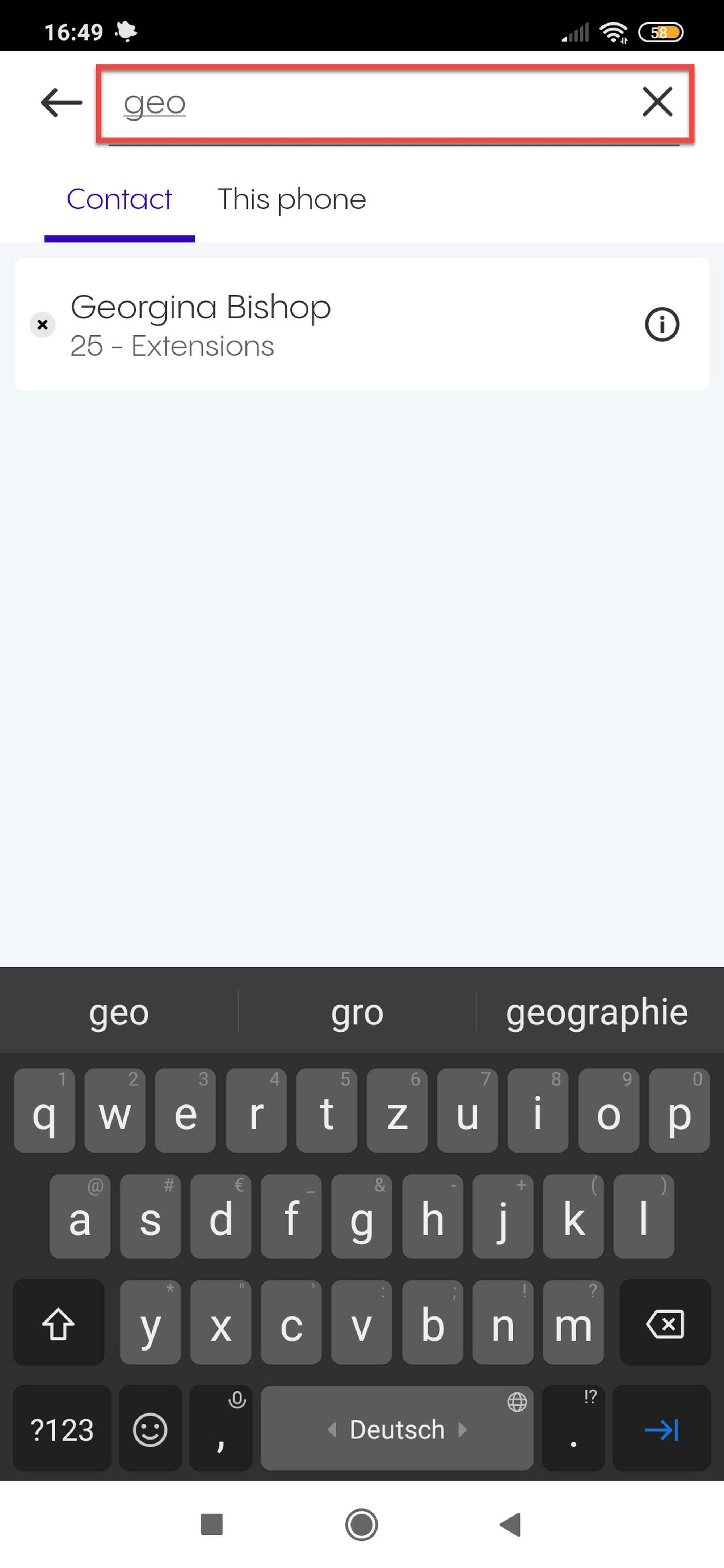
2. A search bar opens. Search your contacts as usual and start a call to the contact you want to add to the conference. Once the call is answered, the new participant automatically joins your conference.
Does a dynamic conference provide a link for joining that I can share?
Yes, it does. But if you start a dynamic conference with your mobile app, you have no visibility of the conference link (like you would on a planned meeting). You have to add new members manually. However, a participant joining via the web or desktop app can access the link and share it with you or other potential participants. This way you can still use an invitation link if you want to invite more people spontaneously.