5. Meet & Share
5.1 Joining a Meeting
To join a meeting, you need an invitation. After you have received an invitation to a meeting, tap on the meeting link to join the meeting. The app will automatically connect you to the meeting.
Joining a Meeting via an Invitation Link
If you have received an invitation link (e.g. by email), tap on the link to join the meeting. The app will automatically connect you to the meeting.

Rejoining a Meeting
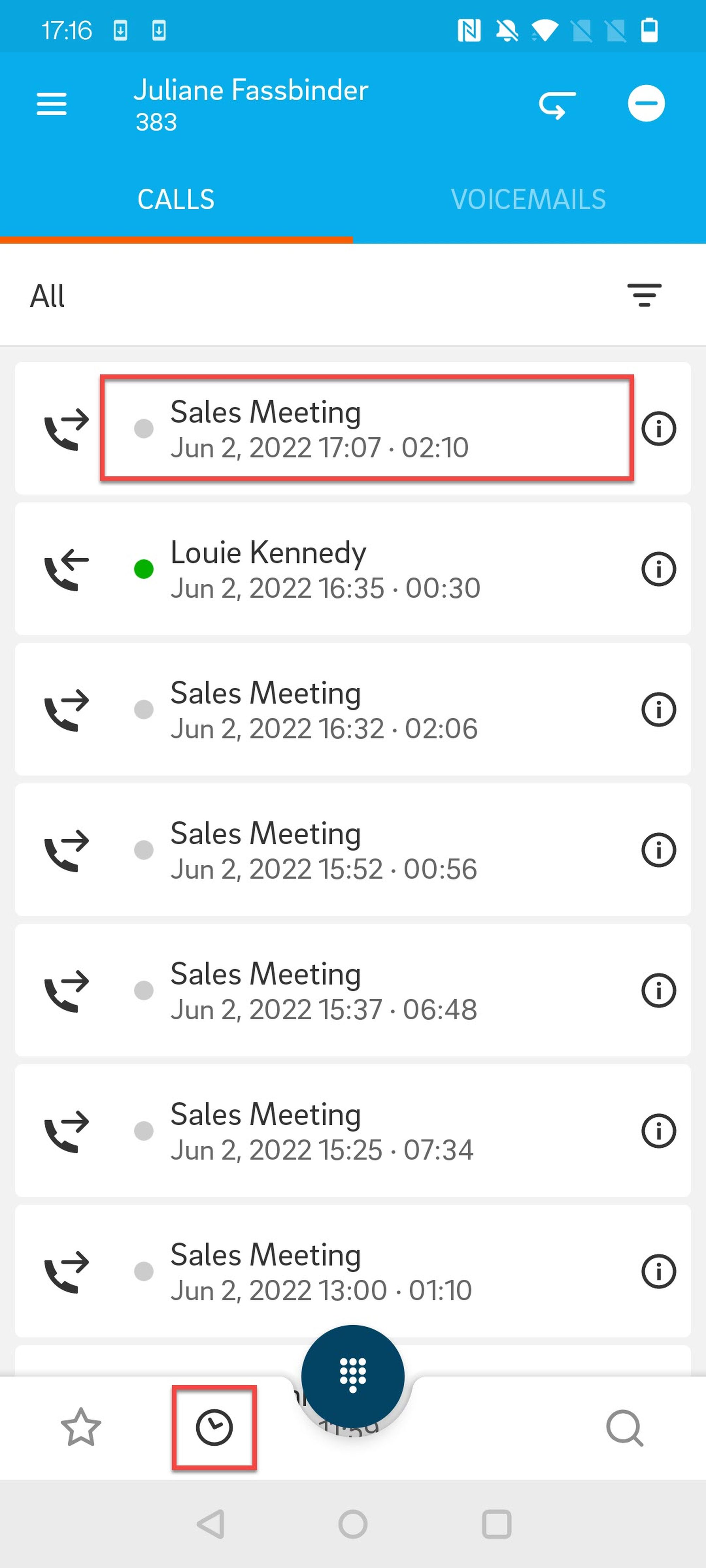
To rejoin a meeting in which you have previously participated:
Tap on History in the app menu at the bottom
Tap on a meeting you have joined before
The app will automatically connect you to the meeting.
5.2 Meeting Features
Audio Mode
After joining a meeting, you will initially participate in the meeting in the audio mode.
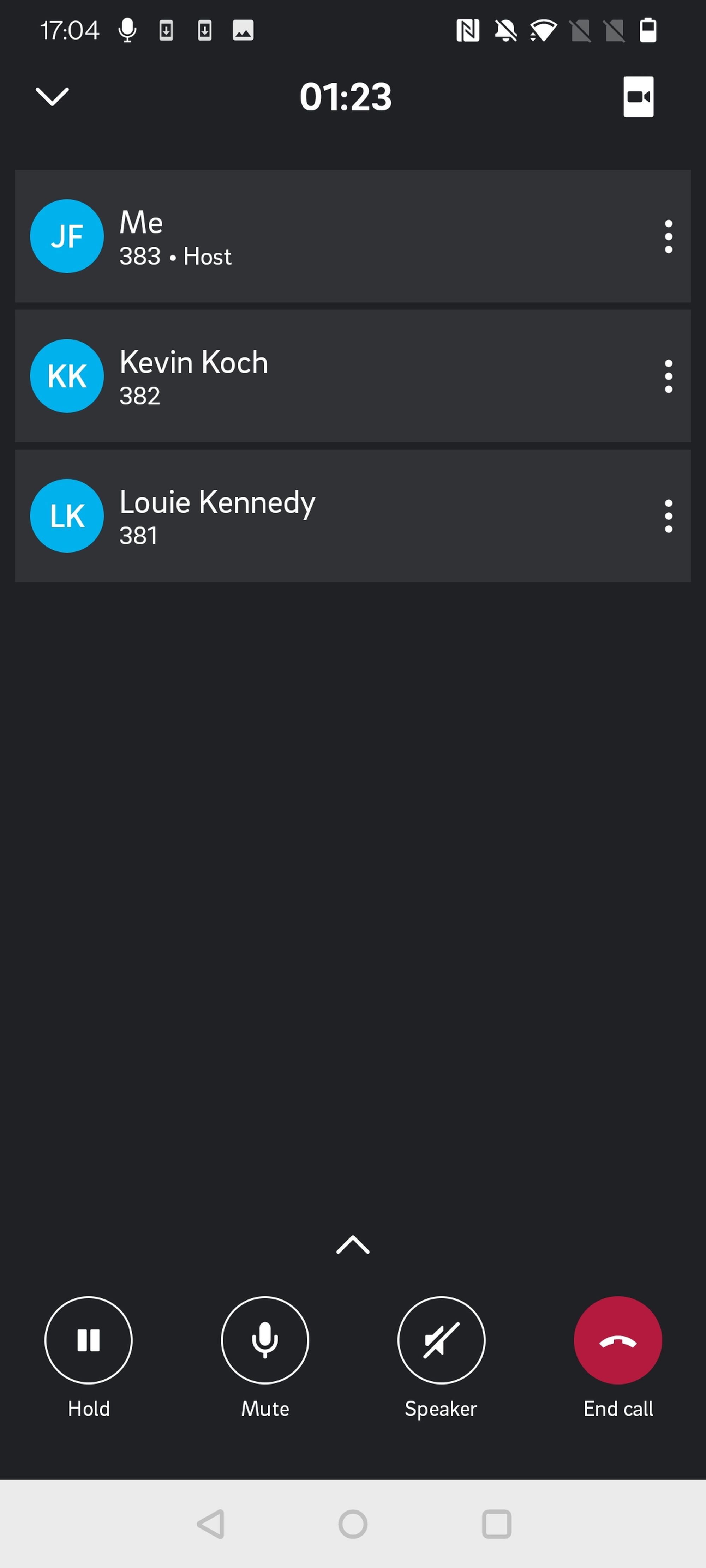
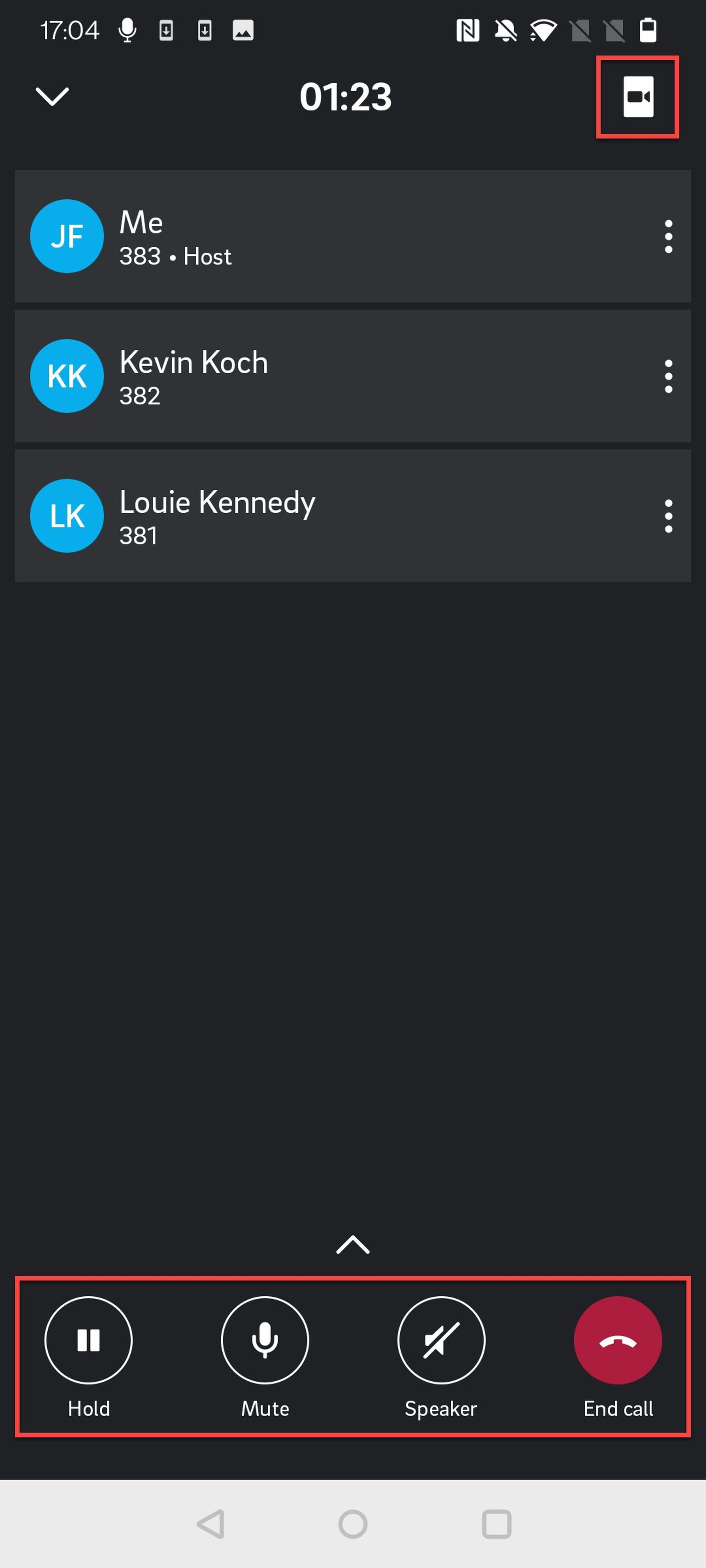
Using the icons in the bottom bar, you can:
Put the call on hold
Mute/unmute
Activate/deactivate speaker
Leave conference/End call
Access the conference options (up arrow)
Tapping the video icon in the top right corner, you can:
Switch to video mode
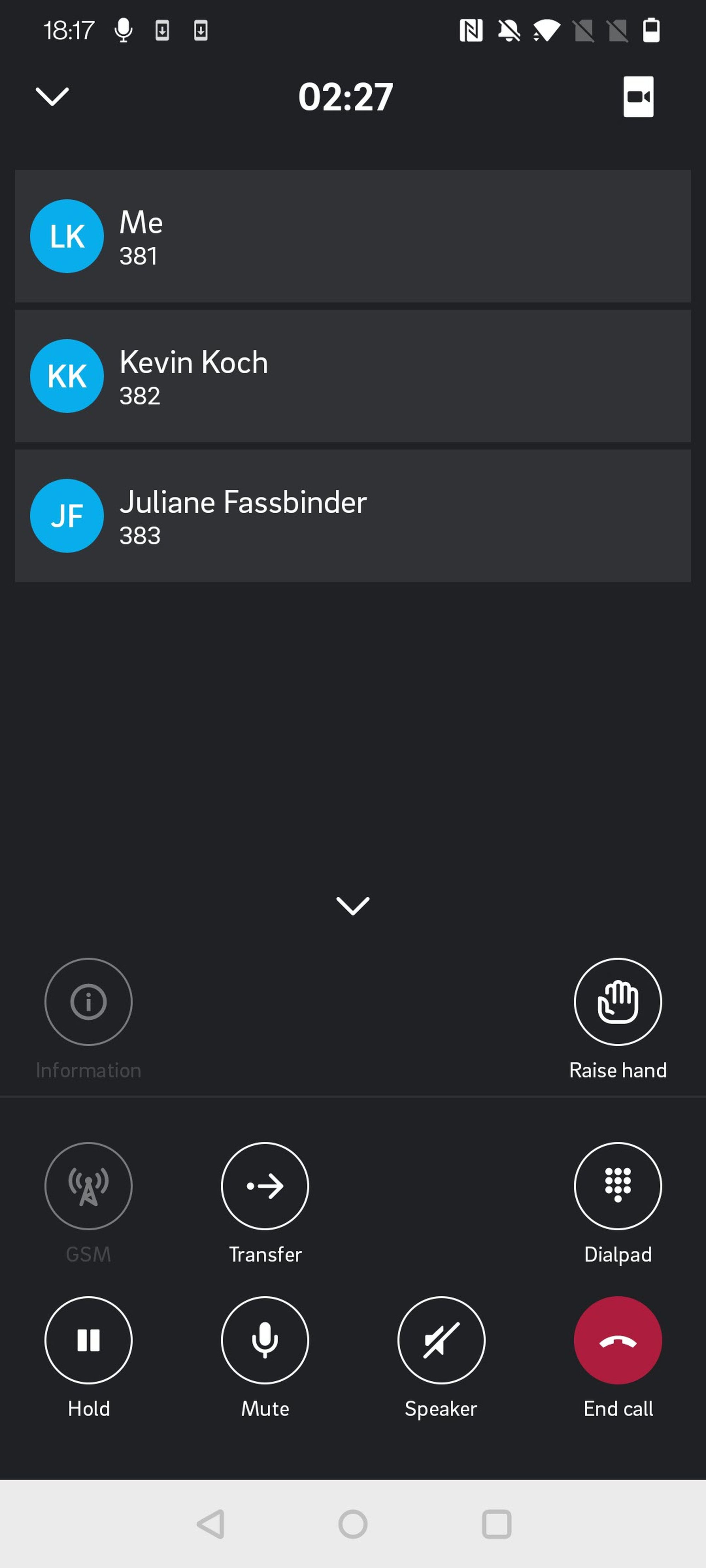
Extended Call Actions
Tap on the up arrow to access the extended call actions. In this menu, as a participant, you can:
Raise/lower hand
Transfer call
Access the dialpad
Switch to GSM
Extended Call Actions – Host
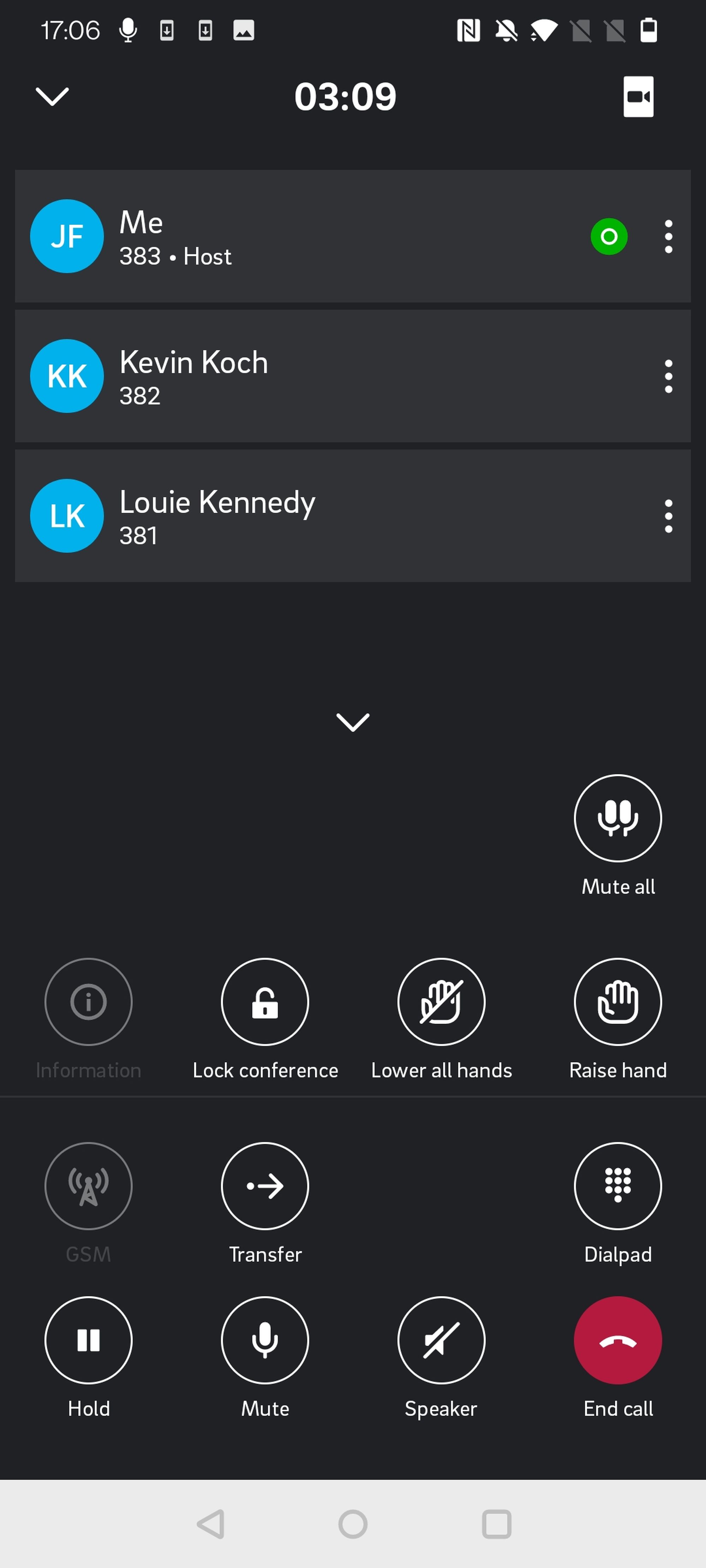
Tap on the arrow to access the extended call actions. In this menu, as host, you can:
Mute/unmute all
Lock/unlock conference
Lower all hands
Raise/lower hand
Transfer call
Access the dialpad
Switch to GSM
Host Additional Conference Options
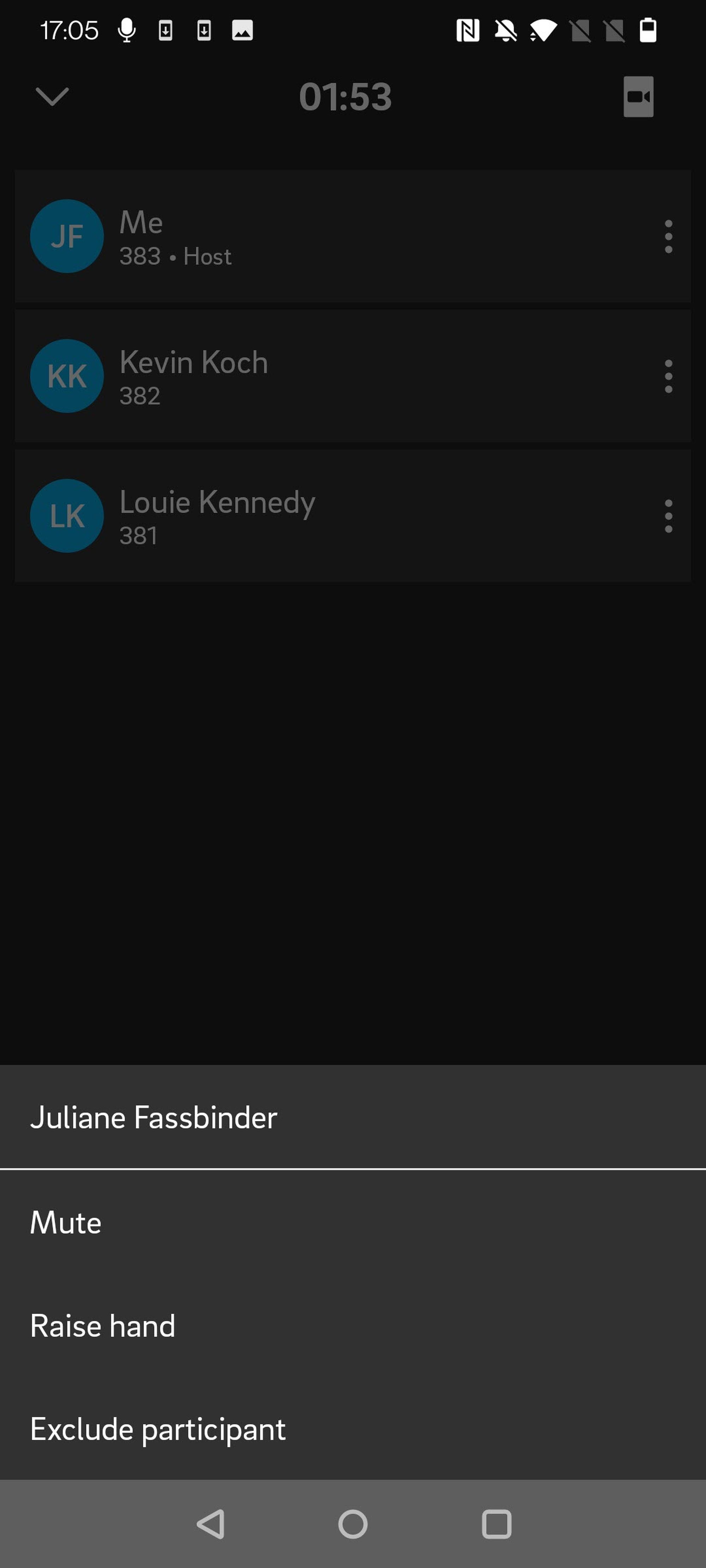
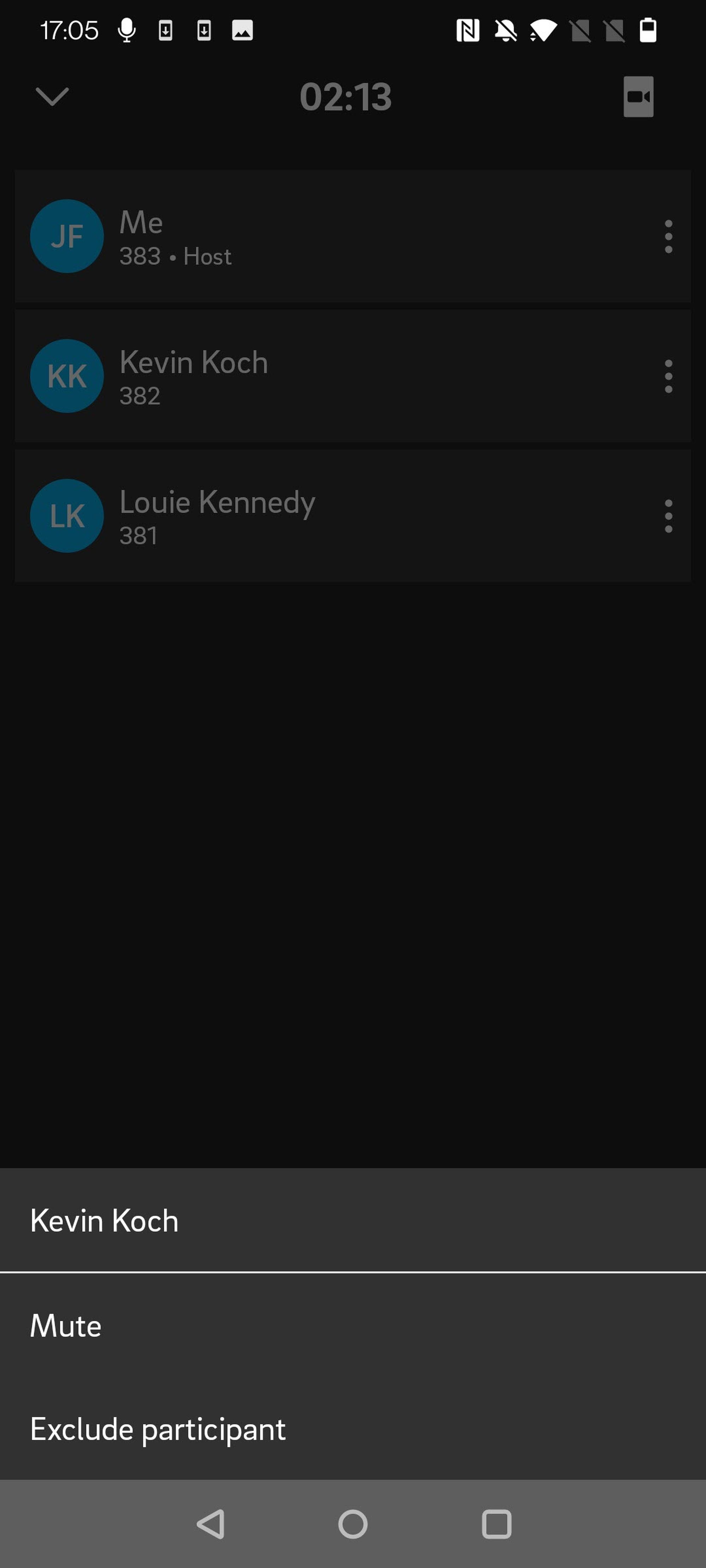
As a host, you see three dots next to participants' names and your own name.
When you click on the three dots next to your name (host), you can:
Mute/unmute yourself
Raise/lower hand
When you click on the three dots next to a participant's name, you can:
Mute/unmute participant
Exclude participant
Video Mode
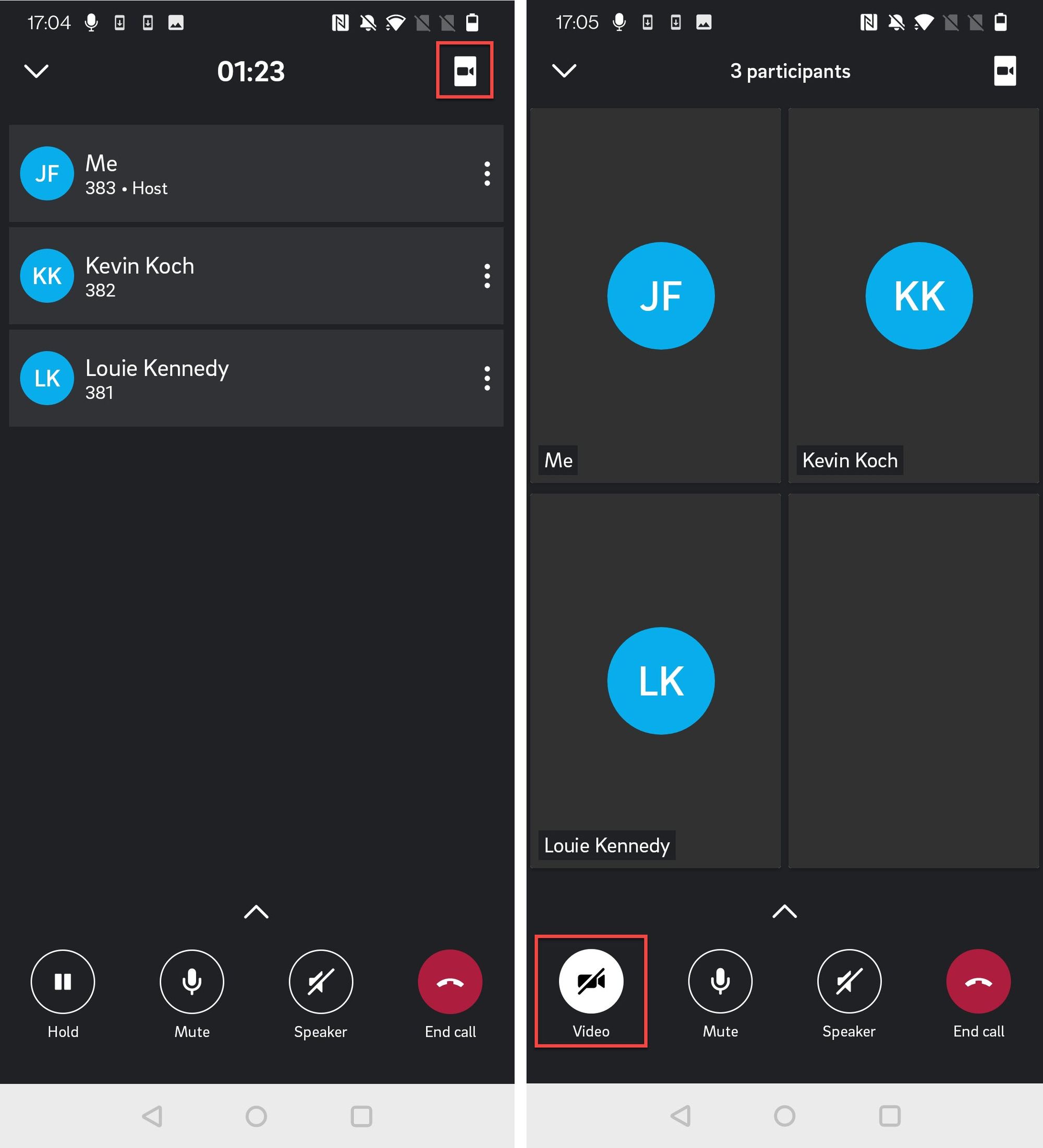
To start the video mode:
Tap on the camera icon at the top right-hand corner
Tap on the camera icon at the bottom left-hand corner. You will have to give the app permission to access your camera.
5.3 Switching to Video Mode in a 1:1 Call
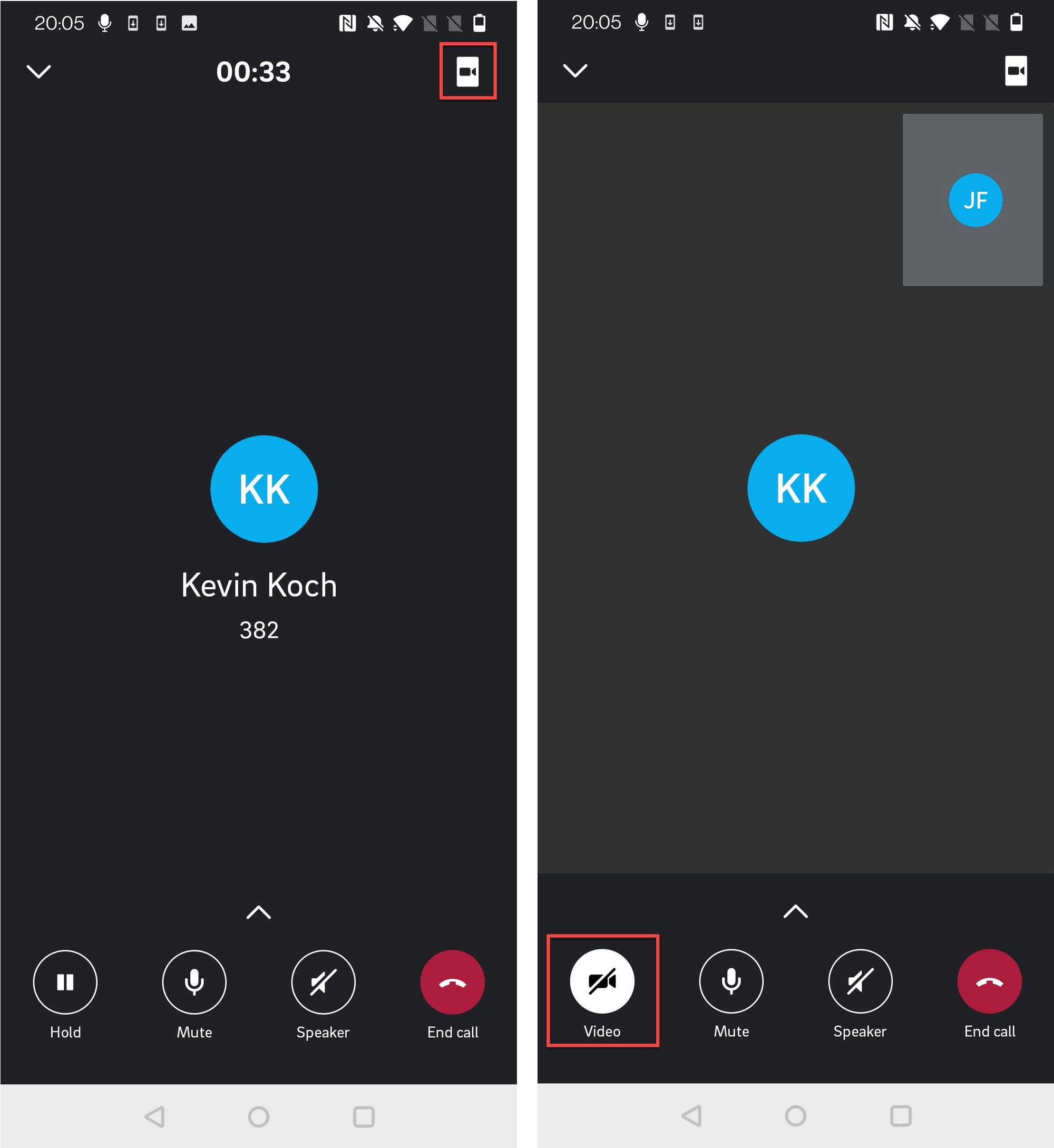
In a 1:1 audio call, you also have an option to switch to a video call.
Start video by tapping on the camera icon in the top right-hand corner
Activate camera by tapping on the camera icon in the bottom bar
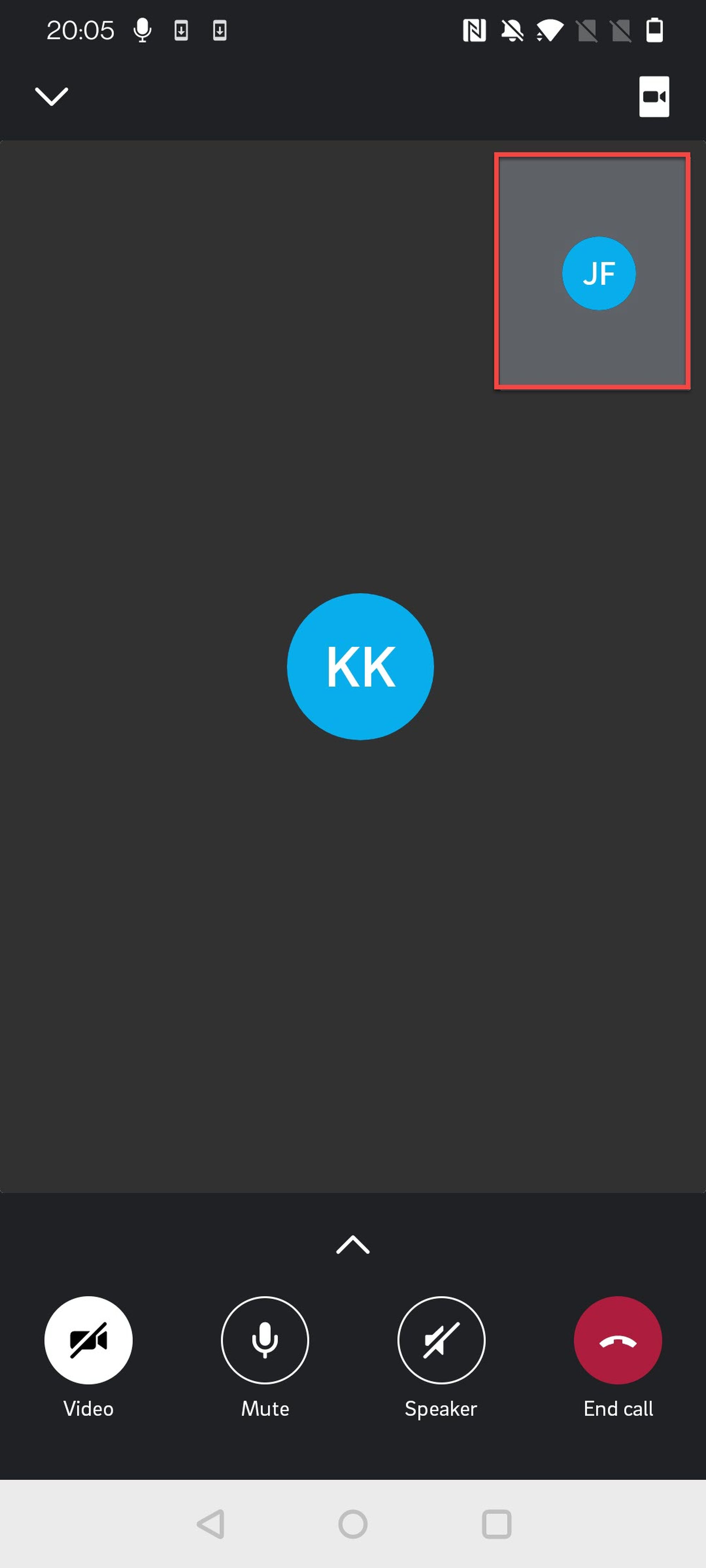
Swap Video
Your own video is shown in a small picture in the top right-hand corner, the other participant's video is shown as a full-size picture. Tap on the small picture to swap the videos.