1. Basic functions
1.1. Keys/Connections overview
Panasonic KX-UT248 (Front view)
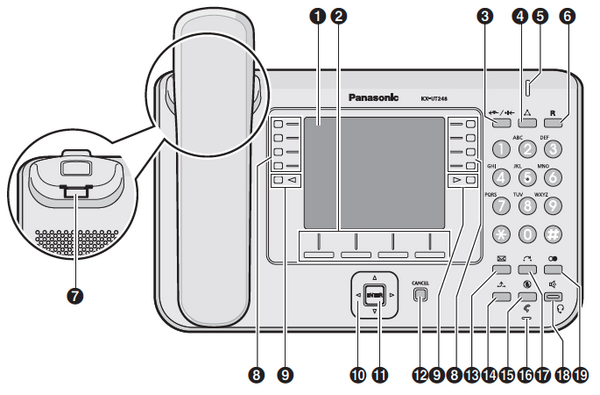
| LCD: 4,4 inches LCD The KX-UT248 features a backlit LCD. |
| Enter Confirms the selected entry. | ||
| Softkeys (S1 to S4) To select the functions in the bottom line of the display. |
| Cancel Cancels the selected function. | ||
| Do not disturb (DND, forced busy) Activates do not disturb (DND) for your extension. The telephone won’t ring, same as “for call forwarding... delayed” to the caller. |
| VoiceMail Accesses VoiceMail. | ||
| Conference call To start a 3-way call. |
| Hold Places a call on hold. When a call is placed on hold the “Hold” light flashes red. | ||
| Signal light message/call signal The light flashes green with an incoming call. The light is a steady red to indicate a voicemail message. |
| Mute Mutes the microphone/receiver during a call. | ||
| Currently not defined |
| Microphone Used for hands-free mode. | ||
| Receiver hook Secures the receiver if the device is mounted on a wall. |
| Transfer Transmits a call to another party. | ||
| Freely programmable function keys The light on the keys indicates their respective status. |
| Hands-free mode / Headset The light on the keys indicates their respective status. | ||
| Page keys Used to switch the page of flexible buttons displayed. There are three pages of eigtl flexible buttons. |
| Redial Used to redial the last dialled number. | ||
| Navigation keys For adjusting the volume or to select the desired entries. |


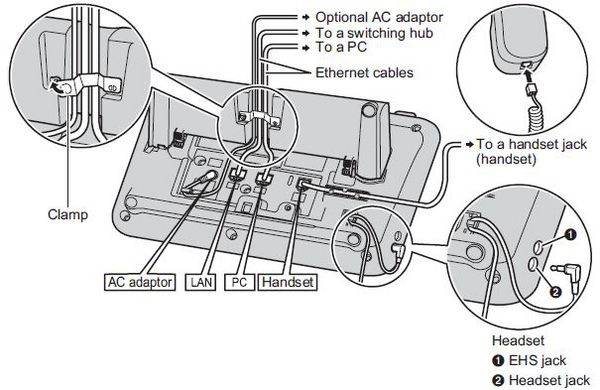
Panasonic KX-UT248 (Back view):
1.2. Placing calls
There are various methods for placing a call:
With the receiver
Pick up the receiver, enter the number number and press [ENTER] to confirm the telephone number.
or enter the desired telephone number and pick up the receiver.
With the speaker / microphone
Enter the telephone number and press [SP-PHONE/HEADSET].
Calling a number from the call list
Press the softkey
 and select [Call list] and confirm with [ENTER].
This displays the telephone numbers for the last missed, incoming and outgoing telephone numbers. Select the respective telephone number using
 .
.Select the respective telephone number and press [ENTER] to place the call.
Calling a number from the phone book
Press the softkey
 to access the phone book.
Use the arrow keys to select the respective name. Alternatively, you can also use the “Search” softkey to enter an initial (or additional letter) and confirm with the “Enter” softkey, which displays a list of search results.
Select the respective phone book entry and press [ENTER] to place the call.
Dialing the number via function keys
Press the respective function keys on your telephone to place a call.
Refer to “2.2. Function keys” for options to program function keys.
Refer to the administration portal manual for instructions on configuring the function keys for your extension.
1.3. Incoming call
There are various options for answering a call:
Using the receiver
- Pick up the receiver.
With the speaker / microphone
- Press the [SP-PHONE/HEADSET] key.
With the headset
- Press the [SP-PHONE/HEADSET] key, when you have connected your headset.
1.4. Missed calls
The telephone display indicates missed calls (e.g.: “Missed calls: 001”).
To view missed calls press the softkey and select [Missed call], then confirm with [ENTER]. Now, you can see a list of missed calls. Use to select the respective call
1.5. Call pick-up
If the function keys (speed dial, busy field lamps (BFL), etc.) have been configured through the administration portal and all parties are members of a pick-up group, you can pick up the call from another extension.
(For details on configuring the busy field lamps (BFL), please refer to the administration portal manual)
1.6. Hold
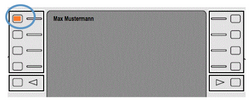
1. During an active call press the [HOLD] key.
The active call is now placed on “Hold”.
2. Returning to a call on hold.
Press the [HOLD] key again.
1.7. Call waiting/Toggle calls
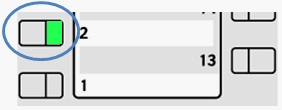
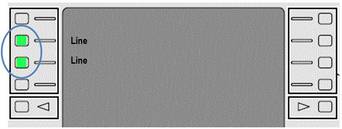
1. If you are already have an active call, one of the function keys lights up green.
2. The call waiting tone indicates a second call is coming in. At the same time, another function key rapidly flashes green. Press the function key (next to the rapidly flashing LED) to accept the call.
3. You can now toggle between the two calls by directly pressing the two function keys. The active call is indicated with a consistent green LED and the waiting call with a flashing green LED.
4. To end a call, simply hang up the receiver during the active call.
1.8. Conference calls/Toggle calls
Your Panasonic system telephone allows you to place a 3-way call.
1. Call party 1.
2. Once party 1 has been reached, press the [CONF] key. The active call is now placed on “Hold”.
3. Now call party 2 and wait until party 2 has been reached.
4. Now press the [CONF] key to activate the 3-way call. The display now indicates Conference.
Removing a party from a conference call / toggling:
1. Press [HOLD] key during a conference call.
2. Both parties are placed on hold and another line is now open.
Note
Once [HOLD] has been pressed you cannot continue the conference call.
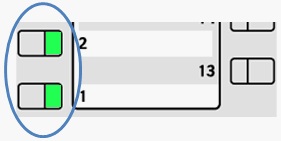
3. To switch between the two parties (toggle), please press the respective function keys on the right side of your Panasonic telephone indicating the lines in use (these can only be function keys, which have not yet been programmed). The function key flashes green when the party is placed on “hold”. A steady green light indicates you are in an active call.
4. To end one of the calls, simply hang up while the call with this party is active.
5. The party is now disconnected.
6. Press the flashing green function key on the right side of the telephone. You can now continue the conversation with party 2.
1.9. Attended call transfer
1. During an active call press the  key.
key.
2. Now dial the party to whom you would like to transfer the call.
To do so, enter the party’s telephone number and press [ENTER] to confirm.
3. Wait for the other party to answer, then announce the call. If necessary, this step can also be omitted.
4. Press the softkey  .
.
1.10. Unattended call transfer
During an active call press the BTrf softkey.
Now dial the party to which you would like to transfer the call.
To do so, enter the party’s telephone number and press [ENTER] to confirm.
Hang up the receiver.