2. Advanced telephone features
2.1. Overview
The various telephone system functions (e.g. queues, timing, groups, etc.) can be configured on the administration portal. For detailed configuration information, please refer to the administration portal manual.
You can also configure the initial settings for the Panasonic telephone using the softkey “Setting”  “Application”. The following functions are available after pressing “Application”:
Call settings
Call waiting indication: define whether this function should be activated.
(optional, depending on settings on the administration portal) Timeout: set the ringing time.
(optional, depending on settings on the administration portal) Intercom: the intercom function enables speaking directly to a linked extension through the system, without dial tone and ring tone.
Caller ID block: set your entire number to be shown to the party being called, the switchboard number to be displayed or all caller ID information to be blocked.
Call forwarding: activate the function Call forwarding
Parallel call: configure another telephone or your mobile phone to ring in addition to your telephone when a call comes in. You can then answer the call with one of the two telephones.
Call forwarding: profiles
Here you can select your preconfigured call forwarding profiles.
For details, please refer to the Ncontrol manual.
You can edit the default profile directly via your device.
For details, please click here.
Telephone settings
Automatic redialling
Suggests number (if necessary, remove function)
Ring tone
Define as primary device
Logoff
Queues
Queues can be enabled or disabled; for set-up see administration portal manual)
Log into an existing queue directly via the telephone.Simply use to select the desired queue and press [ENTER] to confirm. To log out of the queue, select the respective queue again and press [ENTER] to confirm.An “x” before a queue indicates you are already logged in.
2.2. Function keys & codes
On the administration portal you can assign the following functions to any function key:
Telephone number
Busy Field Light (BFL)
Intercom
Function code
Services
Please refer to the administration portal manual for detailed information.
Telephone number
You can program any telephone number to one of your function keys. Pressing the programmed function key then starts a telephone call.
Busy Field Light (BFL)
1. You can program any extension to one of your function keys. Pressing the programmed function key starts a telephone call.
2. A flashing LED for the respective function key indicates an incoming call to the extension. To pick up the call, simply press the flashing function key. In order to pick up calls, all parties must be members of a pick-up group.You have now picked up the call.
3. If the monitored extension (Busy Field Light (BFL)) is busy, the LED for the respective function key remains lit.
Program field keys freely programmable as function keys
Note: 8 function keys can be configured on each of the 3 pages so there are 24 function keys in total. You can switch between the pages by pressing the page keys below the function keys.
ATTENTION: only 21 of the 24 function keys can be used. The last 3 function keys are reserved as line keys.
Intercom
Program any extension to one of your function keys, to then be able to communicate with this extension directly via the intercom by pressing this function key. However, the other party must also have the intercom activated on their telephone. Intercom refers to a conventional intercom system (similar to walkie-talkies), directly connecting you to the other party’s speaker by pressing the assigned function key.
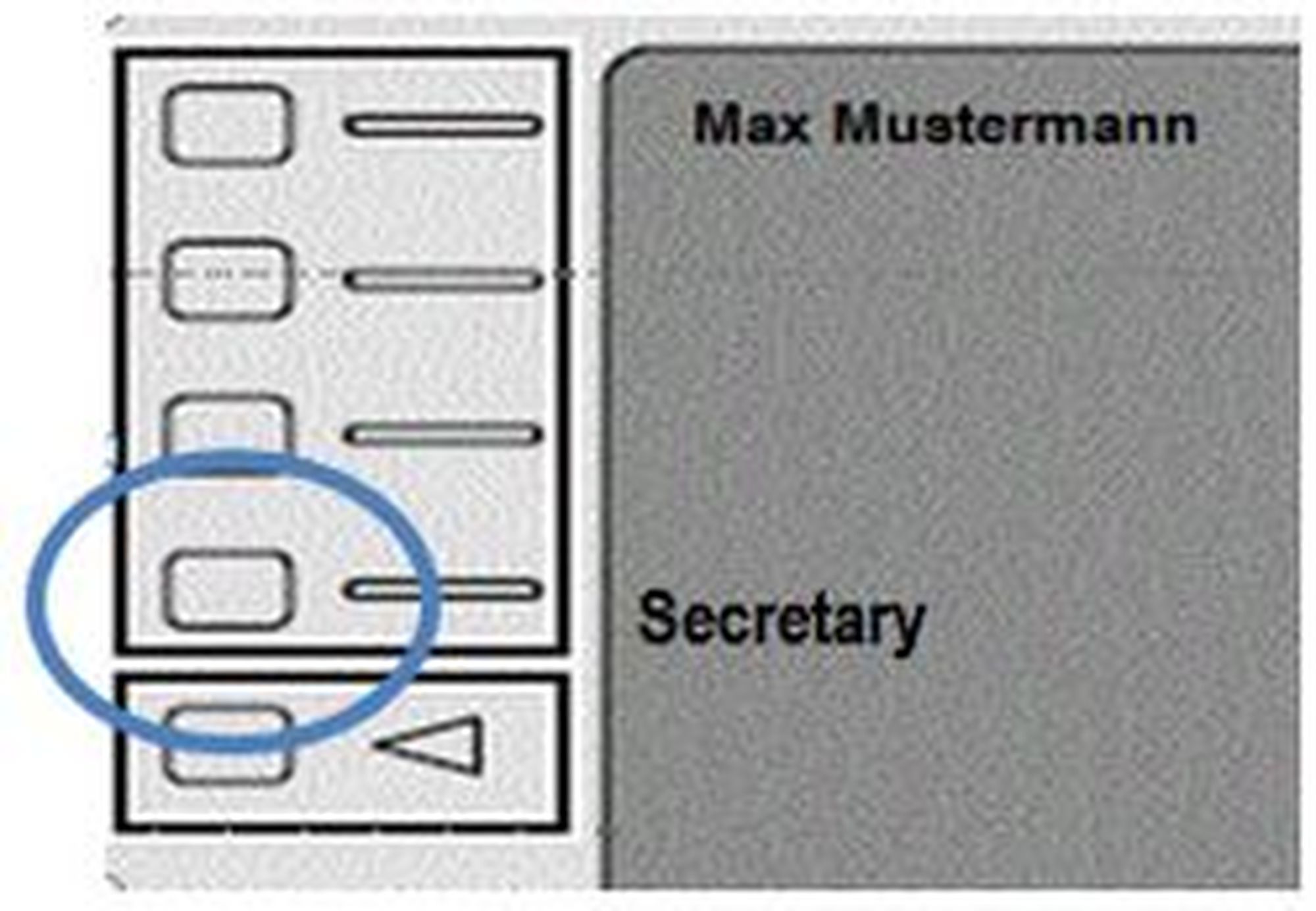
Function code
You can also program functions such as call forwarding to function keys by entering various codes (see “Functions via control codes (* codes)” leaflet). Pressing the programmed function key then activates or deactivates this function.
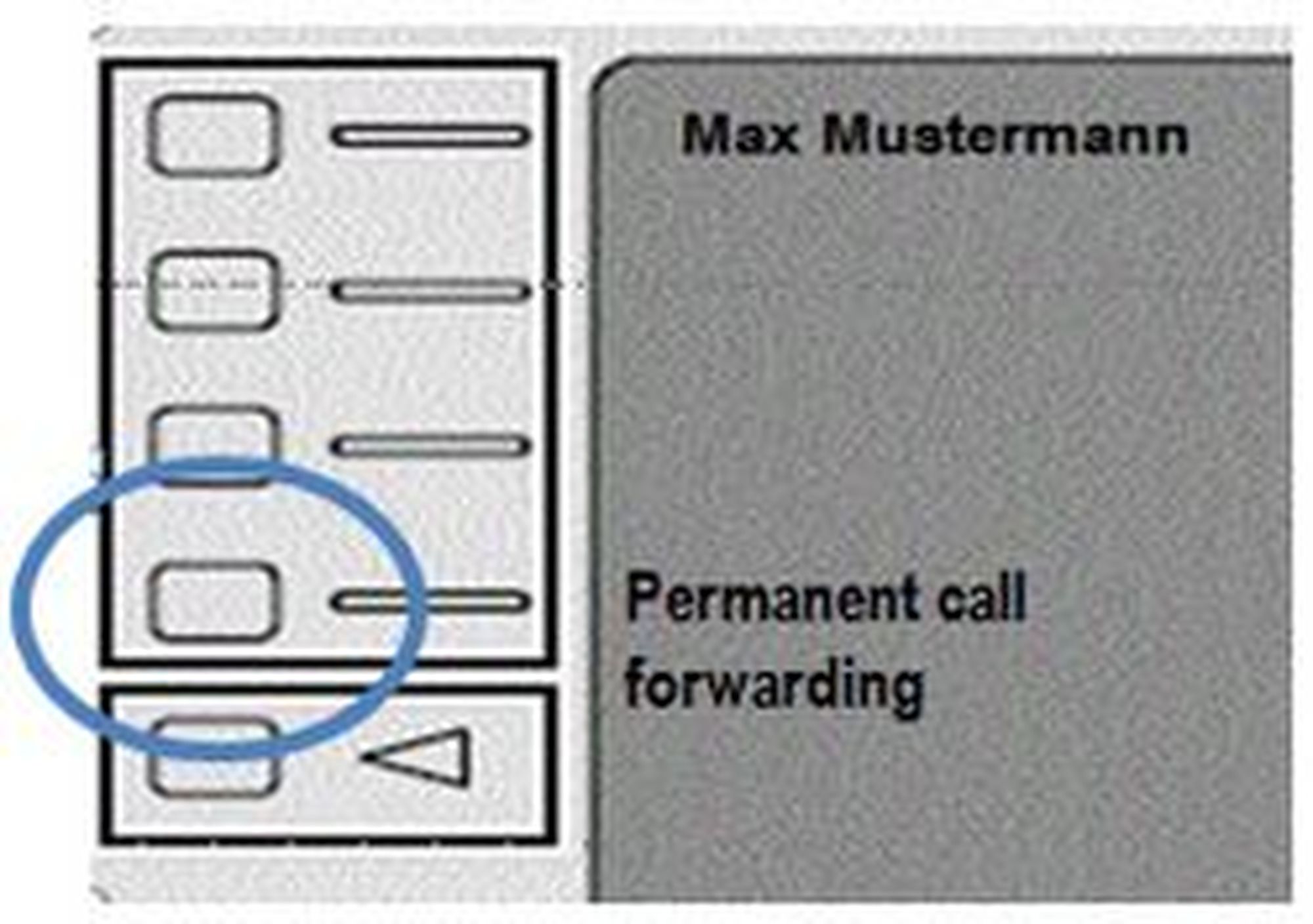
Services
Program any telephone system feature (queue, caller group, virtual conference room, etc.) to one of your function keys. This requires the service being assigned to an extension. Pressing the programmed function key then initiates a call to the service.
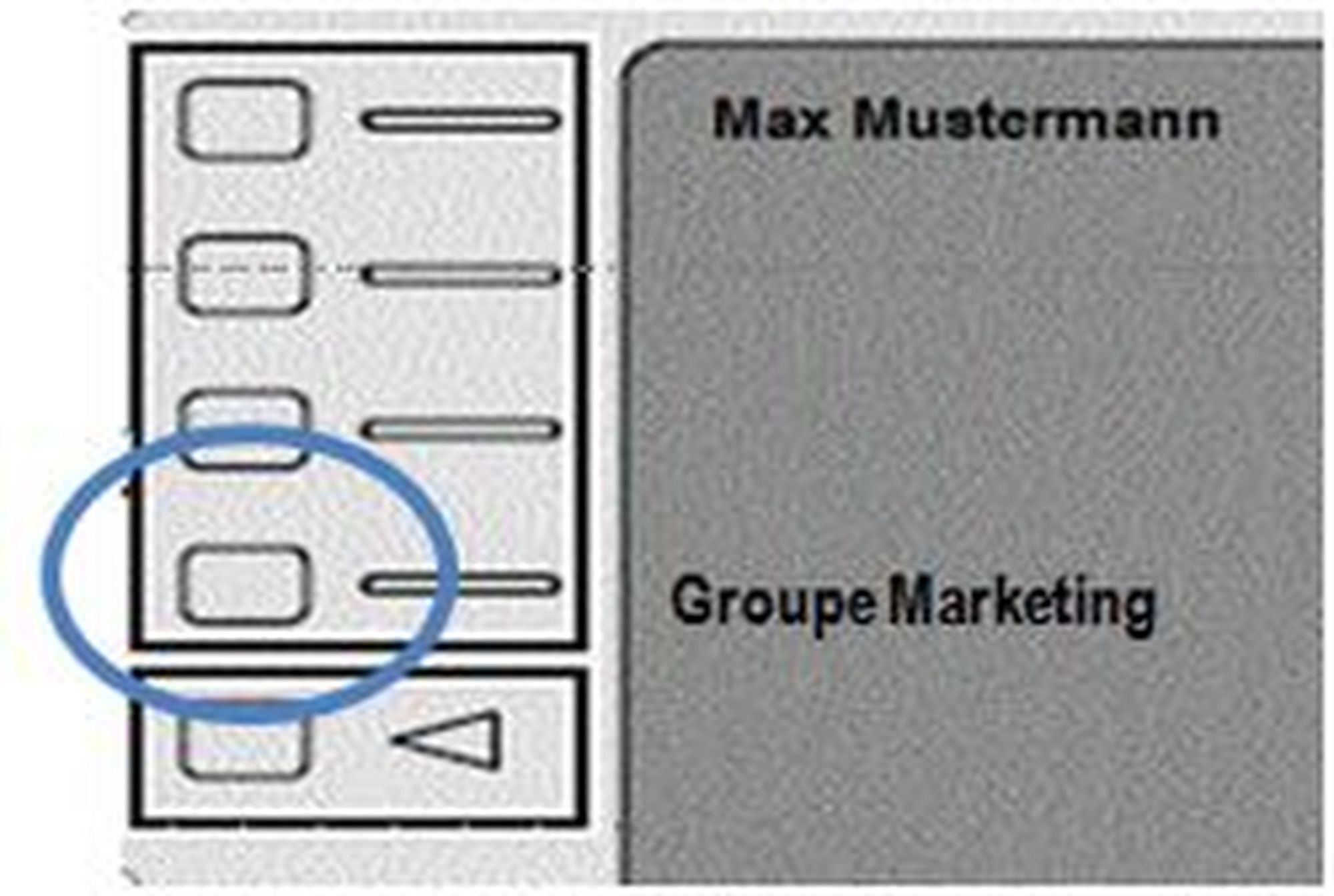
Function codes
Control codes allow direct access to the telephone system’s functions. The following codes apply:
Code | Description |
**## | Restart devices, only for snom devices! |
#+n | Use outside line "n" to call the telephone number ("n" replaces the “0” otherwise required to access an outside line) |
*1 | Start and end voice recording (if this function is enabled for the extension) |
*10+profile number | Activation of the call forwarding profile |
*11+TN | Permanent call forwarding to telephone number (TN) |
**11 | Cancel permanent call forwarding |
*12+TN | If not available, forward to telephone number (TN) |
**12 | Cancel call forwarding if no answer |
*13+TN | If busy, forward call to telephone number (TN) |
**13 | Cancel call forwarding if busy |
*14+TN | If not registered, forward to telephone number (TN) |
**14 | Cancel forward if unregistered |
*2+Speed dial | Directly dial the extension/telephone number via speed dial |
*3 | Pick up the last call ringing in the pick-up groupe |
*3+EXT | Pick up call coming in to the extension (EXT) |
*490 | Activate call waiting |
**490 | Deactivate call waiting |
*5 | If busy, automatic callback activated |
**5 | If busy, automatic callback deactivated |
*55 | Specify primary device within a premium extension (Premium Package) |
*72+nnnn1 | Call skill service nnnn |
*73+nnnn1 | Call eFax additional costs will occur |
*74+nnnn1 | Call time control nnnn |
*75+nnnn1 | Call group nnnn |
*76+nnnn1 | Call announcement nnnn |
*77+nnnn1 | Call queue nnnn |
*78+nnnn1 | Call conference service nnnn |
*791 | *791 - Access voice mail for this extension with password *791158 - Access voice mail for extension 158, with the password for 158! *11*791 - Transfer your calls to your voice mail *11*791158 - Transfer your calls to the voice mail of the extension 158 |
*792 | Access voice mail entering extension number, e.g. for remote enquiry |
*80 | Activate intercom |
**80 | Deactivate intercom |
*80+EXT | Intercom to extension (EXT) |
*84+nnnn1 | Become member of the queue with service ID nnnn |
**84+nnnn1 | Leave queue with service ID nnnn |
*85 | Echo extension |
*86 | Block caller ID (CLIR) |
*860 | Show main number as telephone number |
**86 | Show telephone number incl.direct dial (CLIP) |
*87 | Subscribe to Skill-set |
**87 | Unsubscribe to Skill-set |
*9+Project Number | Define a project number for outbound calls. (Note: The project number is only valid for the very next outbound call) |
Function codes for conference rooms during an active conference. | |
** | Help |
*2 | Activate or deactivate mute |
*3 | Express your needs |
*5 | Activate or deactivate mute of all participant |
*6 | Lock the conference |
1) nnnn is the four digit Service ID with leading zeros (0). For example, in a callgroup, IVR, eFax, etc. This means: is the Service ID "1", "0001" must be entered when entering the function code. |