1. Basic functions
1.1. Overview of keys
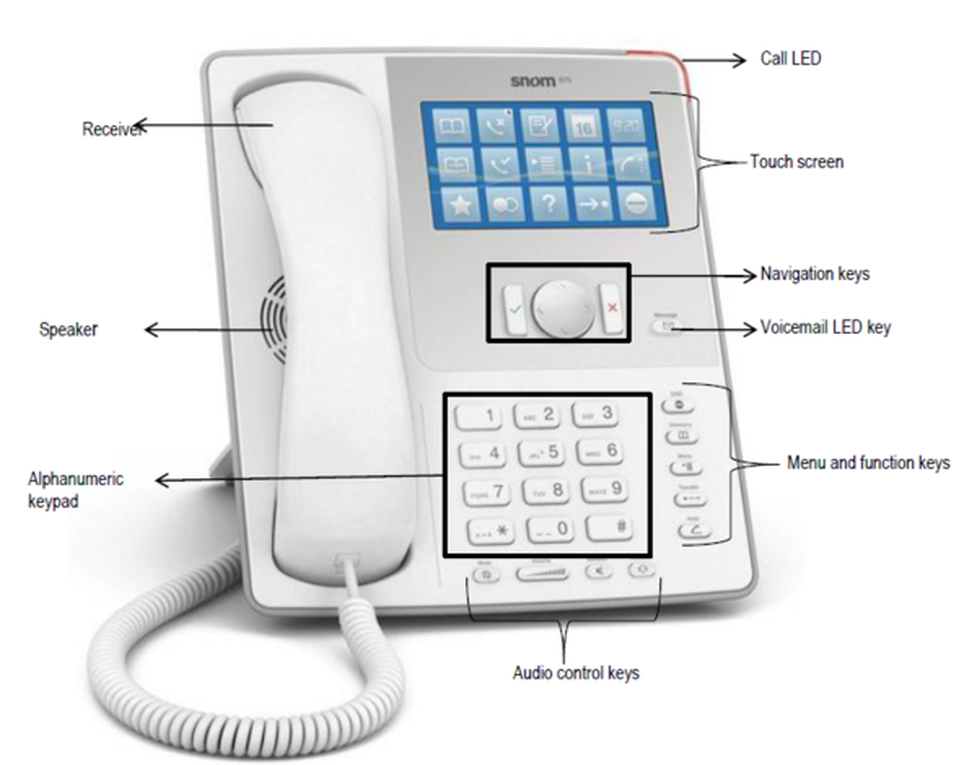 |
1.2. Keys in detail
Key | Description | Key | Description | ||
| Navigation Key |
| Phone book | ||
| • Home screen: Help / Settings • Lists / Key menus: up / down |
| Menu | ||
| • Home screen: List of incoming calls • Text fields: Move cursor to the left |
| Call transfer | ||
| • Home screen: List of missed calls • Text fields: Move cursor to the right |
| Place call on hold / return to call | ||
| • Accepting incoming calls • Confirm action / settings |
| Volume control: Press to the left or right to raise or lower the volume. | ||
| • Home screen: Switch to function keys • Ending calls • Cancel action / settings |
| Microphone: • LED is lit:Microphone is muted • LED is off: Microphone on | ||
| New message LED key • Lights up to indicate new message • Press key to retrieve |
| Hands-free mode: • LED is lit: Hands-free mode on • LED is off: Hands-free mode off | ||
| DnD key (do not disturb) • "Do not disturb” mode on / off.The telephone does not ring, same as for "call forwarding... delayed” to the caller |
| Headset: • LED lit: Headset mode on • LED is off: Headset mode off |



1.3. The touch screen
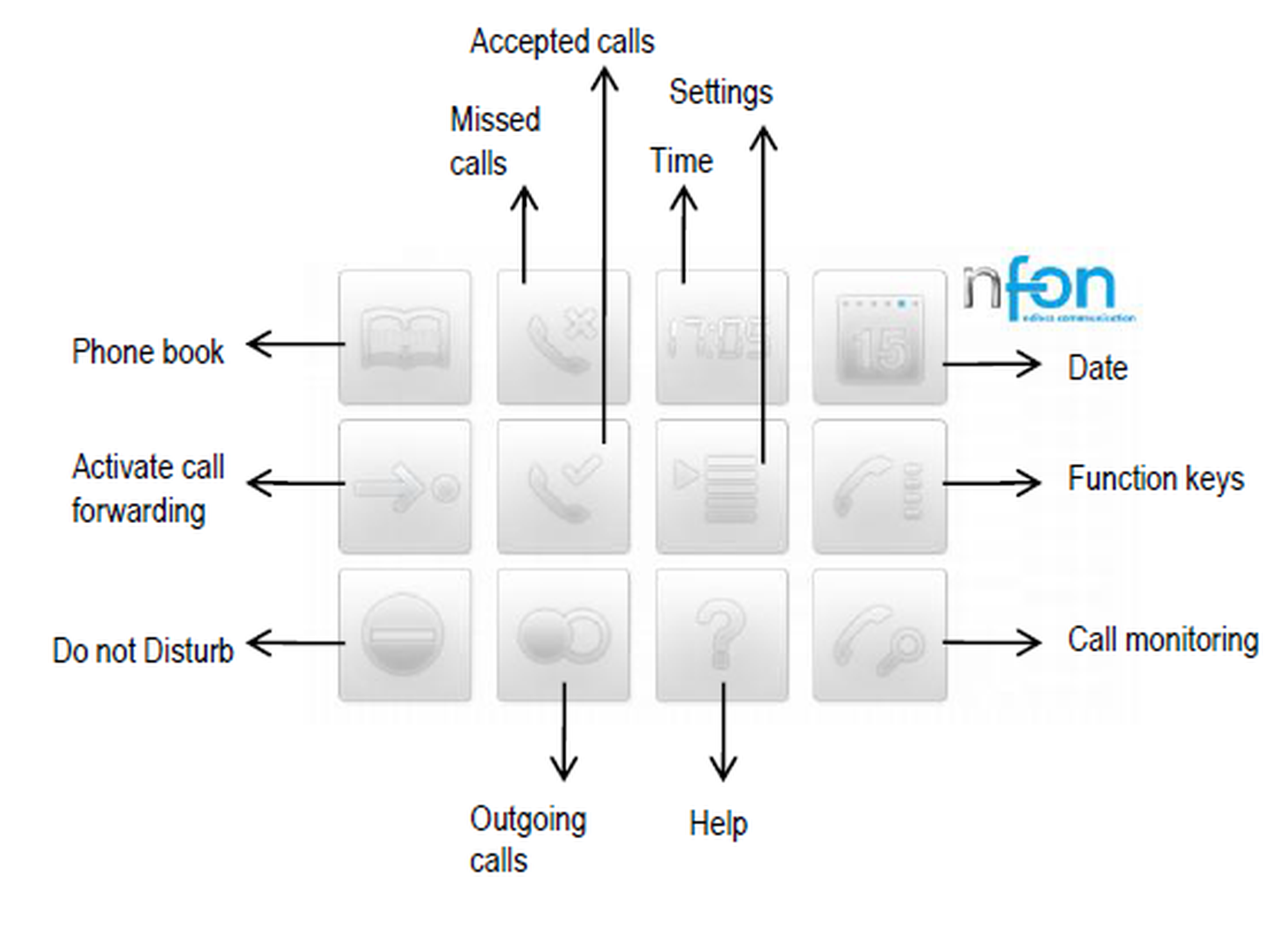
Idle screen (home screen)
The idle screen provides direct access to many important key functions of your snom telephone.
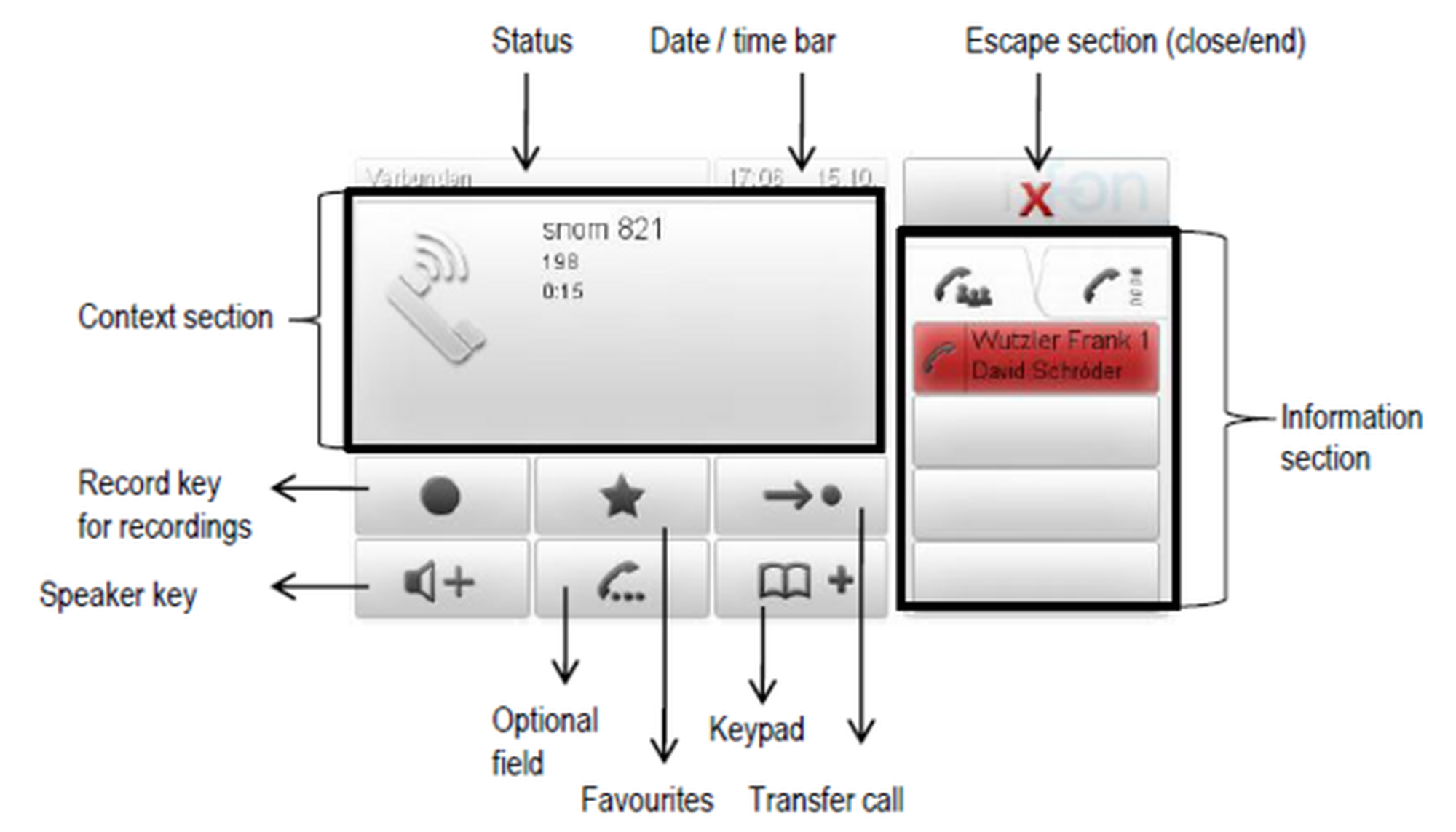
Active display
The active display provides a great deal of important information during an active call. For example, you can start a telephone conference or place the active call on hold.
1.4. Placing calls
There are various options for placing a call
With the receiver:
Pick up the receiver, enter the numbers and tap on the context area or confirm the telephone number with
 .
.or enter the desired telephone number and pick up the receiver.
With the headset:
Press
 to switch into the headset mode.
Enter the telephone number and tap on the context area or confirm the telephone number with
.
With the speaker / microphone:
Enter the telephone number and press
 .
.
Calling a number from the call list
Tap on
 ,
,  or
or  .
.The telephone numbers of recent missed, incoming or outgoing calls are shown to you in the respective list.Select the respective telephone number using
 .
.Tap on the desired telephone number, to place the call.
Calling telephone numbers from the phone book:
Tap on
 to access the phone book.
Use the arrow keys to select the respective name. You can also enter the first letter (or additional letters) to navigate through the list.
Tap on the name, to select the number.
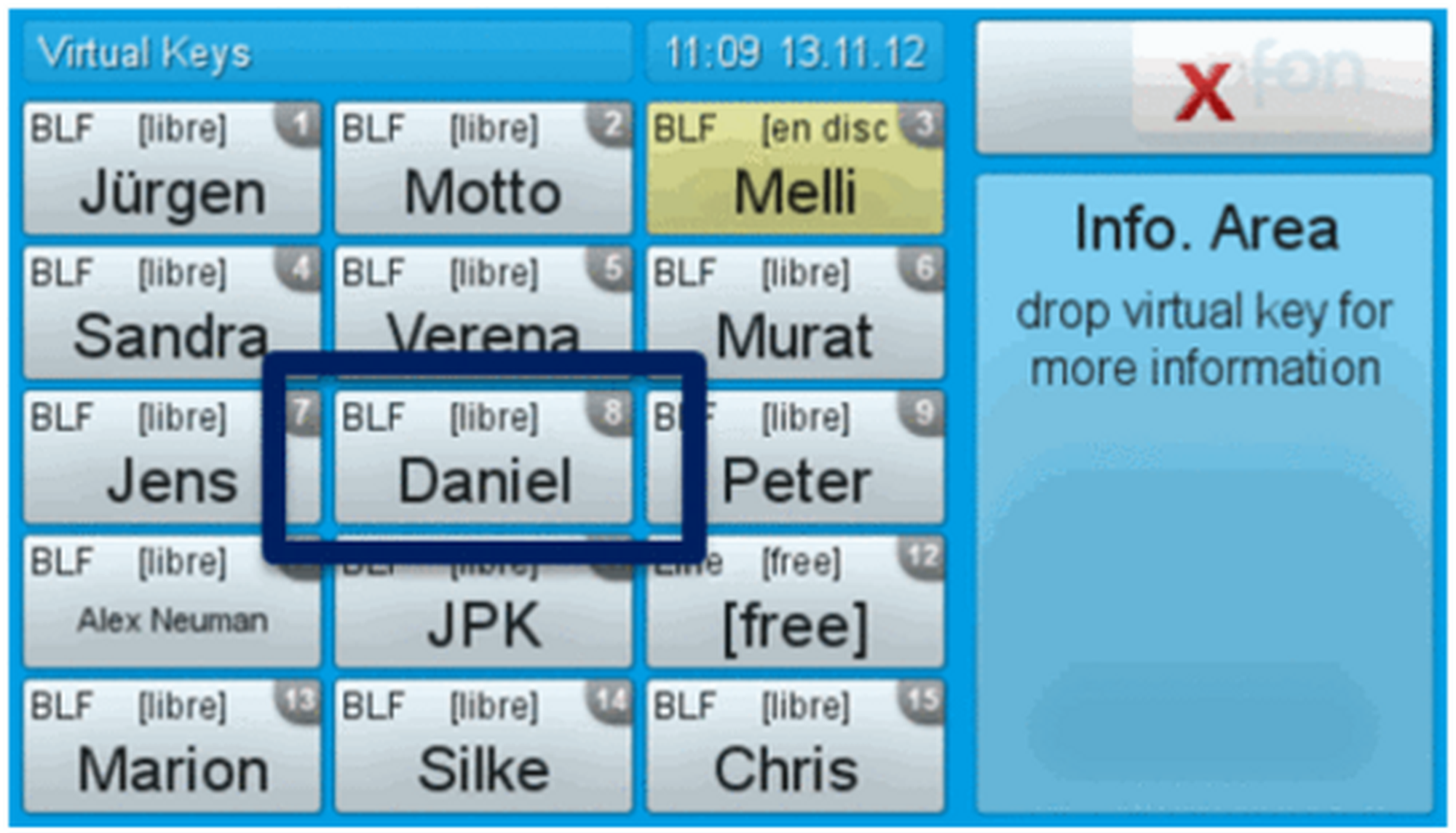
Dialling numbers via virtual keys (function keys):
Tap on
 to show the “virtual keys”.
To phone John e.g., simply press the “virtual key”. You are now connected. These function keys can be configured with nControl.
1.5. Incoming call
There are various options for answering an incoming call:
With the receiver: Pick up the receiver
With the headset: Press
 .
.With the speaker / microphone: Press
 /
/ .
.
1.6. Missed calls
Missed calls are indicated by the lit call LED and the number of missed calls in the
top right corner of the  icon . Press
  to disable both indicators.
Tip
If another call comes in during an active call, you can ignore it by pressing and holding the X key for several seconds. To end the active call first, briefly press the X key. You can then answer the incoming call.
1.7. Call pick-up
If you configure the busy field lights on the administration portal and all parties are members of a pick-up group, you can pick up calls from another extension. (For more details on configuring busy field lights, please refer to the administration portal manual)
A green key indicates an incoming call. Tap on the green key, to pick up the call. Now, you have picked up the call.
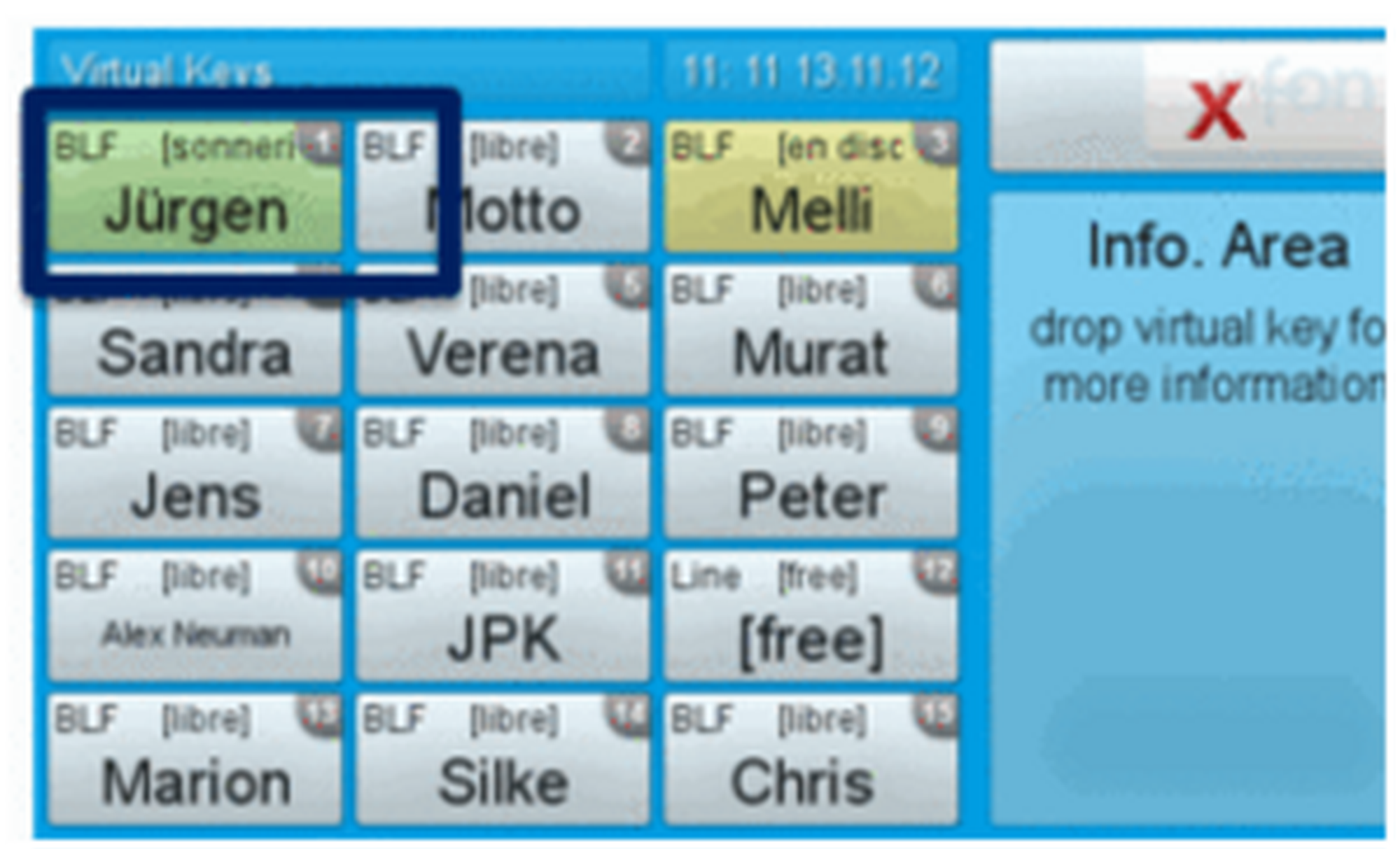
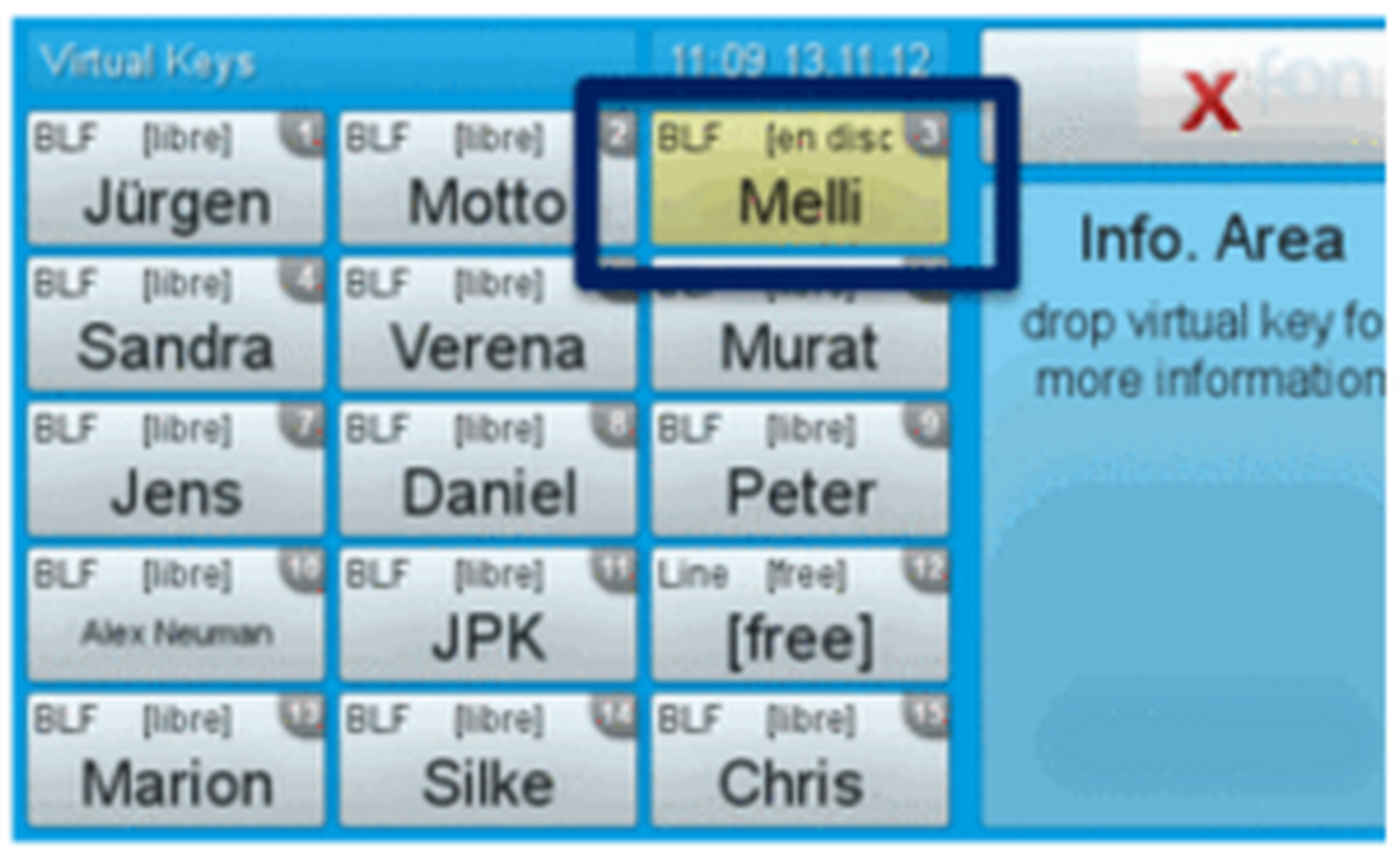
If the monitored extension is busy, the virtual function key lights up yellow.
1.8. Hold
Press the
 key or the soft key Call. The active call is now placed on “hold”.
When a call is on hold, the call LED flashes slowly. The
 icon on the key in the information section indicates the line, on which the call is on hold.
Press
again or drag & drop the call on hold to the context section again. The call is no longer on hold.
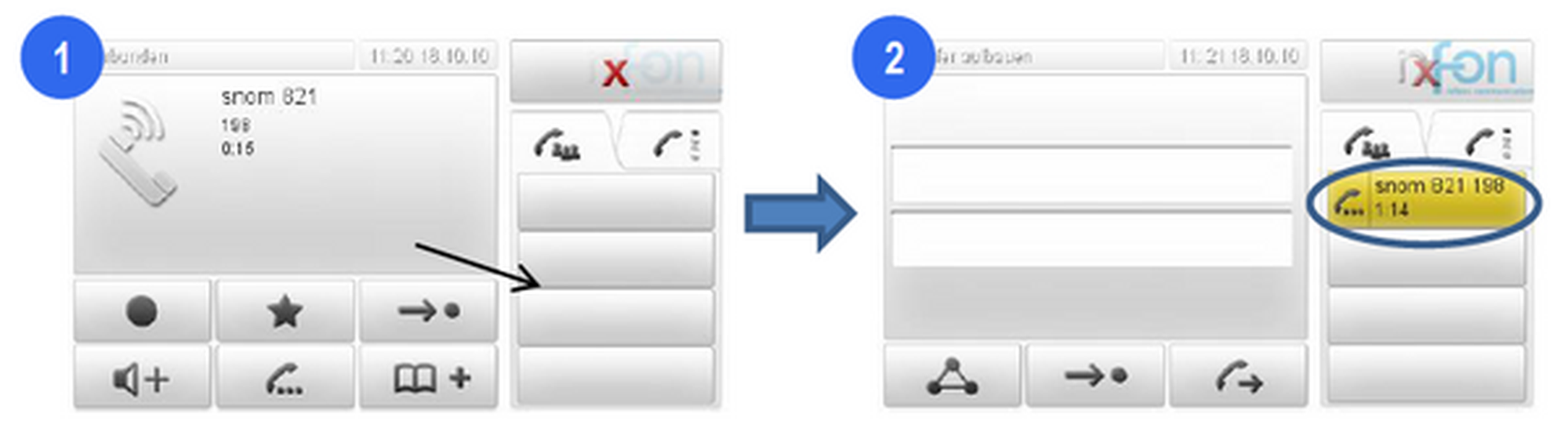
With one or multiple calls on hold, you can take additional calls and place them on hold.
To return to a call on hold, simply tap on the respective call on hold.
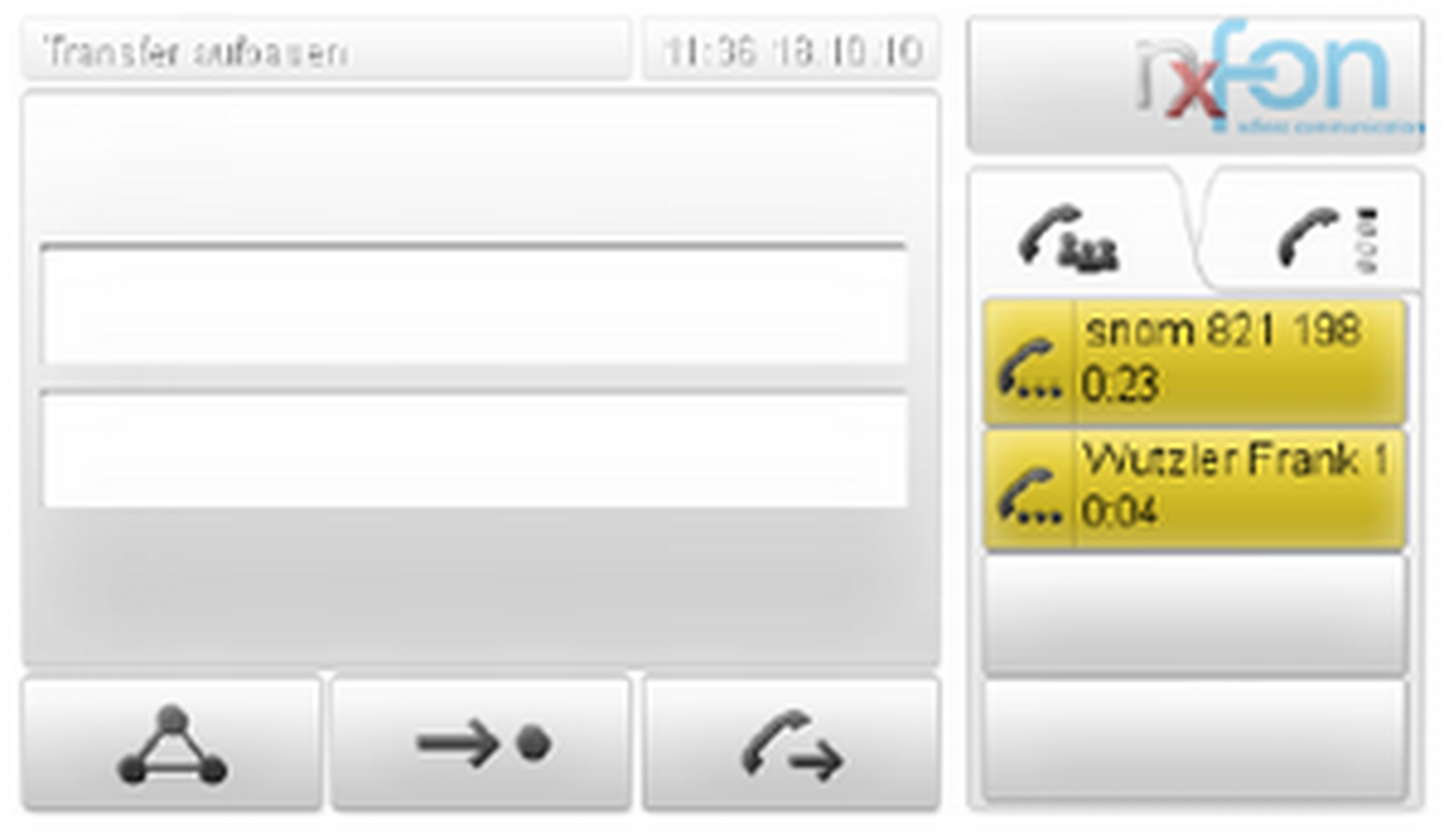
1.9. Conference calls
The telephone allows you to set up a 5-party conference call.
Put the first party of a conference call on hold (see 1.8. Hold).
Call the next participant, then drag and drop the first participant on hold to the context section.
Press
or tap  on to activate the speaker, if necessary.
To remove a party from the conference call, simply drag & drop the respective party from the context section into the information section. Press
 to place all parties on hold.
1.10. Attended call transfer
Place the call on hold (see 1.8. Hold)
Dial the number of the other extension and announce the call being transferred.
If the party accepts the call, tap on
 .
.Drag & drop the call on hold into the text field.
Tap in the text field or press
.
1.11. Unattended call transfer
Place the call on hold (see 1.8. Hold).
Tap on
.Enter the number you would like to transfer the call to.
Tap on the text field or press
.