1. Basic functions
1.1. Overview of keys
snom D710/D712/D715
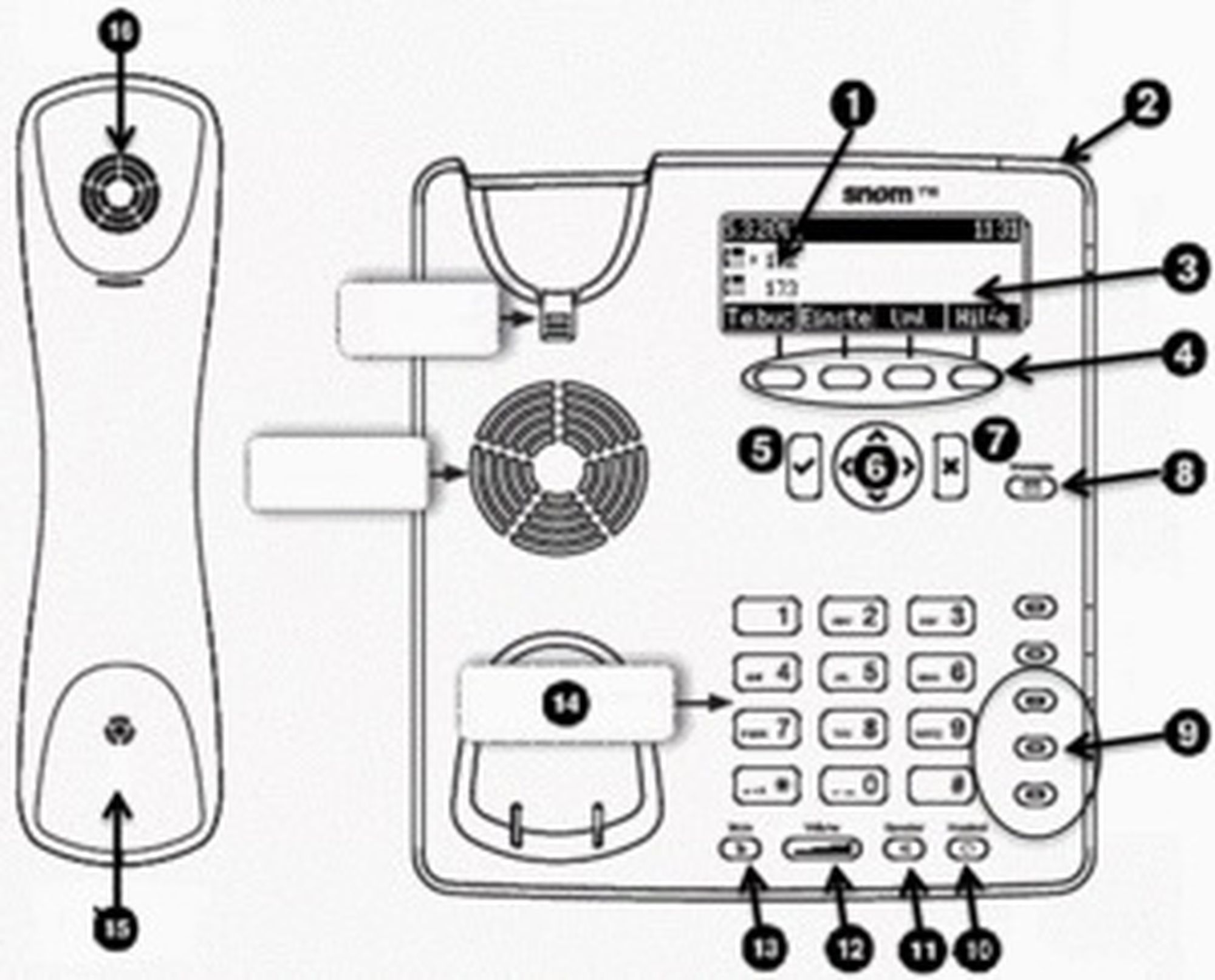
1 | Telephone status |
2 | LED call indicator |
3 | Display |
4 | Soft keys |
5 | Confirm key |
6 | Navigation key |
7 | End key |
8 | VoiceMai key with LED |
9 | Freely programmable function keys with LEDs |
10 | Freely programmable function keys with LEDs |
11 | Speaker key with LED |
12 | Volume key |
13 | Mute key with LED / DND key when in idle mode |
14 | Alphanumeric keypad |
15 | Receiver microphone |
16 | Receiver speaker |
snom D717

snom D725
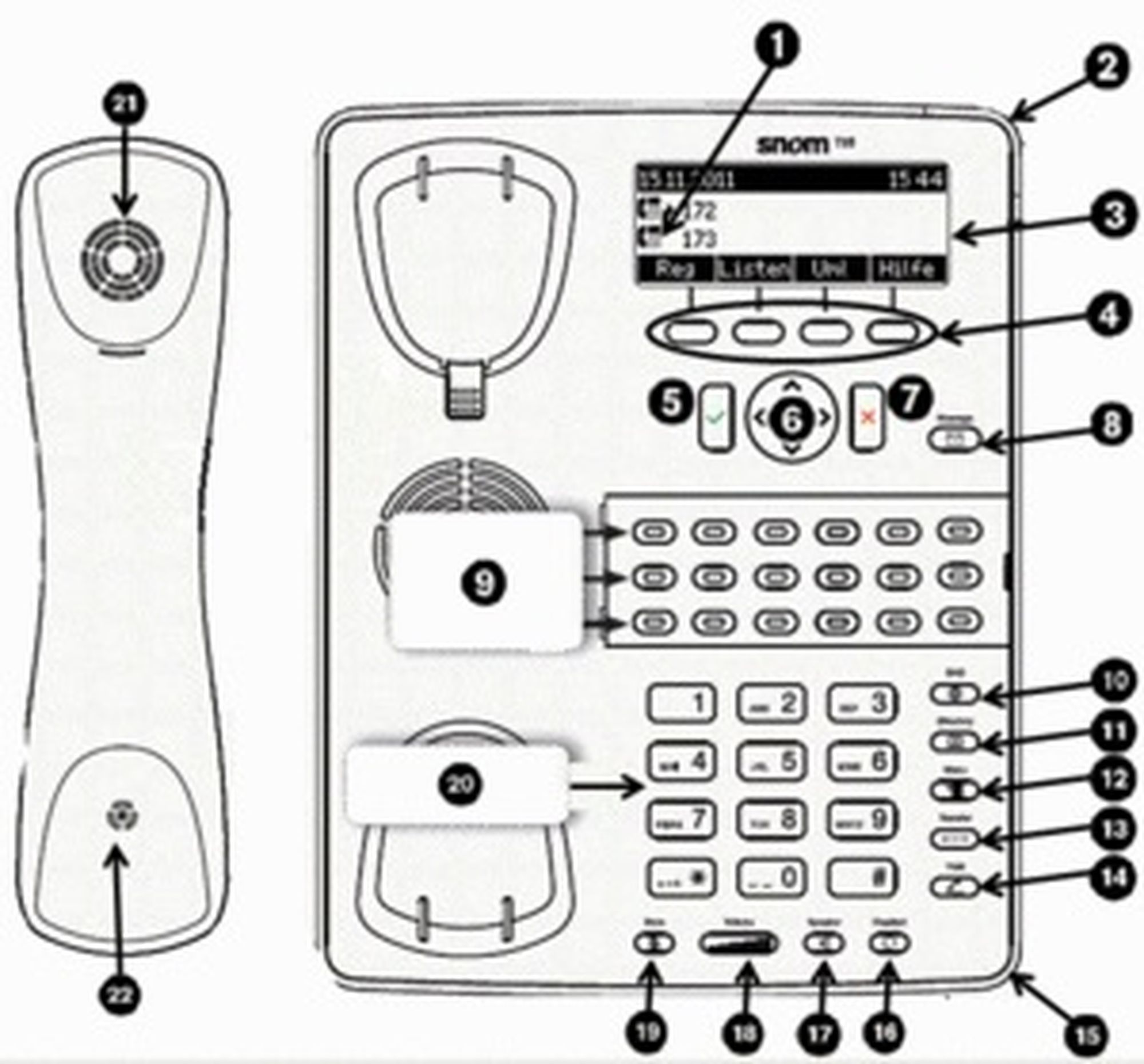
1 | Telephone status |
2 | LED call indicator |
3 | Display |
4 | Soft keys |
5 | Confirm key |
6 | Navigation key |
7 | End key |
8 | VoiceMai key with LED |
9 | Freely programmable function keys with LEDs |
10 | DnD key (do not disturb) |
11 | Phone book key |
12 | Menu key |
13 | Transfer key |
14 | Hold key |
15 | Microphone for speaker function |
16 | Headset key with LED |
17 | Speaker key with LED |
18 | Volume key |
19 | Mute key with LED |
20 | Alphanumeric keypad |
21 | Receiver microphone |
22 | Receiver speaker |
snom D735
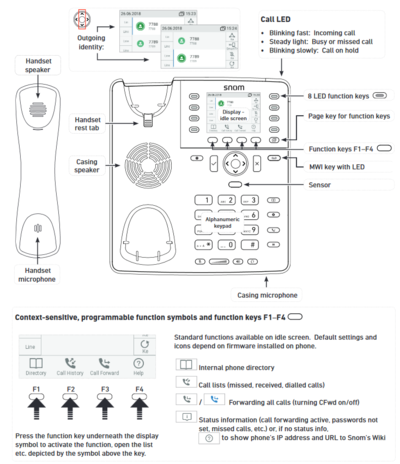
snom D745
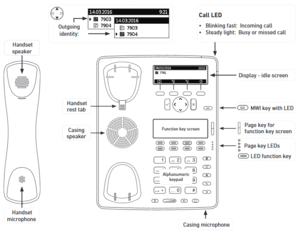
snom D765
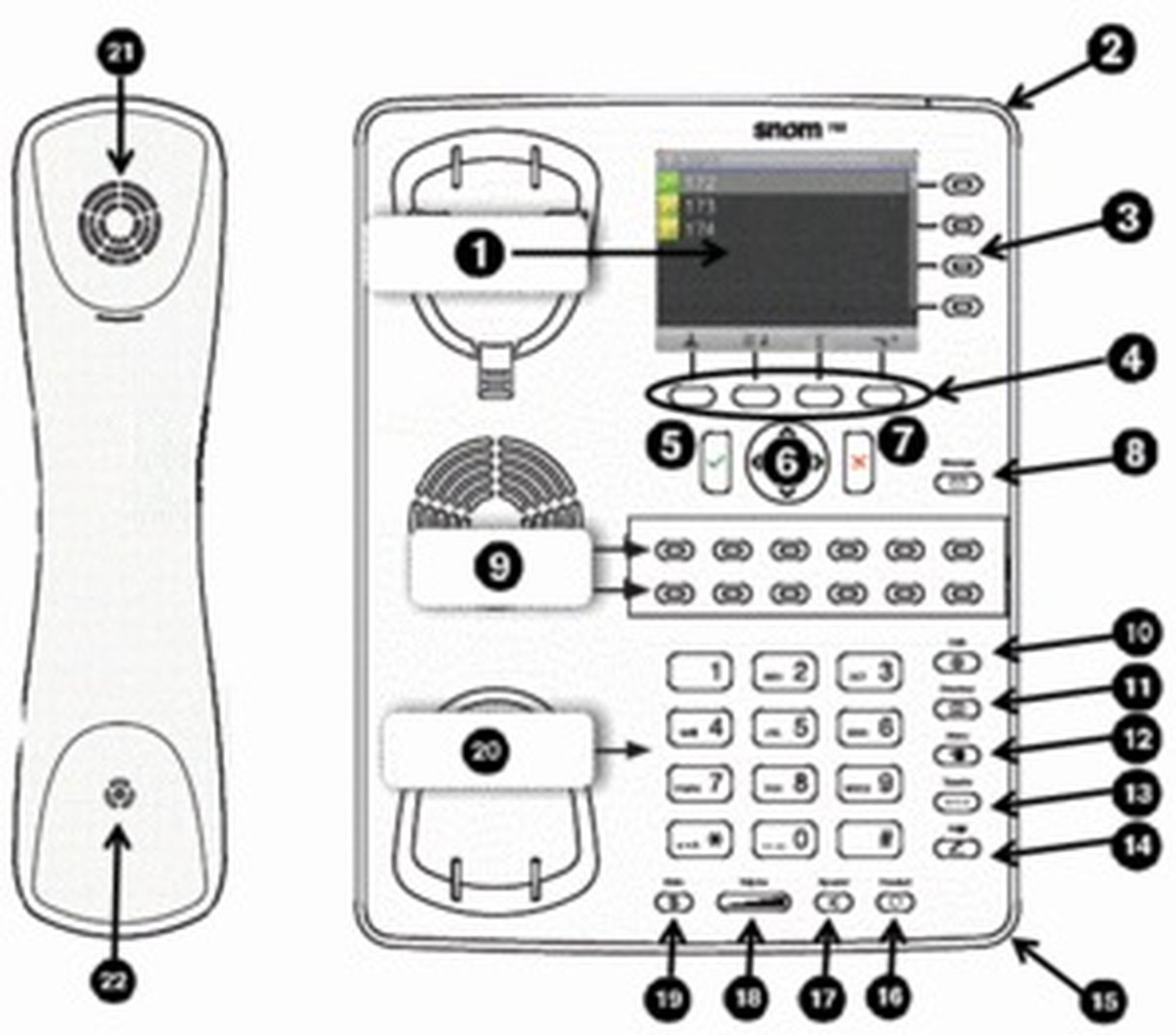
1 | Display |
2 | LED call indicator |
3 | Not programmable line keys |
4 | Soft keys |
5 | Confirm key |
6 | Navigation key |
7 | End key |
8 | VoiceMai key with LED |
9 | Freely programmable function keys with LEDs |
10 | DnD key (do not disturb) |
11 | Phone book key |
12 | Menu key |
13 | Transfer key |
14 | Hold key |
15 | Microphone for speaker function |
16 | Headset key with LED |
17 | Speaker key with LED |
18 | Volume key |
19 | Mute key with LED |
20 | Alphanumeric keypad |
21 | Receiver microphone |
22 | Receiver speaker |
snom D785
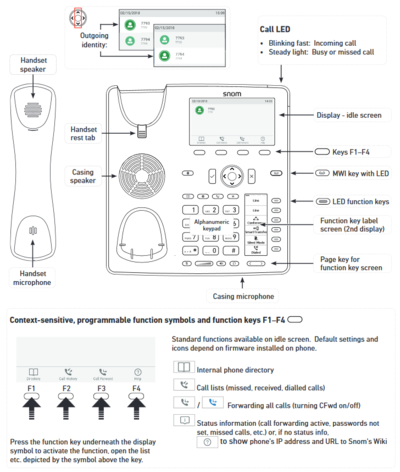
Keys in detail:
| Use the toggle key to browse through the display. On the home screen: Down: Settings Up: Call lists | |
| Confirms an action, selection or entry | |
| Cancels an action, selection or entry | |
| Mutes the microphone during a call | |
| Adjusts the receiver volume or the ring tone volume | |
| Hands-free mode (answering possible) | |
| Headset mode | |
| Access voicemail | |
| Do not Disturb mode on / off. Extension works as in “Delayed call forwarding”. | |
| Phone book (Set up via the administration portal) | |
| Menu | |
| Transfer call | |
| Hold call | |
Hold key on snom D735 and D785 |


LED indicators
Call LED*
Rapidly flashes red with an incoming call.
Continuous, bright red while dialling, during a call and when a call is placed on hold.
Continuous somewhat less intensive red indicates a missed call.
Function keys LED
The standard setting is “Line”. I.e., if the first four freely programmable function keys are not programmed, the function keys with LEDs can be used as line keys.
Rapidly flashing green when the respective line has an incoming call.
Continuous green when the line is in use.
Slowly flashing green when the line has a call on hold
Voicemail LED
A continuous red light indicates a new message has been saved in voicemail.
*The LED indicator of snom 710 flashes solely in green color.
1.2. Outgoing call
Note:
When dialling an internal telephone number, only the extension needs to be entered.
When dialling external telephone numbers, you must first dial ‘0’, then enter the external number.
Selecting the audio component
1.) Receiver
Pick up receiver, enter number and press
 .
.Enter number and pick up receiver.
2.) Headset
Enter number and press
.
3.) Speaker / microphone
Press the speaker key to activate the speaker or the microphone respectively.Enter the number and press
.
Dialling a number from the call lists
Go to “Lists” and select the respective list. Press
to open the desired list.Select the number you would like to phone and confirm with
.
Calling from the phone book
Press the phone book key.
Enter the initial letter of the name or additional letters as necessary. You can also use the arrow keys.
Press
to select the respective number.
1.3. Incoming call
There are various options for answering an incoming call:
With the receiver
Pick up the receiver.
With the headset
Press.
With the speaker / microphone
Press the speaker key
 to activate the speaker / microphone and answer the call.
1.4. Hold
Press the hold key
 /
/ (on snom D735 and D785) to place the active call on hold.
Calls on hold are indicated in three ways:
by the display text
the slowly flashing green/red line LED (i.e., when the first four freely programmable function keys are not programmed; on snom D735 and D785 the LED flashes red only
and with the continuous red call LED.
Calls on hold can now be transferred or other calls can be made or put on hold.
Press the hold key
/ (on snom D735 and D785) or the respective line key, to return to the call on hold. If the party on hold hangs up while on hold, the connection is terminated.
Note
Please click on the soft key "Hold" under the display to use "Hold" with snom D710/D712.
1.5. Call waiting and toggling calls
If a call comes in while you are on a call, the display shows an icon with a ringing receiver and a double call waiting tone (double beep) can be heard.
Options
You can answer the incoming call, which automatically places the active call on hold.
Ignore the incoming call with
 . The caller hears a busy tone.
You can also transfer the incoming call without announcing it.
Note
In case of an incoming call during an active call, you can reject the call by holding the X key for several seconds. To end the active call first, briefly press the X key. You can then accept the waiting call.
On the snom D710/D712, please press the "Trans" soft key to forward the active call. Then you can accept the incoming call.
For Snom D735/D785: In case of an incoming call during an active call, click on the icon with the ringing handset and then briefly on X.
1.6. Call transfer
There are two options for transferring a call:
Attended call transfer
Press the hold key , on snom D735 and D785 the hold key is different and looks like this  .
.
Dial the number of the other extension
Confirm with
.
When the call is answered, announce the call being transferred.
Press the transfer key
 .
.
Unattended call transfer
Press the transfer key
.Dial the number to which you are transferring the call.
Confirm with
.
Note
To perform an announced call transfer with the snom D710/D712, push the soft key Hold during an active conversation.
Dial the desired number and press the soft key Trans to transfer the call.
To perform an unannounced call transfer with the snom D710/D712, push the soft key Trans to transfer the call directly.
The remaining procedure is equal to snom D725 und D765.
1.7. 3-way calls
In order to start a three way conference, proceed as follows:
Place the two other parties on hold.
Next, press the “Conf. on” button to initiate a 3-way call. On snom D735 and D785 confirm with the soft key "Conference On"
 .
.To hold a 3-way call, press the "Hold"
button , on snom D735 and D785 press the key .To end a 3-way call, press the softkey button „Conf. on“, on snom D735 and D785 press the key
 .
.
Both parties are then placed on “hold” and you can decide whether you wish to continue speaking with a single party or hang up.
1.8. Accessing voicemail
Proceed as follows to retrieve the messages on your mailbox:
Press the voicemail key
 /
/  . It lights up, when you have received a new message.
Enter your voicemail PIN.
Then press 1 to listen to messages. After listening to the message press:
7 to delete
5 to replay the message
6 to go to the next message
To end, hang up or press the Cancel key
.
1.9. Call forwarding
Call forwarding
You can configure various call forwarding scenarios. For this purpose you can use the call forwarding profiles.
Under the telephone menu you can only edit the default profle (catch all / always) to be found under the call forwarding profiles. You can edit the remaining call forwarding profiles via Ncontrol or via the administration portal. For more information, refer to the administration portal manual and the Ncontrol manual.
The following call forwarding options are available. You can activate or deactivate call forwardings via the telephone menu's call settings.
Permanent call forwarding (always)
All incoming calls will be forwarded directly to the predefined telephone number.
Forward if busy (busy)
New calls will be forwarded immediately, when coming in during an active call. This call forwarding option functions only, if the Call Waiting function is deactivated.
Delayed call forwarding (no answer)
Call forwarding condition: You do not answer the incoming call within a defined time period (timeout). The timeout can be set to 5, 10, 15 or 20 seconds. Where should the incoming call be forwarded after the specified time has elapsed? The caller receives a call waiting signal and is then forwarded to the defined destination.
If unavailable (not registered)
The option functions only if the end device is not registered to the telephone system:
When the Internet connection fails or there is no LAN connection.
and
If “call forwarding …if unavailable” is programmed for a direct extension (e.g. extension 123 - John Doe) and a caller calls the direct dial number for the extension directly, call forwarding applies. If the extension is a member of a queue or a group and the queue or group receives a call, call forwarding for the individual extension no longer applies! In general, the destination should always be an available destination number. I.e., make sure that no voicemail or announcement comes on.
Always depose
Always depose an available telephone number as target. Ensure that no voice mail or other announcement picks up automatically.
When disconnecting
When disconnecting the connection between the end device and the telephone system, it can take up to 60 seconds for the call forwarding to work. Once the end device is reconnected to the telephone system, it can take up to 60 seconds for it to register.
Call forwarding codes
Call forwardings can alternatively be activated through * codes:
*10 | Activation of the call forwarding profile |
*11 + destination | Permanent call forwarding to telephone number |
**11 | Cancel permanent call forwarding |
*12 + destination | If no answer after a specific time, delayed call forward to telephone number |
**12 | Cancel delayed call forwarding |
*13 + destination | If busy, forward to telephone number |
**13 | Cancel call forwarding if busy |
*14 + destination | Call forwarding if unavailable |
**14 | Cancel call forwarding if unavailable |
1.10 Callback
The Completion of Calls on No Reply (CCNR) creates a callback in case a person cannot be reached (e.g. the person is not on its desk or busy) at the moment.
Note
To use this function, the CCNR function has to be enabled in the administration portal and in the phone extension. Click on the CCNR check box under Administration / Profile to activate the function.
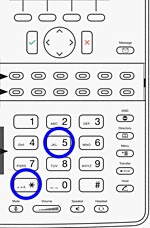
Erase Callbacks
If the callback is no longer needed, all call backs can be erased by entering the **5 code into the key pad. An acoustic confirmation finalises the erase.